Follow each numbered step. The pink box on each screenshot shows where to click.
Contents
1. My Team and person records
For: Manager
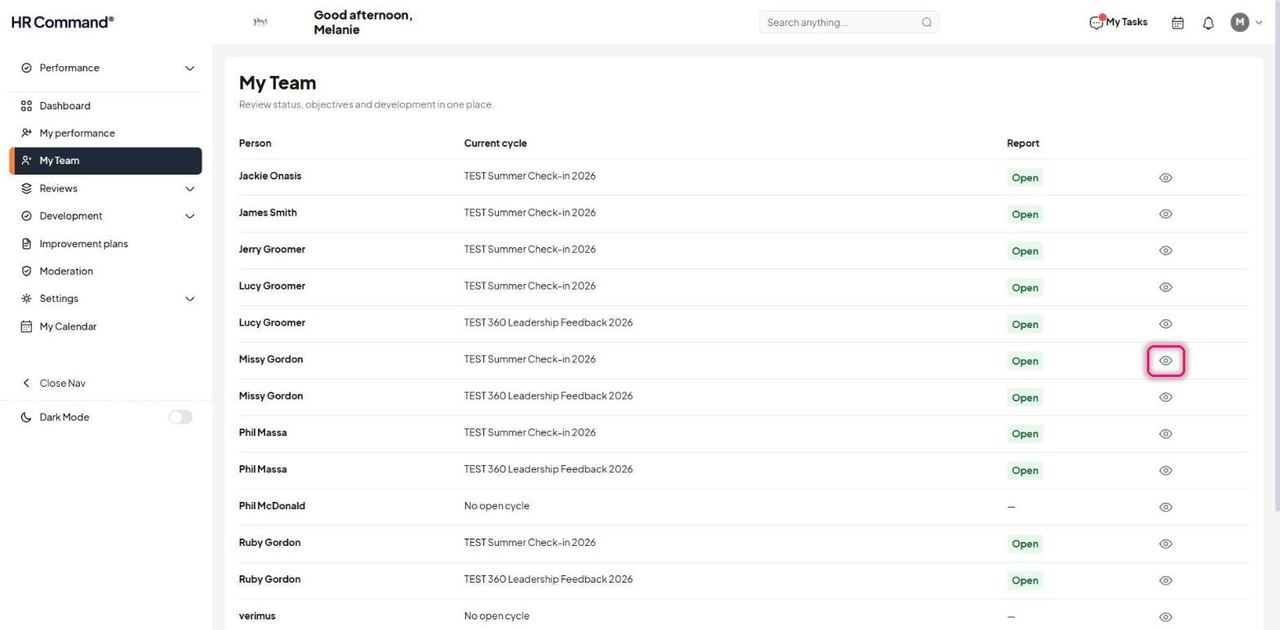
Go to My Team. Each person shows their current cycle and report status. Click the eye icon to open their record.
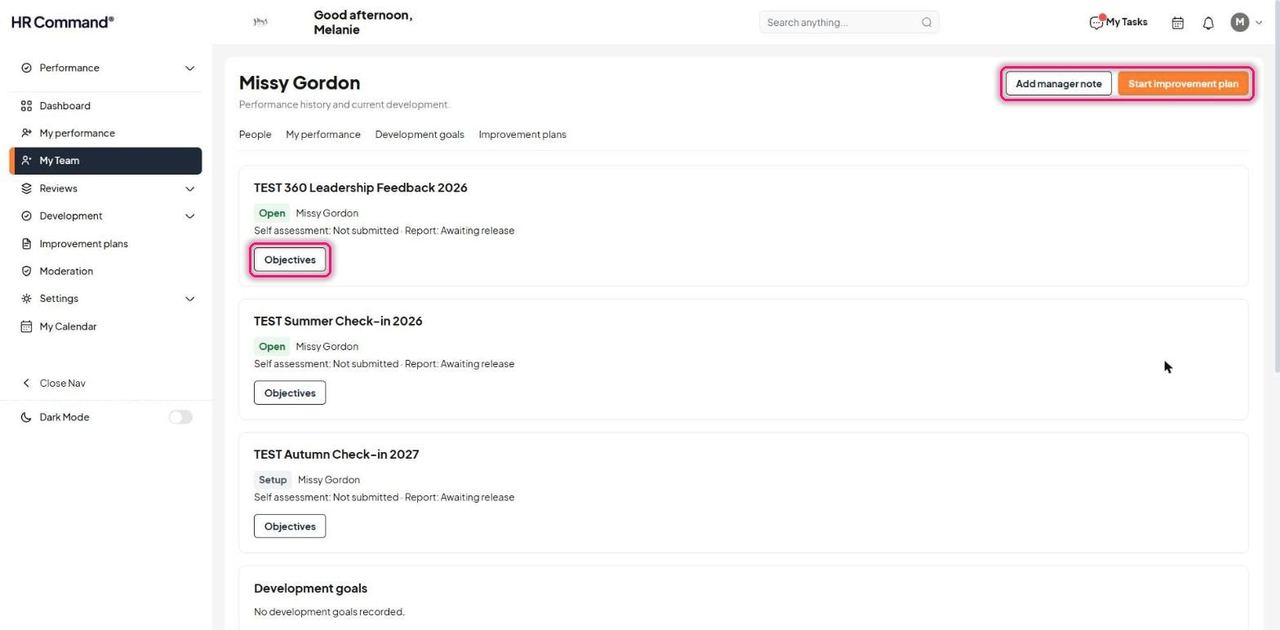
The record shows every cycle the person is in, with self assessment and report status, and an Objectives button for each. Add manager note and Start improvement plan sit at the top.
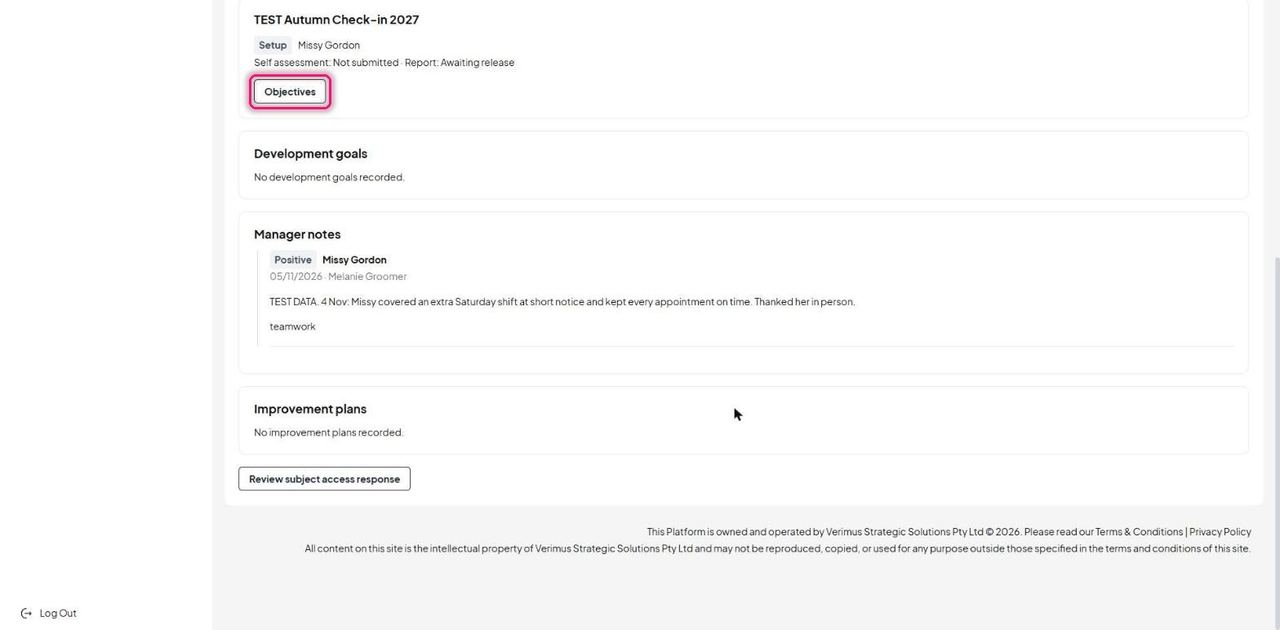
Scroll down for the person's Development goals, Manager notes and Improvement plans. Review subject access response sits at the bottom.
2. Manager notes
For: Manager
A dated record of feedback, coaching and context through the year.
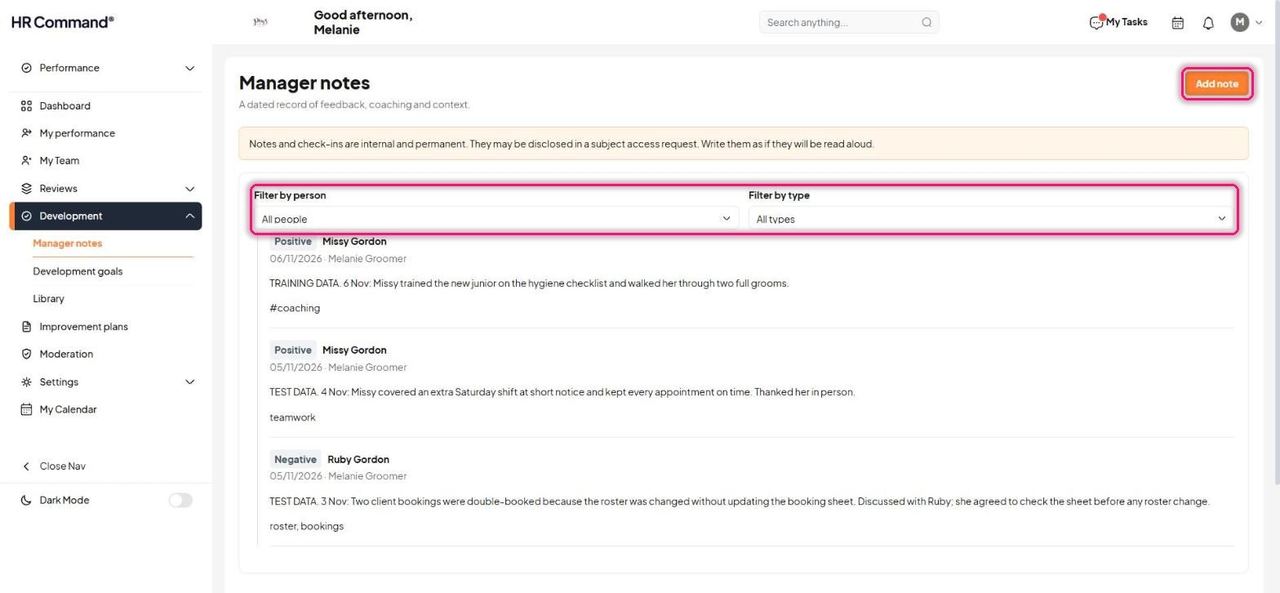
Click Add manager note on a person's record, or go to Development then Manager notes and click Add note.
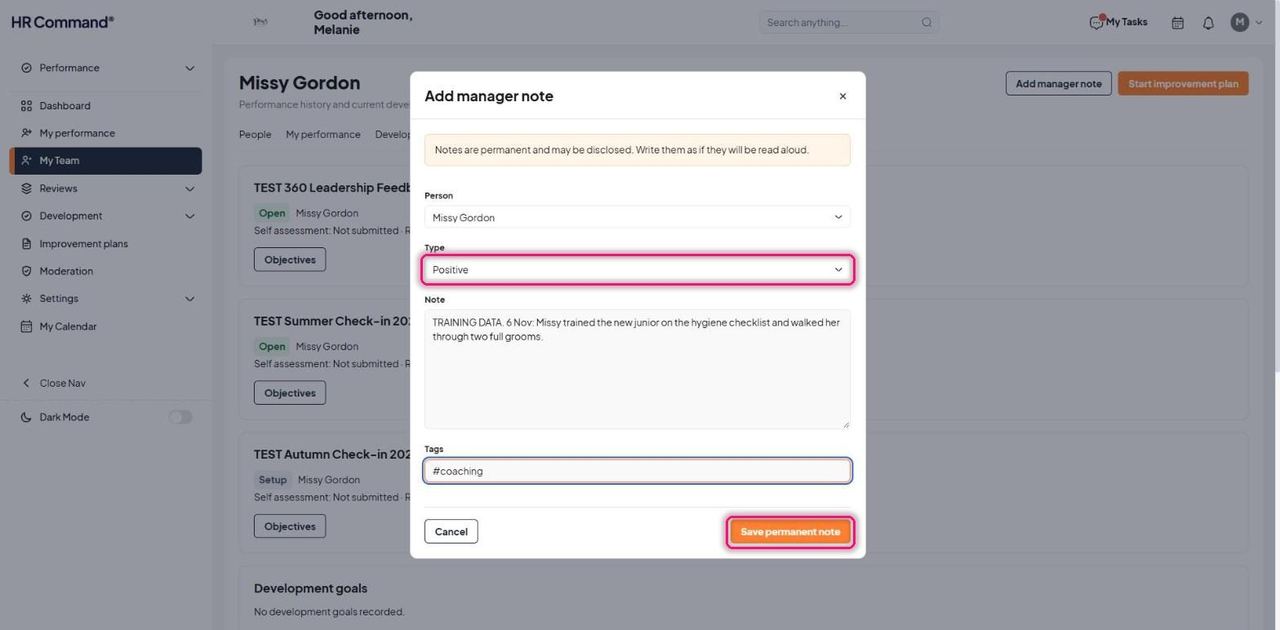
Good to know: Notes are internal and permanent. They may be disclosed under a subject access request, so write them as if they will be read aloud.
Choose the Person and Type (Positive, Negative or General). Write the Note, add Tags if useful, then click Save permanent note.
Filter the notes list by person or type, including PIP check-ins.
3. Development goals
For: Manager
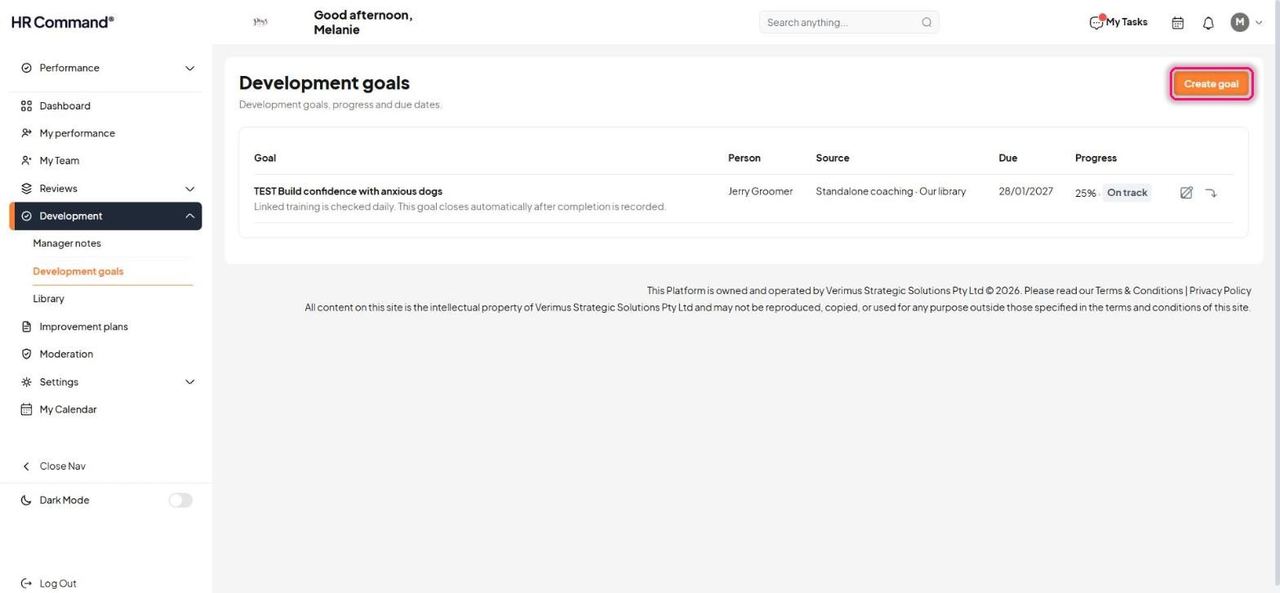
Go to Development then Development goals and click Create goal.
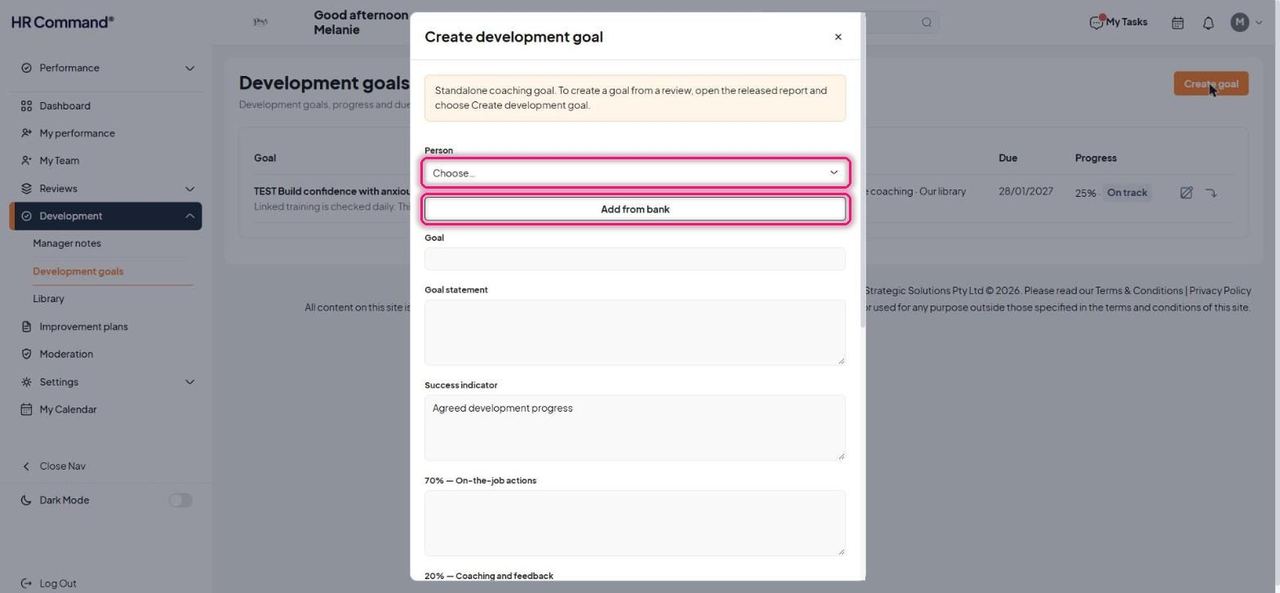
Choose the Person, then click Add from bank to start from the library, or type the goal yourself.
Good to know: This creates a standalone coaching goal. To create a goal from a review, open the released report and choose Create development goal.
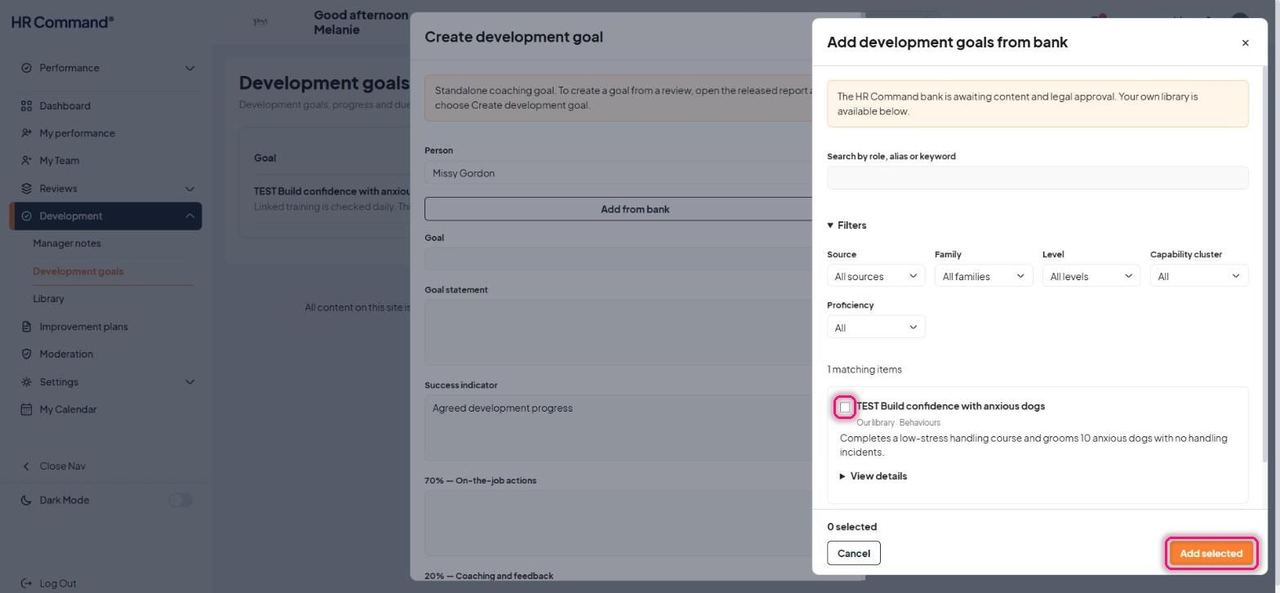
Tick a goal and click Add selected.
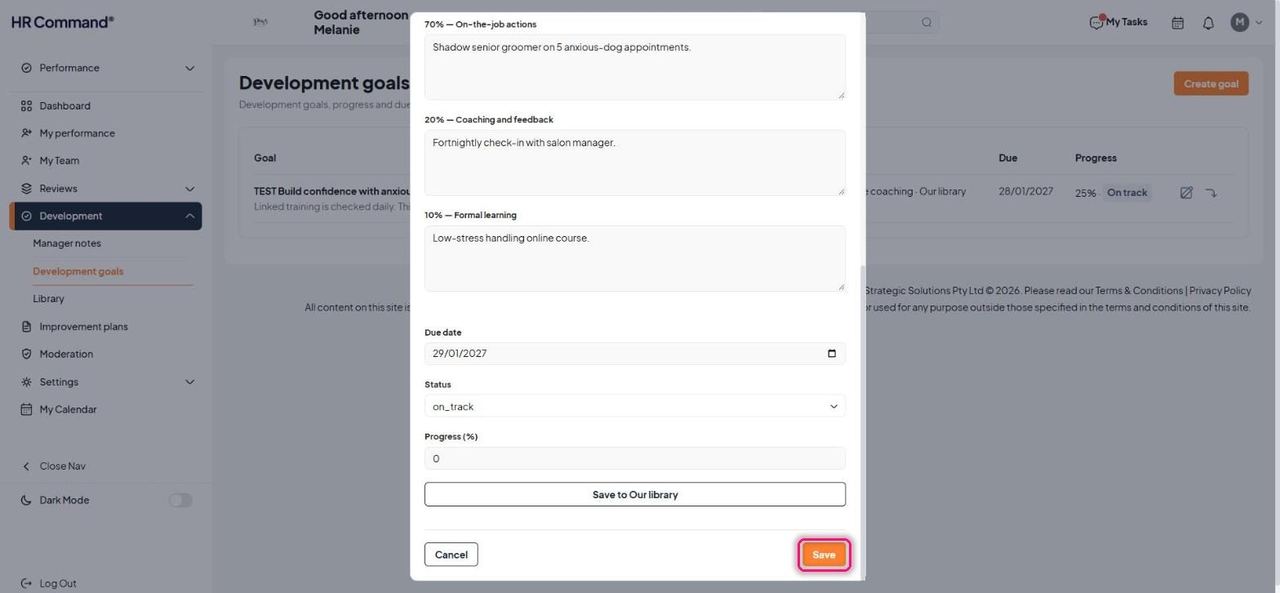
The goal fills in, including the 70% on-the-job actions, 20% coaching and feedback and 10% formal learning. Set the Due date, Status and Progress (%), then click Save.
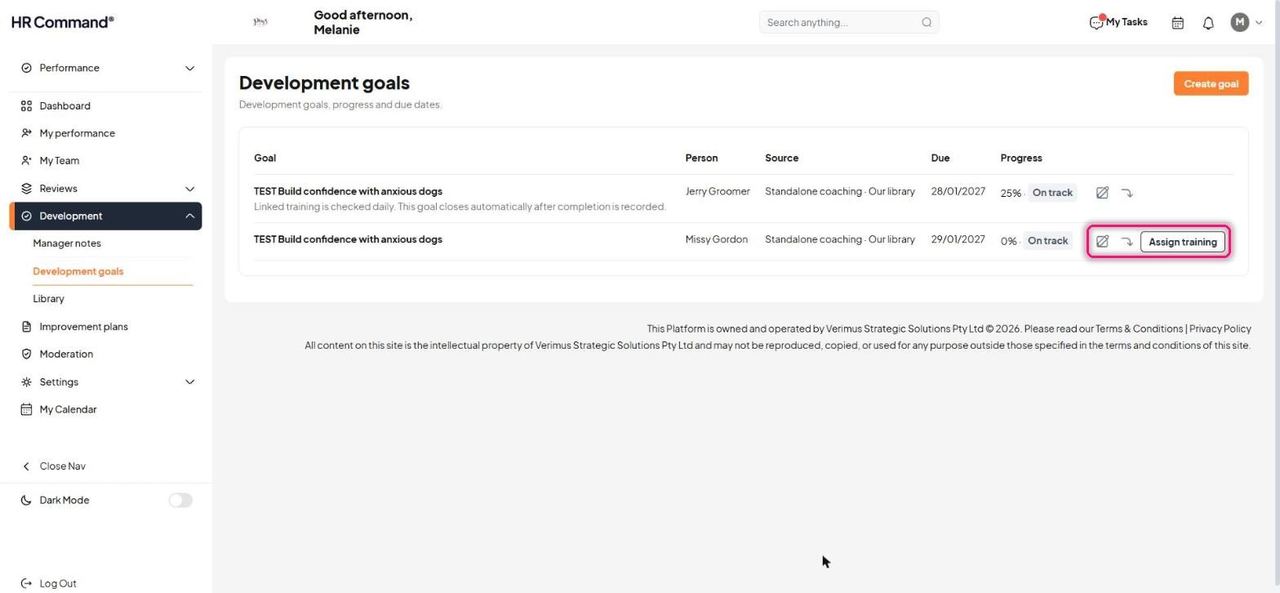
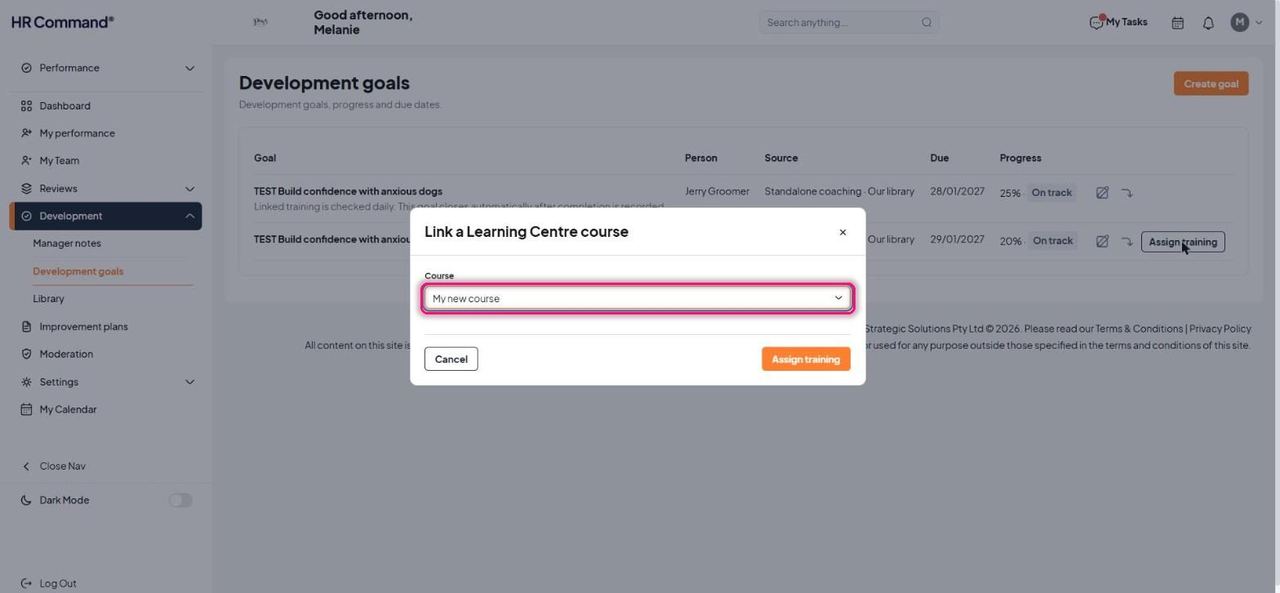
The goal appears in the list. Use the pencil icon to update it, the arrow icon to carry it forward, and Assign training to link a course.
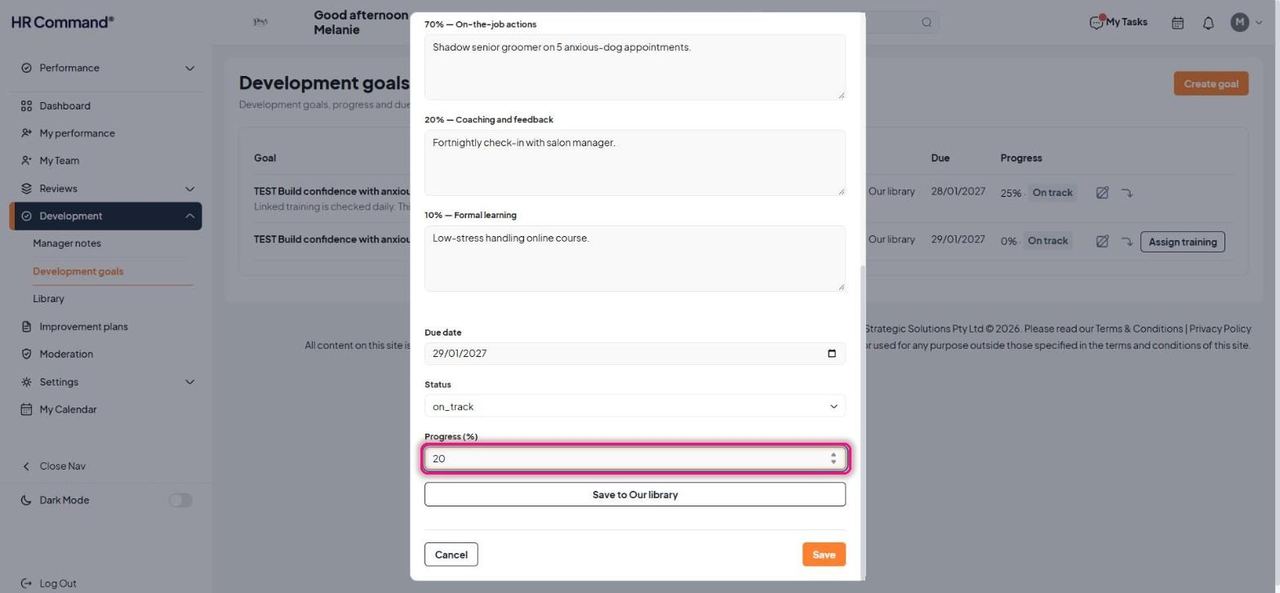
To record progress, click the pencil icon, change Progress (%) or Status and click Save.
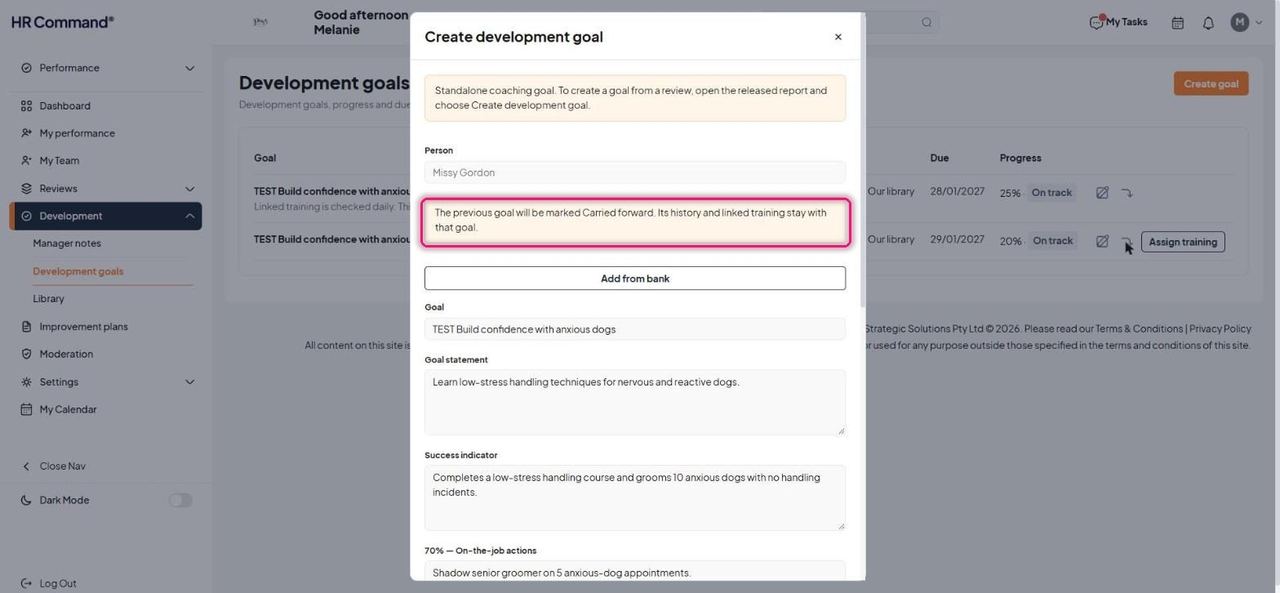
The arrow icon carries the goal into a new one. The previous goal is marked Carried forward, and its history and linked training stay with it.
Assign training links a Learning Centre course. Choose the course and click Assign training.
Good to know: Linked training is checked daily. The goal closes automatically once completion is recorded.
4. Improvement plans
For: Manager, Admin
Plans start as internal drafts. The employee is not notified until the plan is issued. Discuss wording and next steps with the Workplace Advice Line while drafting.
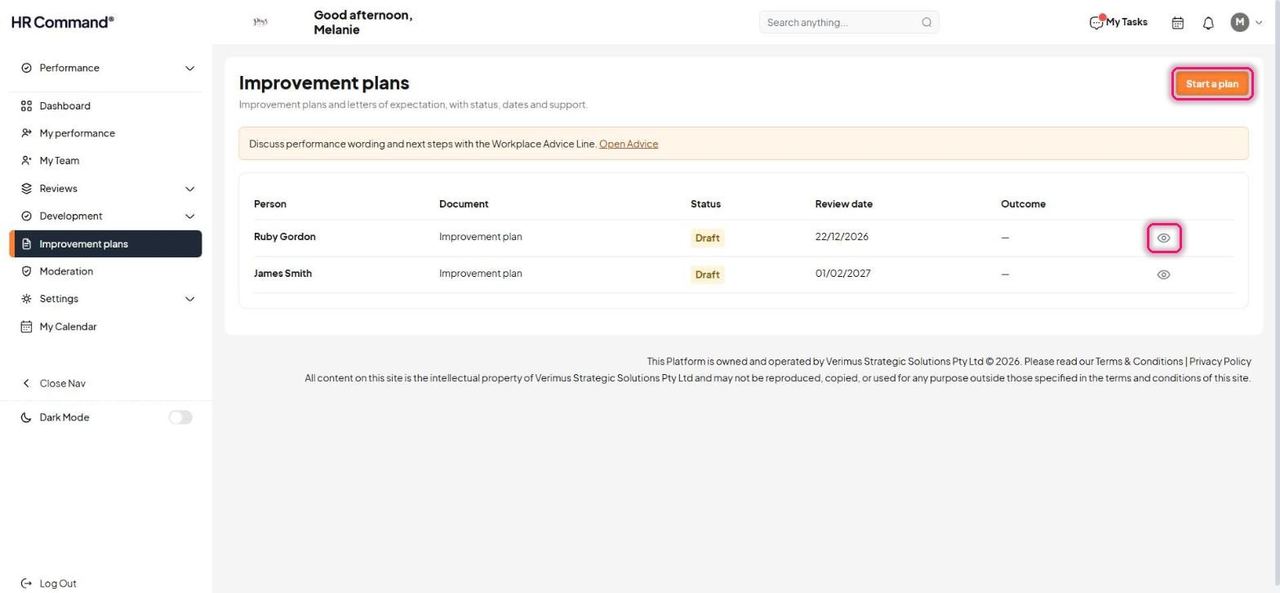
Click Start improvement plan on a person's record, or go to Improvement plans and click Start a plan. The list shows each plan's status, review date and outcome.
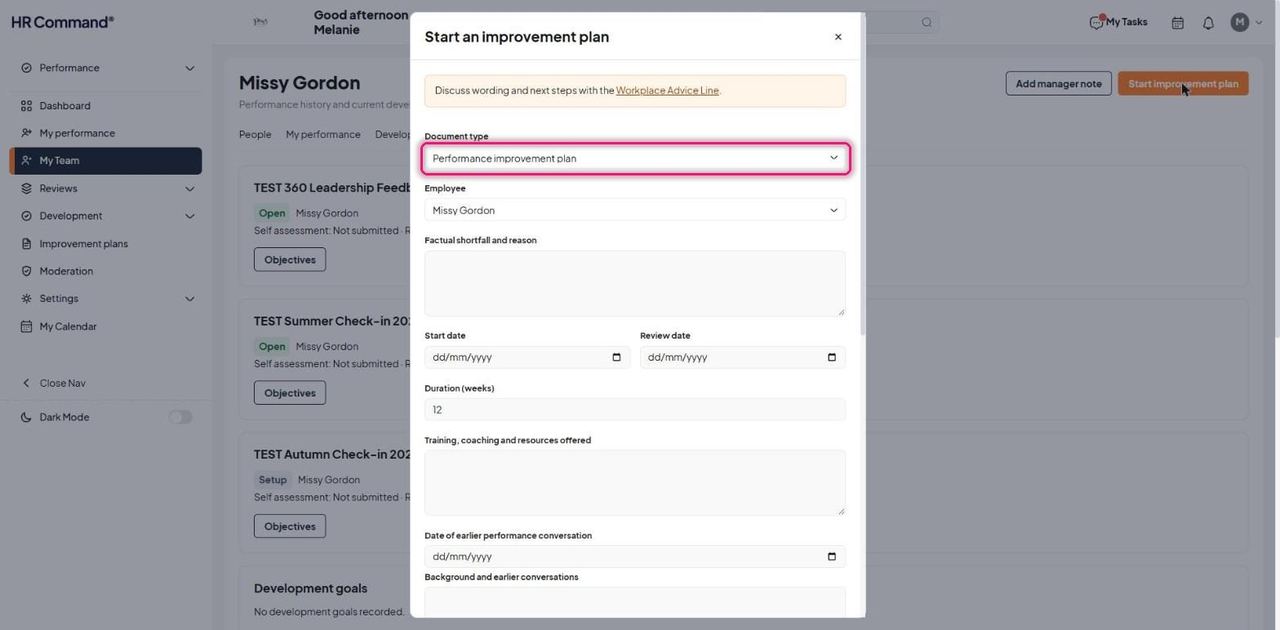
Choose the Document type: Letter of expectation (a lighter step) or Performance improvement plan. Choose the Employee.
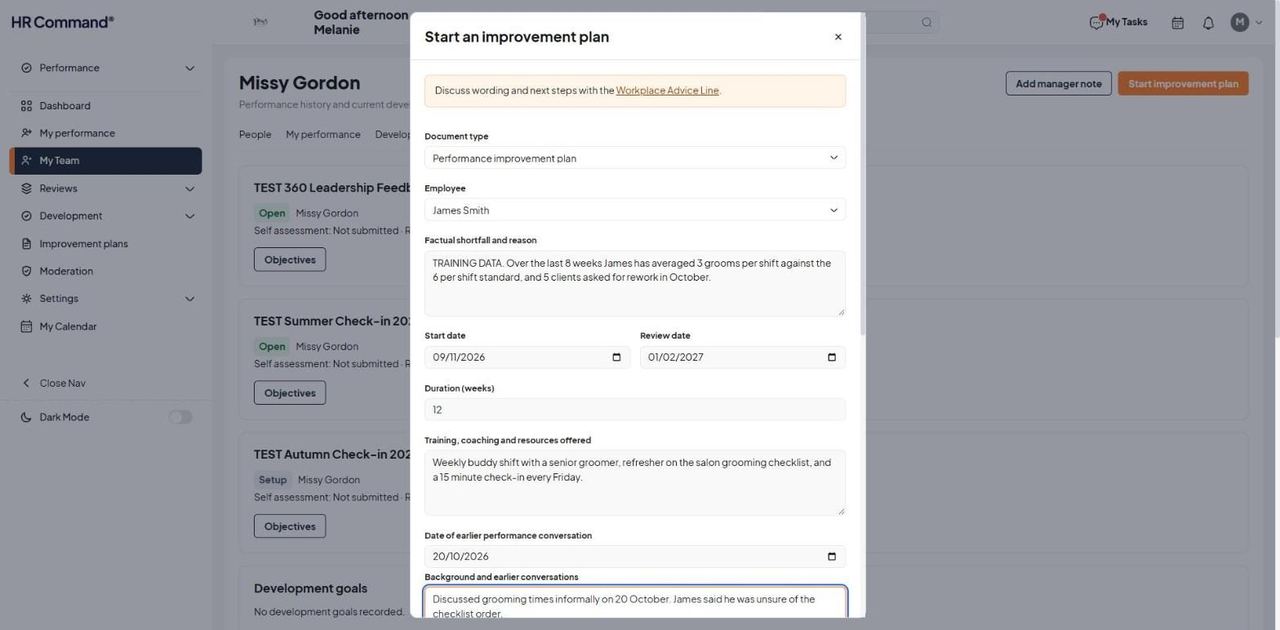
Fill in the Factual shortfall and reason, Start date, Review date, Duration (weeks), the Training, coaching and resources offered, the date of the earlier performance conversation and the background.
Under Measurable expectations, click Add expectation from bank or Add objective to write one.
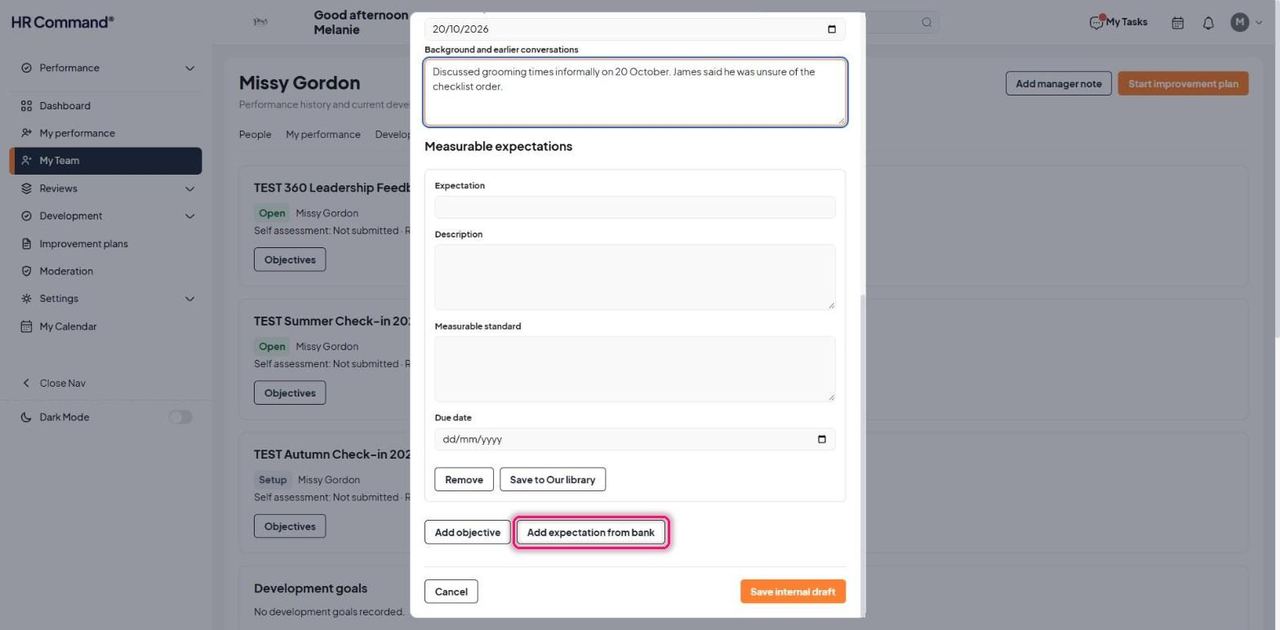
Tick an expectation and click Add selected.
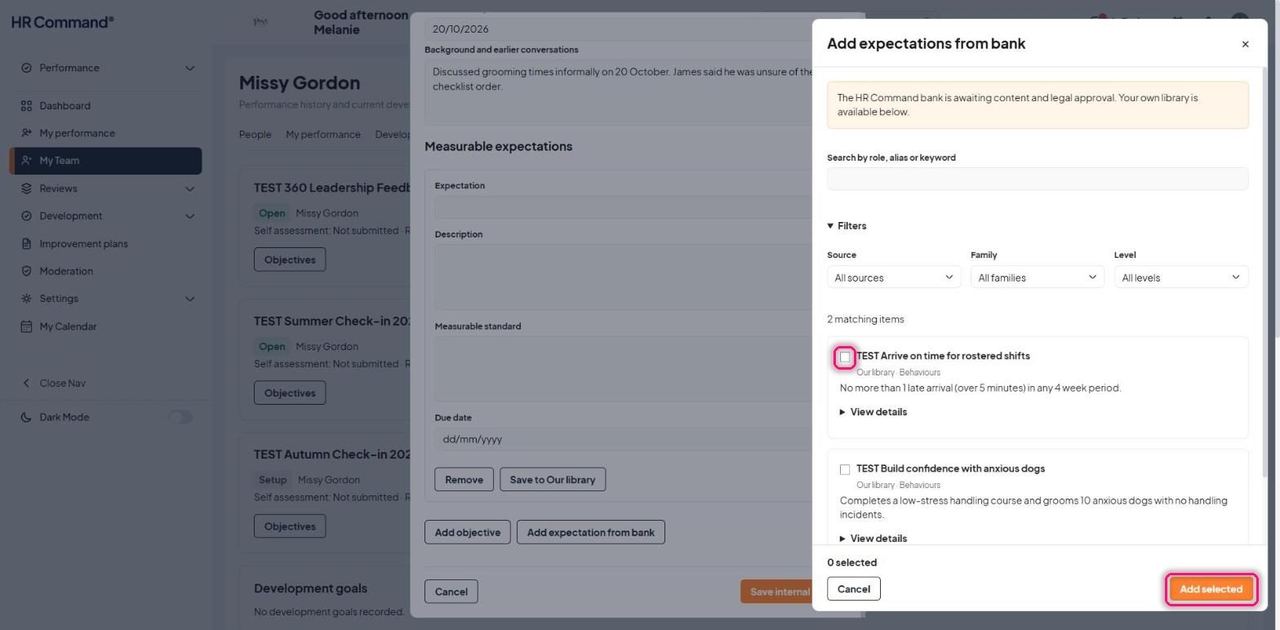
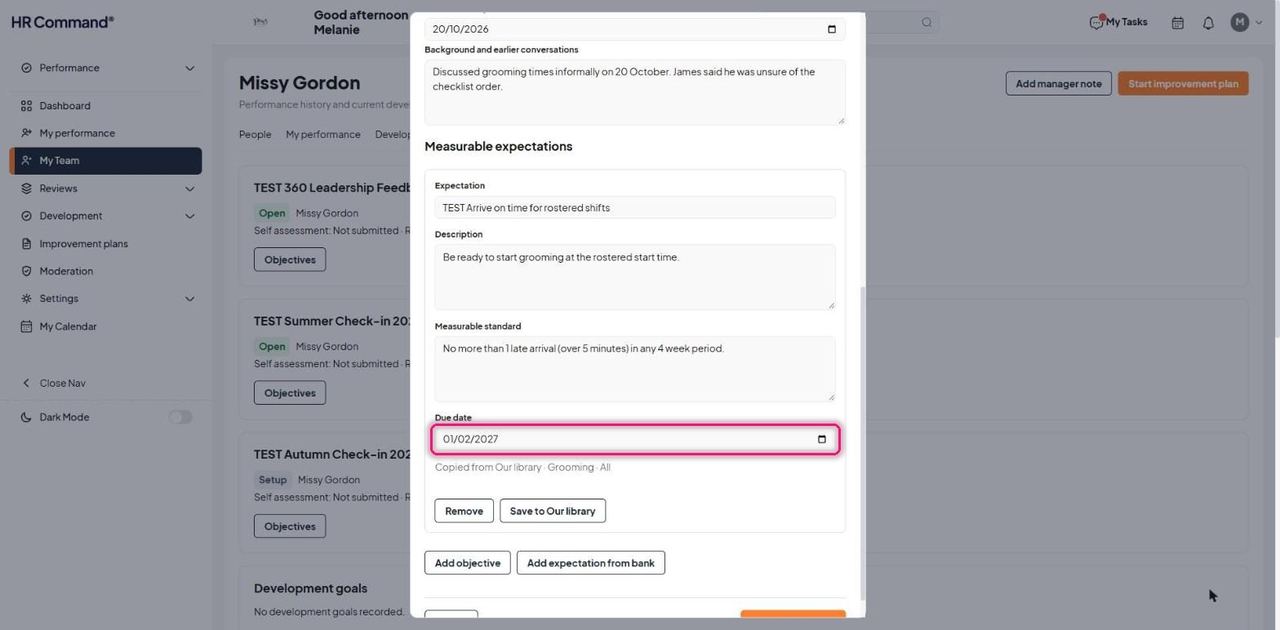
Check the wording and measurable standard. The Due date defaults to the review date.
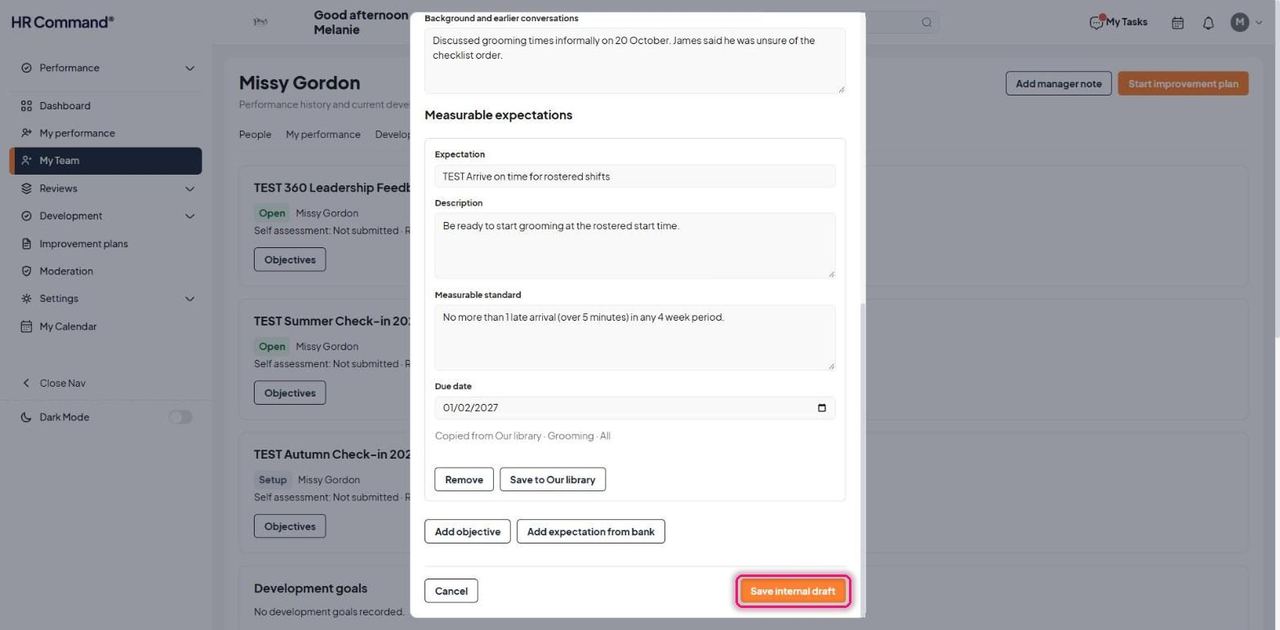
Click Save internal draft.
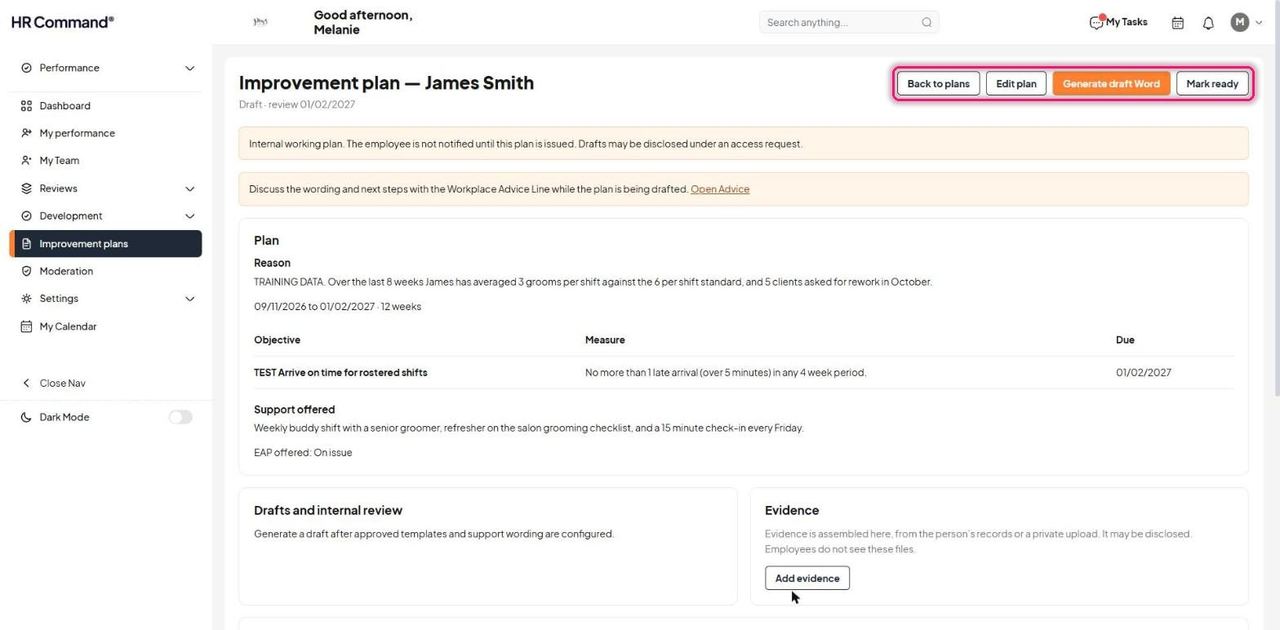
The draft plan opens with Back to plans, Edit plan, Generate draft Word and Mark ready.
Good to know: Drafts may be disclosed under an access request.
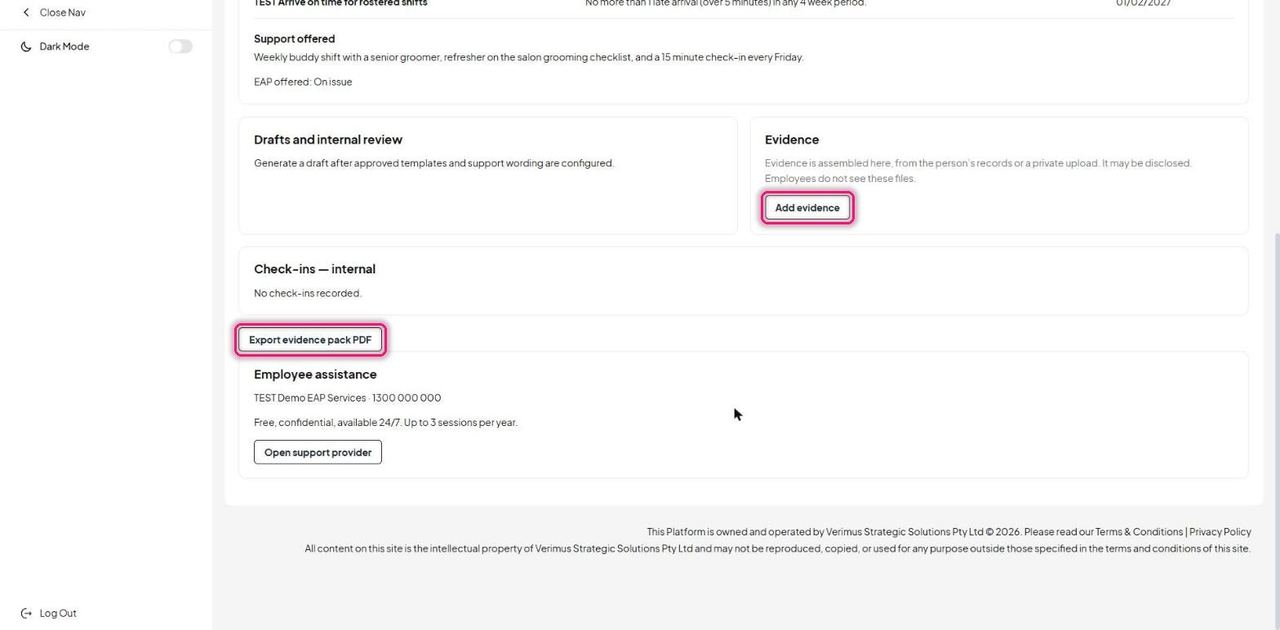
Lower down: Evidence, internal Check-ins, Export evidence pack PDF and the Employee assistance details from Settings. Click Add evidence.
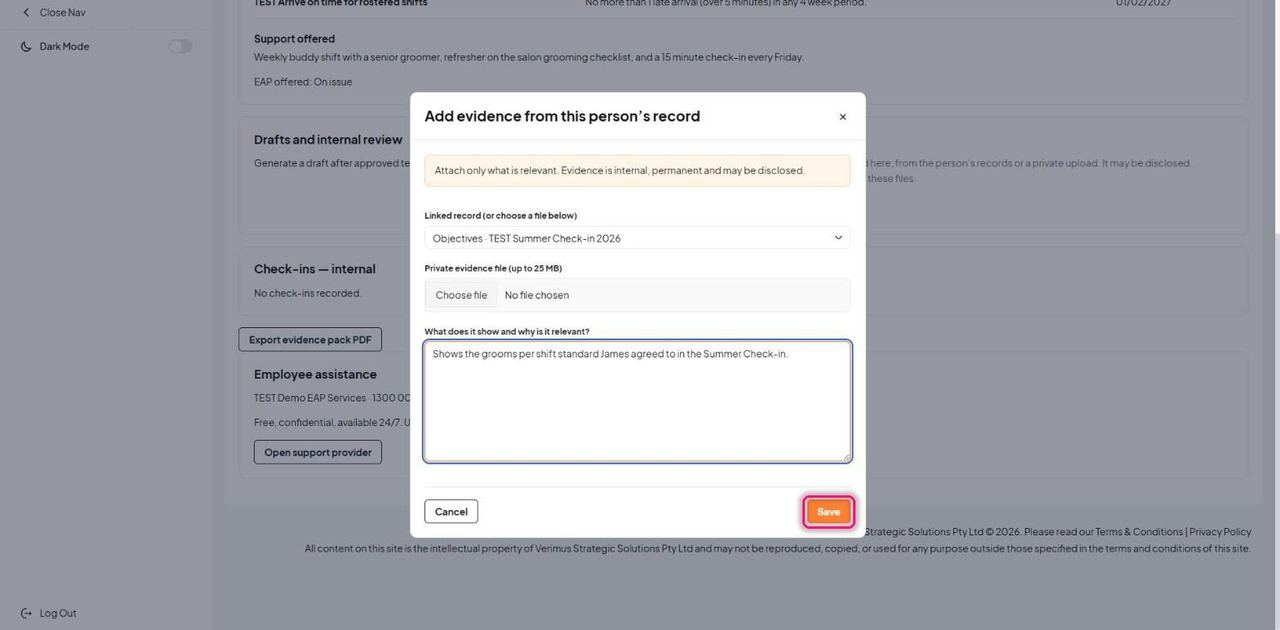
Choose a Linked record from the person's file, or upload a private file up to 25 MB. Explain what it shows and why it is relevant, then click Save.
Good to know: Attach only what is relevant. Evidence is internal and permanent and may be disclosed. Employees do not see these files.
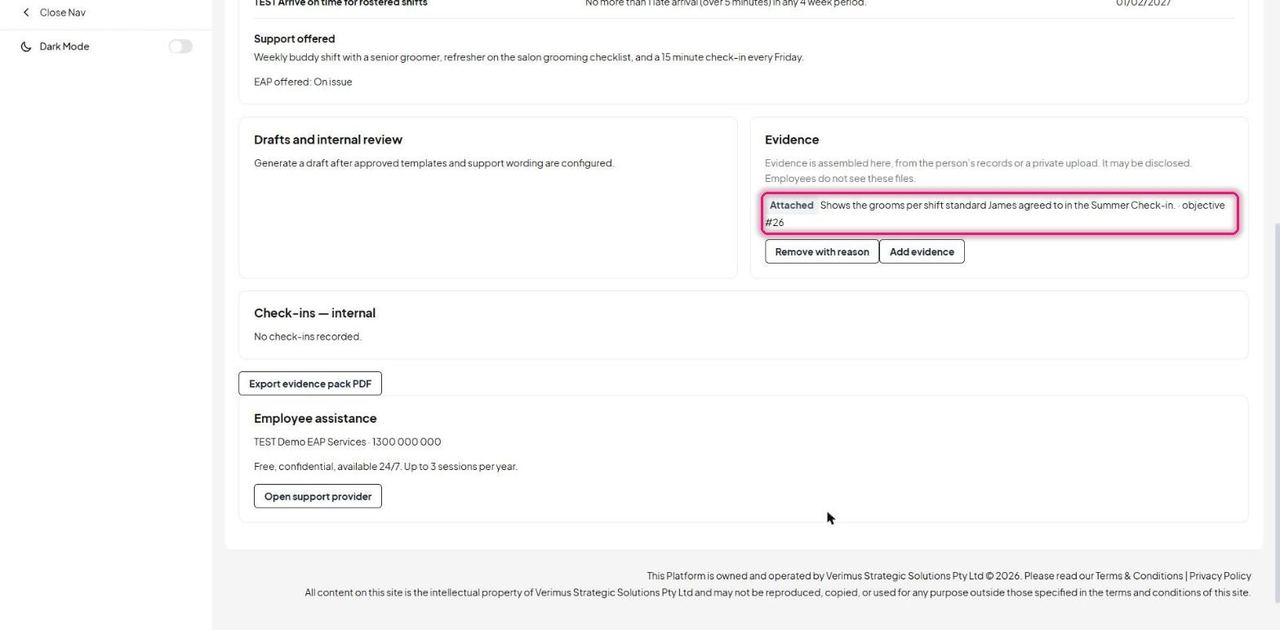
The evidence shows as Attached. Use Remove with reason to take it off.
Click Generate draft Word, then Mark ready. Mark ready asks for the draft first.
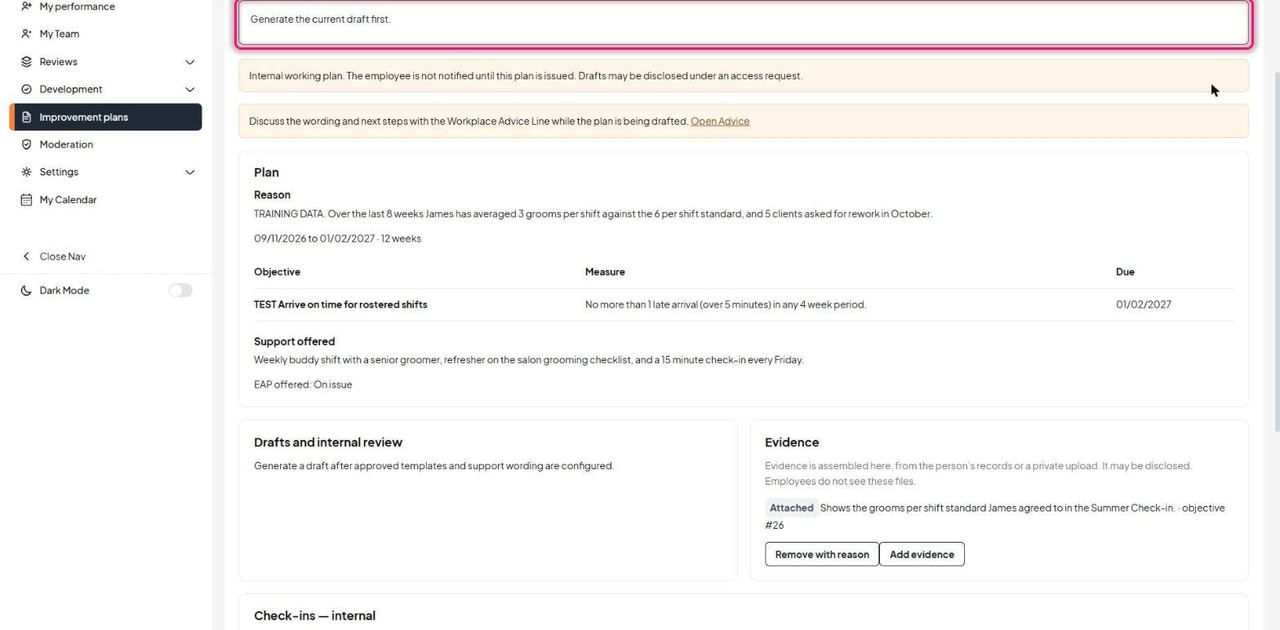
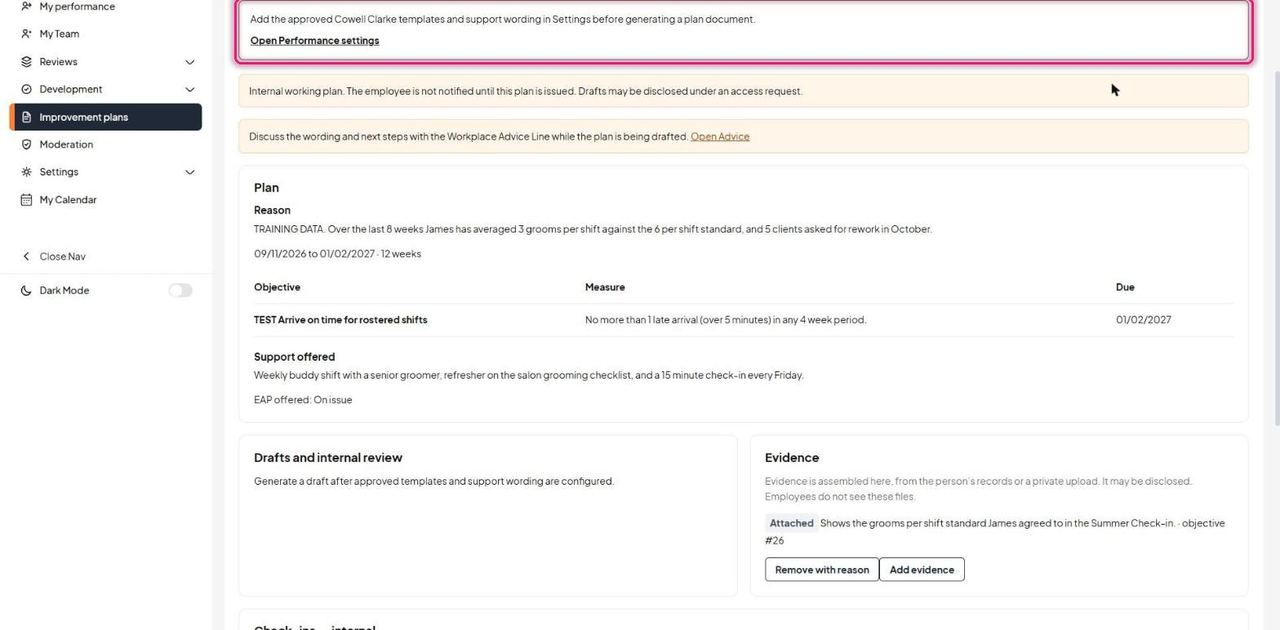
Generating the draft needs the approved precedents and support wording in Performance settings. Until they are set, you will see this message with a link to Open Performance settings.
Was this article helpful?
That’s Great!
Thank you for your feedback
Sorry! We couldn't be helpful
Thank you for your feedback
Feedback sent
We appreciate your effort and will try to fix the article