Follow each numbered step. The pink box on each screenshot shows where to click.
Contents
- Getting started
- Performance settings
- User permissions
- Frameworks and rating scales
- Performance library
- Audit log
1. Getting started
For: Everyone
Performance is a workspace inside HR Command. It holds review cycles, objectives, development goals, manager notes, improvement plans and comment moderation for the whole business.
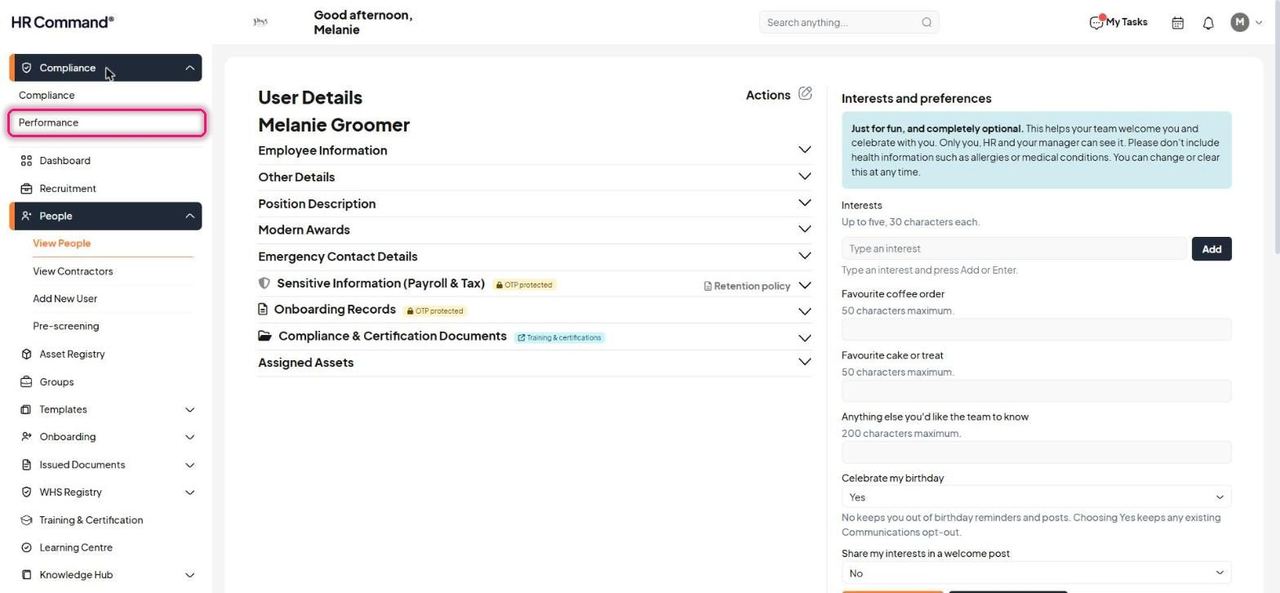
Open the workspace menu at the top of the left nav and choose Performance.
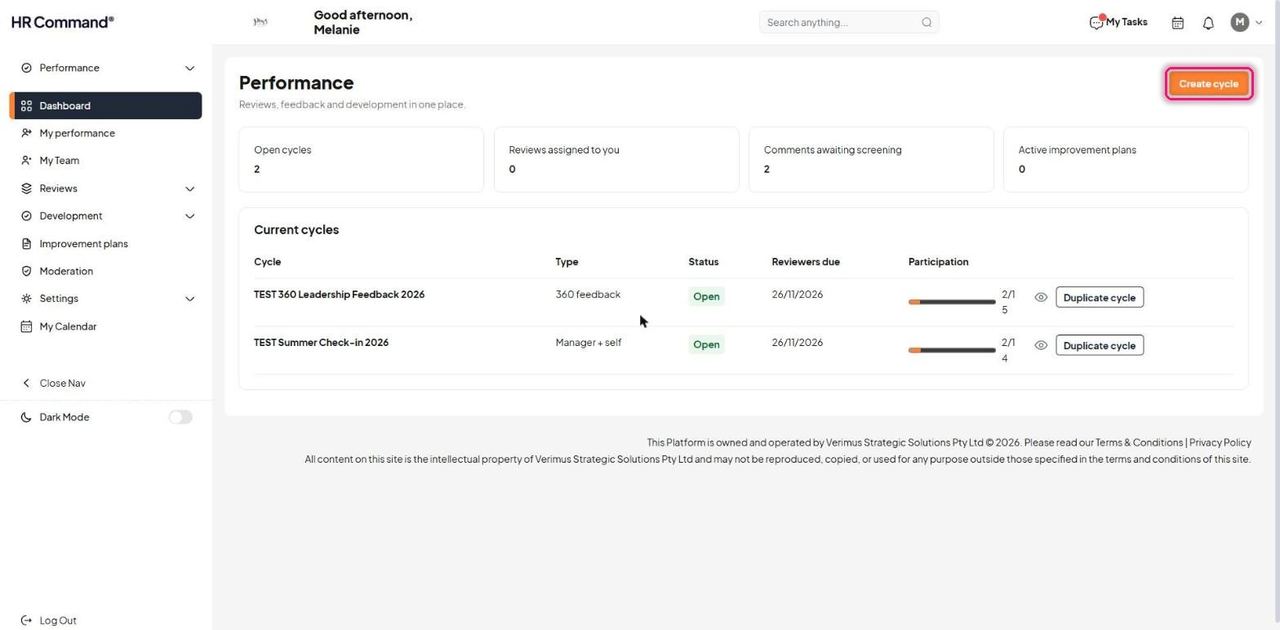
The Dashboard opens. The four tiles show Open cycles, Reviews assigned to you, Comments awaiting screening and Active improvement plans. Current cycles lists every live cycle with its type, status, reviewer due date and participation.
Good to know: Use Create cycle here or on the Cycles page. Duplicate cycle copies an existing cycle's setup.
The left nav holds everything else: My performance, My Team, Reviews, Development, Improvement plans, Moderation and Settings. What each person sees depends on their role and permissions.
2. Performance settings
For: Admin
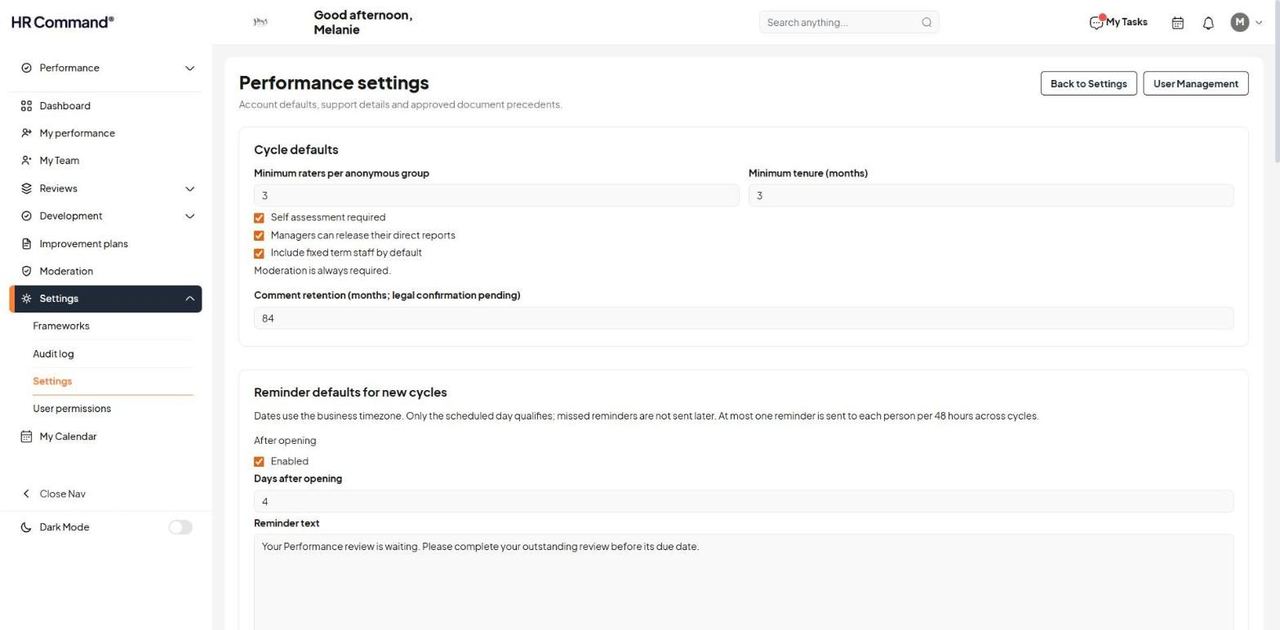
Set account defaults once before running your first cycle. Go to Settings then Settings in the left nav.
Under Cycle defaults, set the Minimum raters per anonymous group, the Minimum tenure (months) before someone is included, and tick whether a Self assessment is required, whether Managers can release their direct reports and whether fixed term staff are included by default.
Good to know: Moderation is always required. It cannot be switched off.
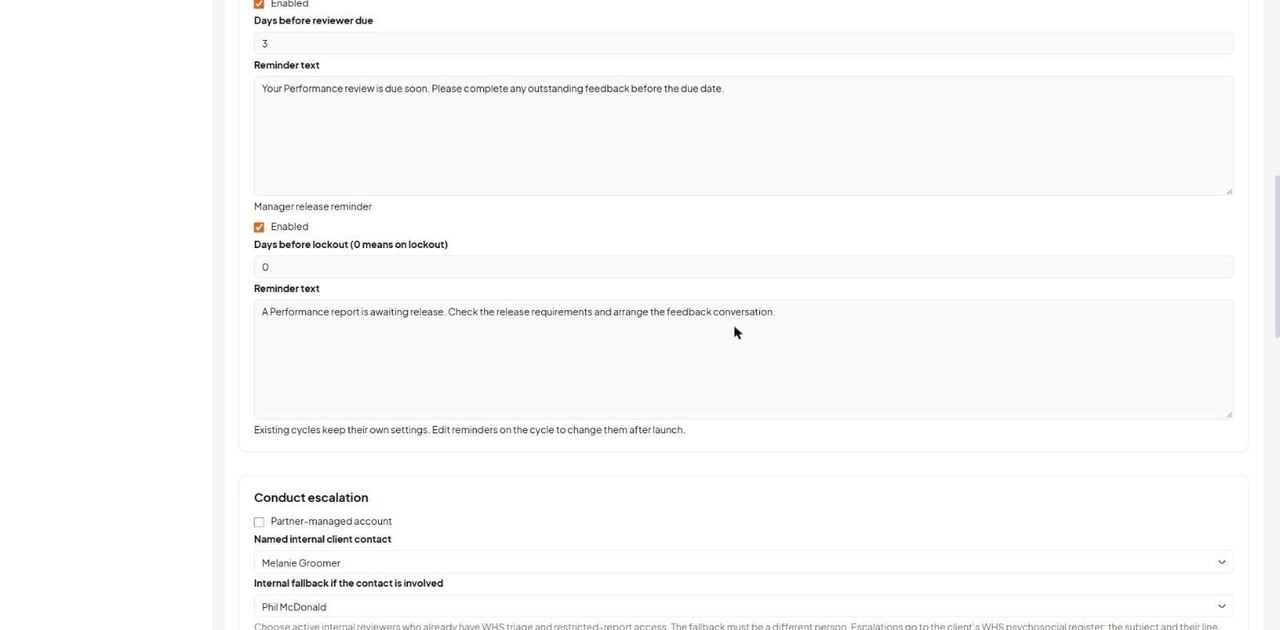
Under Reminder defaults for new cycles, set the three reminders: After opening, Before reviewer due and Manager release reminder. Each has an on/off tick, a number of days and the reminder text.
Good to know: Only the scheduled day counts. Missed reminders are not sent later, and each person gets at most one reminder every 48 hours across all cycles. Existing cycles keep their own reminder settings.
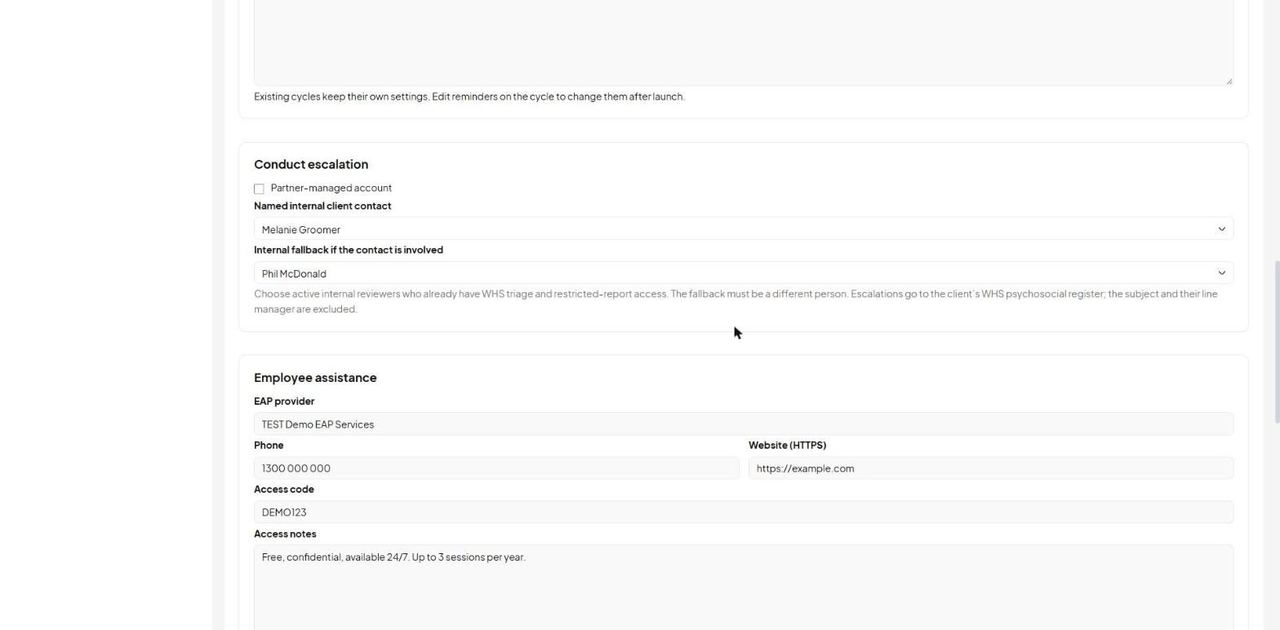
Under Conduct escalation, choose the Named internal client contact and an Internal fallback for when that contact is involved. Tick Partner-managed account where it applies. Under Employee assistance, enter the EAP provider, phone, website, access code, access notes and the approved fallback support wording.
Good to know: The fallback must be a different person. Escalated comments go to the client's WHS psychosocial register, and the subject and their line manager are excluded. If no support offer is set up, improvement plan documents cannot be generated.
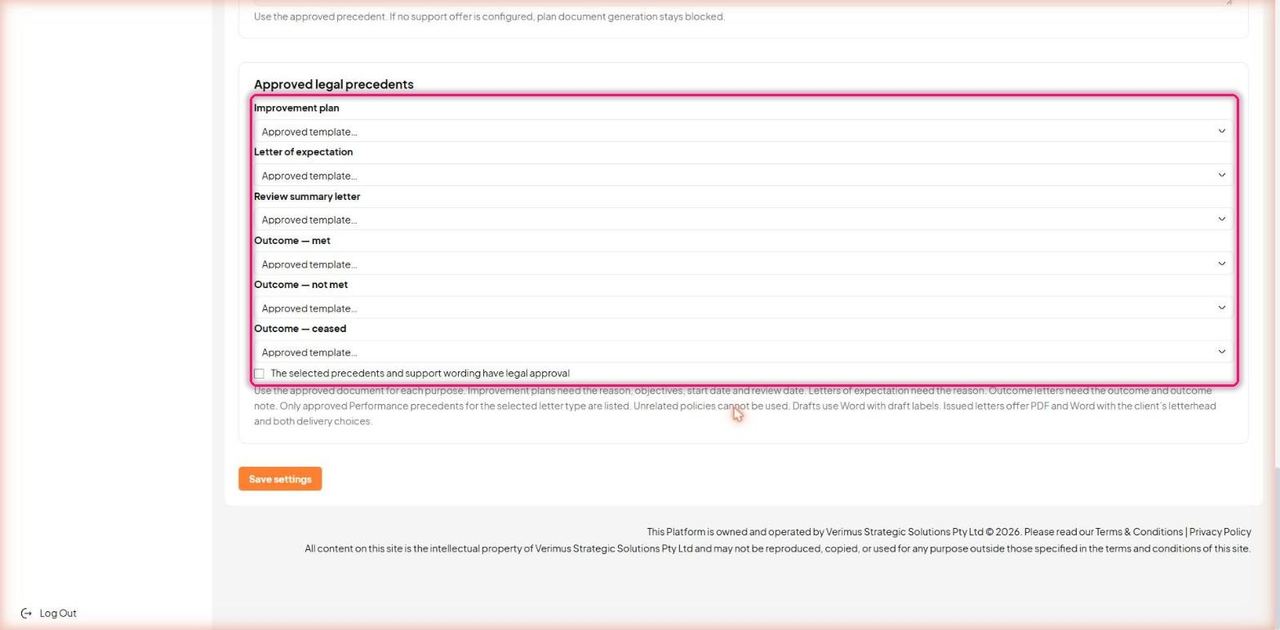
Under Approved legal precedents, choose the approved template for each document: Improvement plan, Letter of expectation, Review summary letter and the three outcome letters (met, not met, ceased). Tick the legal approval box, then click Save settings.
Good to know: Improvement plan drafts cannot be generated until these are set. Drafts come out as Word with draft labels. Issued letters offer PDF and Word on the client's letterhead.
3. User permissions
For: Admin
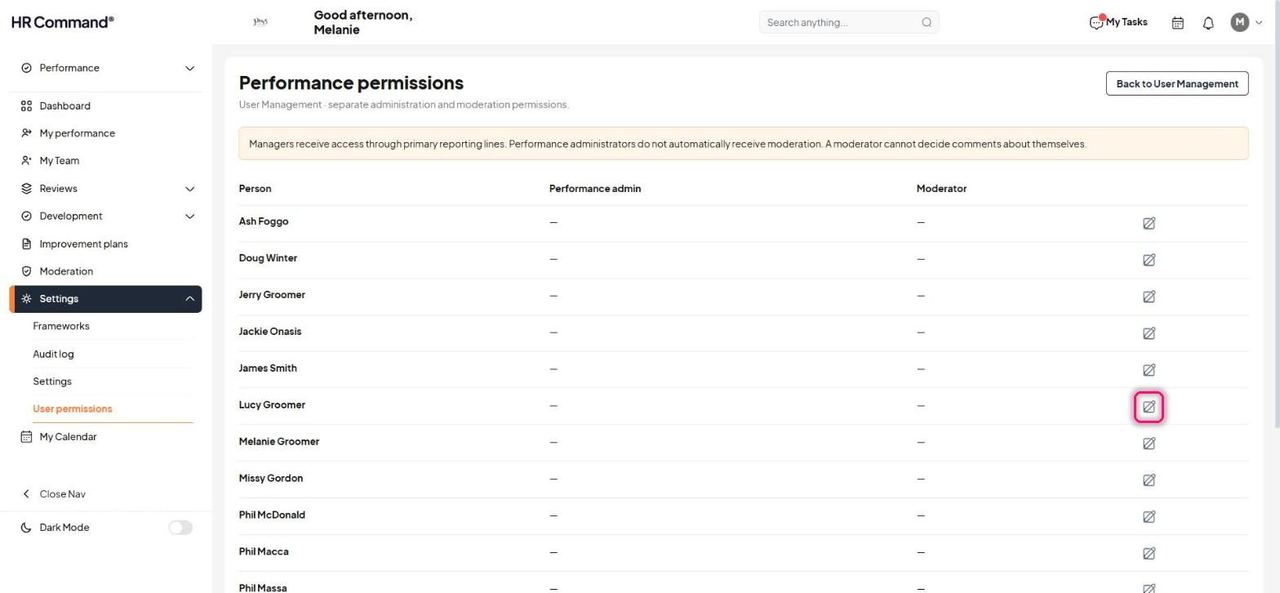
Managers get access to their team automatically through primary reporting lines. Admin and moderator rights are given separately.
Go to Settings then User permissions. Click the edit icon beside a person.
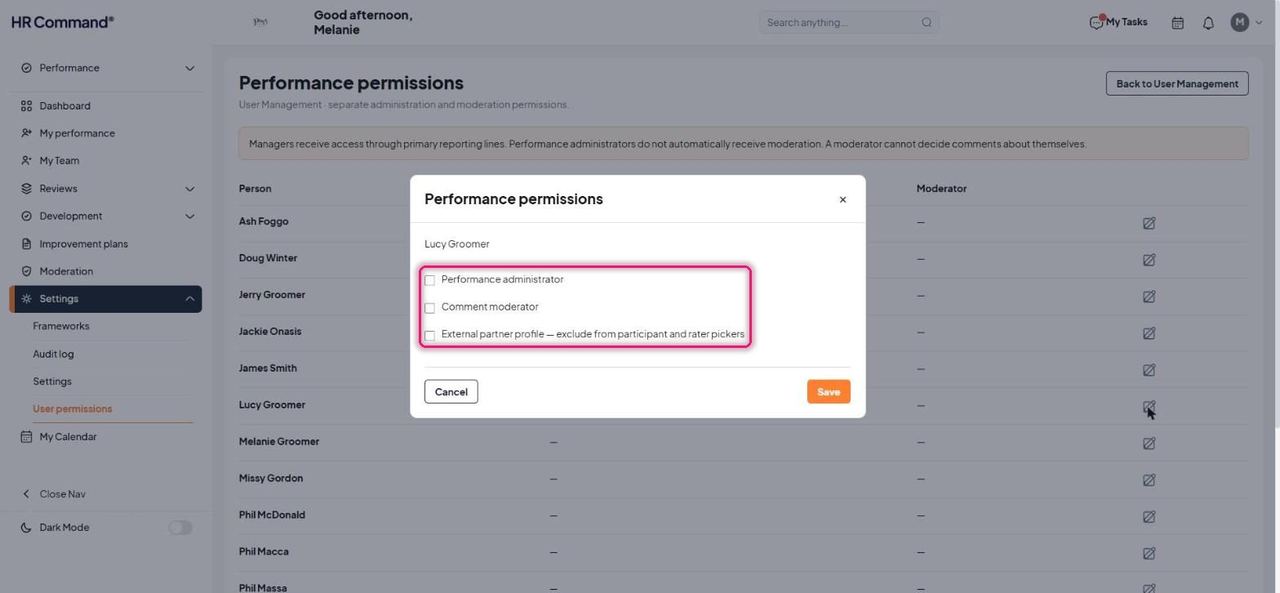
Tick Performance administrator, Comment moderator, or both. Tick External partner profile to keep someone out of participant and rater lists. Click Save.
Good to know: Admins do not get moderation rights automatically. A moderator can never decide comments about themselves.
4. Frameworks and rating scales
For: Admin
A framework is the set of competencies people are rated on. Frameworks are versioned, so a cycle keeps the exact questions and scale it launched with.
Go to Settings then Frameworks. The table shows each framework, its version, status, number of competencies and rating scale. Rating scales are listed underneath.
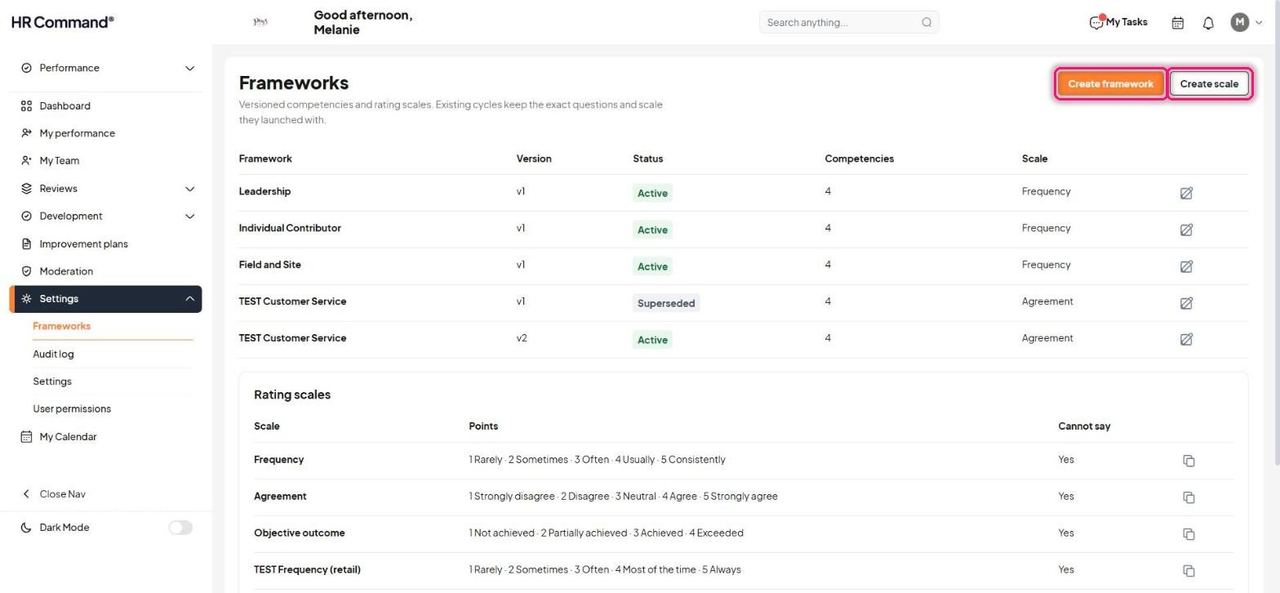
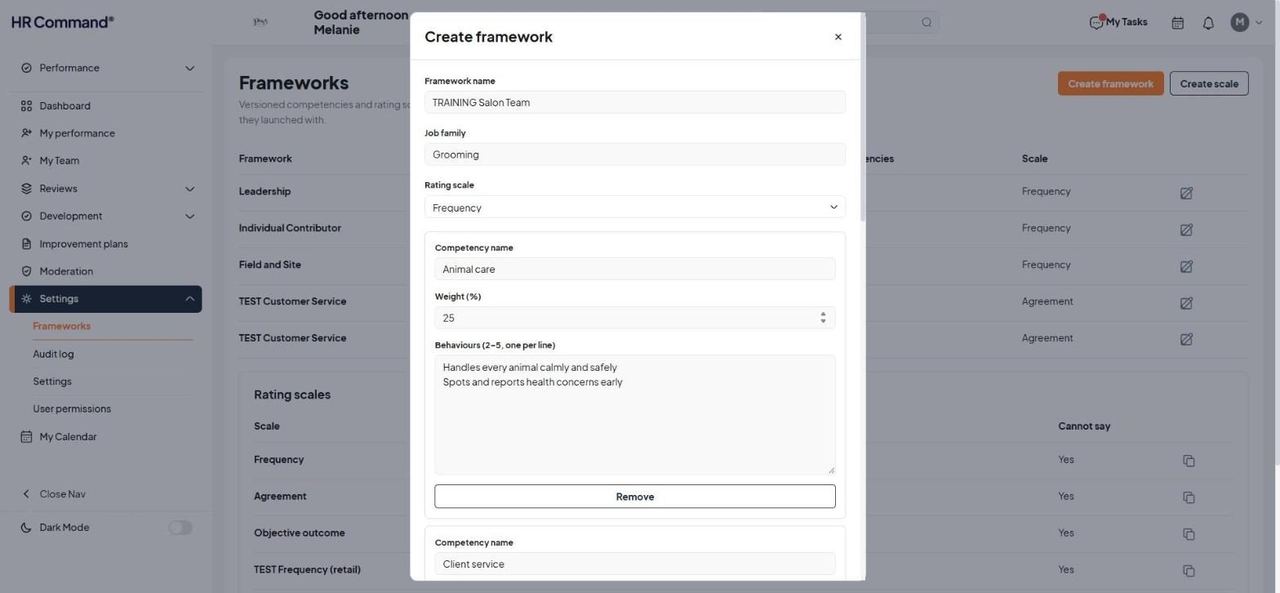
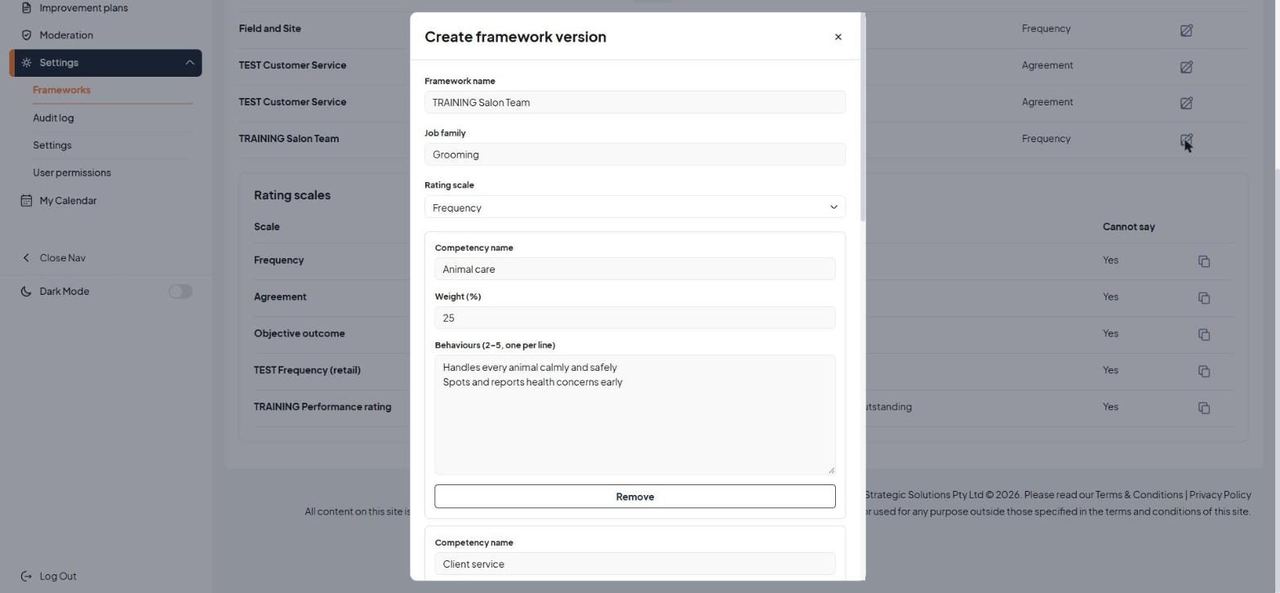
Click Create framework. Enter the Framework name, Job family and pick a Rating scale.
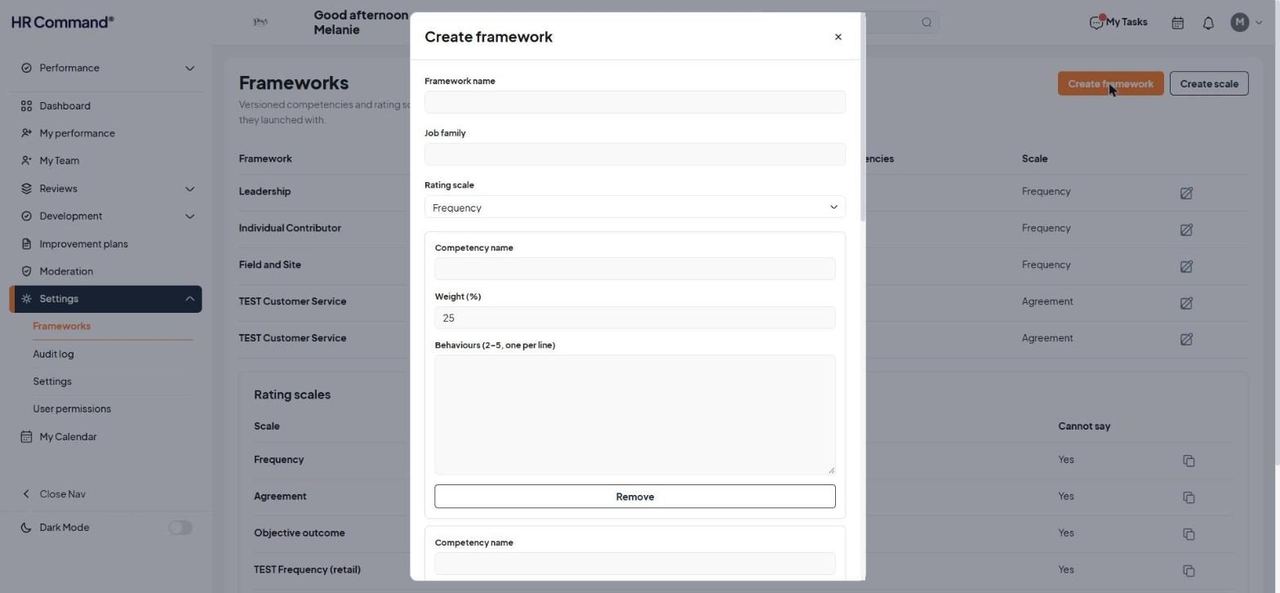
For each competency, enter a Competency name, its Weight (%) and 2 to 5 Behaviours, one per line. Use Add competency or Remove to change the number of competencies.
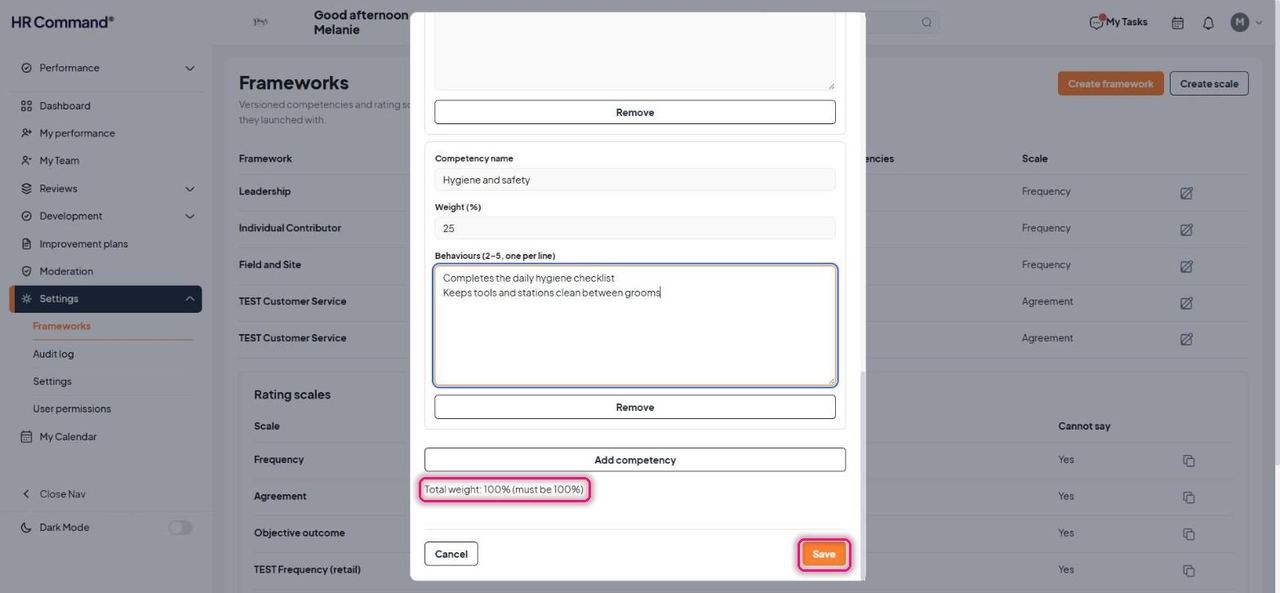
Check Total weight reads 100%, then click Save.
The new framework appears as v1, Active.
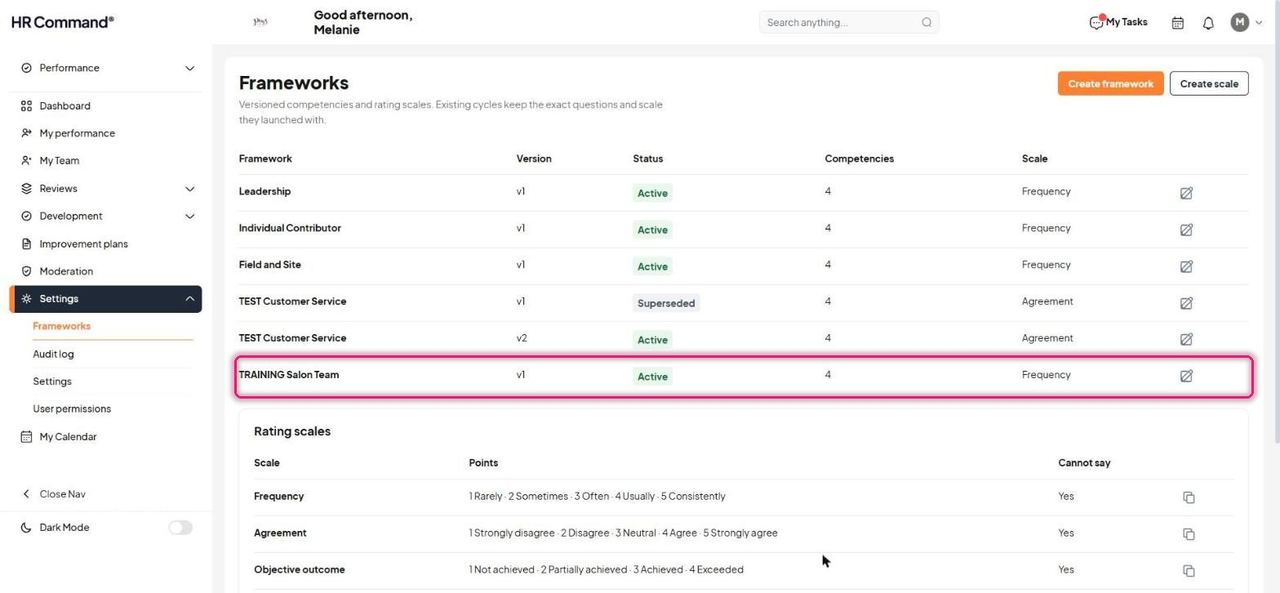
To change a framework, click its edit icon. This opens Create framework version. Saving creates a new version and marks the old one Superseded.
Good to know: Cycles already running stay on the version they launched with.
To add a rating scale, click Create scale. Enter a Name, choose the Scale type (Performance rating, Frequency or Agreement) and type the Labels, one per line, lowest first. Untick Allow Cannot say if raters must always choose a point.
Good to know: Tick Use this scale for the overall rating in review summary letters only for the scale that should drive the overall rating. Frequency and Agreement scales never produce an overall rating.
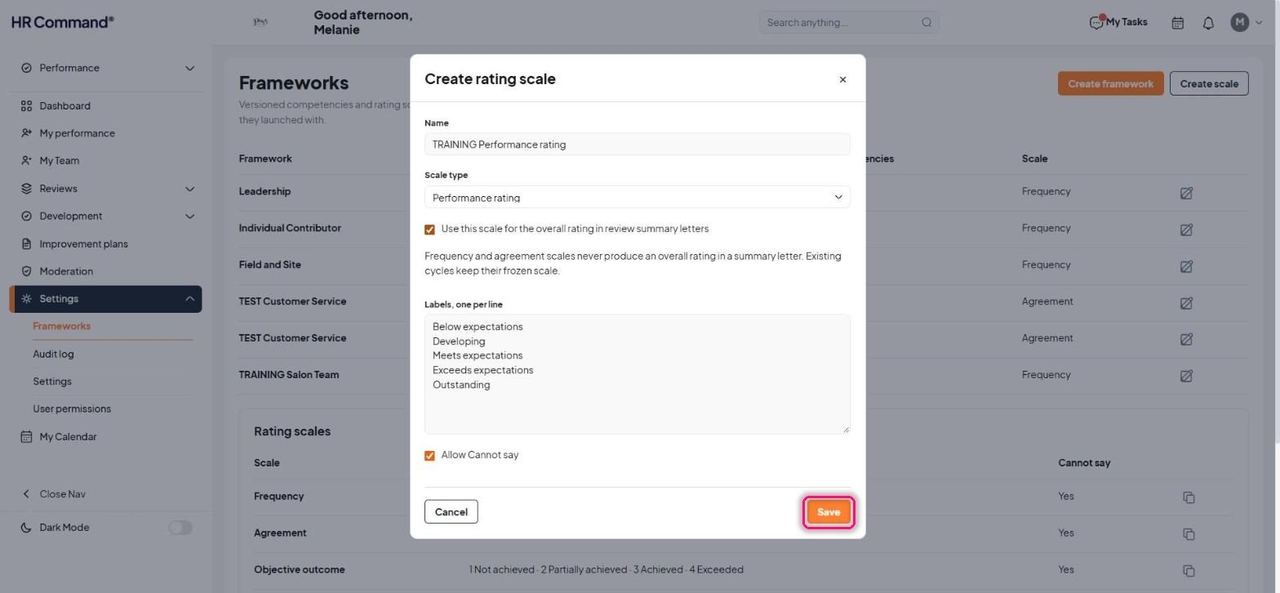
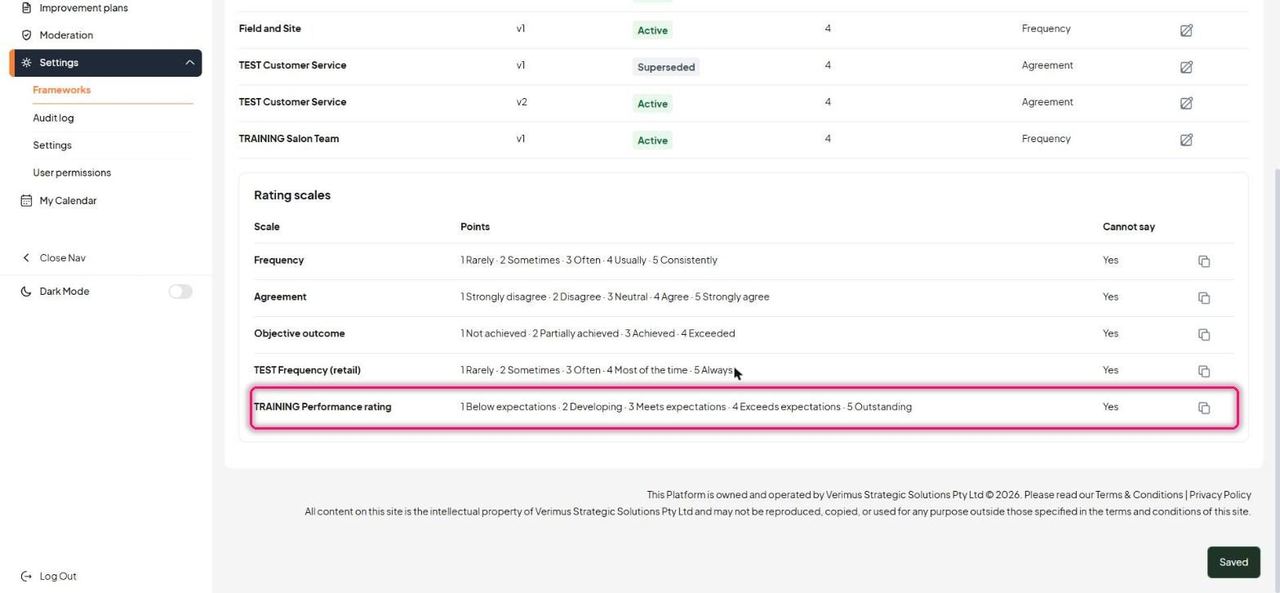
Click Save. The scale appears in Rating scales with each point numbered.
5. Performance library
For: Admin, Manager
The library holds reusable objectives, development goals, improvement statements and objective sets. Anything saved here can be pulled into a review, plan or goal with Add from bank.
Go to Development then Library. Switch between Objectives, Development goals, Improvement statements and Objective sets. Search, or filter by Family, Level, Category and Industry.
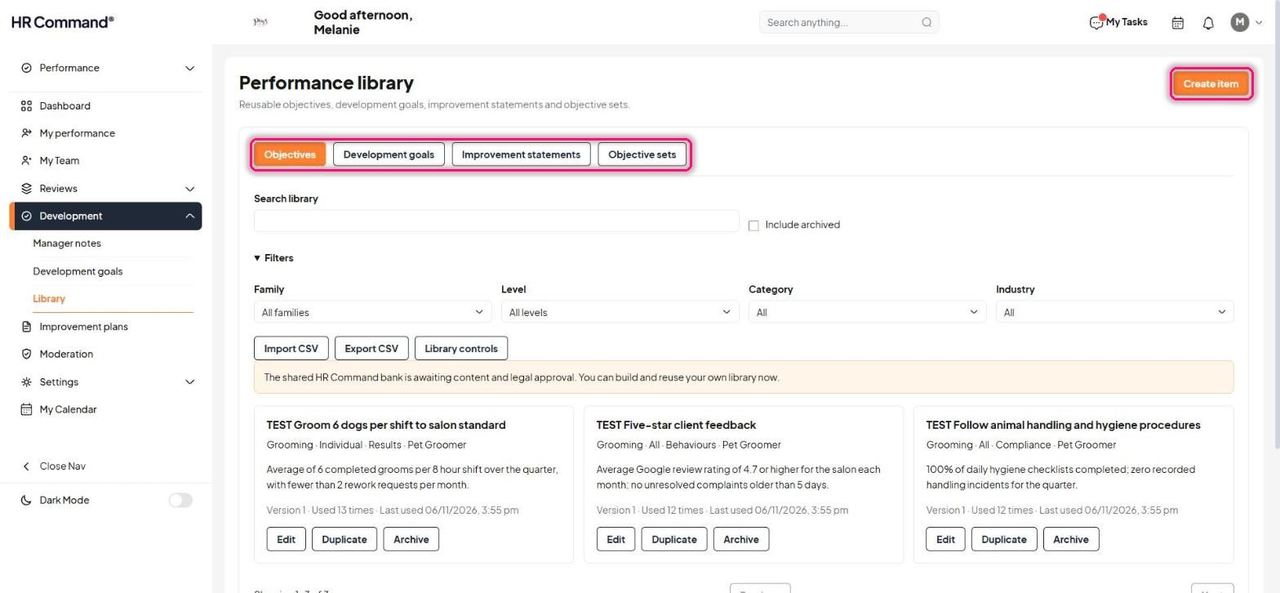
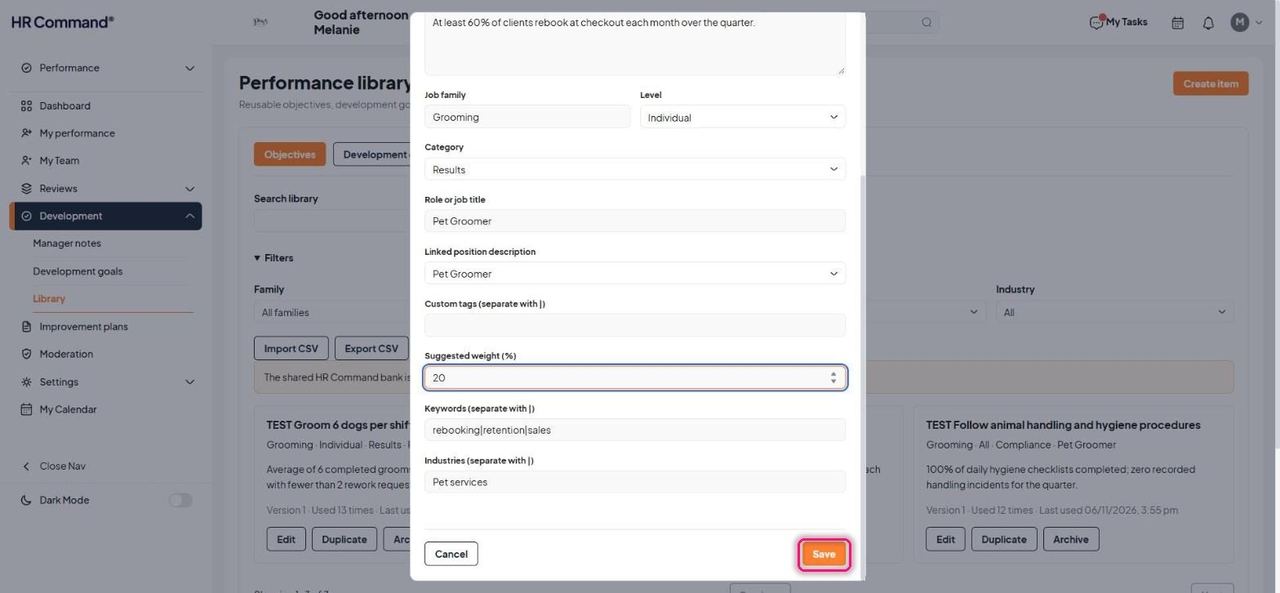
Click Create item. Fill in Title, Description and Success measure, then classify it with Job family, Level, Category, Role or job title and Linked position description. Add a Suggested weight (%), plus Keywords and Industries separated with |. Click Save.
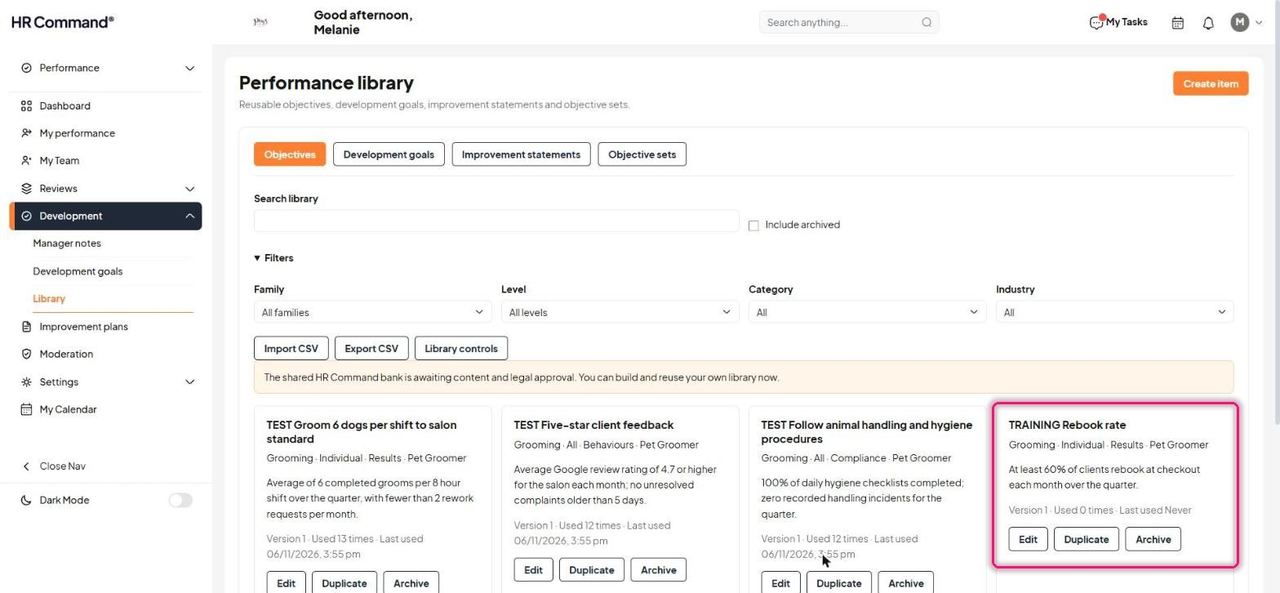
The item appears in the library. Each card shows its version, how often it has been used and when it was last used, with Edit, Duplicate and Archive.
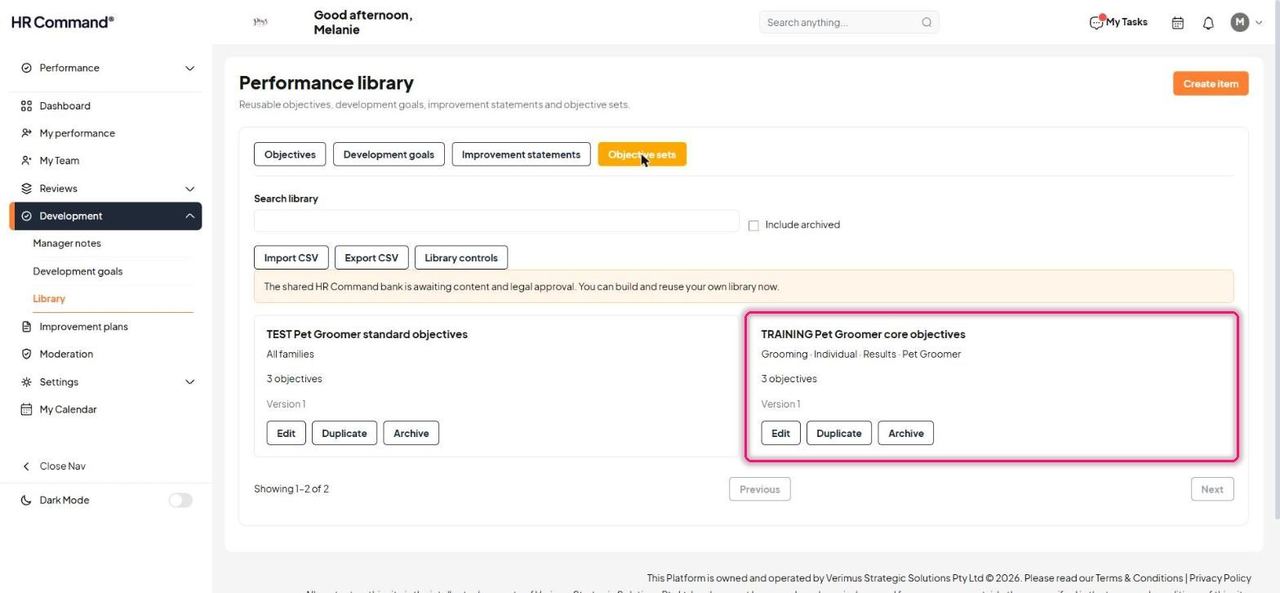
Objective sets bundle several objectives for a role so you can apply them in one go. Sets are created from the objectives editor with Save as objective set (see Objectives).
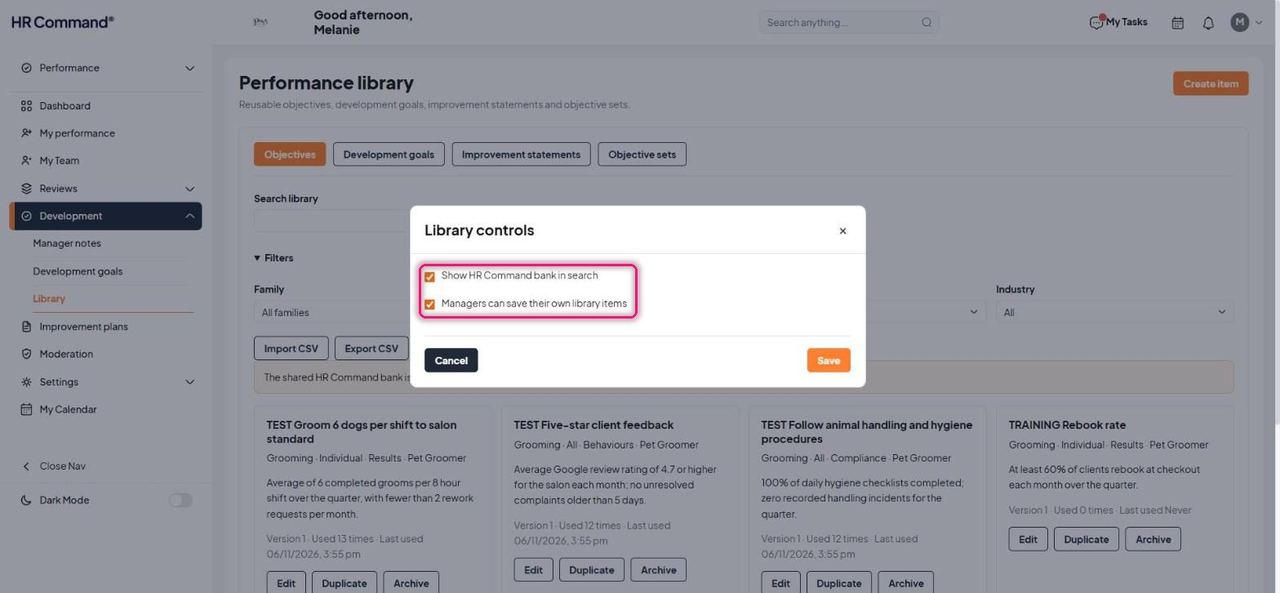
Library controls turn the HR Command bank on or off in search, and decide whether managers can save their own library items.
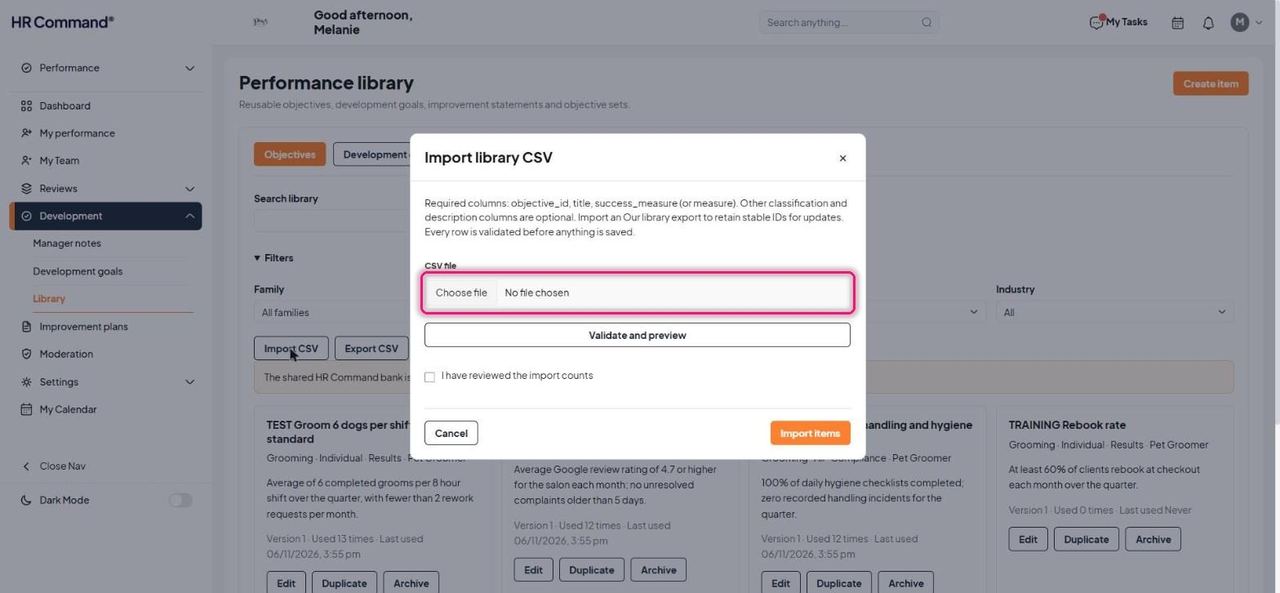
Import CSV loads items in bulk. The file needs objective_id, title and success_measure columns. Click Validate and preview, tick that you have reviewed the counts, then Import items. Export CSV exports the library.
Good to know: Import an Our library export to keep stable IDs when updating items. Every row is checked before anything is saved.
6. Audit log
For: Admin
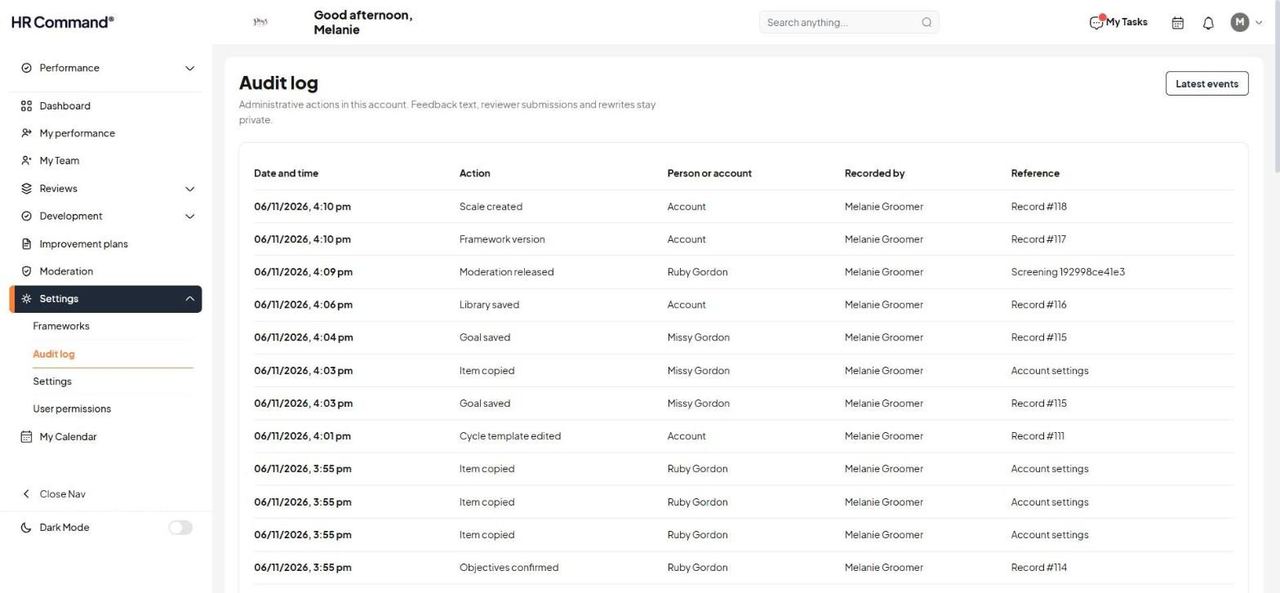
Go to Settings then Audit log. Every administrative action is listed with the date and time, the action, the person or account, who recorded it and a reference.
Good to know: Feedback text, reviewer submissions and rewrites stay private and are not shown here.
Was this article helpful?
That’s Great!
Thank you for your feedback
Sorry! We couldn't be helpful
Thank you for your feedback
Feedback sent
We appreciate your effort and will try to fix the article