From the home page click on Log in and it will move you to the secure.hrcommand.com.au site.
1. Use your login (email) or username
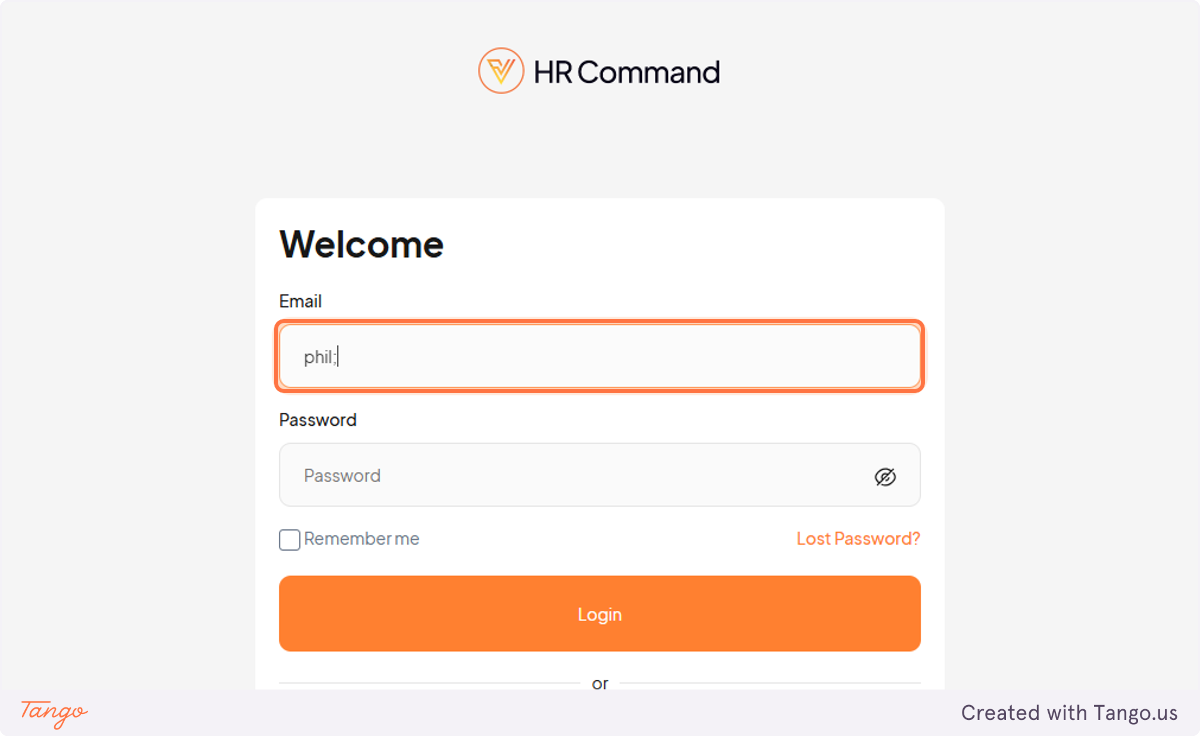
2. Type your password, or if you have forgot it, use Lost Password
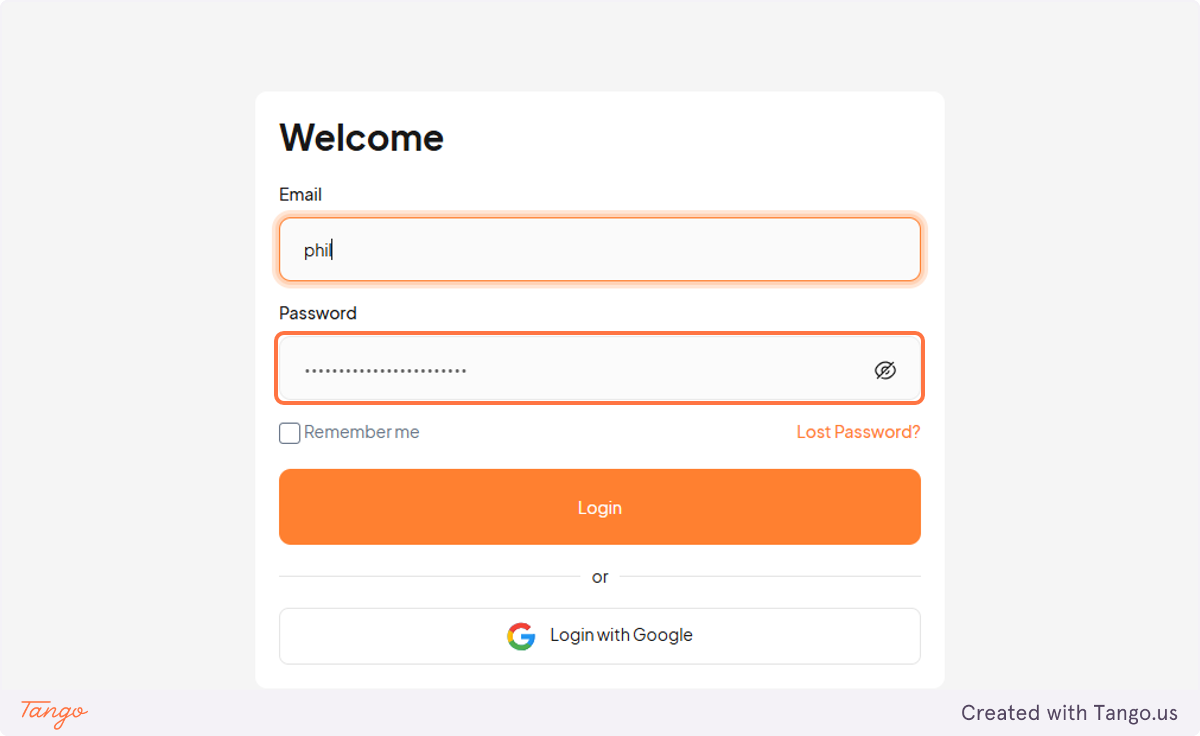
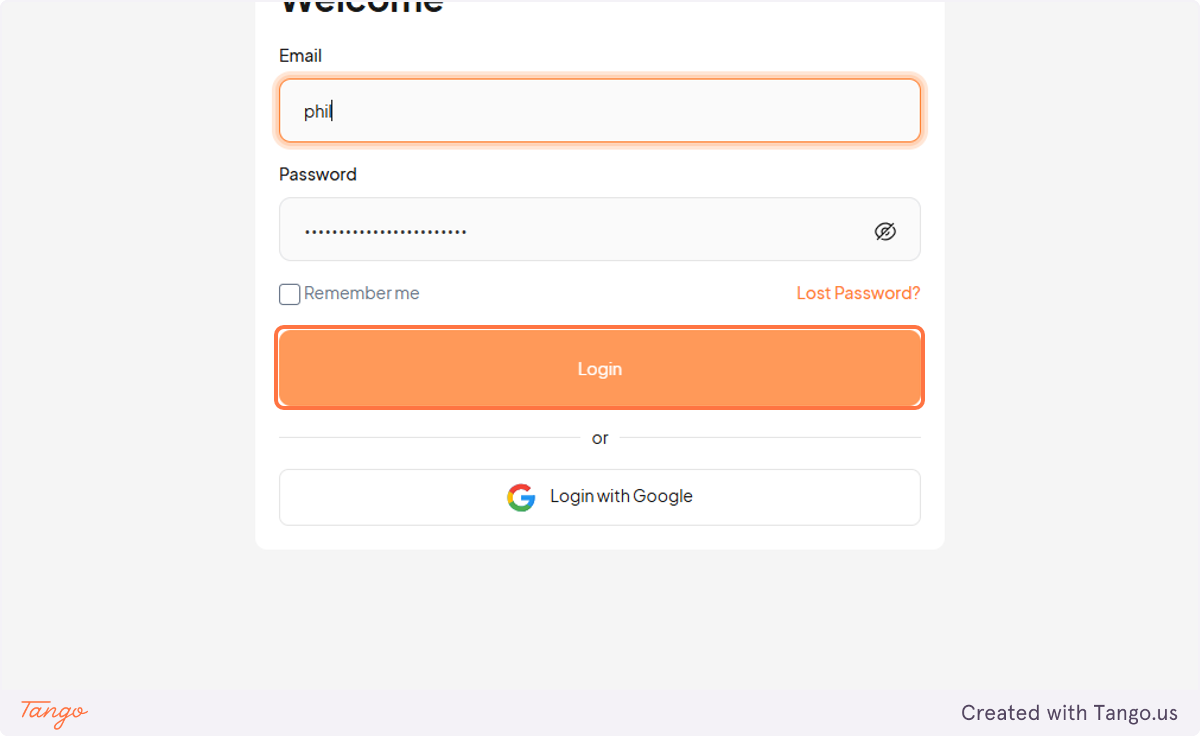
3. Click on Login
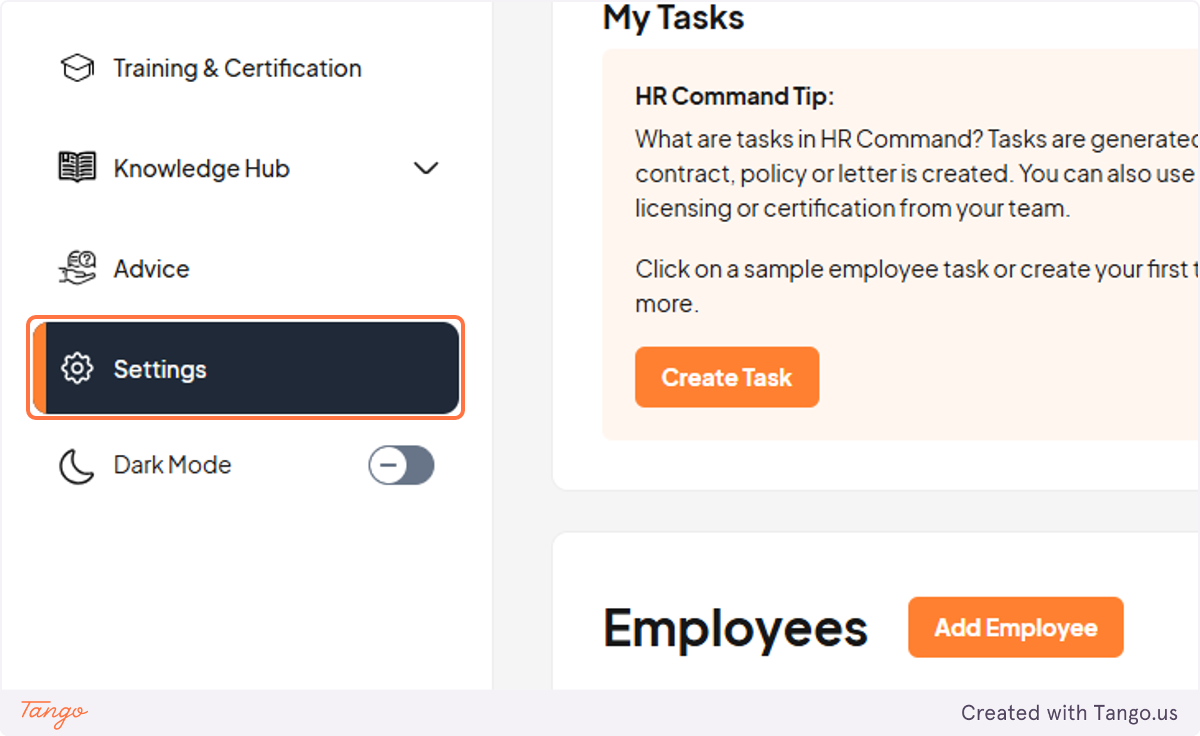
4. Click on Settings
5. To add your logo click on UPLOAD YOUR LOGO
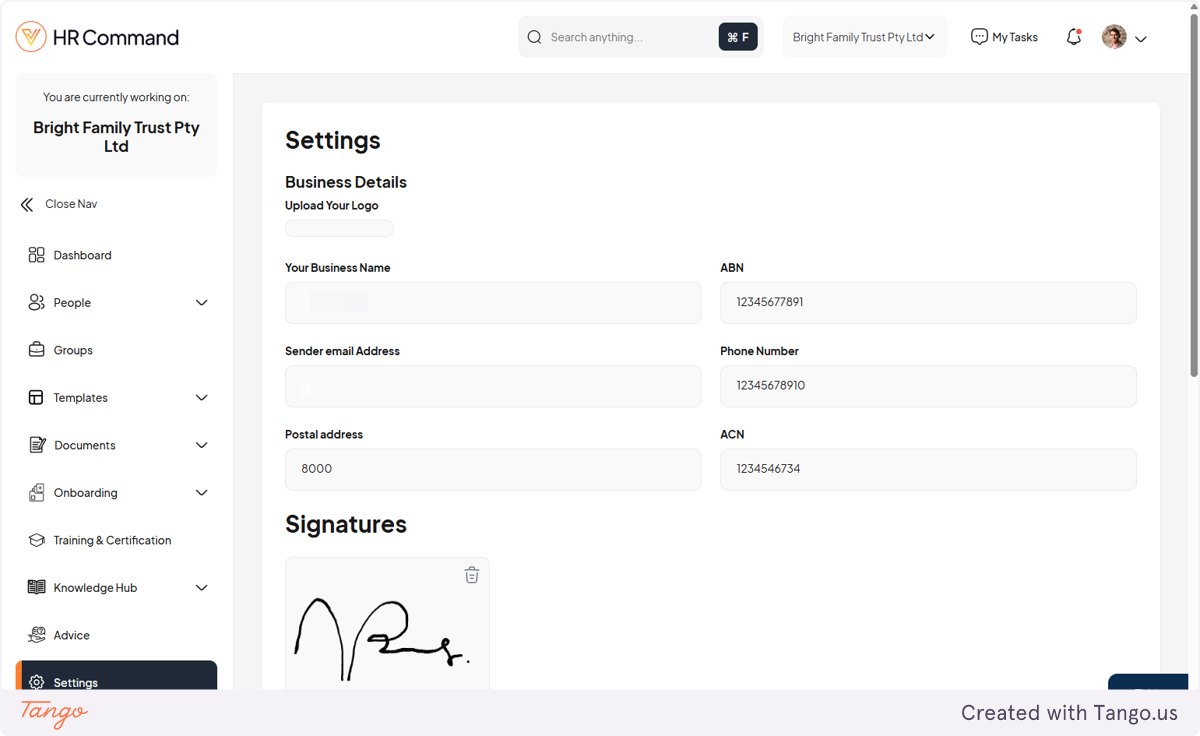
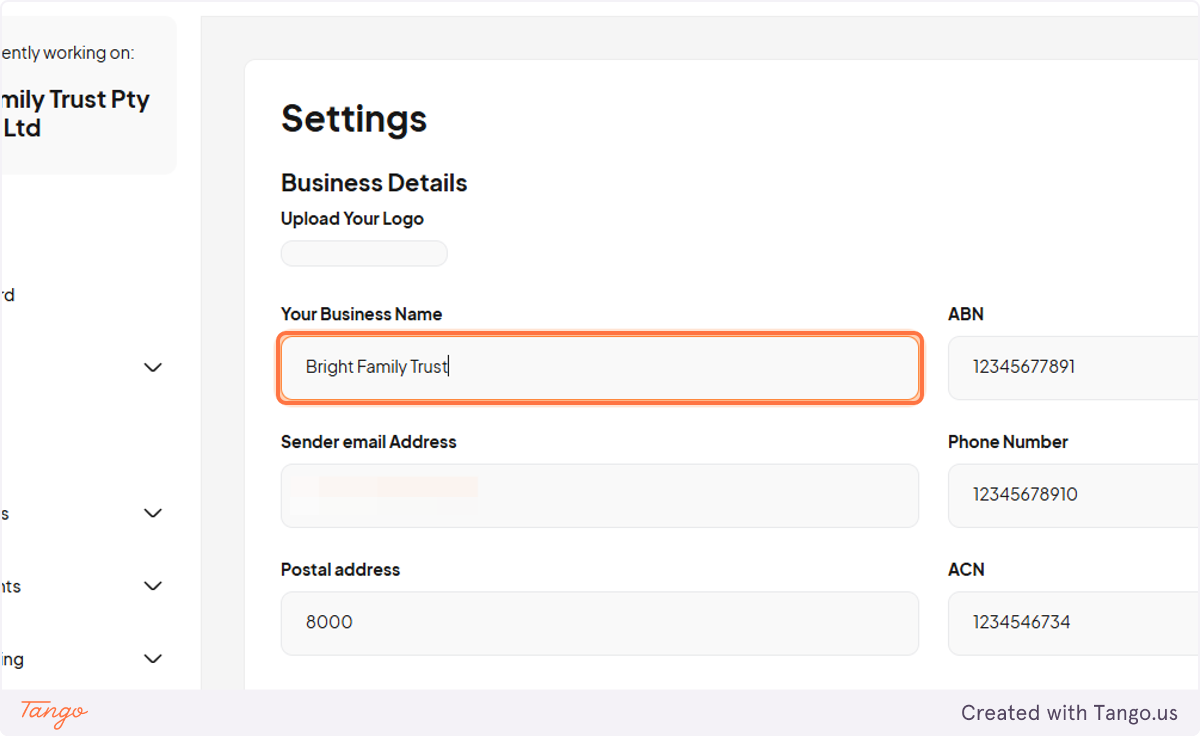
6. Add your business name that you would like to appear on your documents and contracts
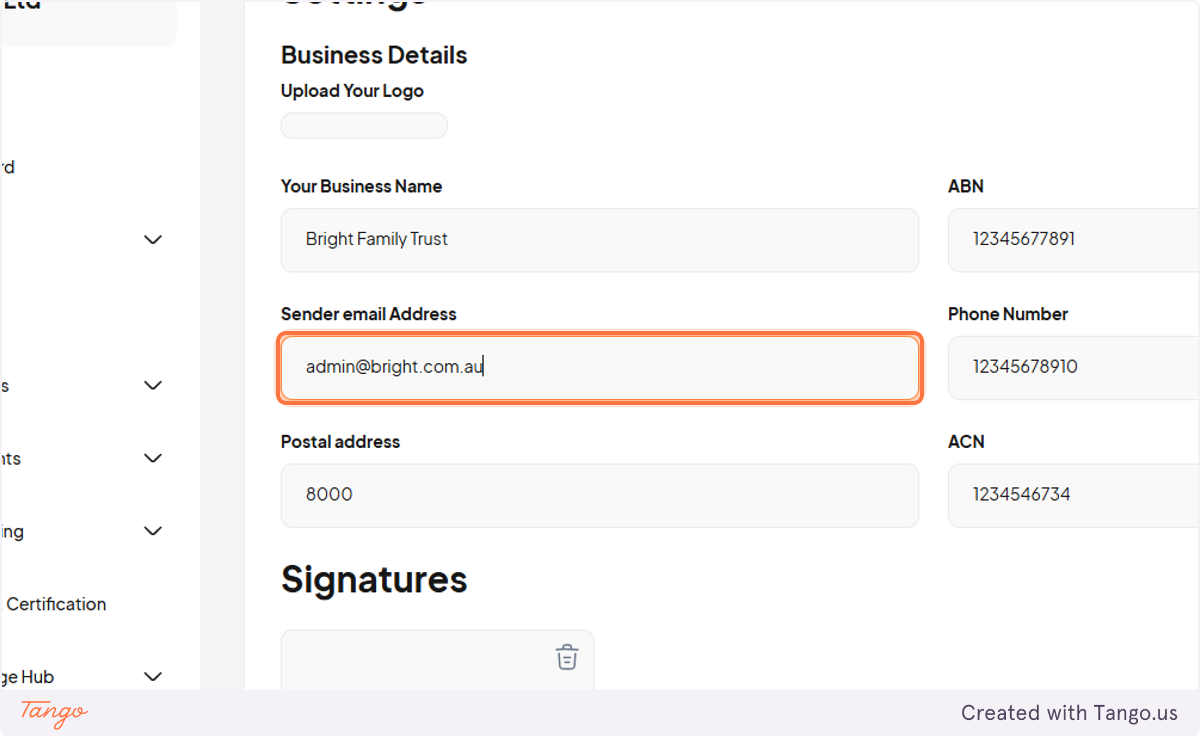
7. Add a sender email if you have configured SMTP through an enterprise account
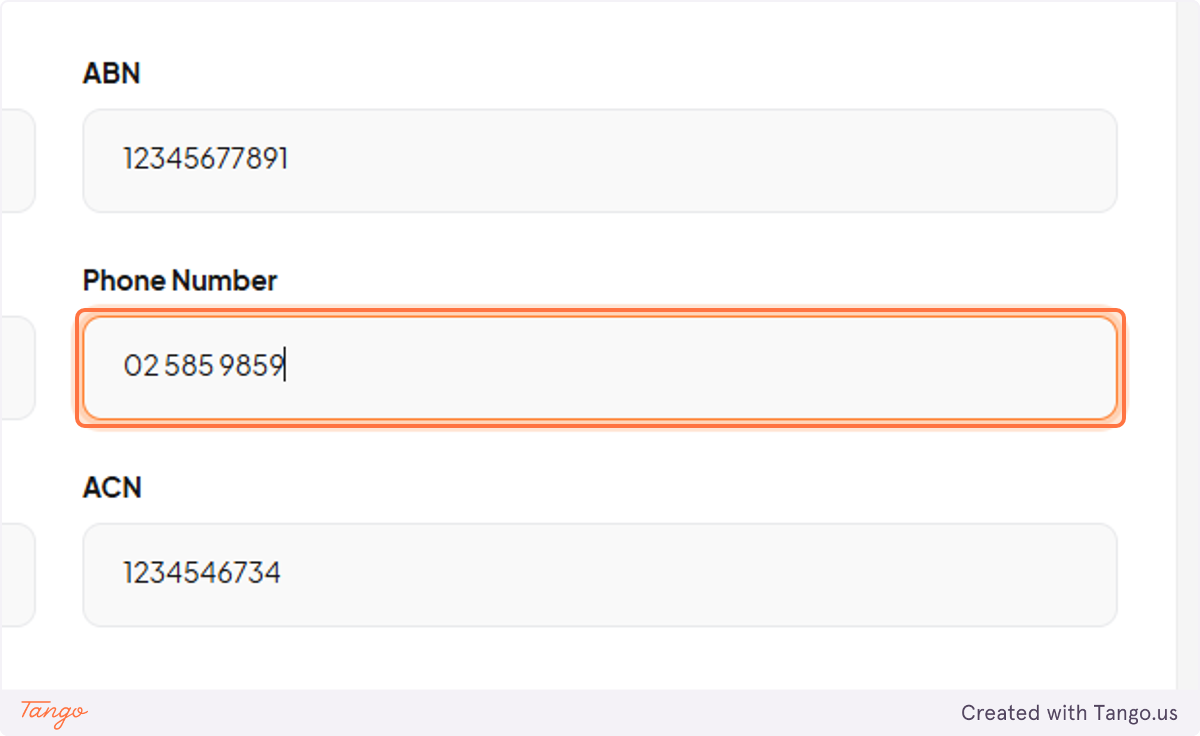
8. Business Phone number
9. Add a business address
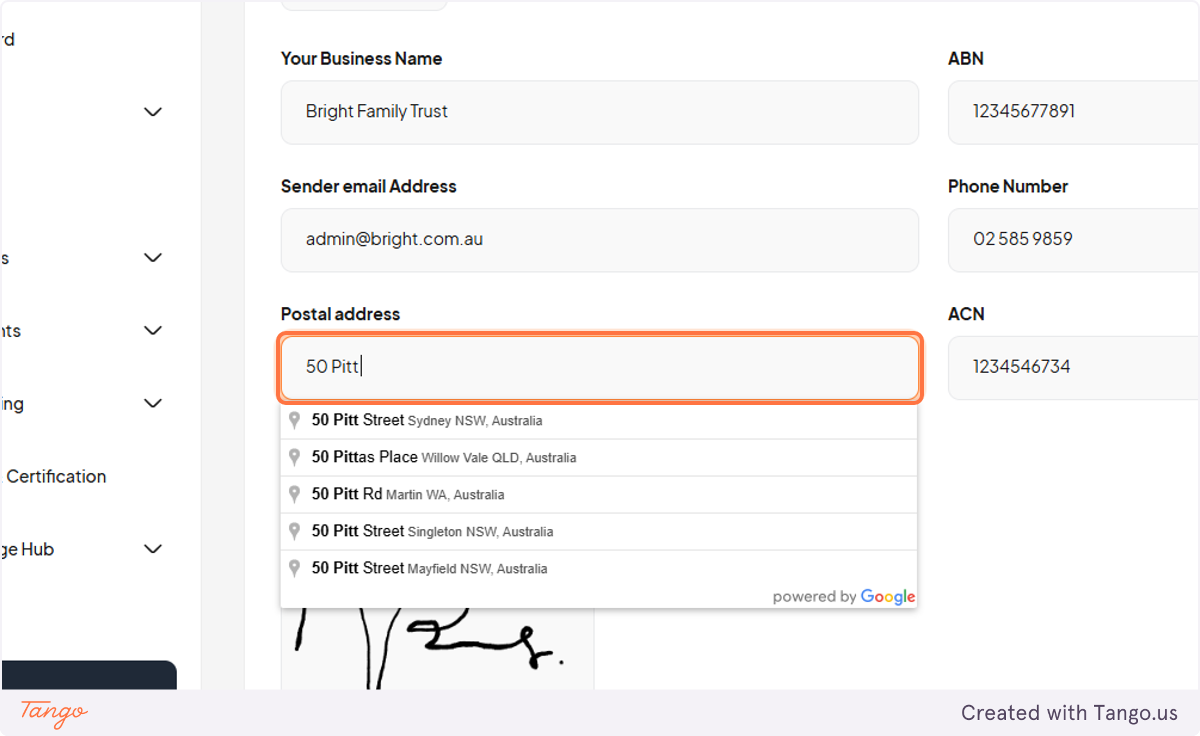
10. Select the location from the auto drop down
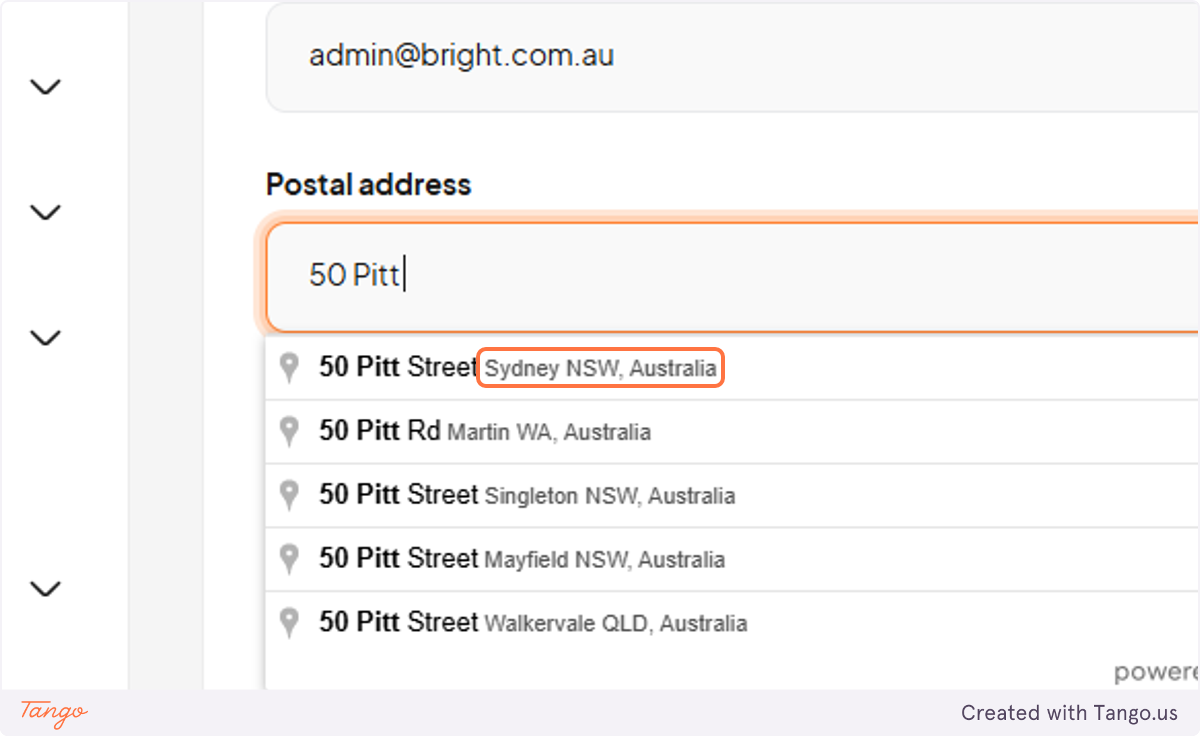
11. You can manually insert the address too
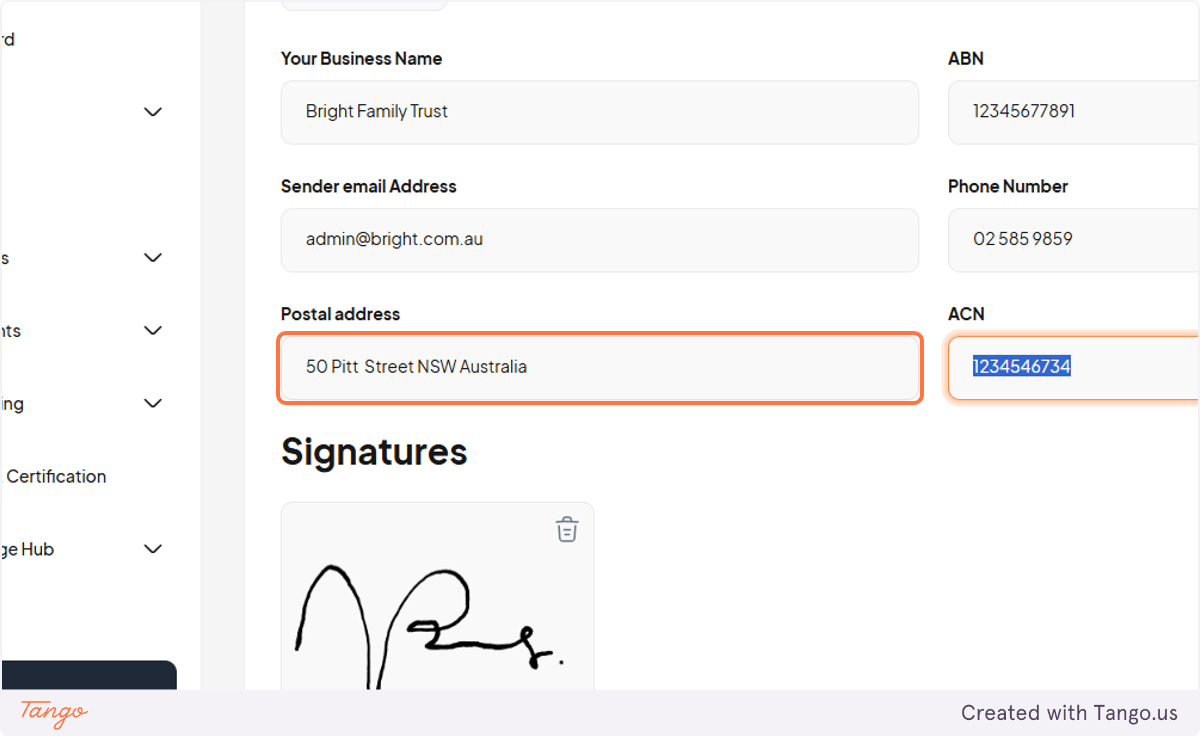
12. You can remove the current sample signature and
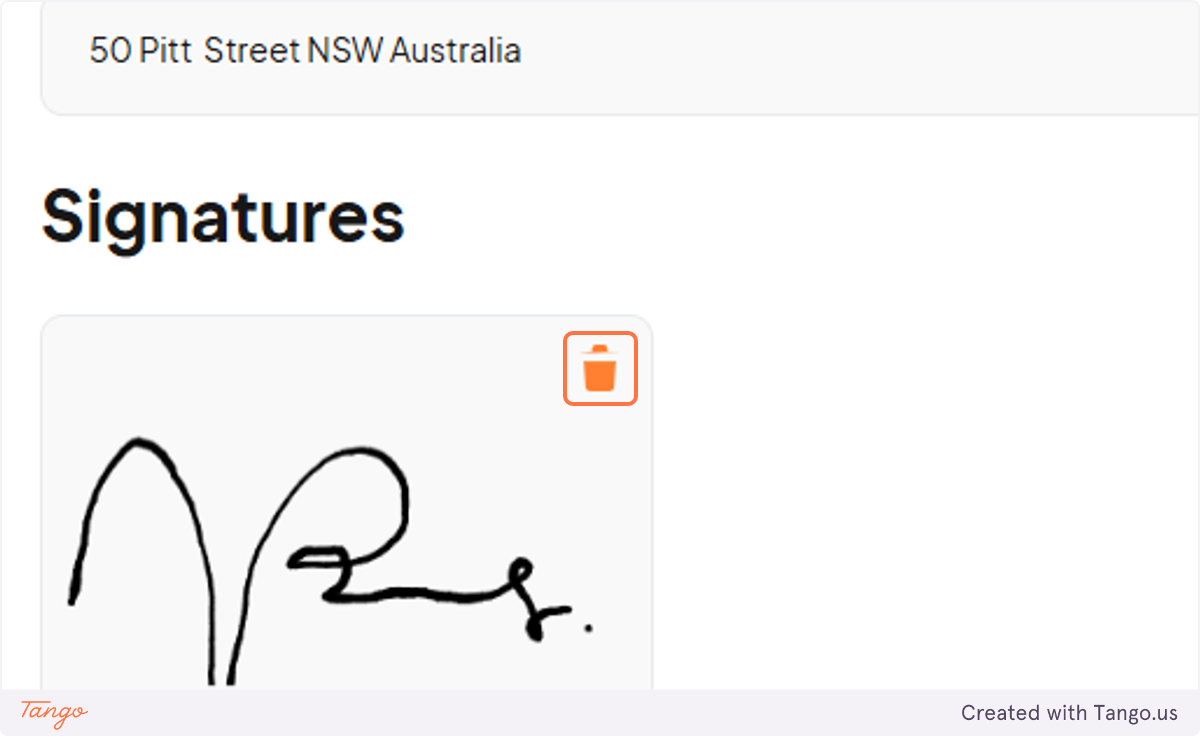
13. Add another signature first starting with the Signatories name and title
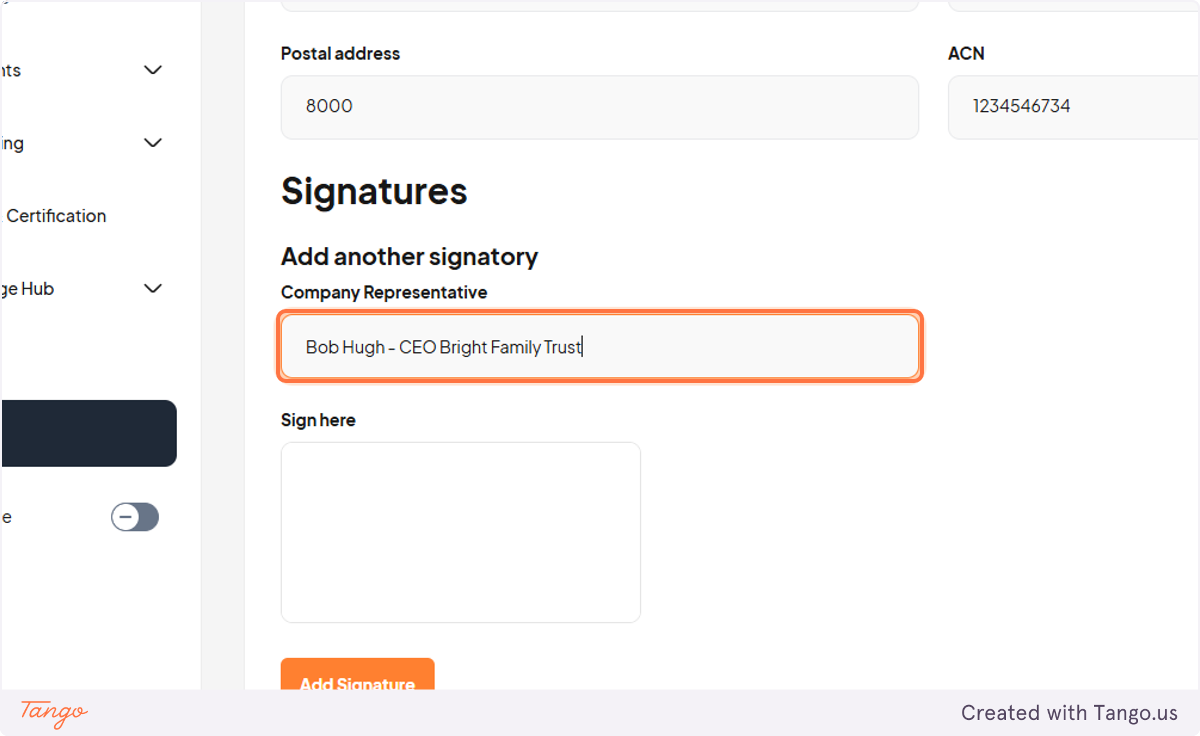
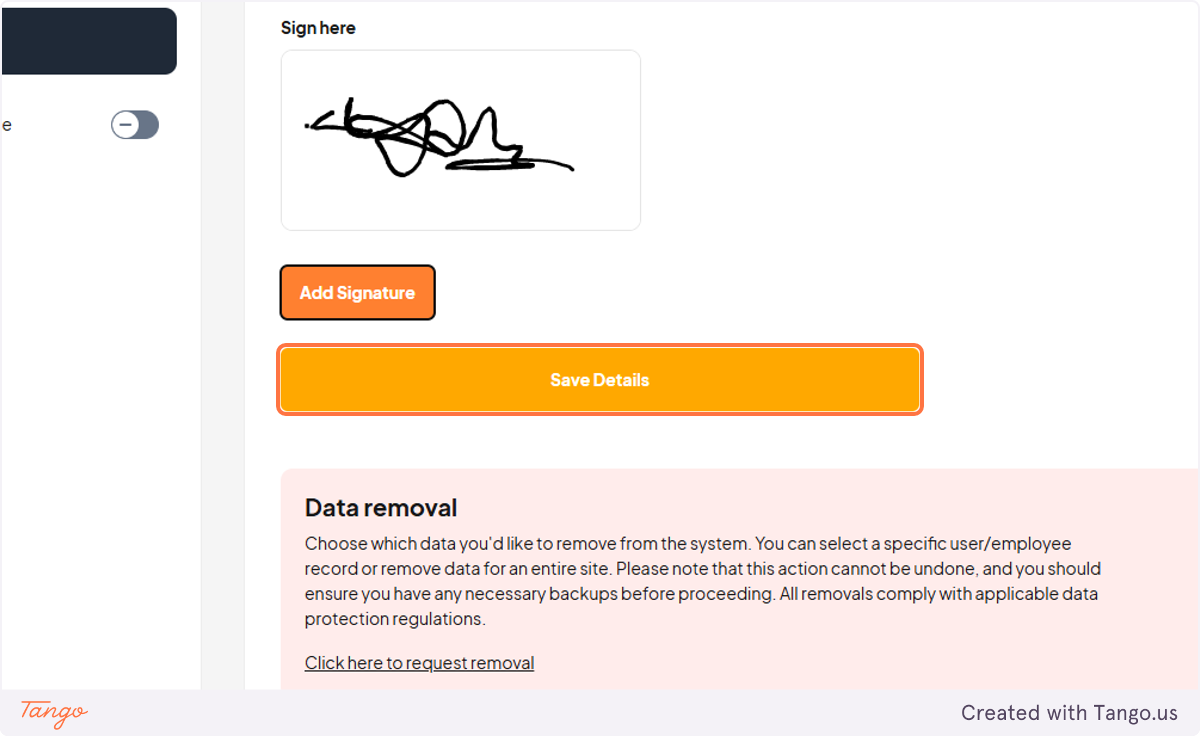
14. Signature can be copied here
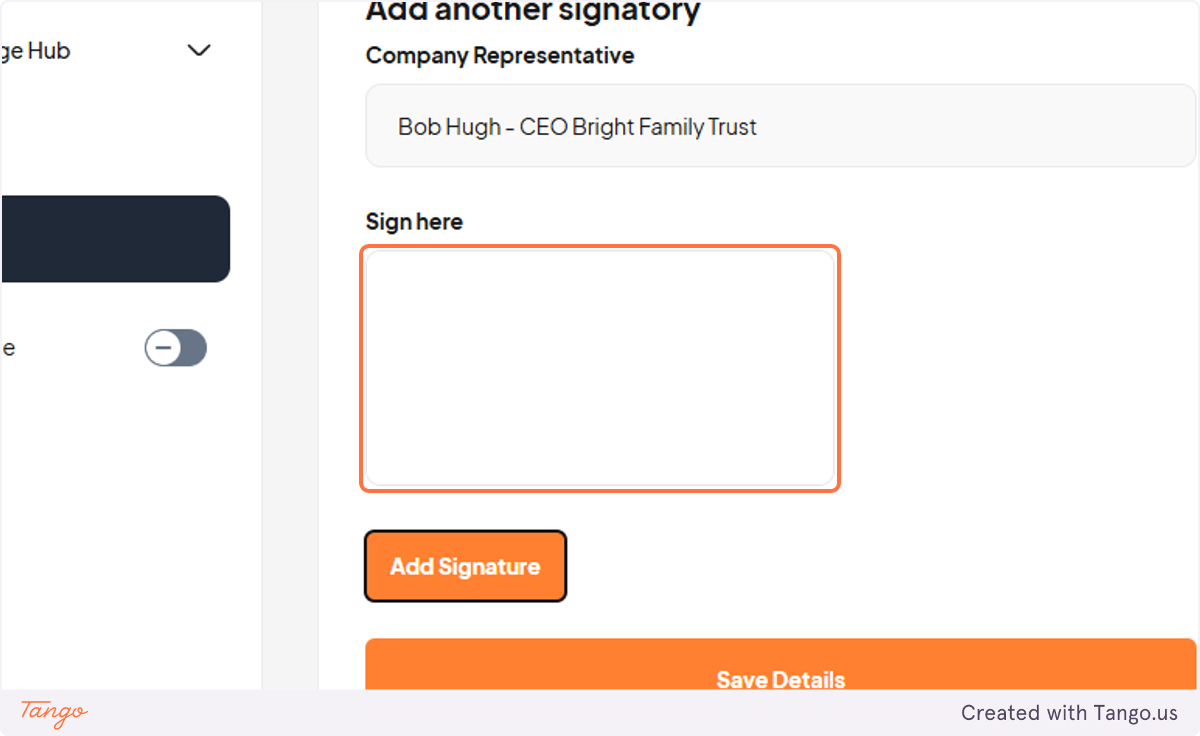
15. Click on Save Details
Was this article helpful?
That’s Great!
Thank you for your feedback
Sorry! We couldn't be helpful
Thank you for your feedback
Feedback sent
We appreciate your effort and will try to fix the article