Learn how to add a new physical asset to the company registry and assign it to a specific employee. This guide simplifies the process of tracking access cards to ensure proper equipment management.
1. Go to secure.hrcommand.com.au
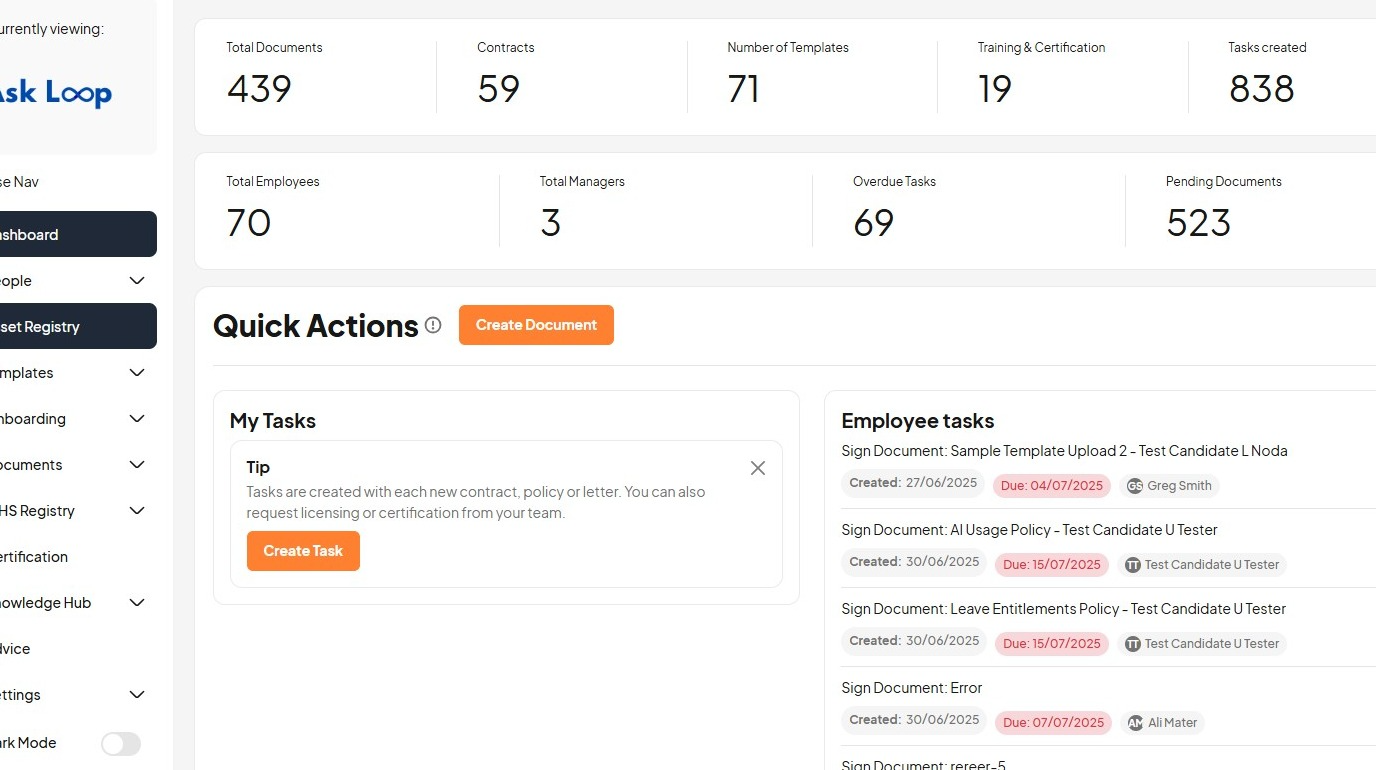
2. Click "Asset Registry"
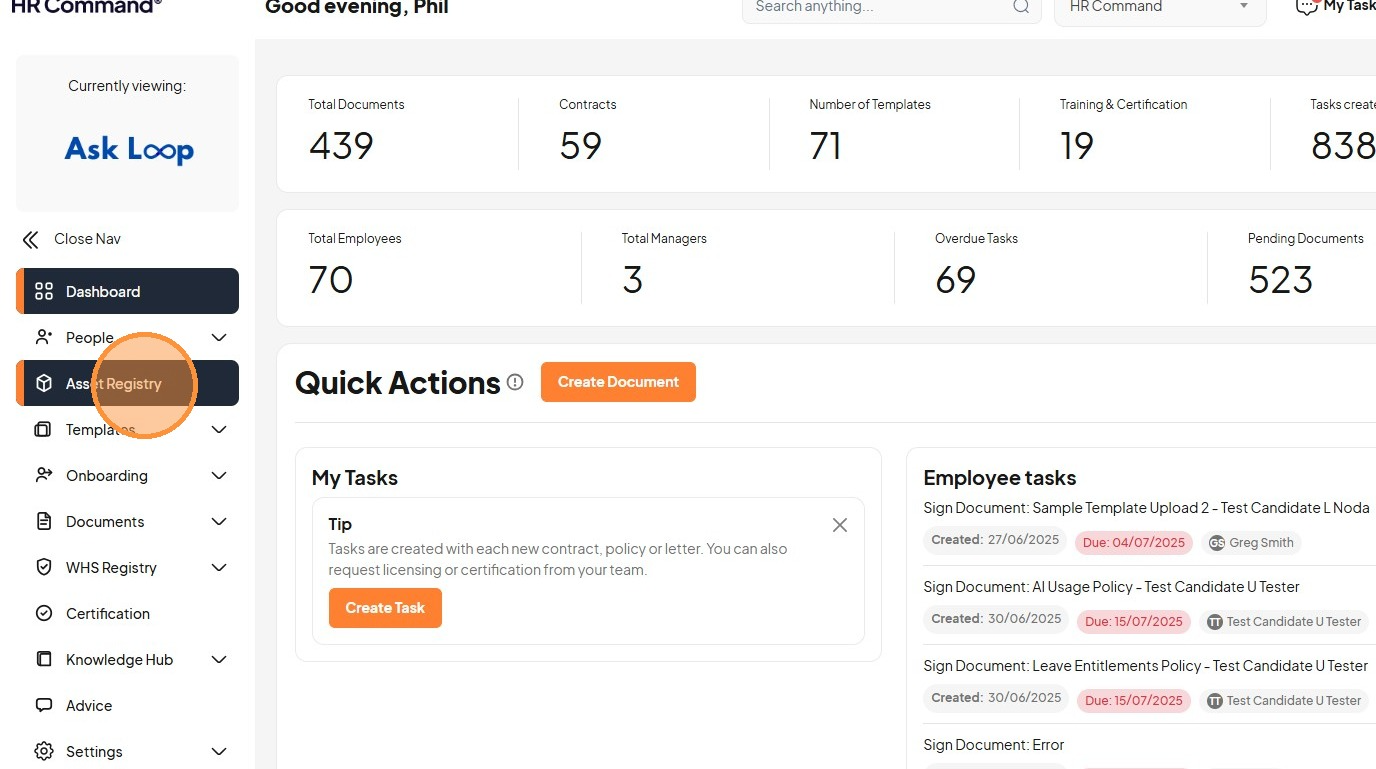
3. Click "Add Asset"
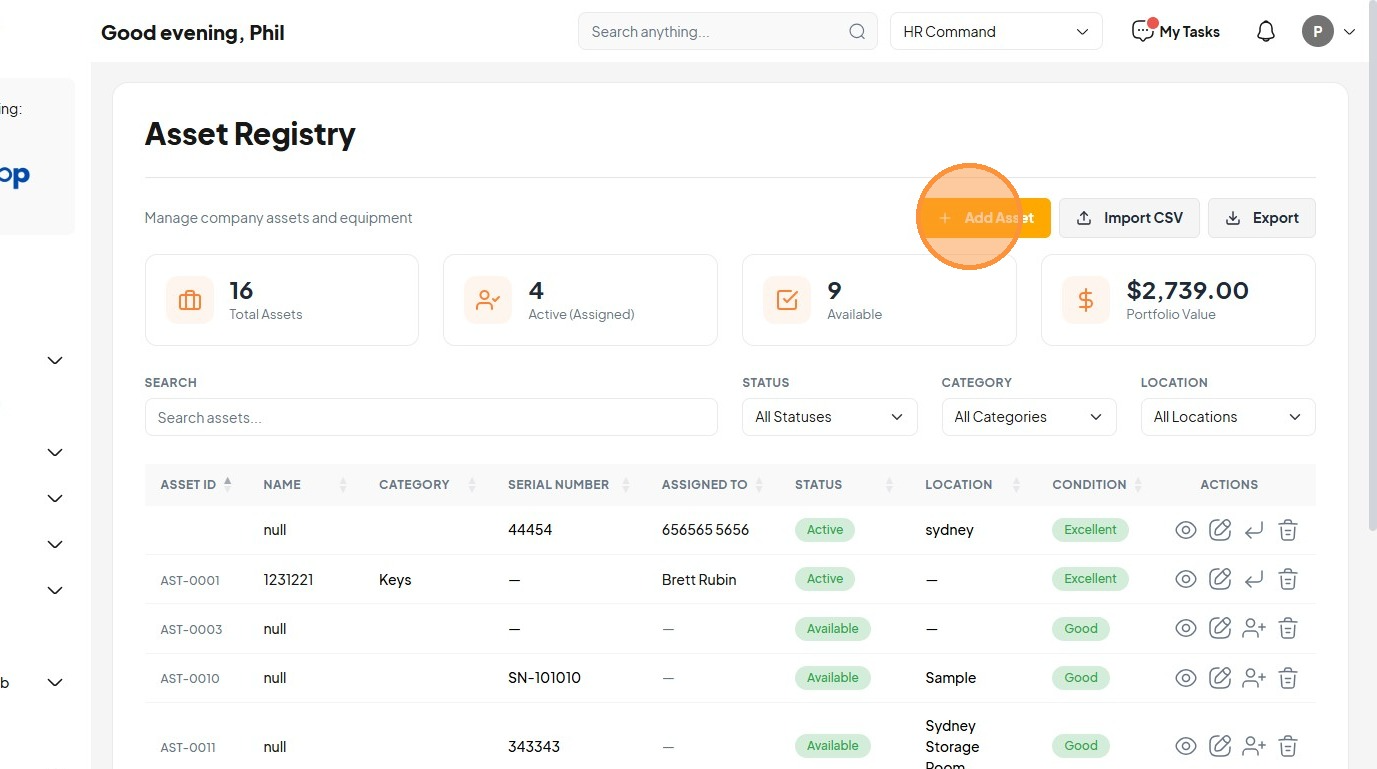
4. Click the "e.g., MacBook Pro 14" field
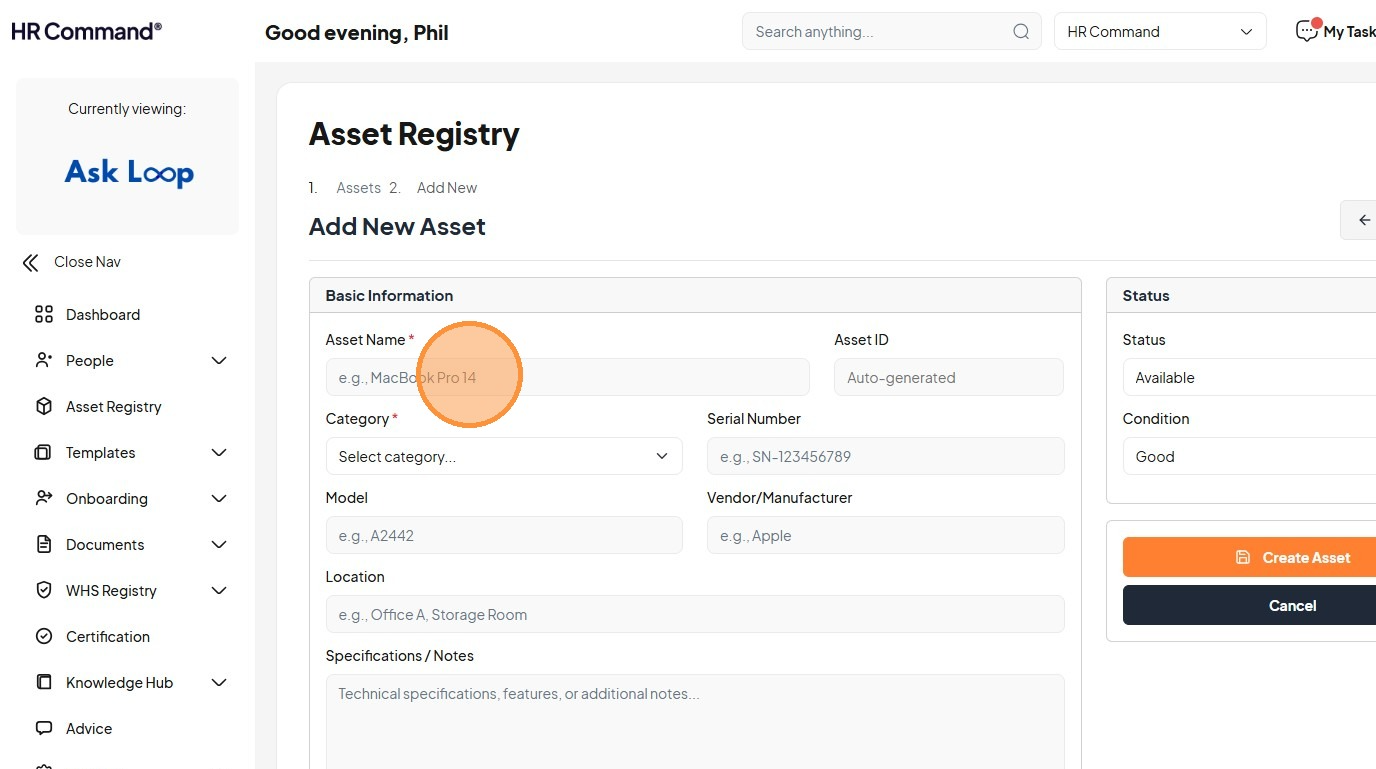
5. Type "Swipe card for access"
6. Select the "— Access Cards" option
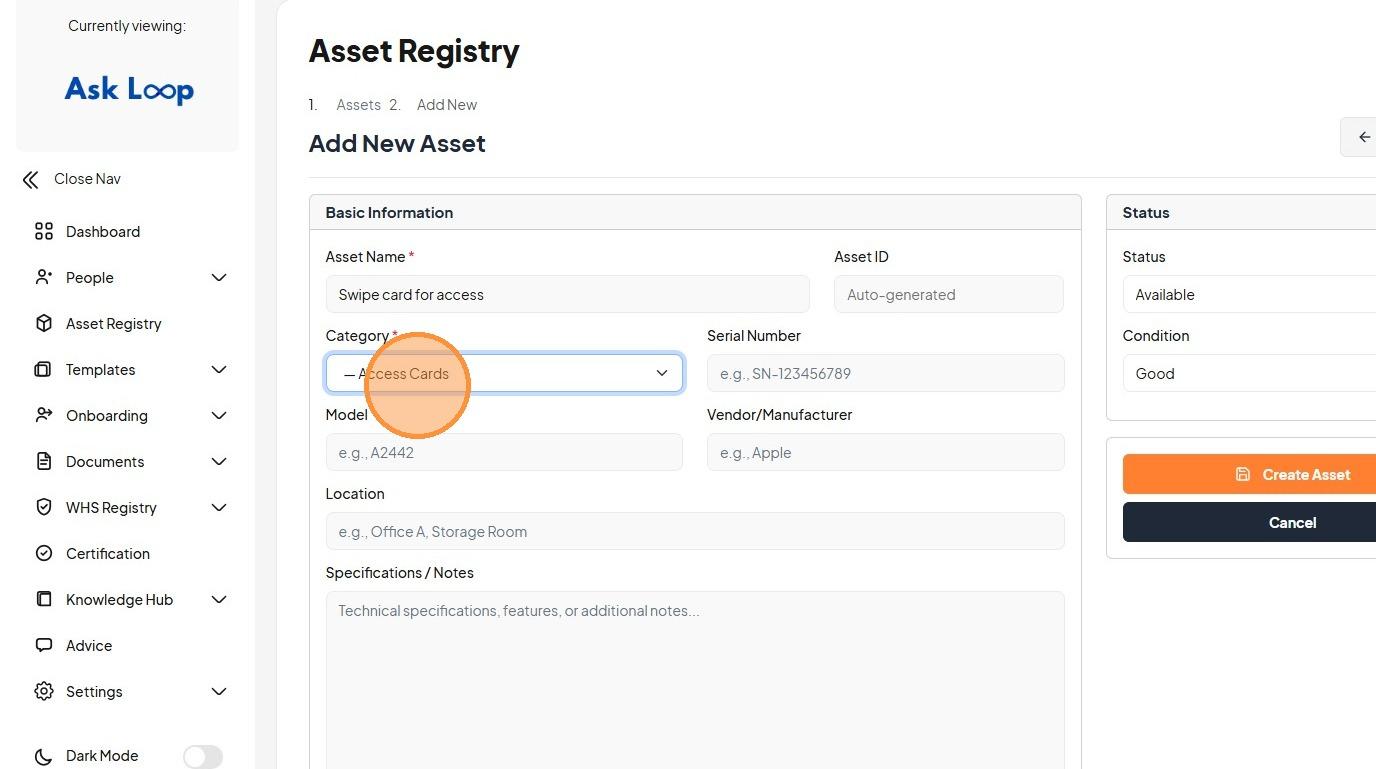
7. Click the "e.g., SN-123456789" field
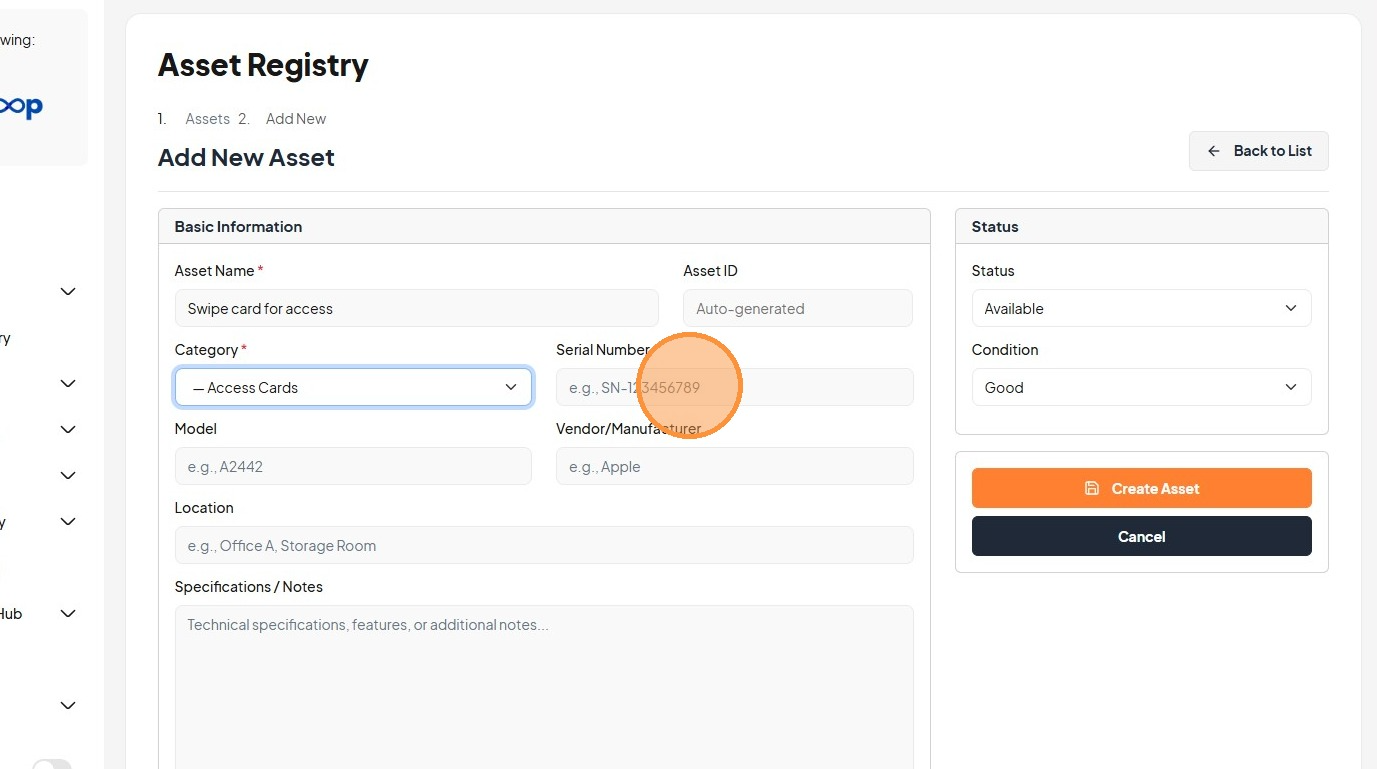
8. Type "6559"
9. Click the "e.g., Office A, Storage Room" field
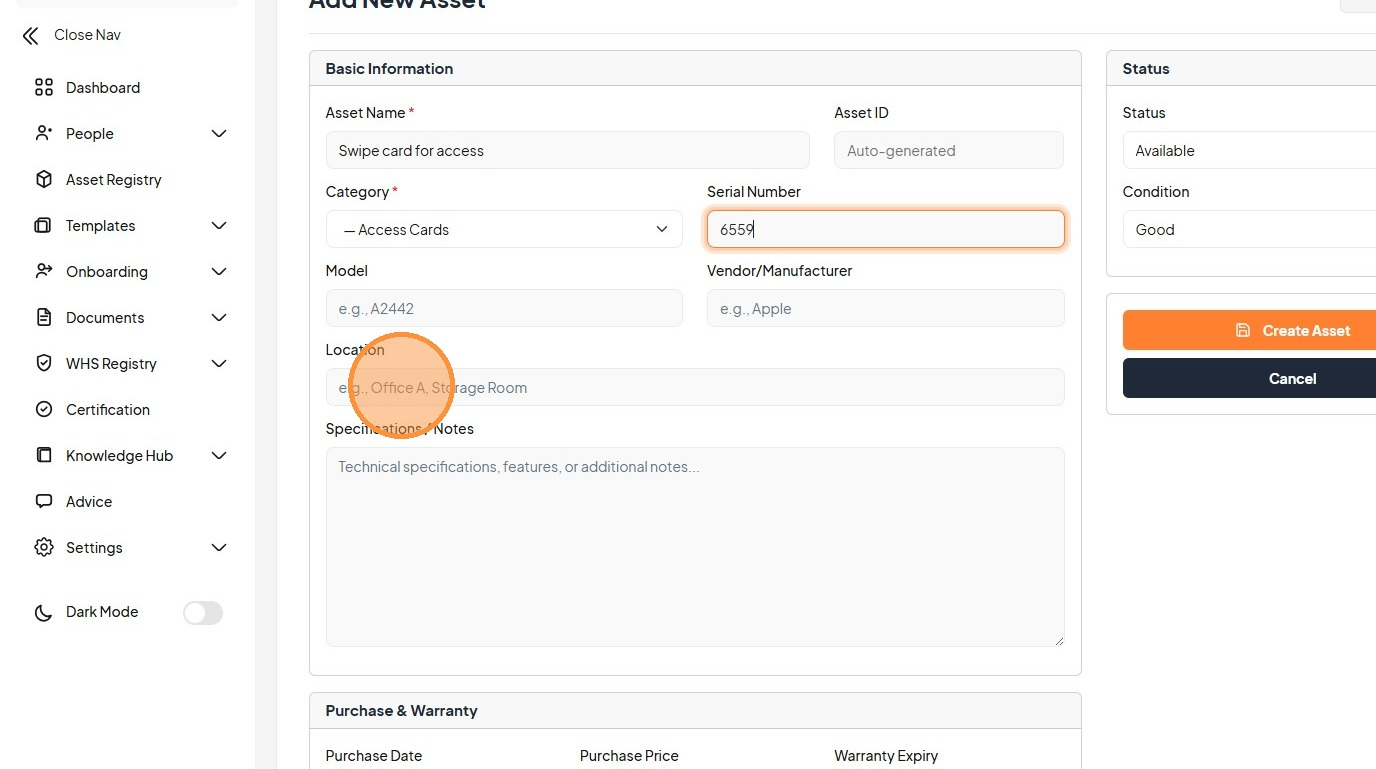
10. Type "Sydney Office"
11. Click the "Technical specifications, features, or additional notes..." field
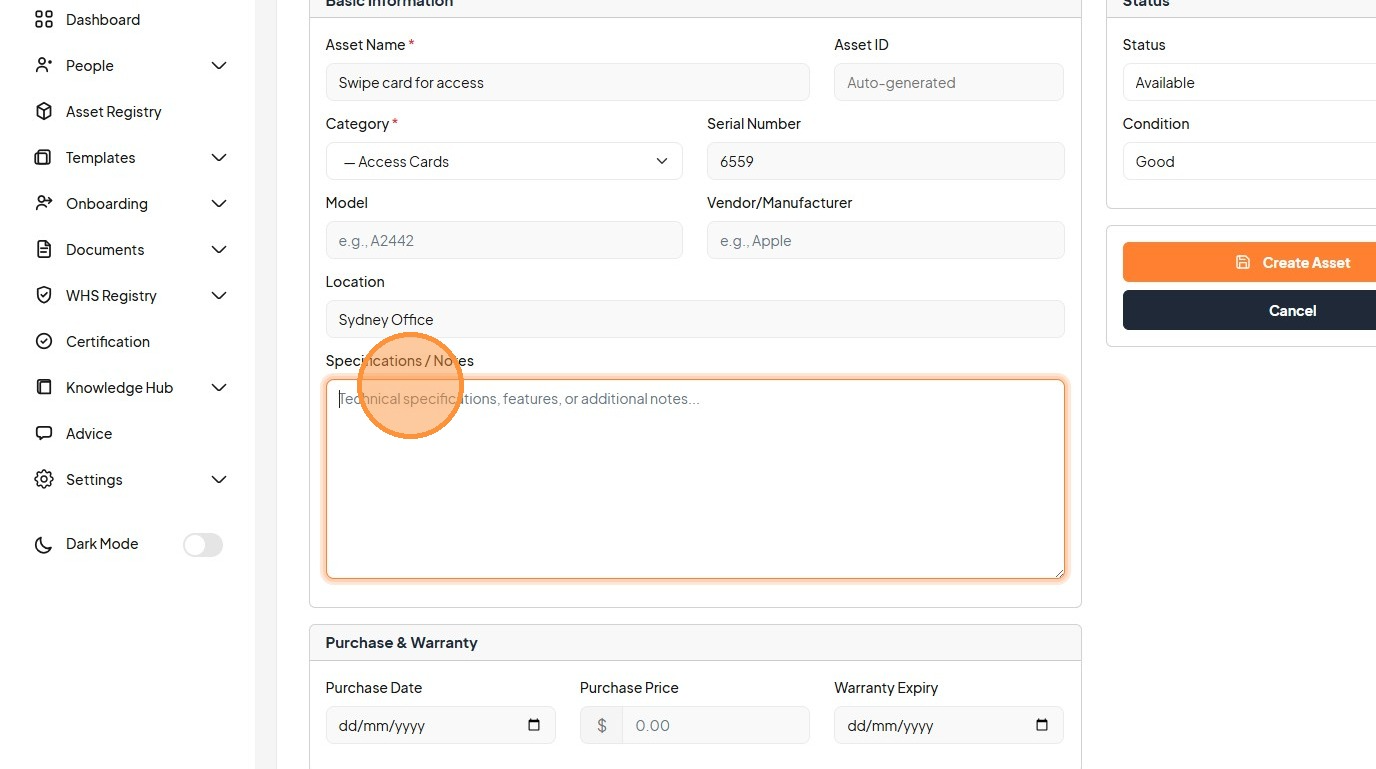
12. Type "No lanyard"
13. Click the "Technical specifications, features, or additional notes..." field
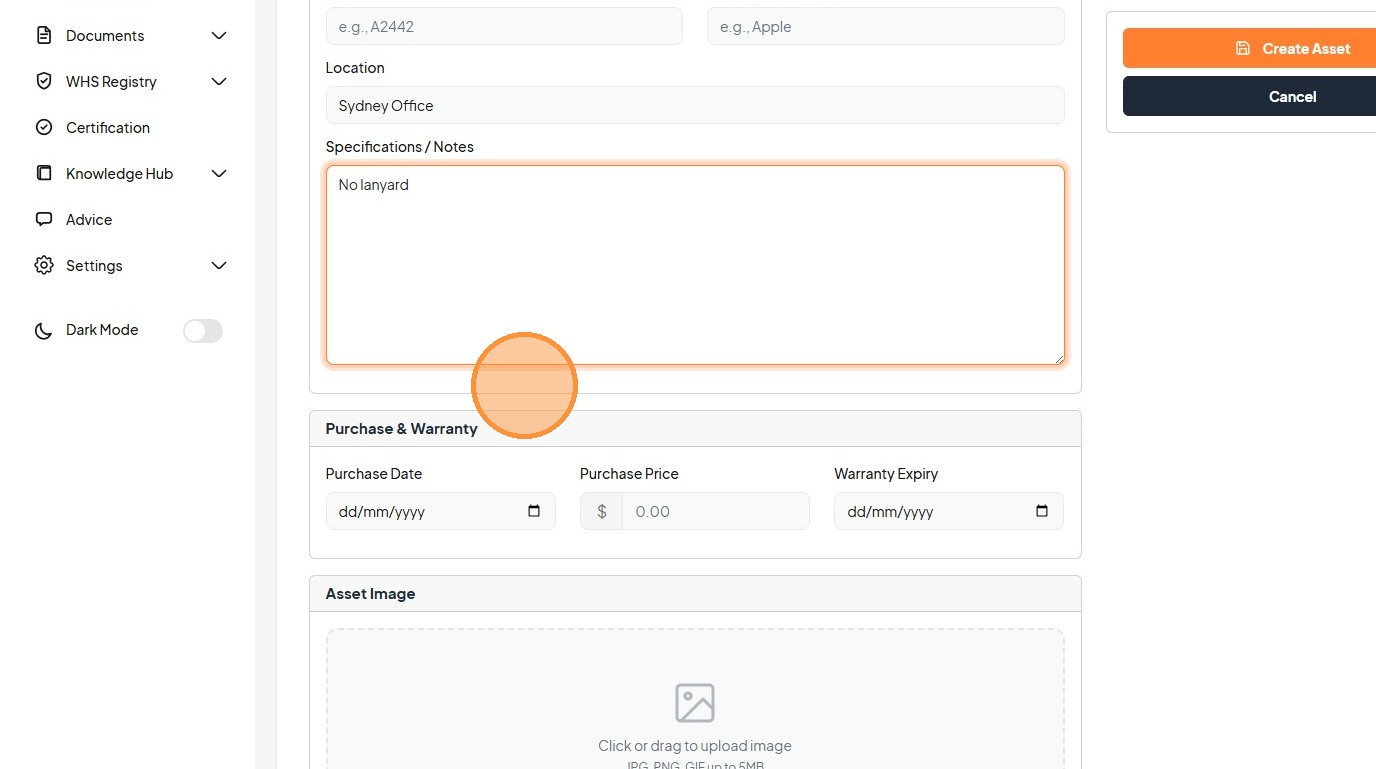
14. Click here
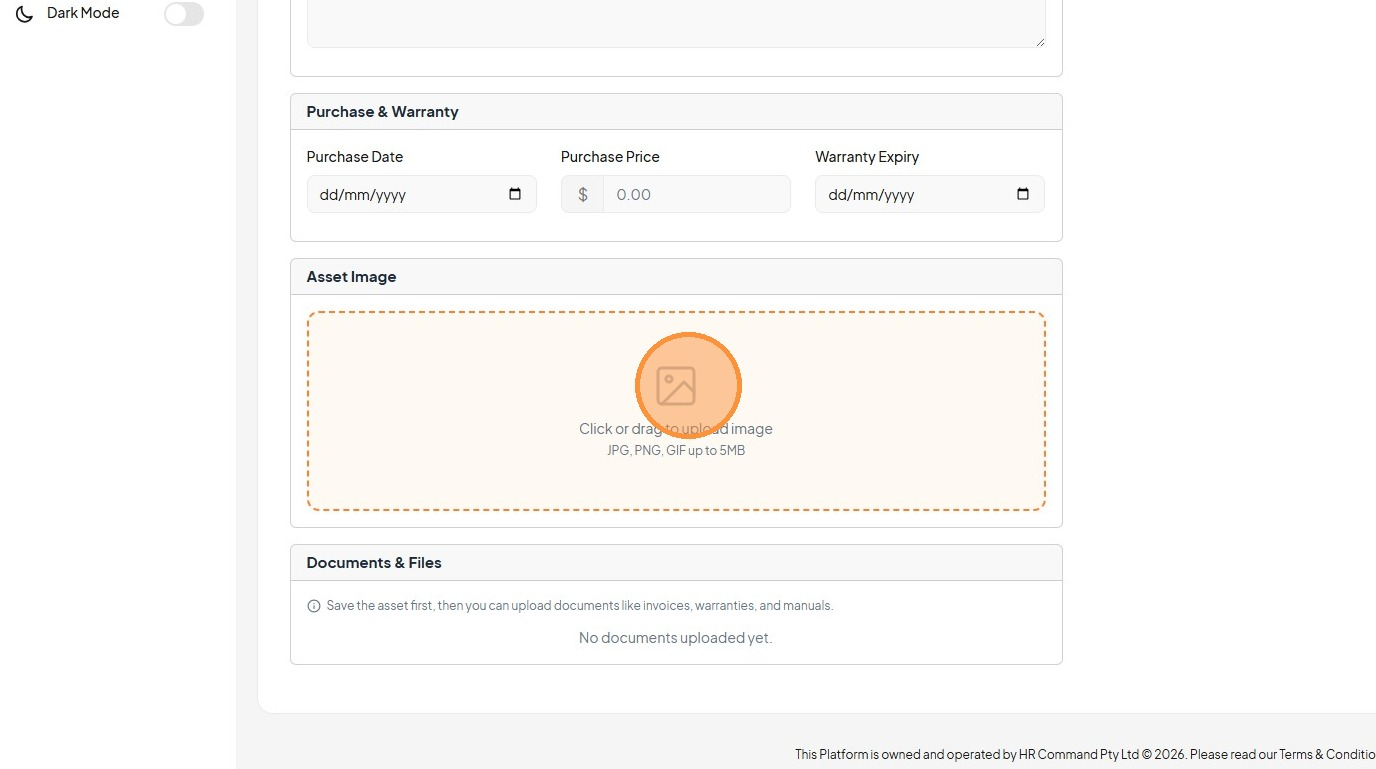
15. Click this dropdown
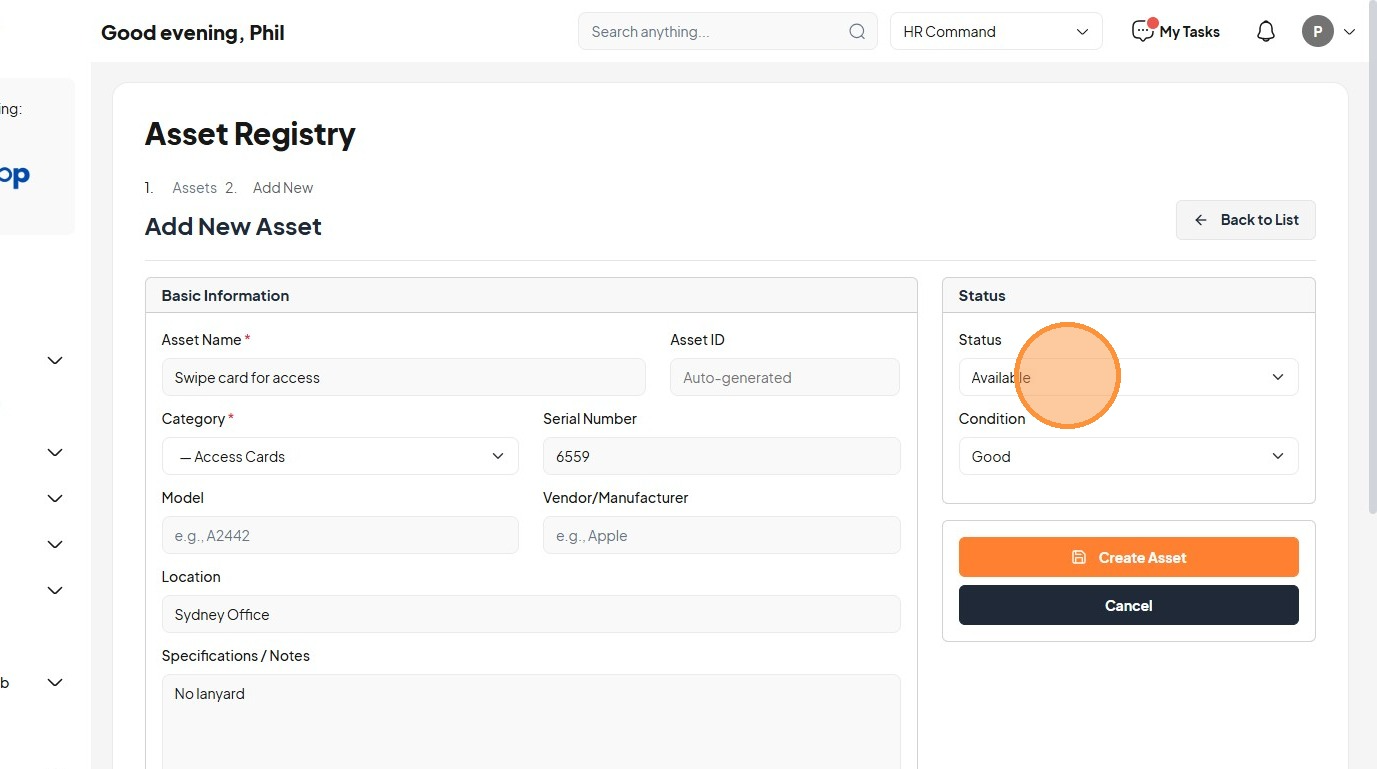
16. Click this dropdown
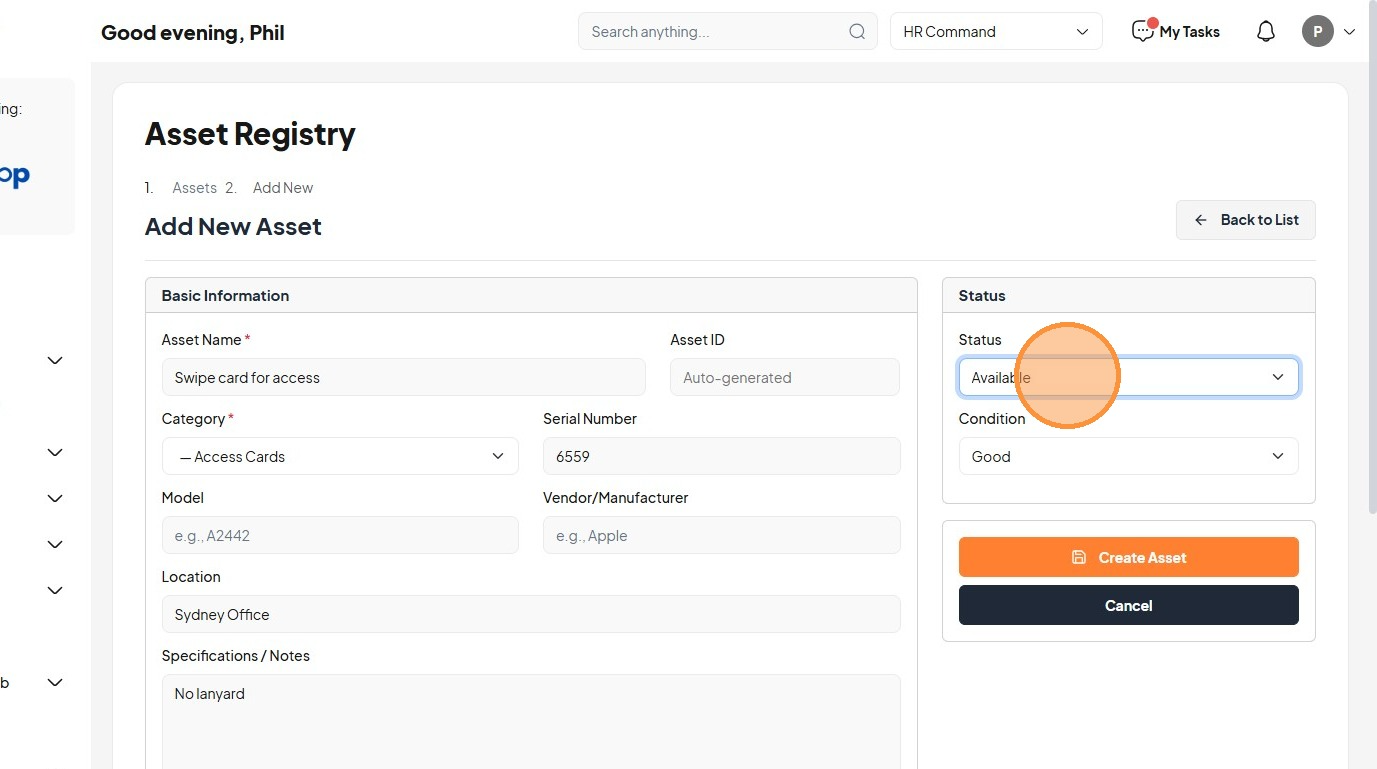
17. Select the "Fair" option
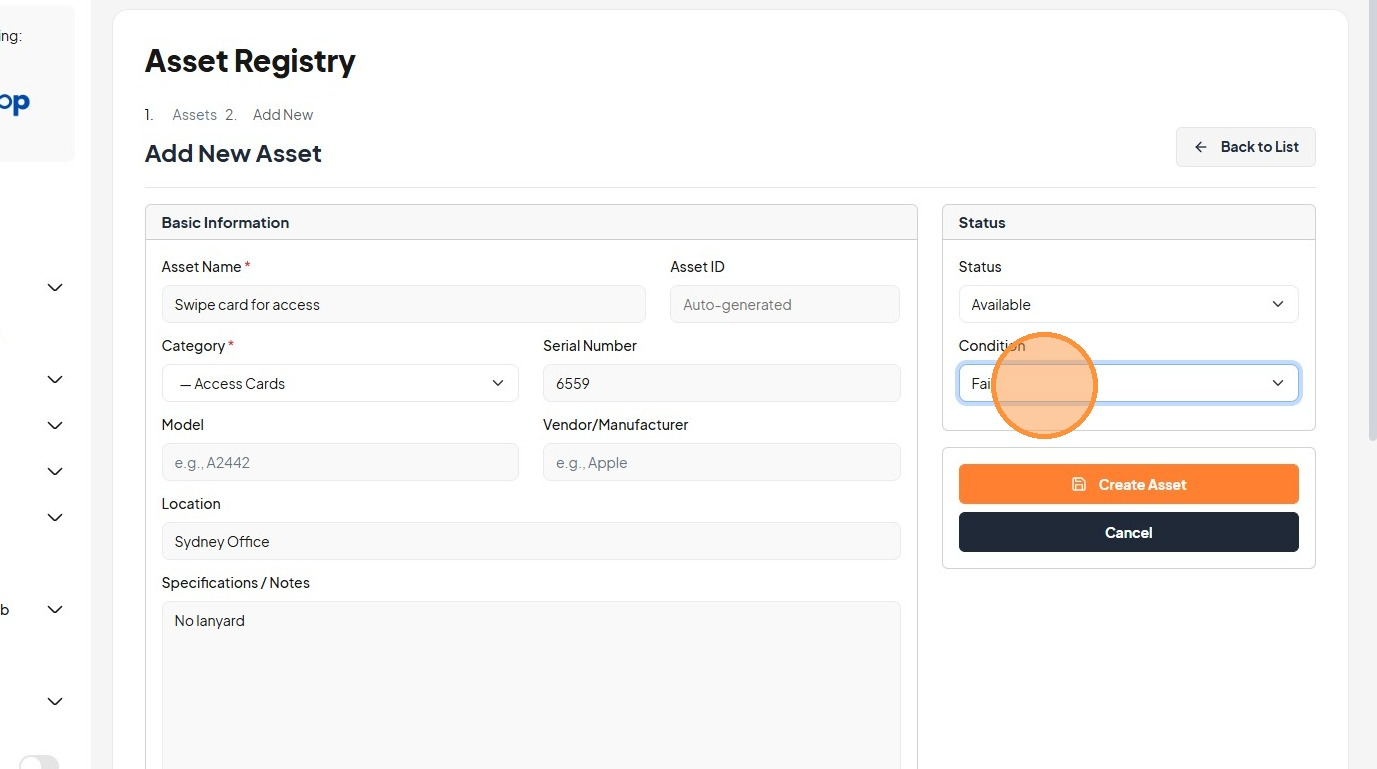
18. Click "Saving..."
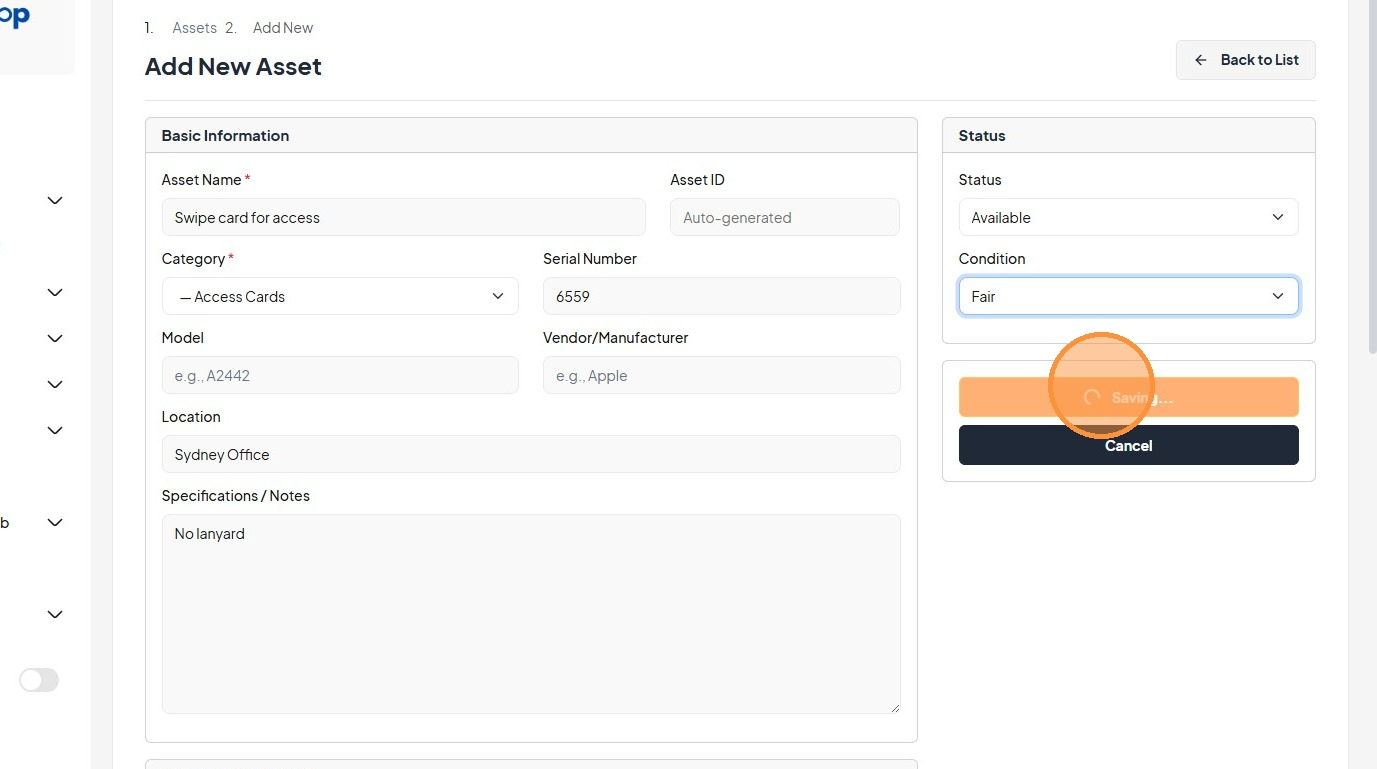
19. Click "Assign"
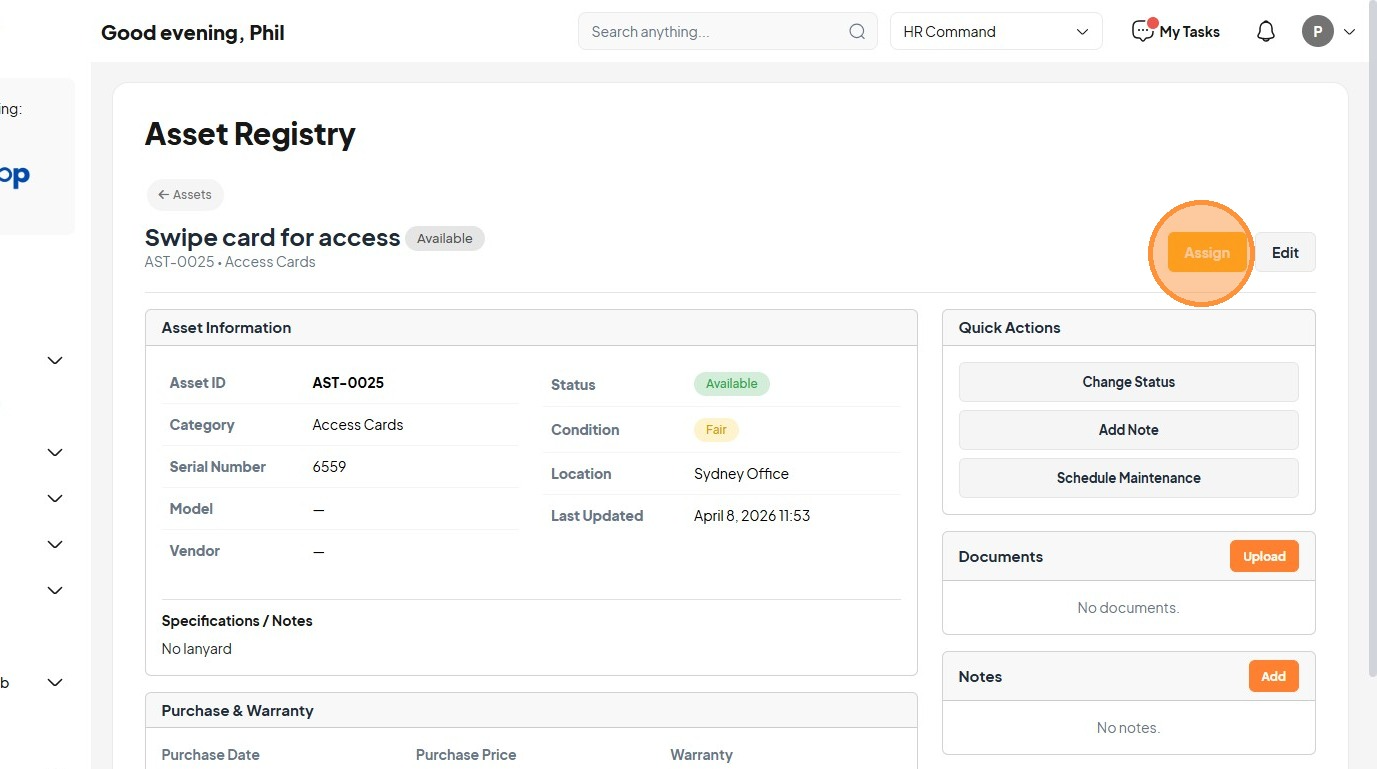
20. Click "Select an employee"
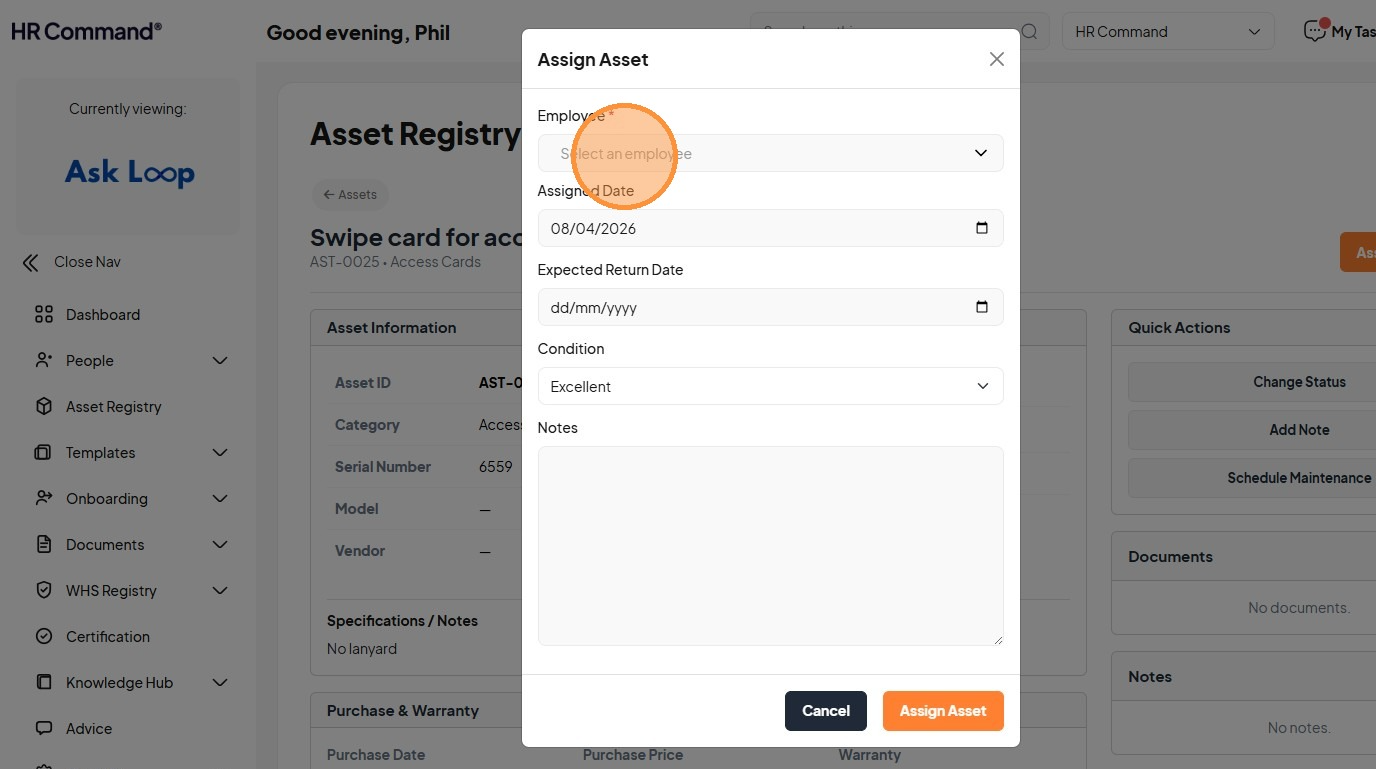
21. Click "(angus+bbbaaa@noda.com.au)"
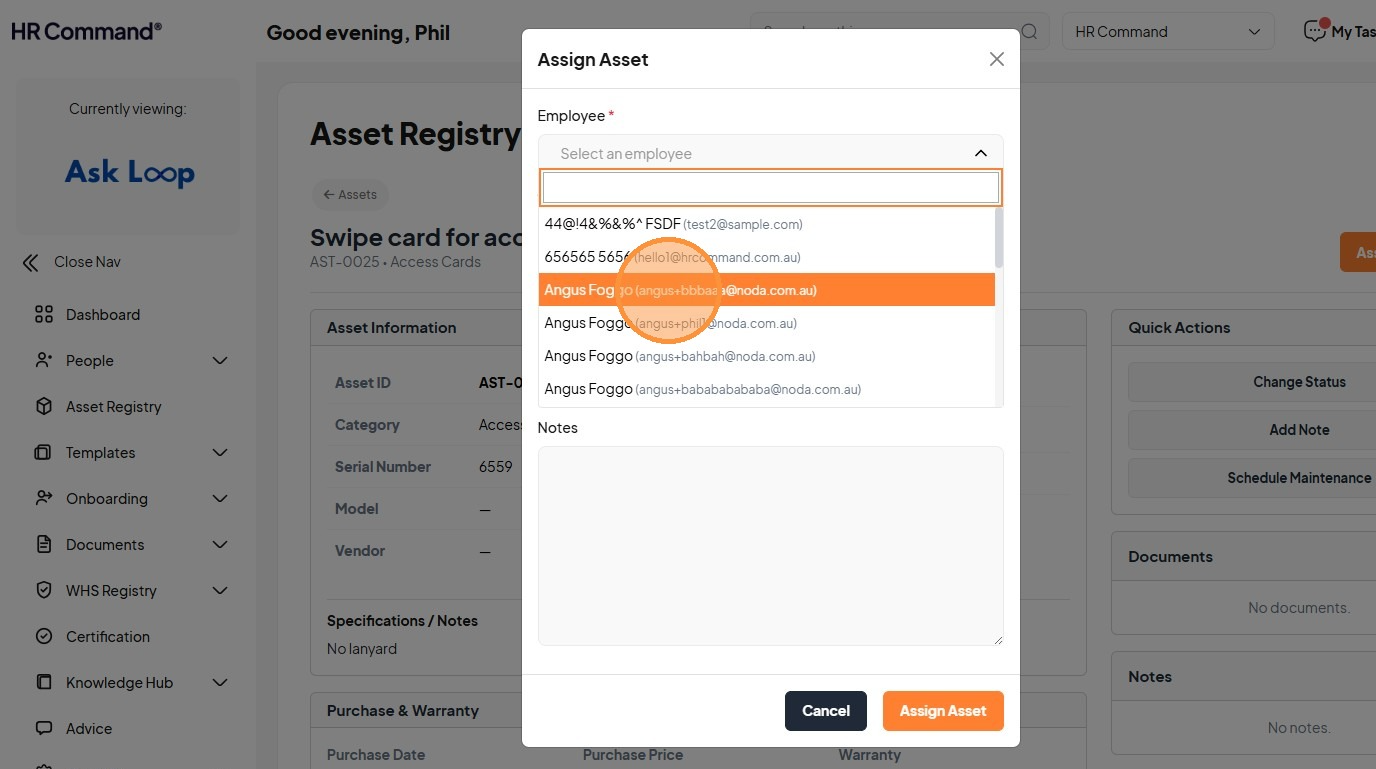
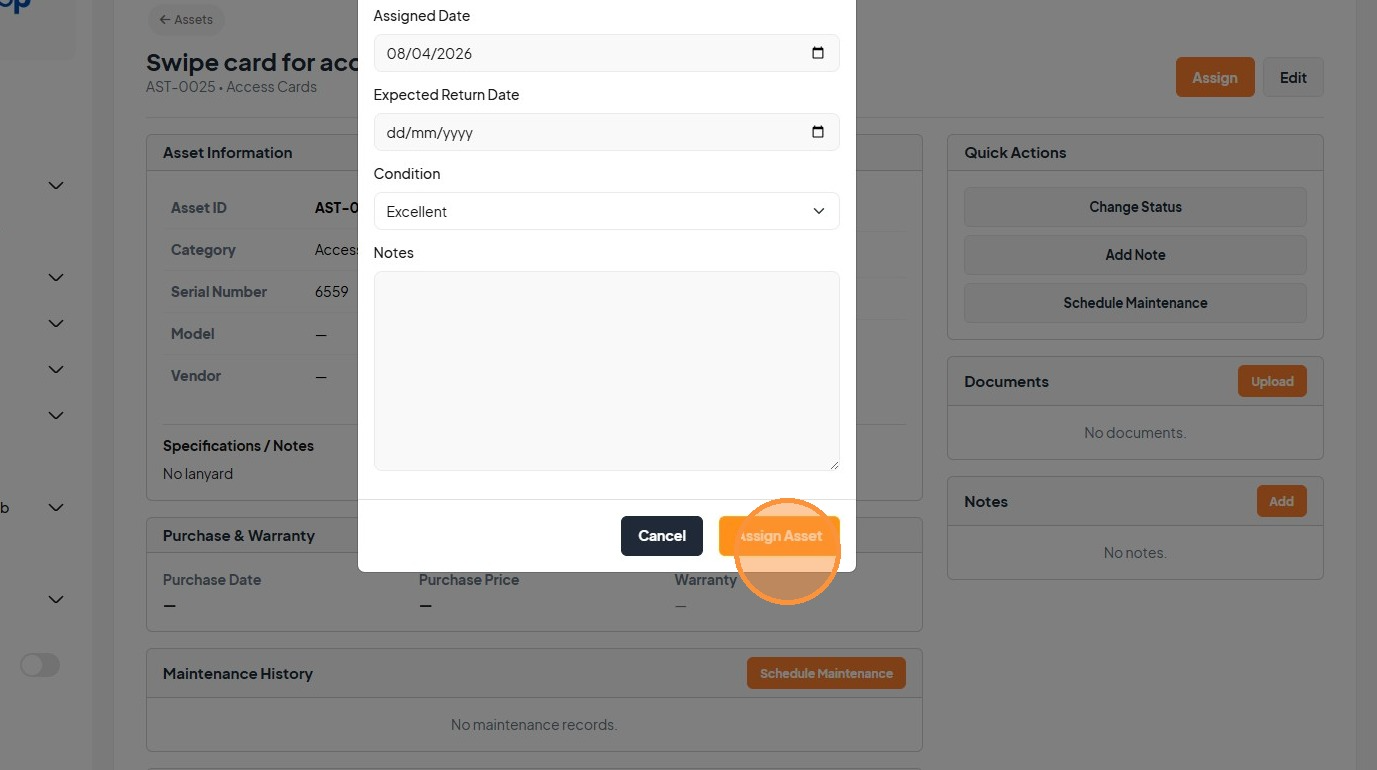
22. Click "Please wait..."
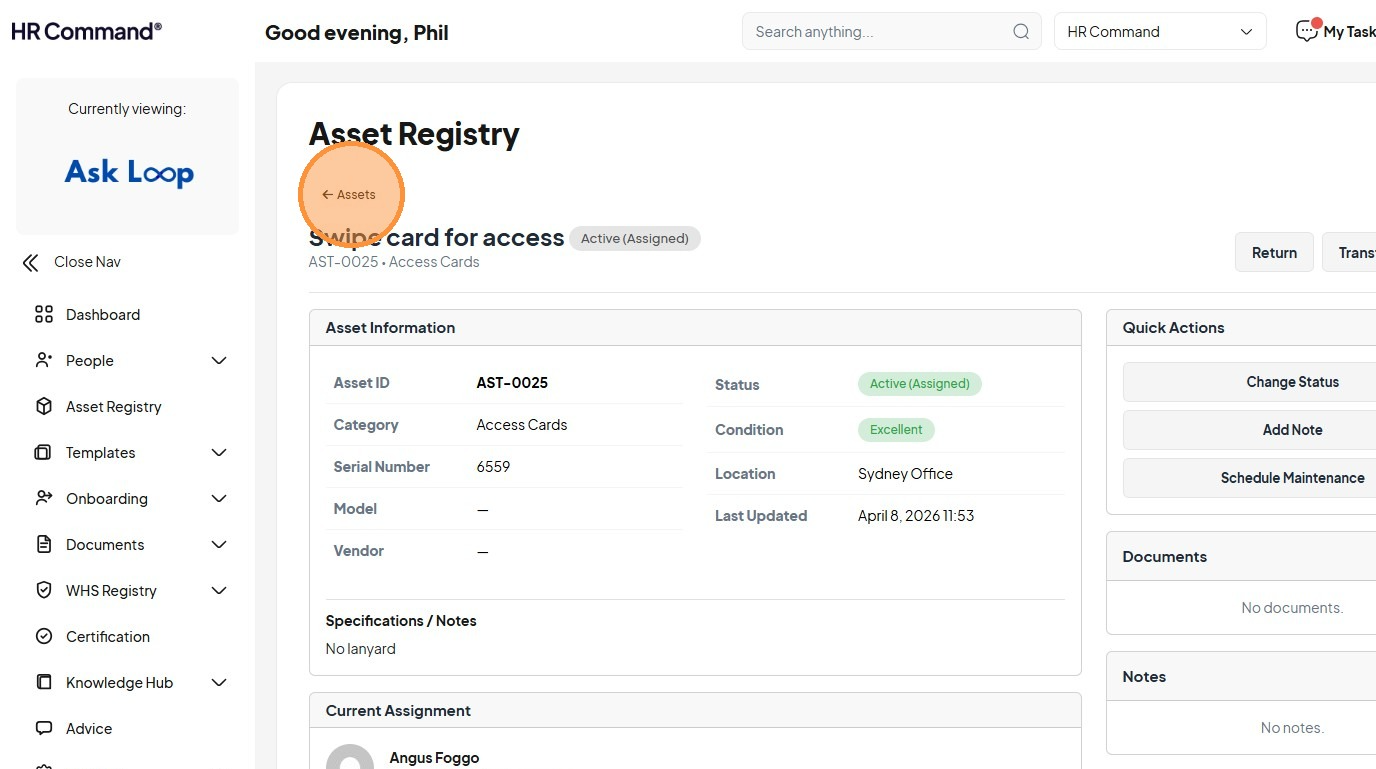
23. Click "Assets"
24. Click this icon
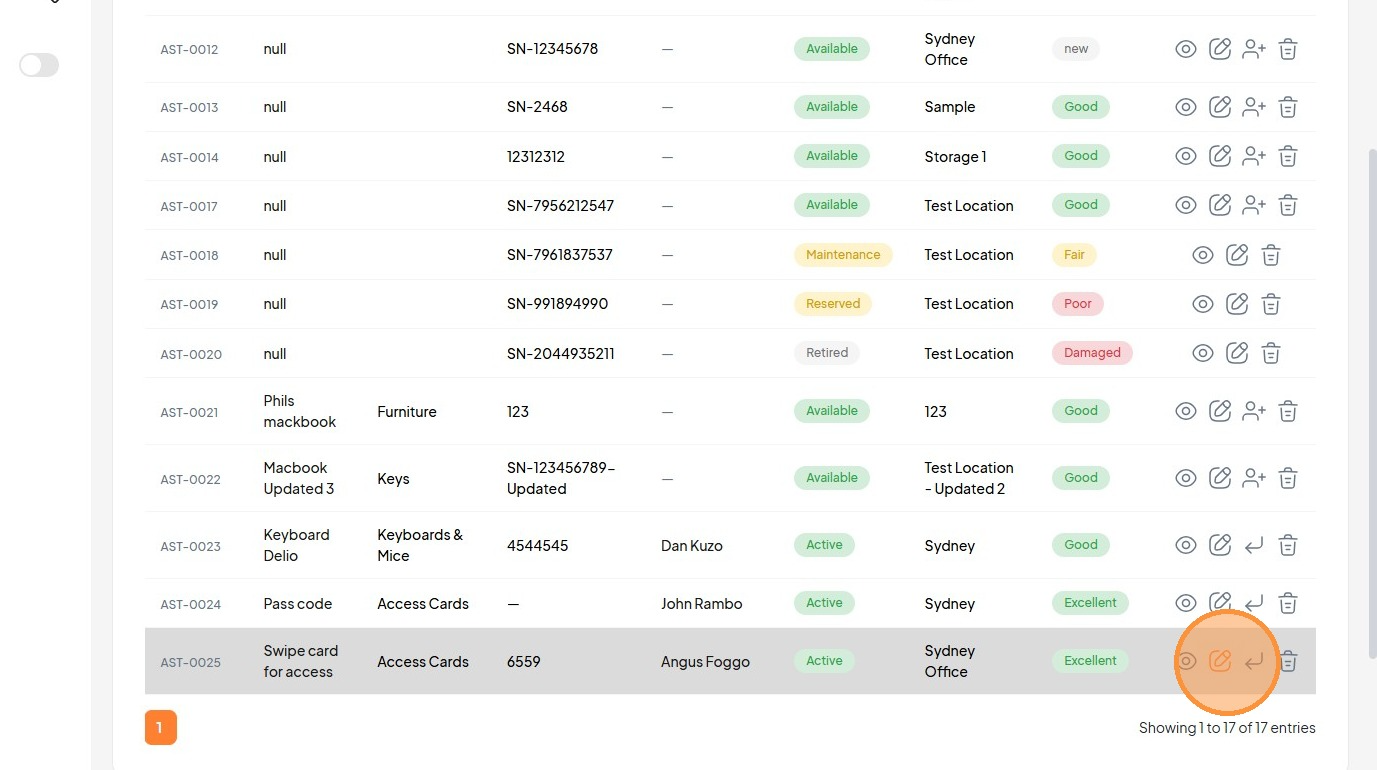
25. Click "Saving..."
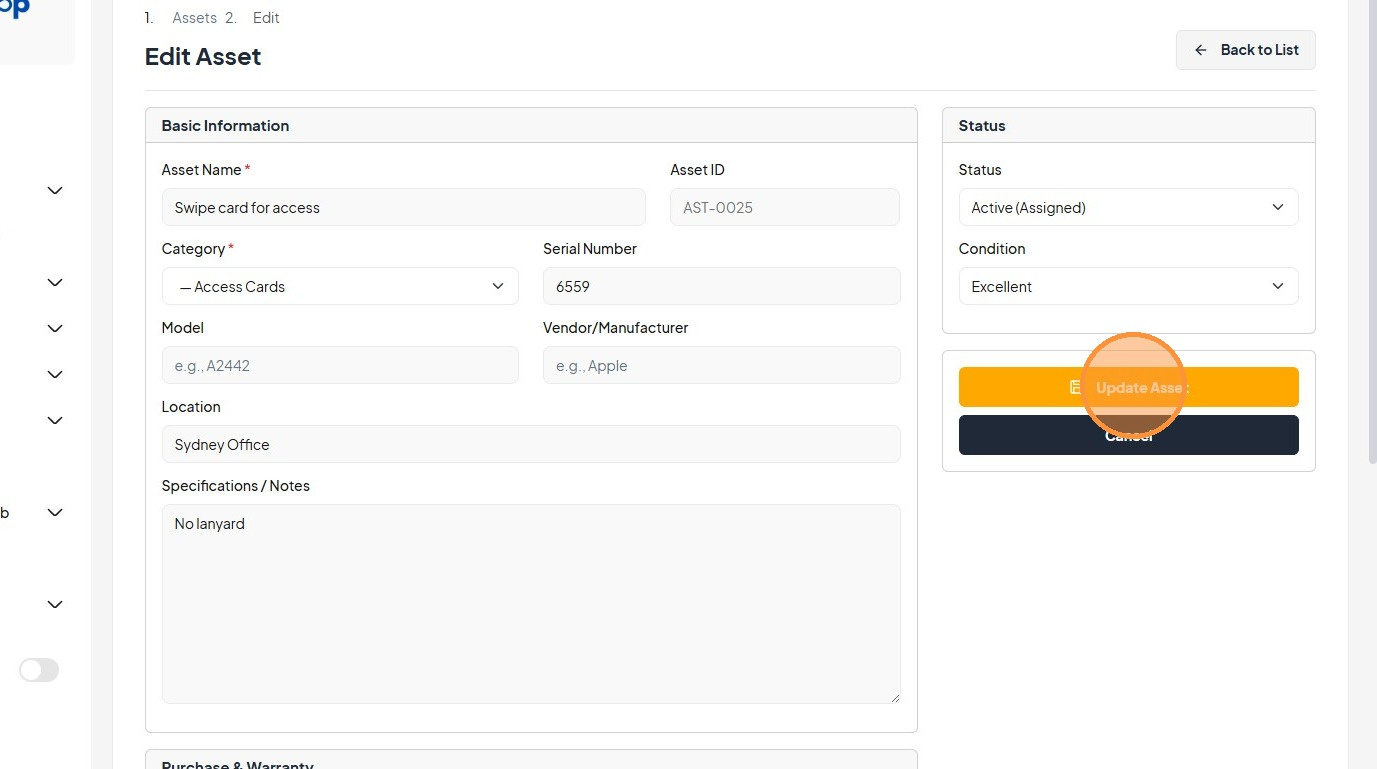
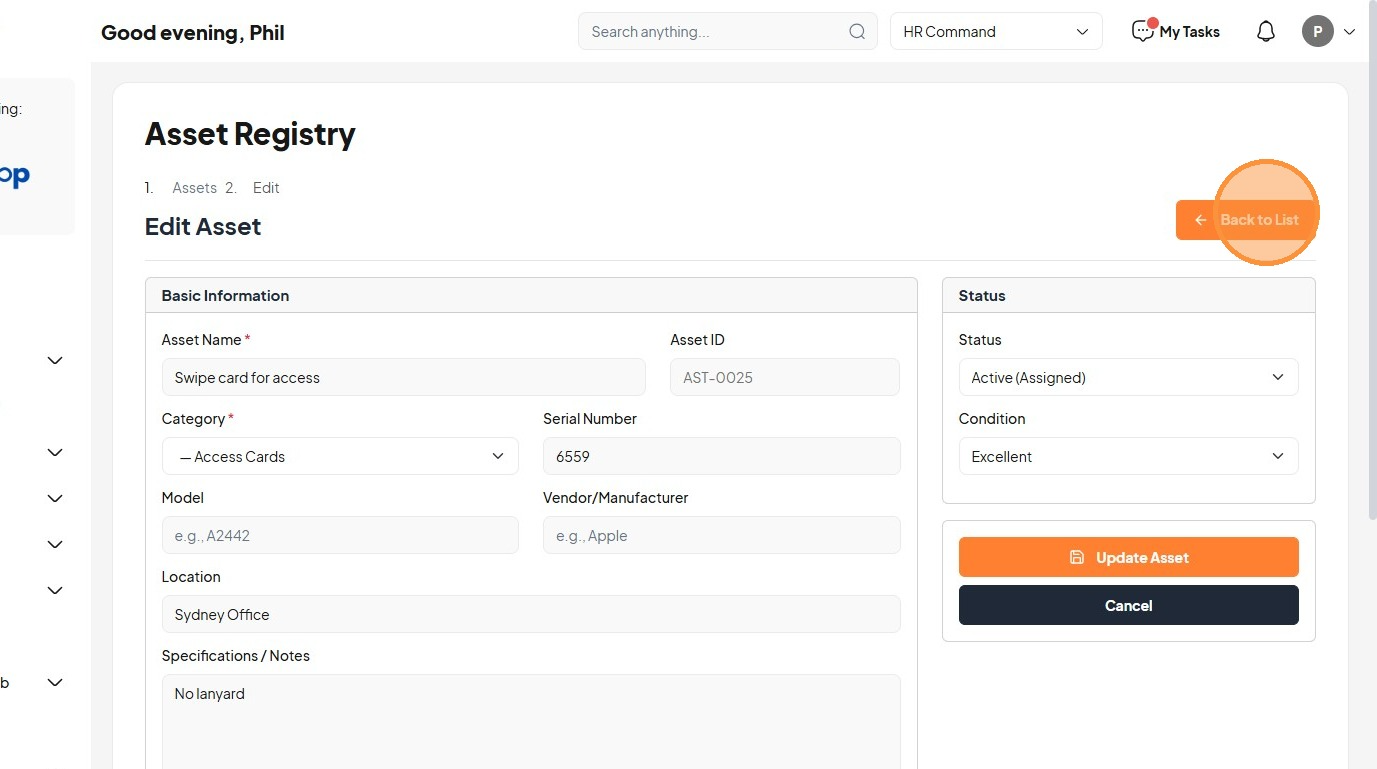
26. Click "Back to List"
Was this article helpful?
That’s Great!
Thank you for your feedback
Sorry! We couldn't be helpful
Thank you for your feedback
Feedback sent
We appreciate your effort and will try to fix the article