Learn how to generate custom QR codes for specific site locations and effectively submit new WHS hazard reports. This guide provides a clear walkthrough for managing site safety documentation and reporting urgent risks within the HR Command system.
1. Navigate to secure.hrcommand.com.au
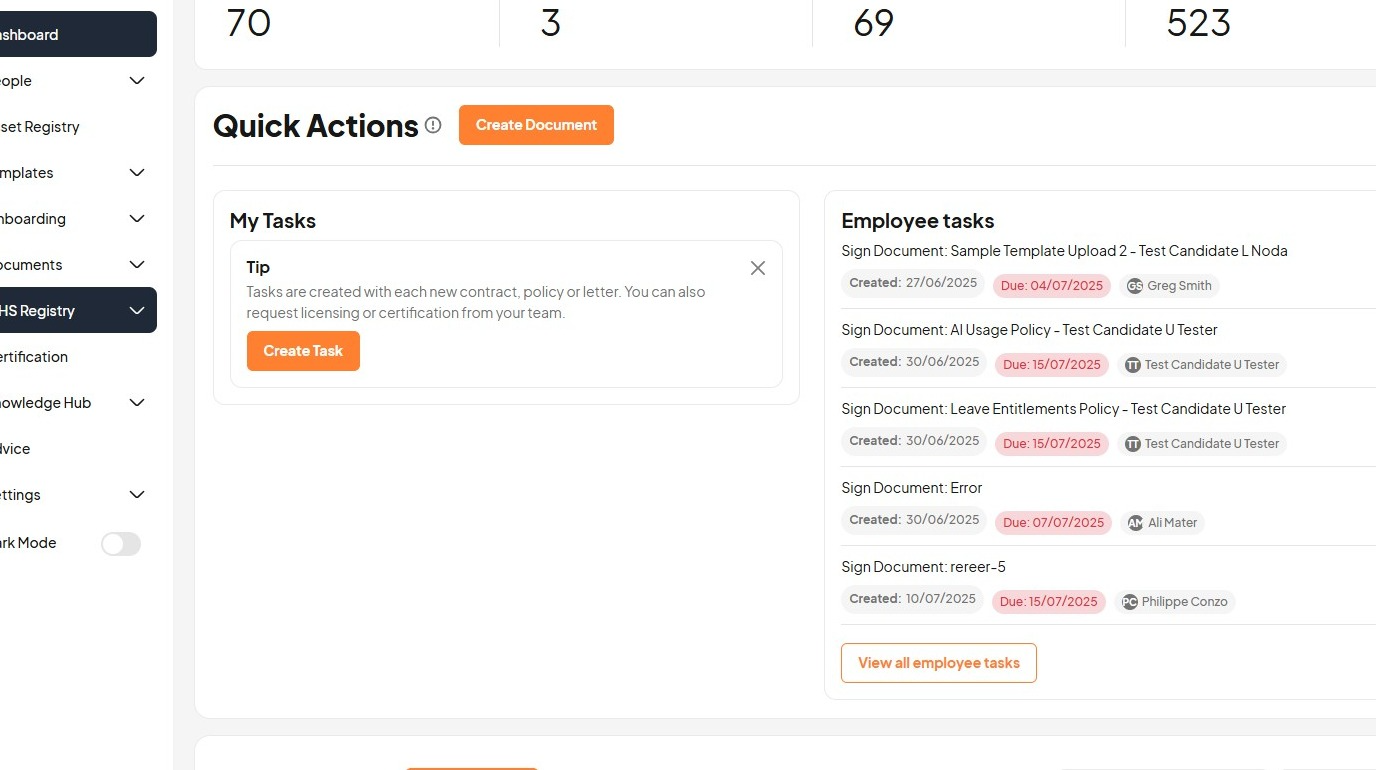
2. Click "WHS Registry"
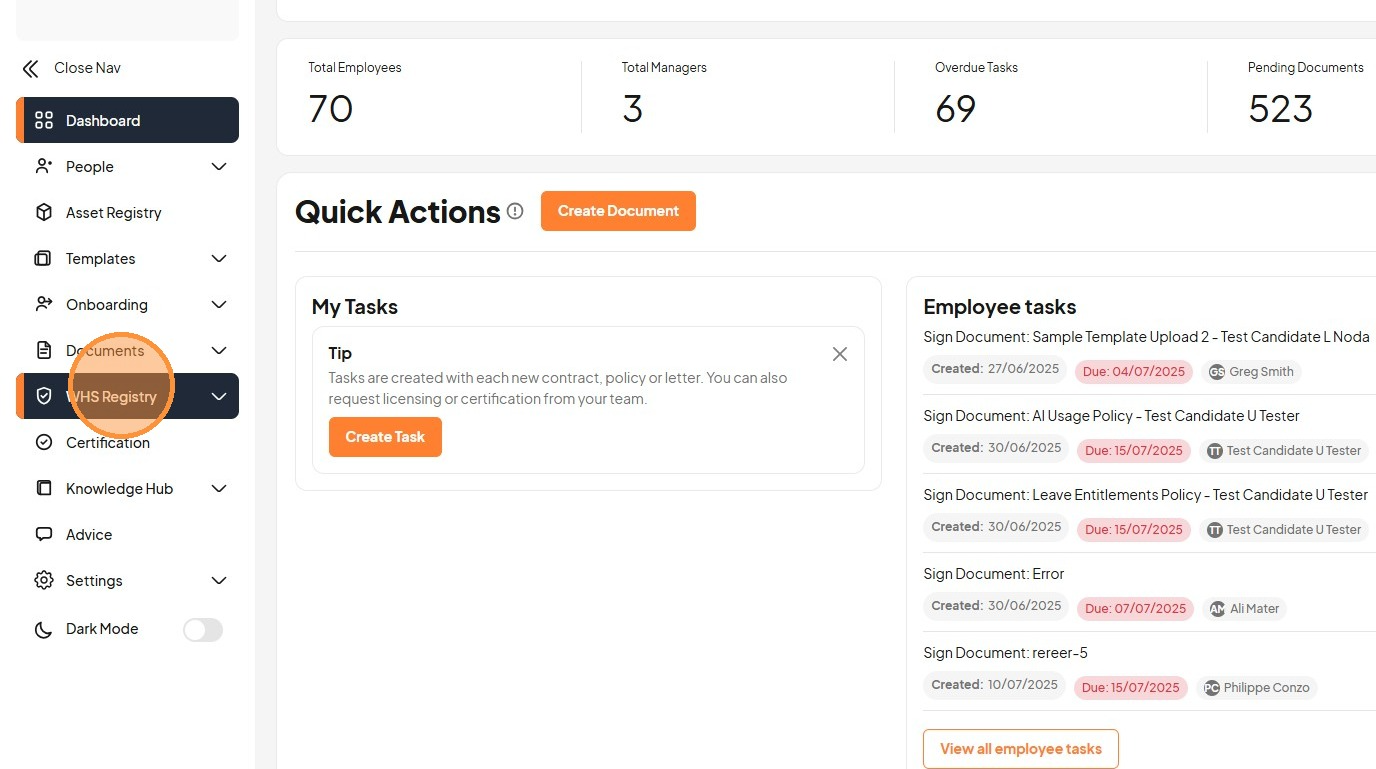
3. Click "Dashboard"
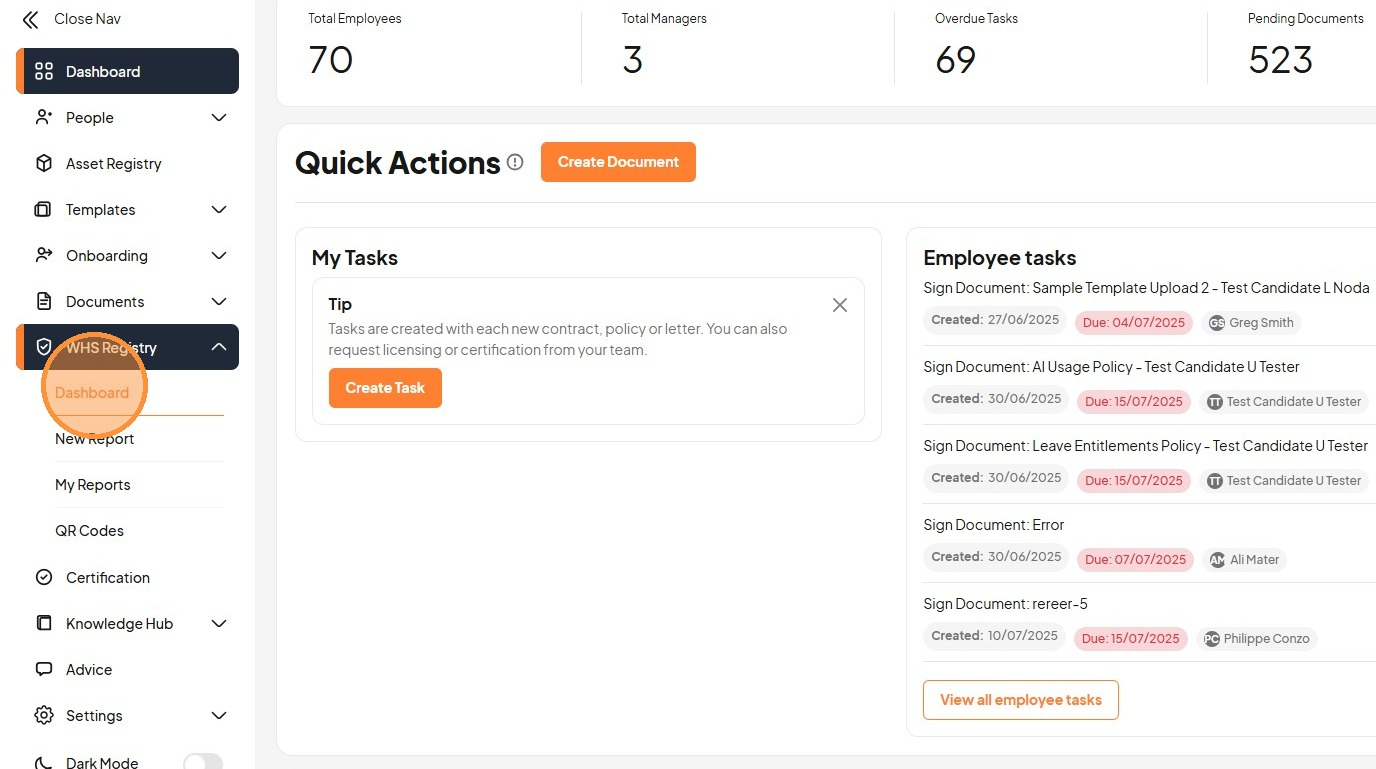
4. Click "QR Codes"
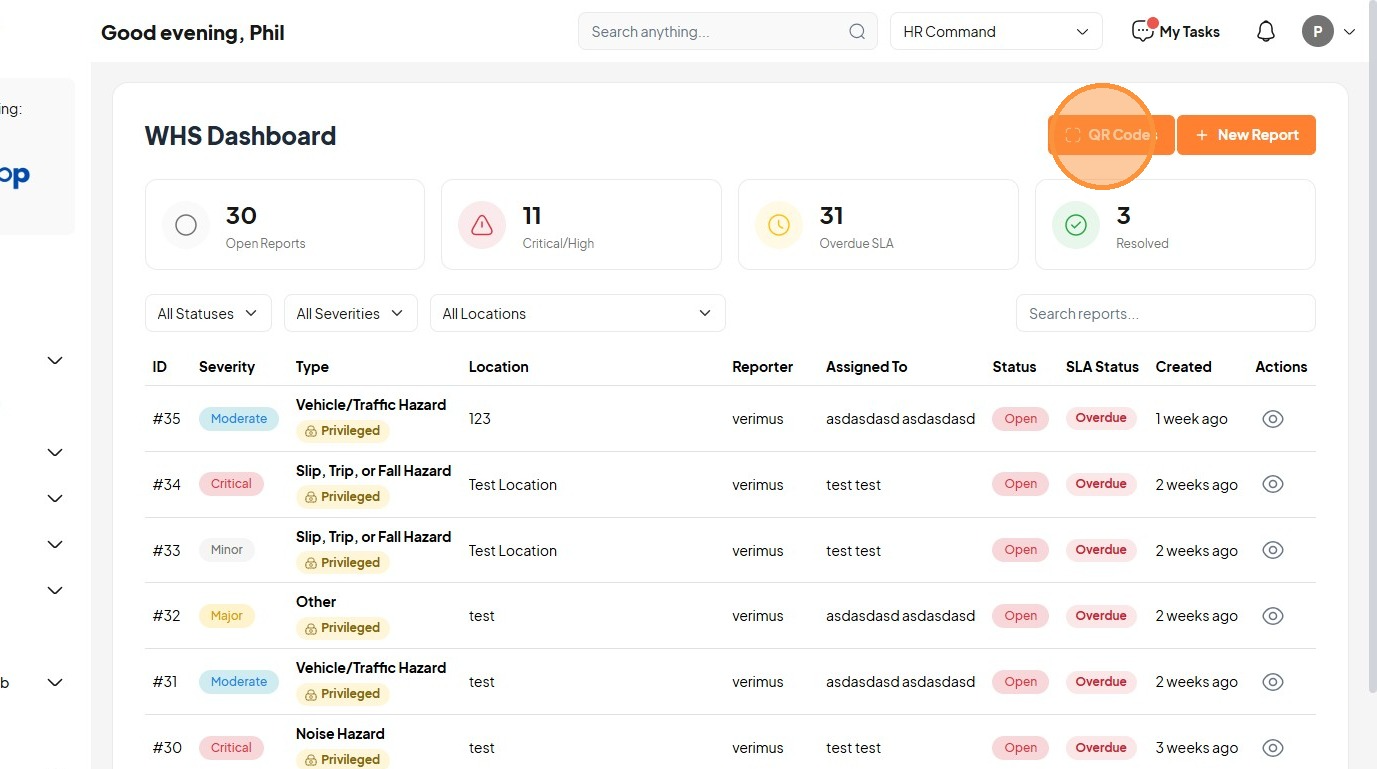
5. Click "Create QR Code"
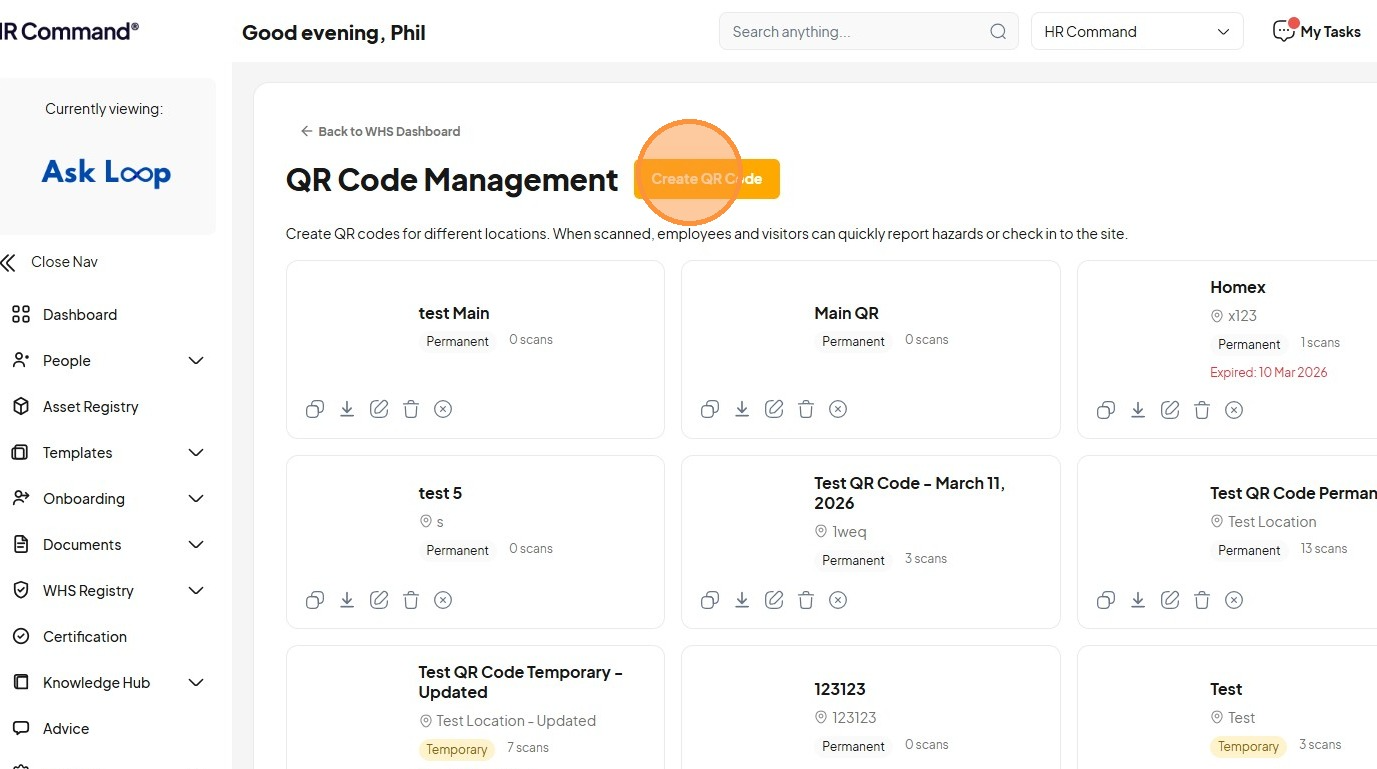
6. Click the "Name *" field
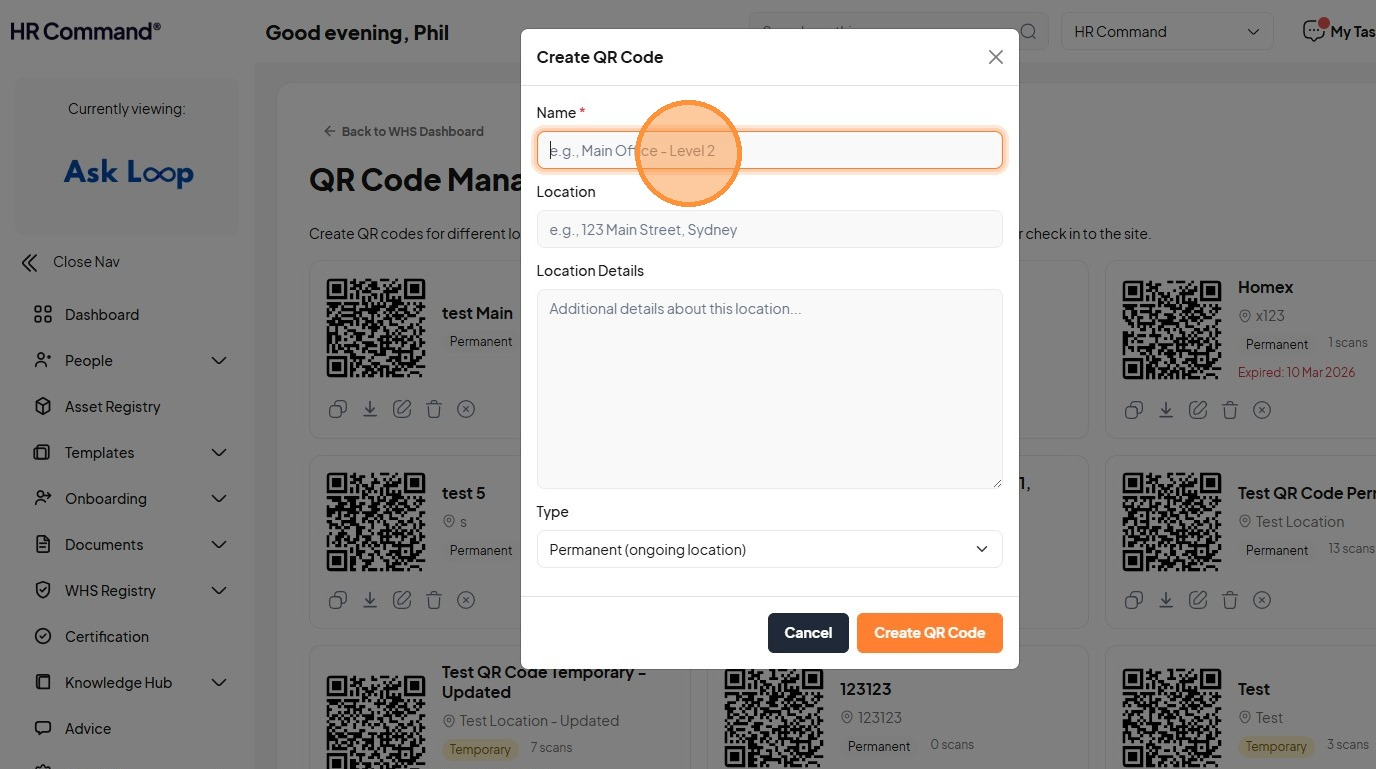
7. Type "Level 12 WHS Reporting [[Tab]] 50 Pitt Street, Sydney [[Tab]]"
8. Click the "Location Details" field
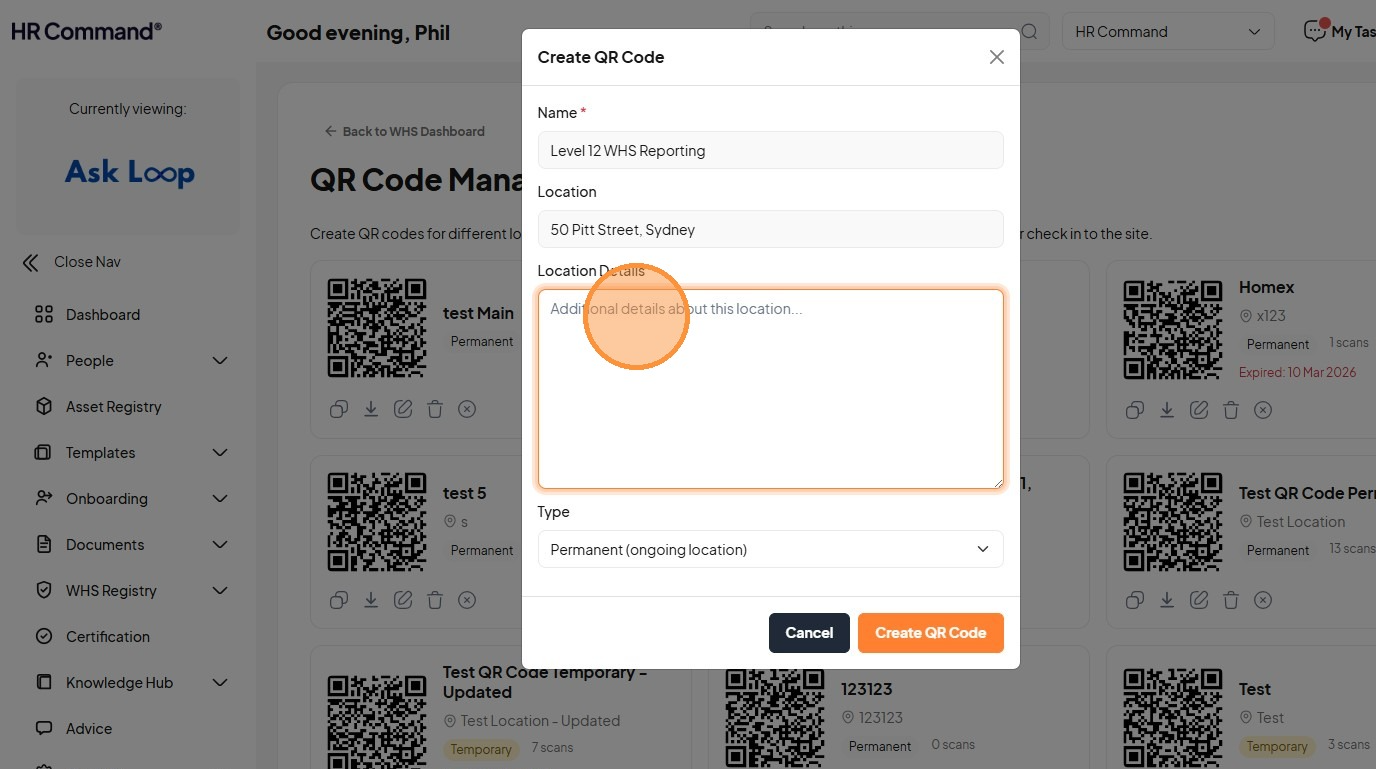
9. Type "Currently under construction and fit out."
10. Select the "Temporary (project/event)" option
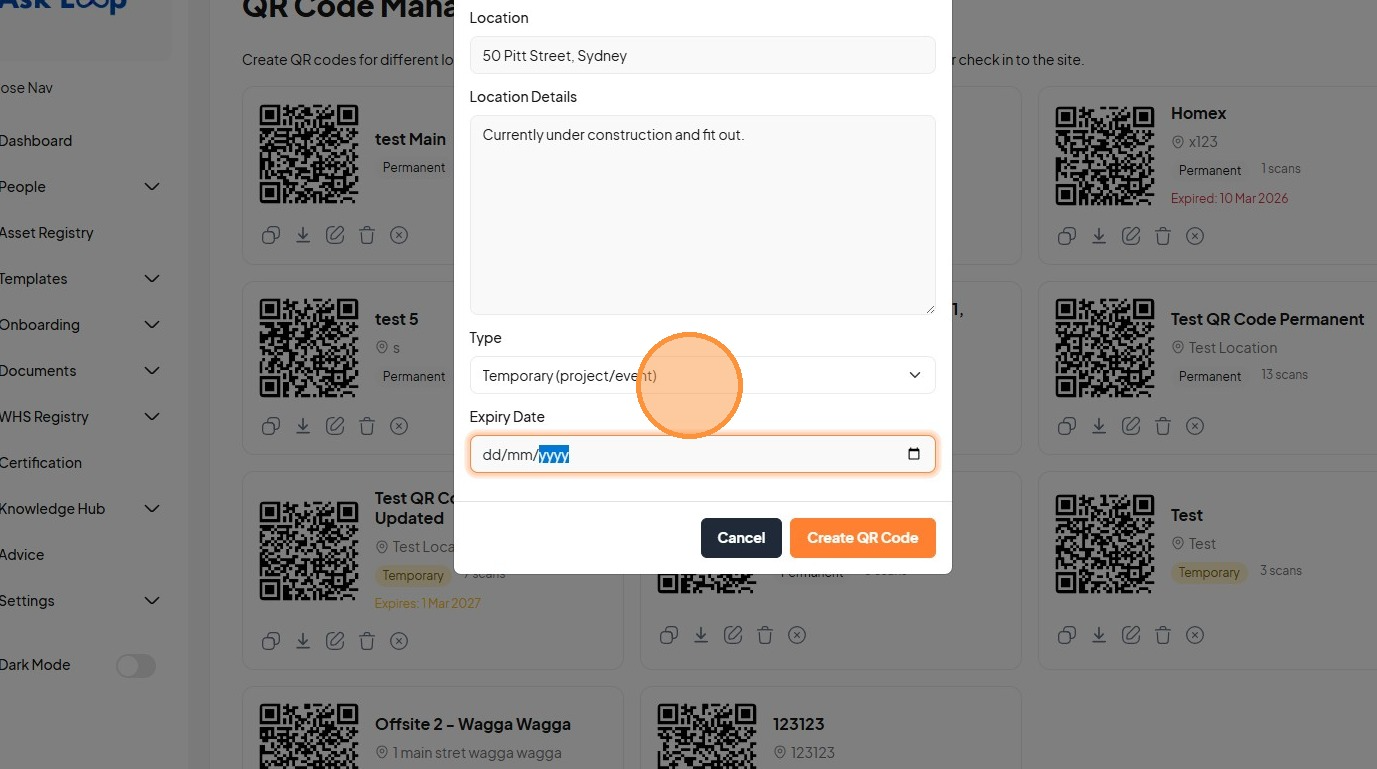
11. Click "Name * Location Location Details Type Permanent (ongoing location) Temporary (project/event) Expiry Date"
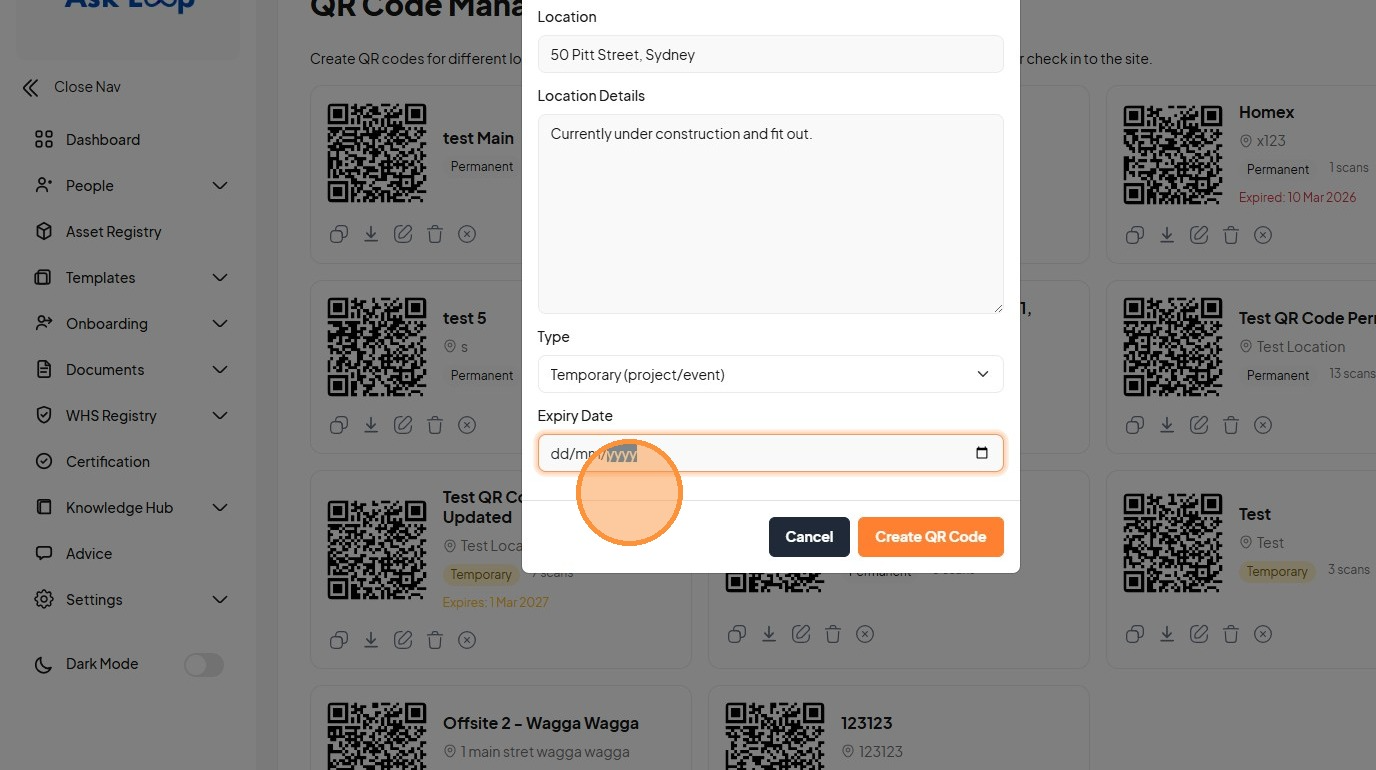
12. Click the "Expiry Date" field
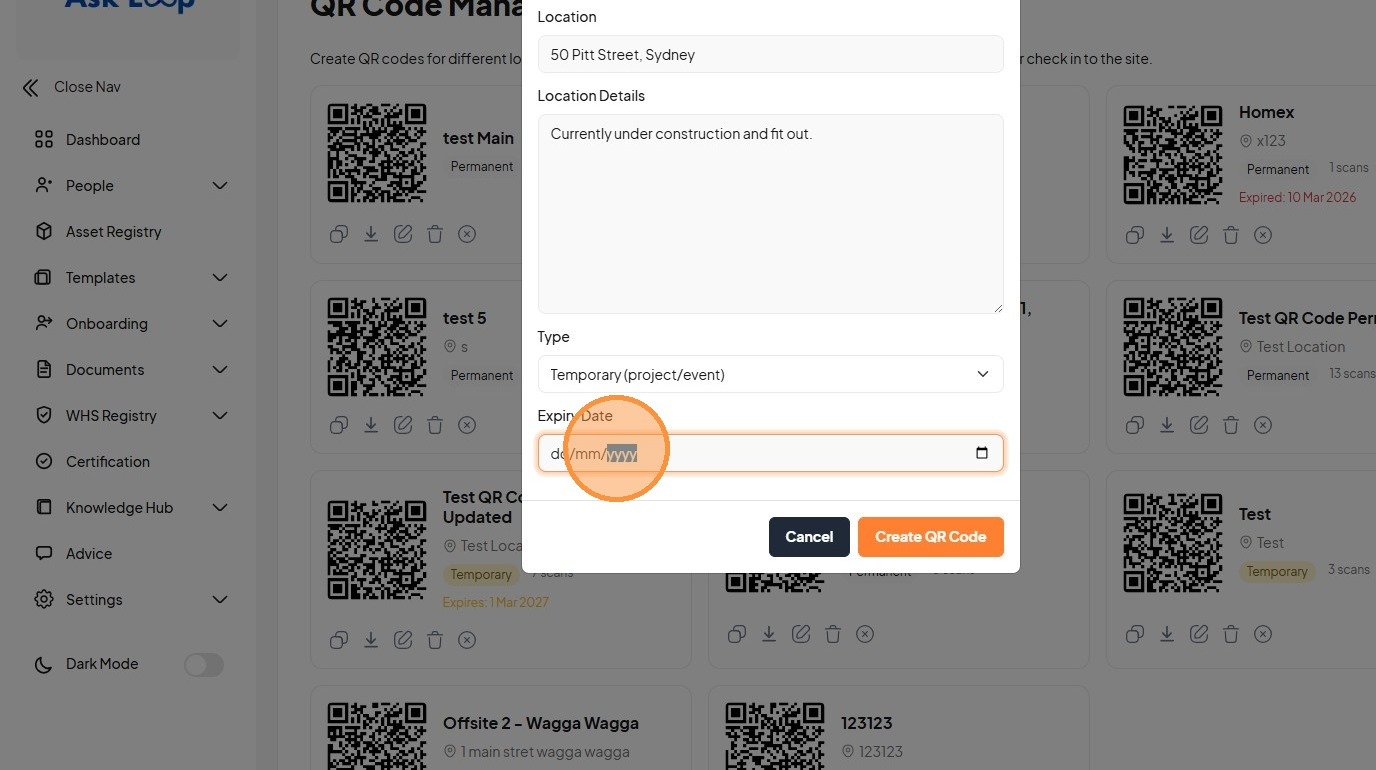
13. Click "Please wait..."
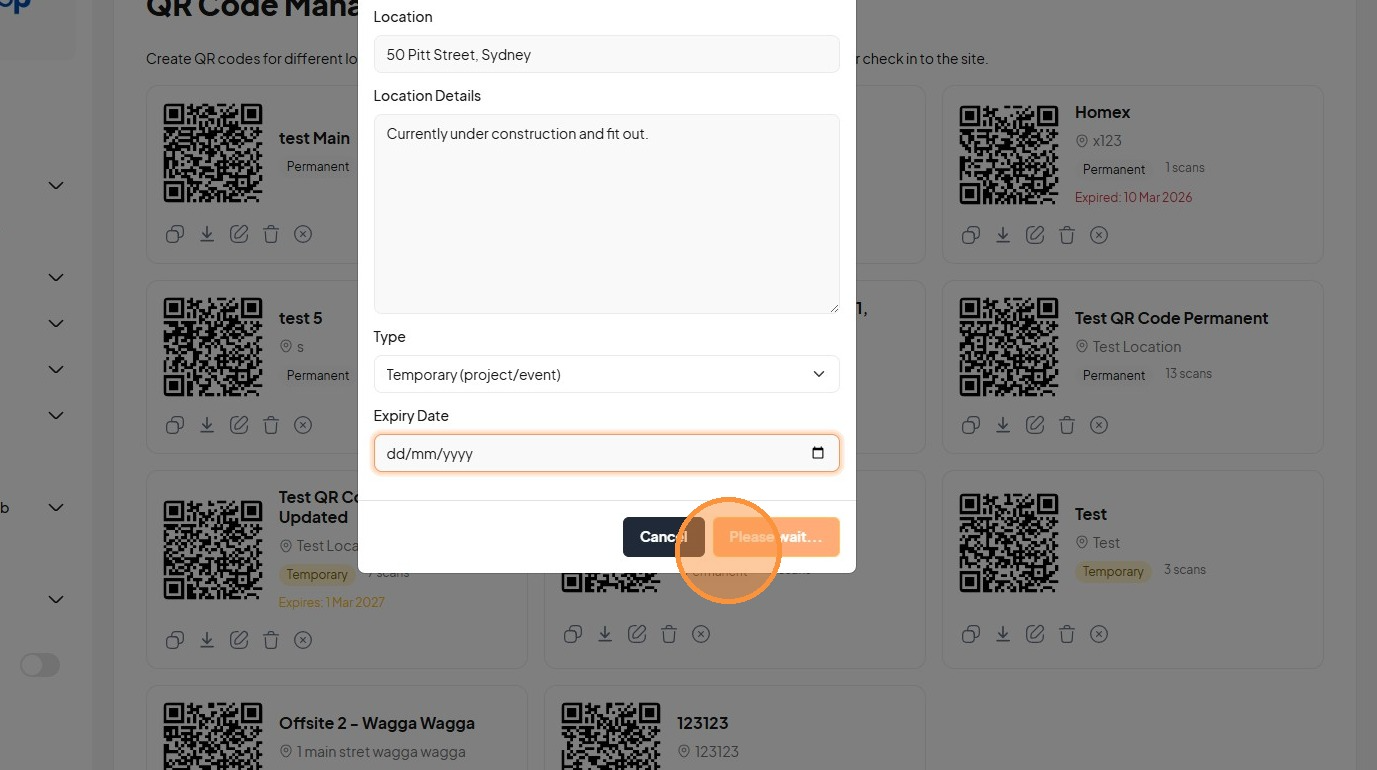
14. Click this icon
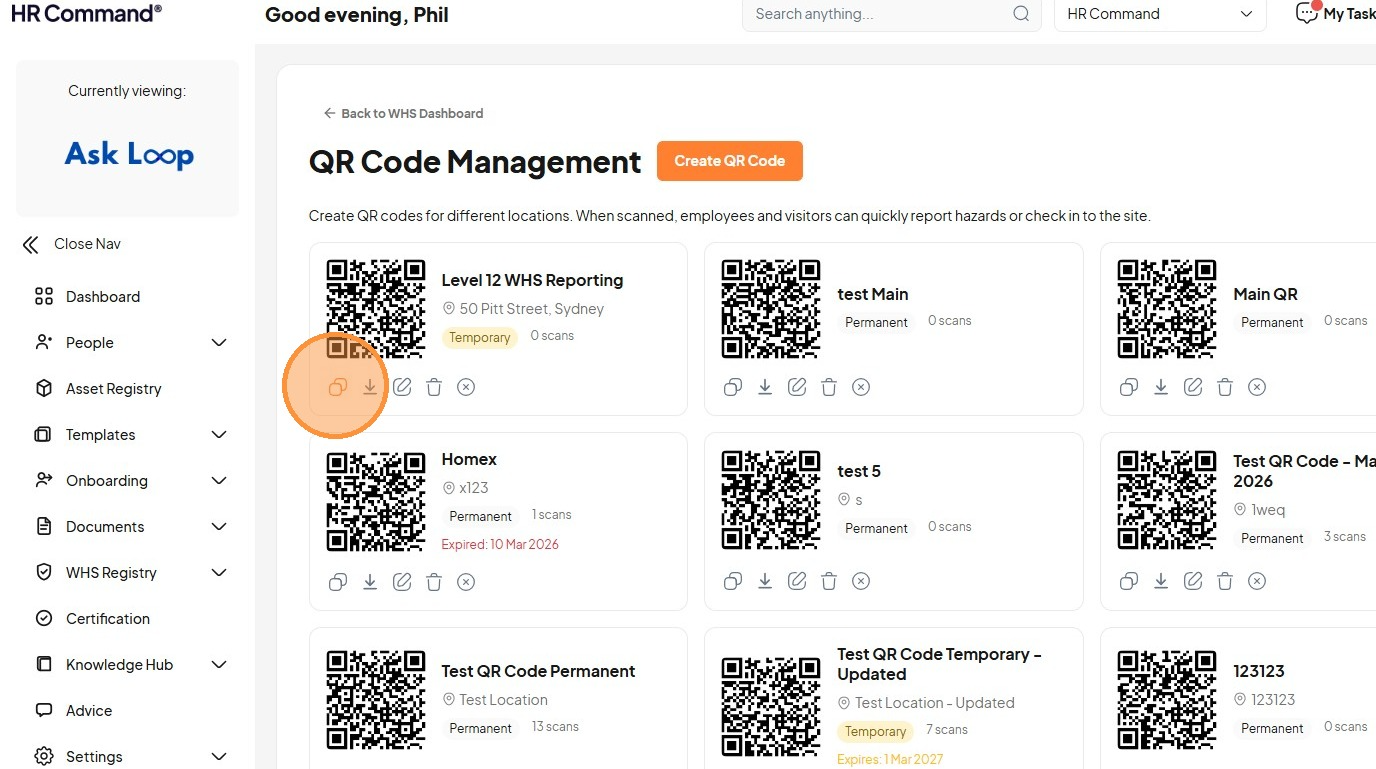
15. Click this icon
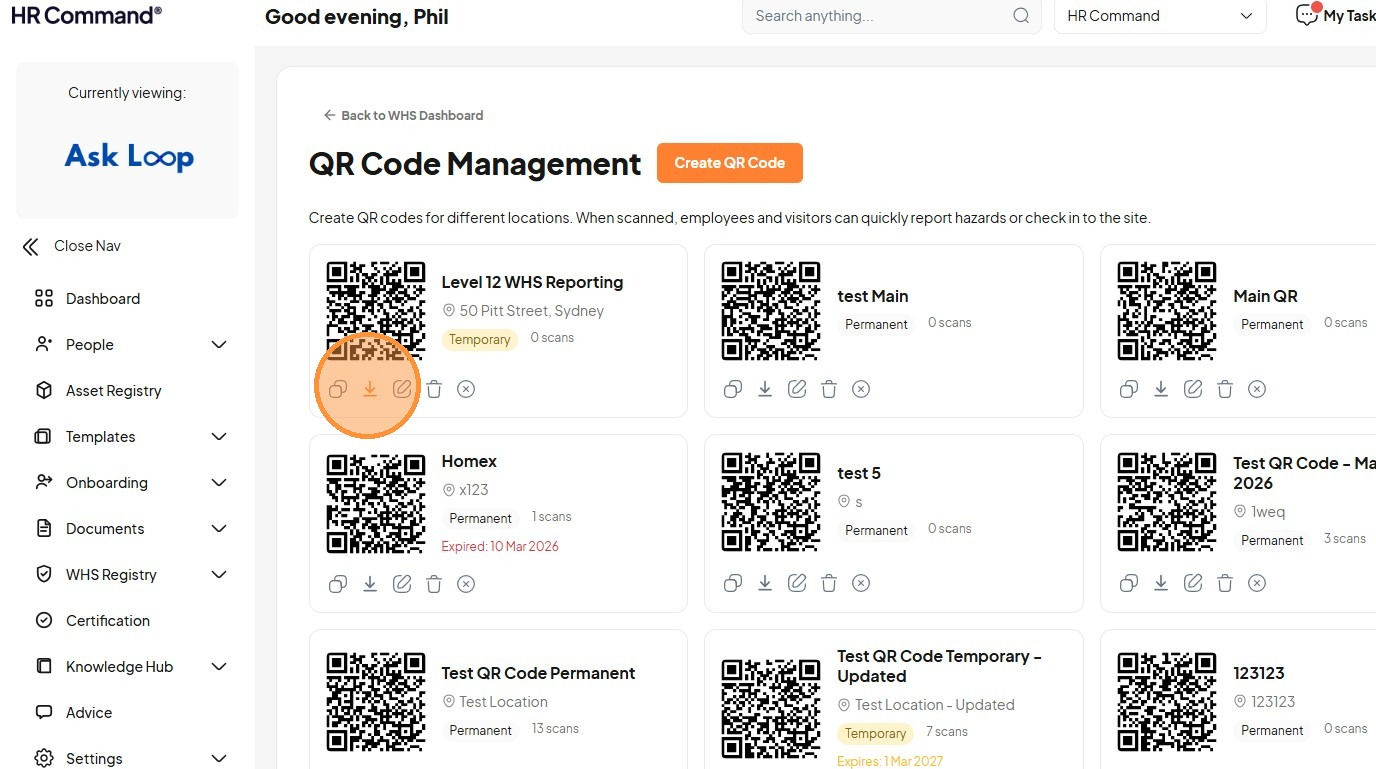
16. Click this icon
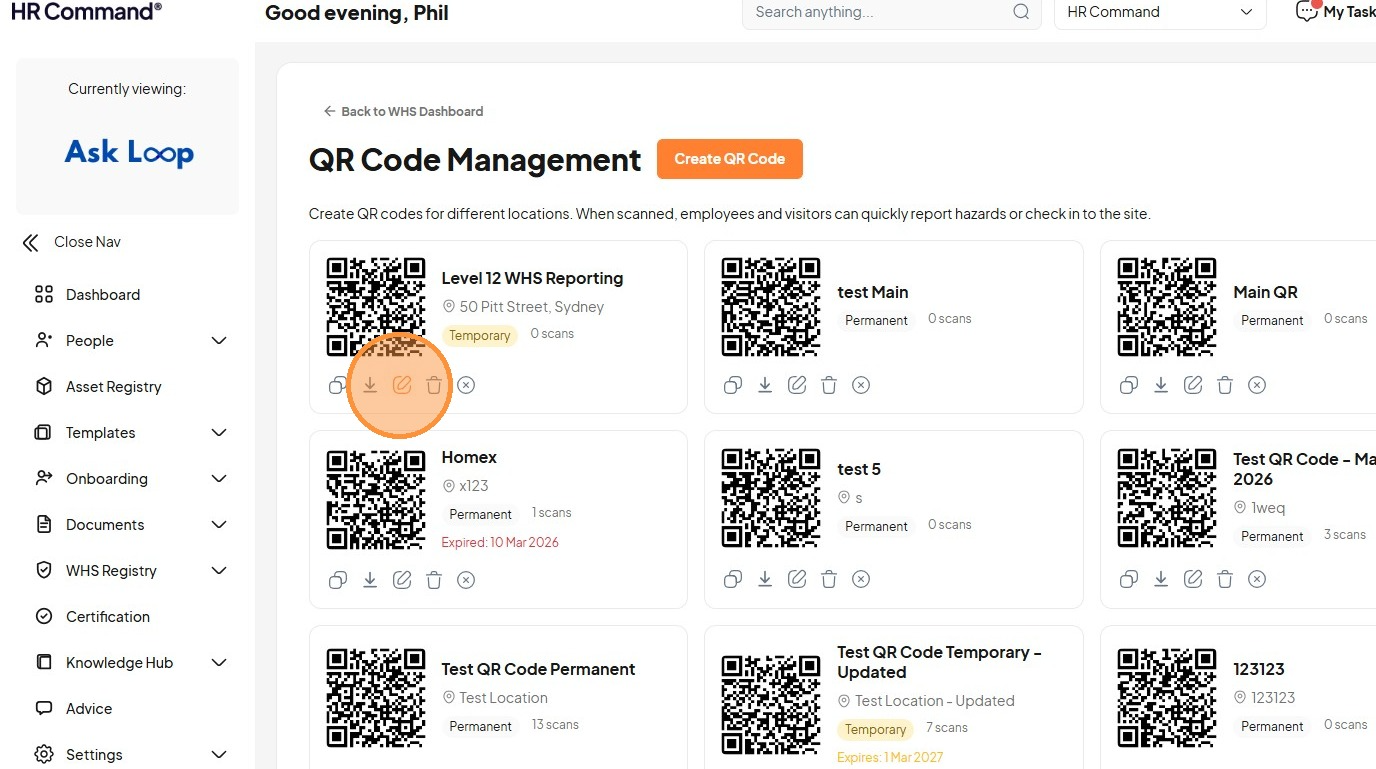
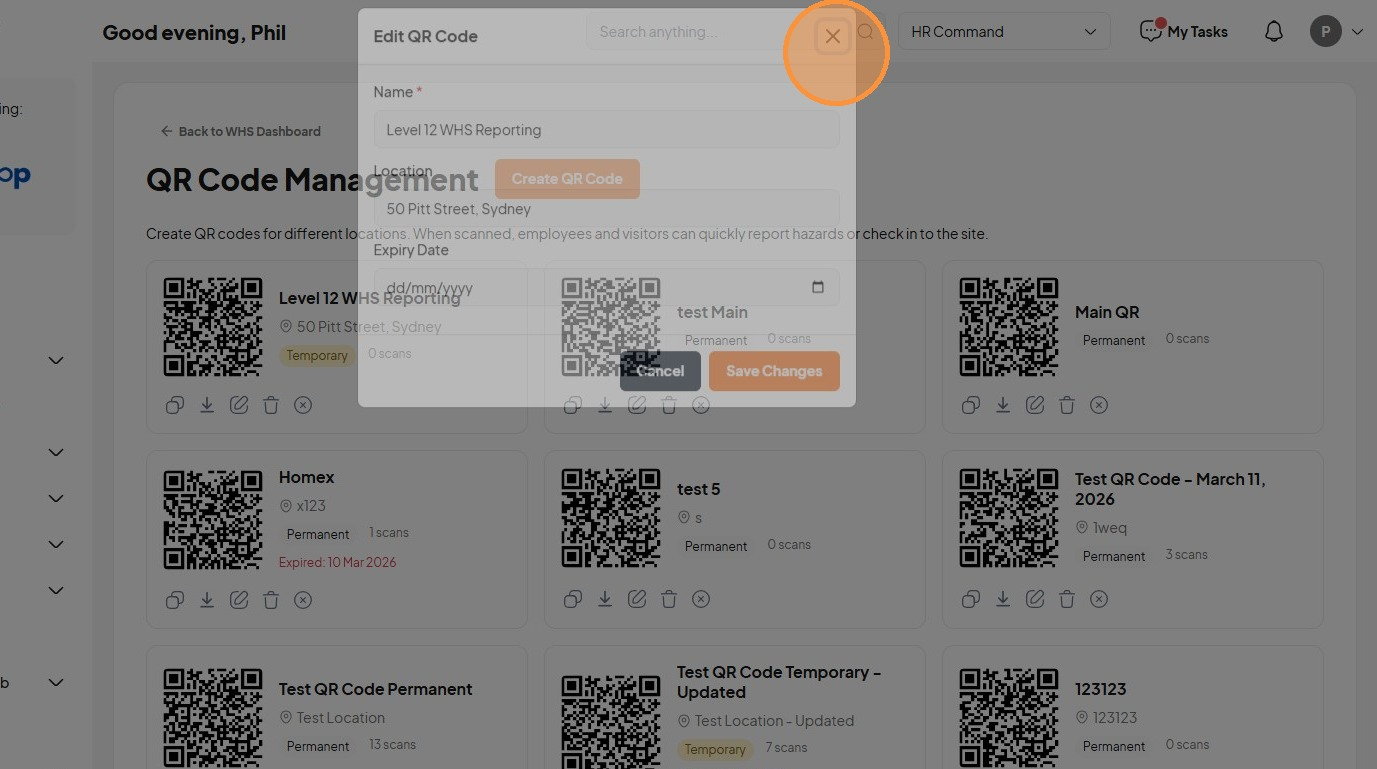
17. Click this button.
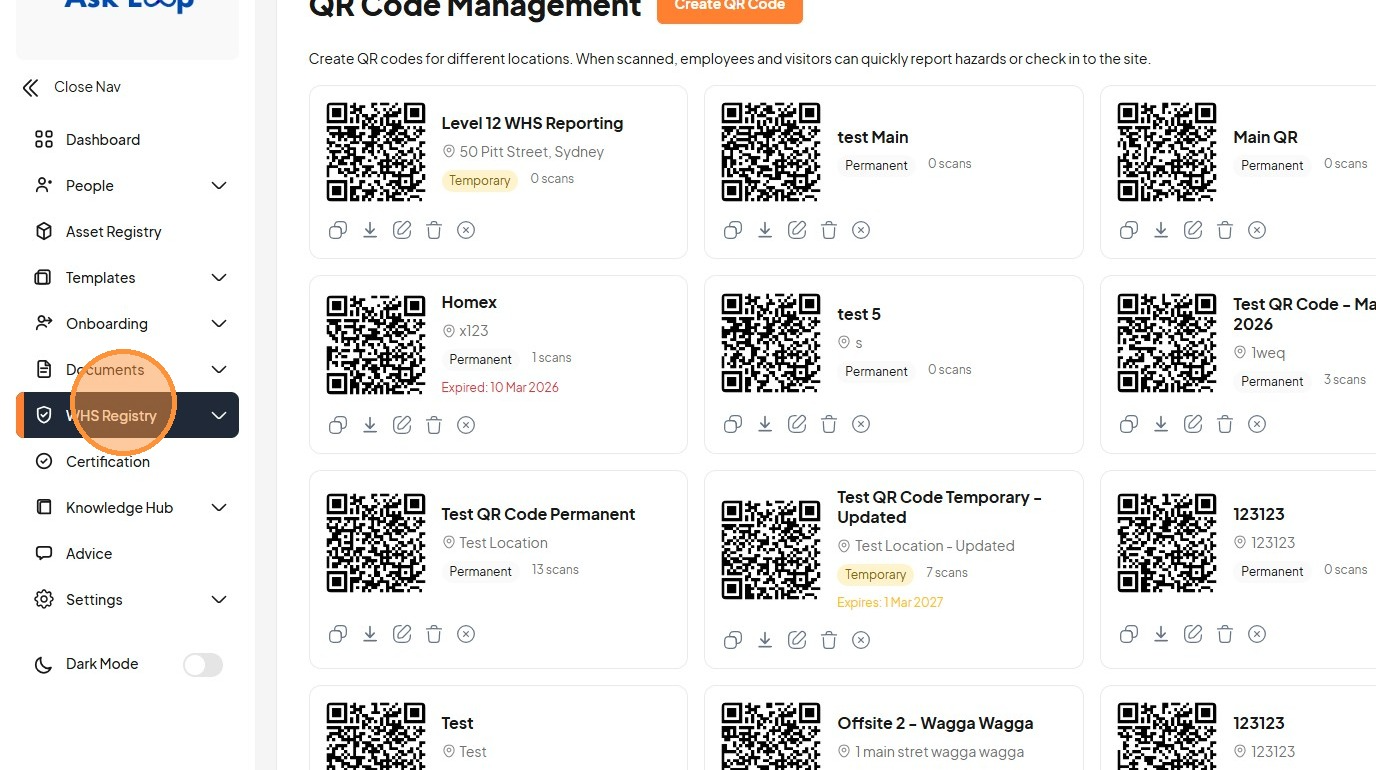
18. Click "WHS Registry"
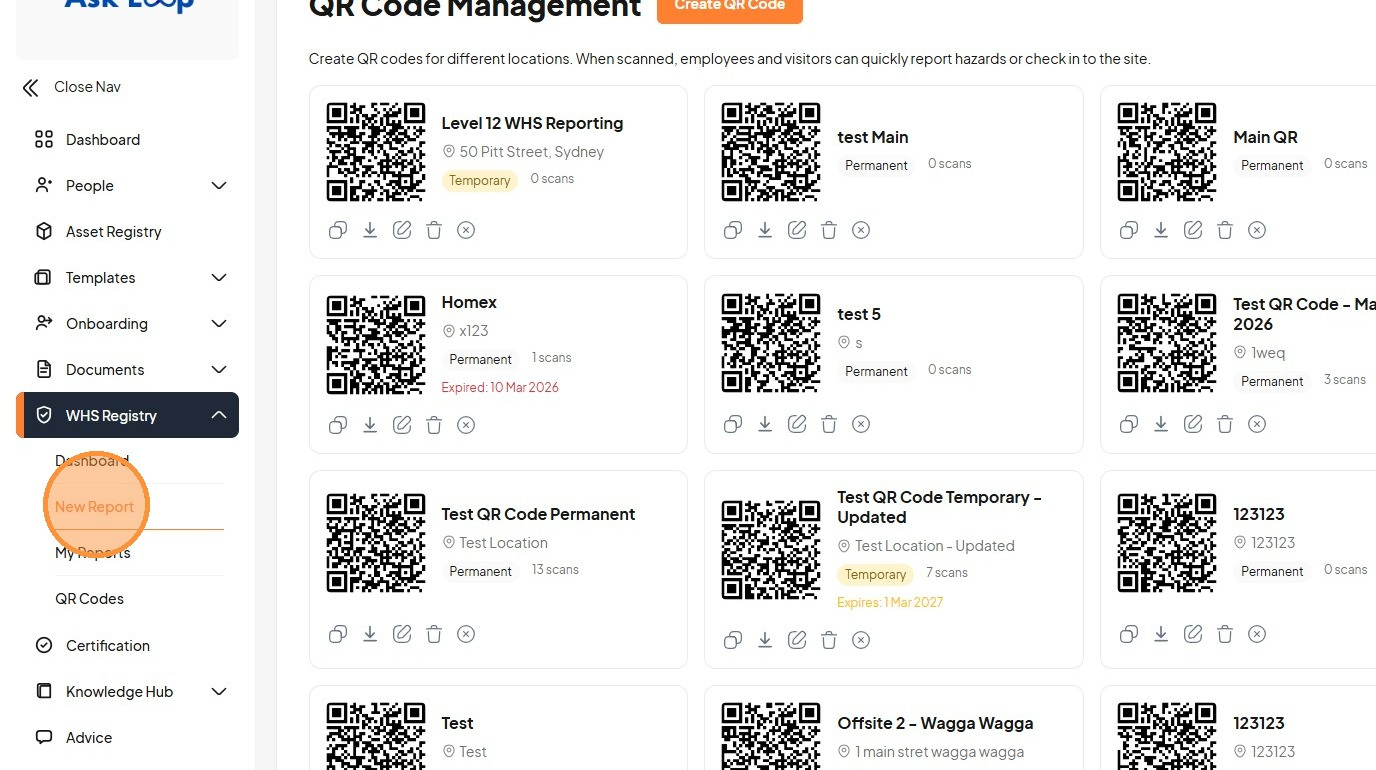
19. Click "New Report"
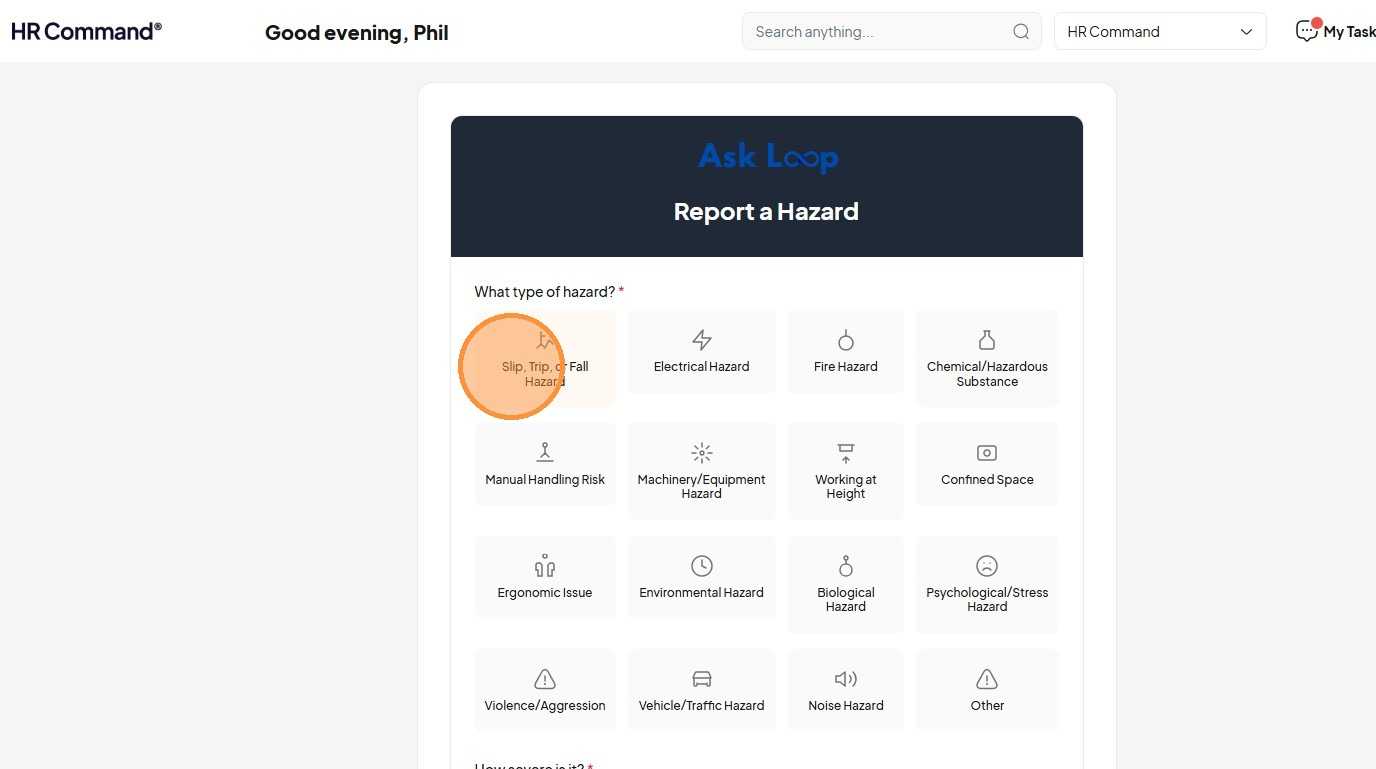
20. Click "Slip, Trip, or Fall Hazard"
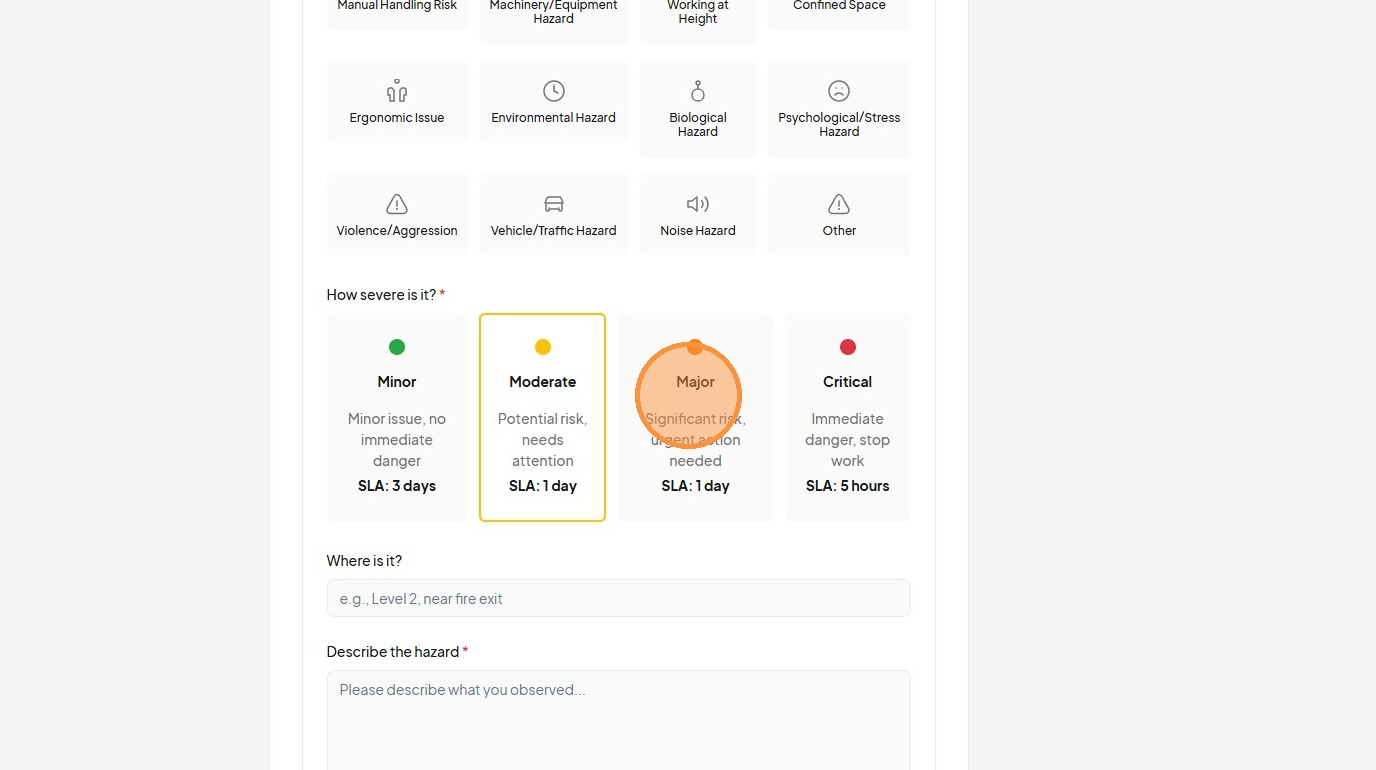
21. Click "Major Significant risk, urgent action neededSLA: 1 day"
22. Click the "Where is it?" field
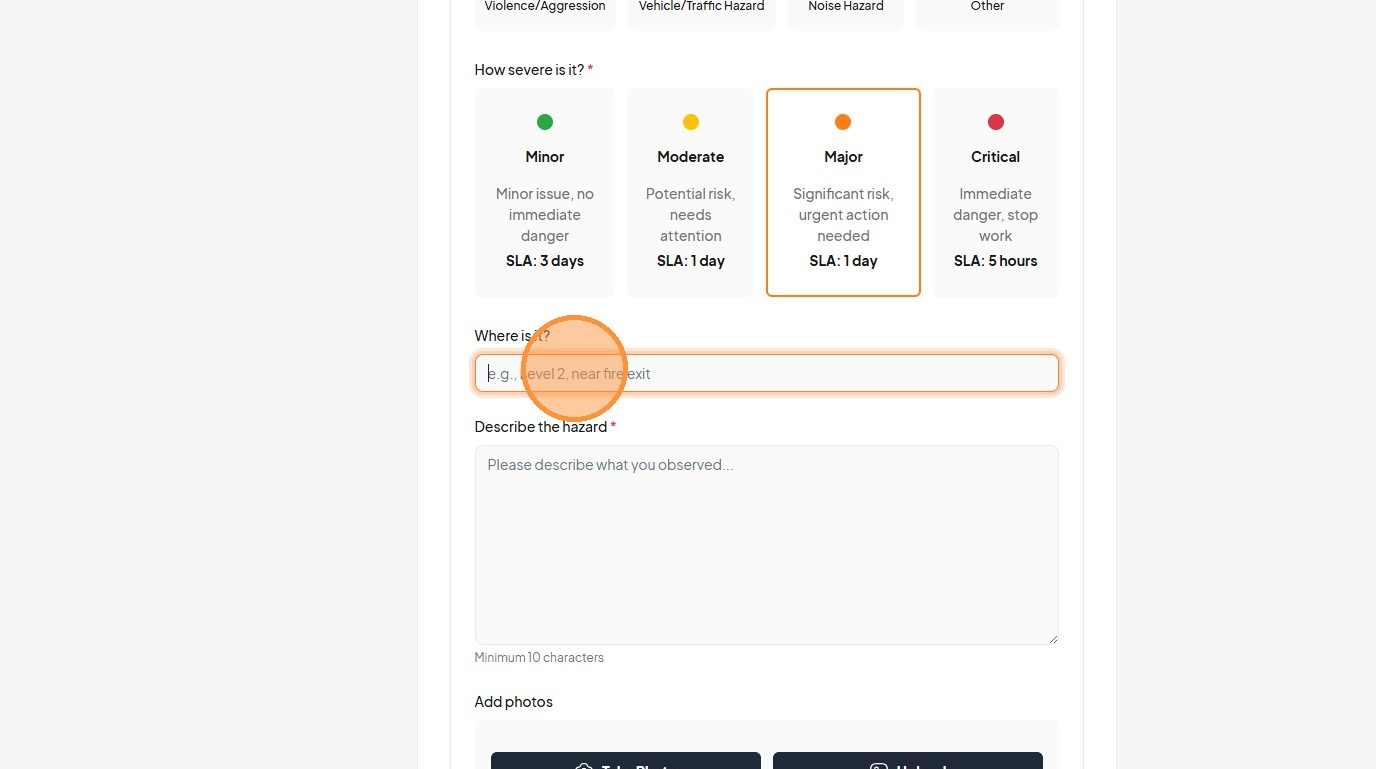
23. Type "50 Pitt Street Level 11"
24. Click the "How severe is it?*" field
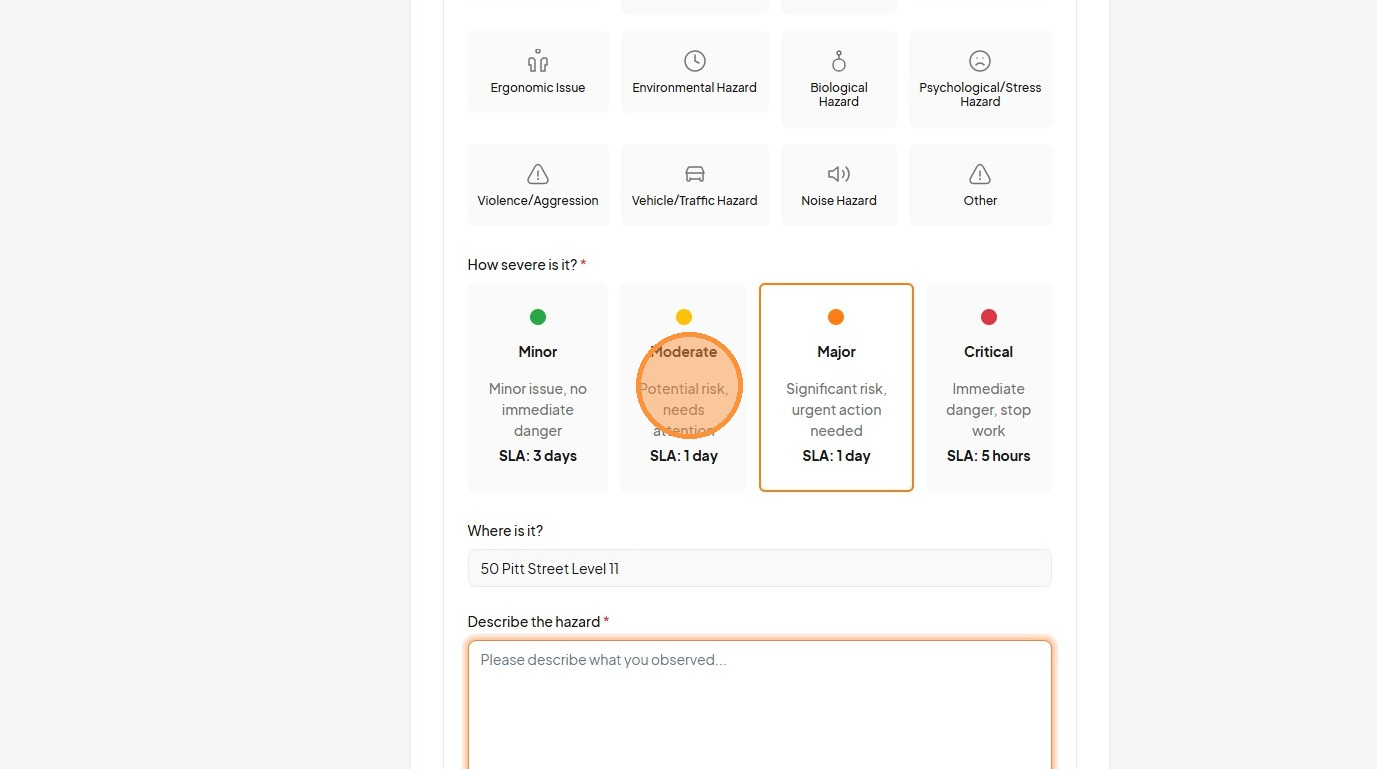
25. Click the "Describe the hazard *" field
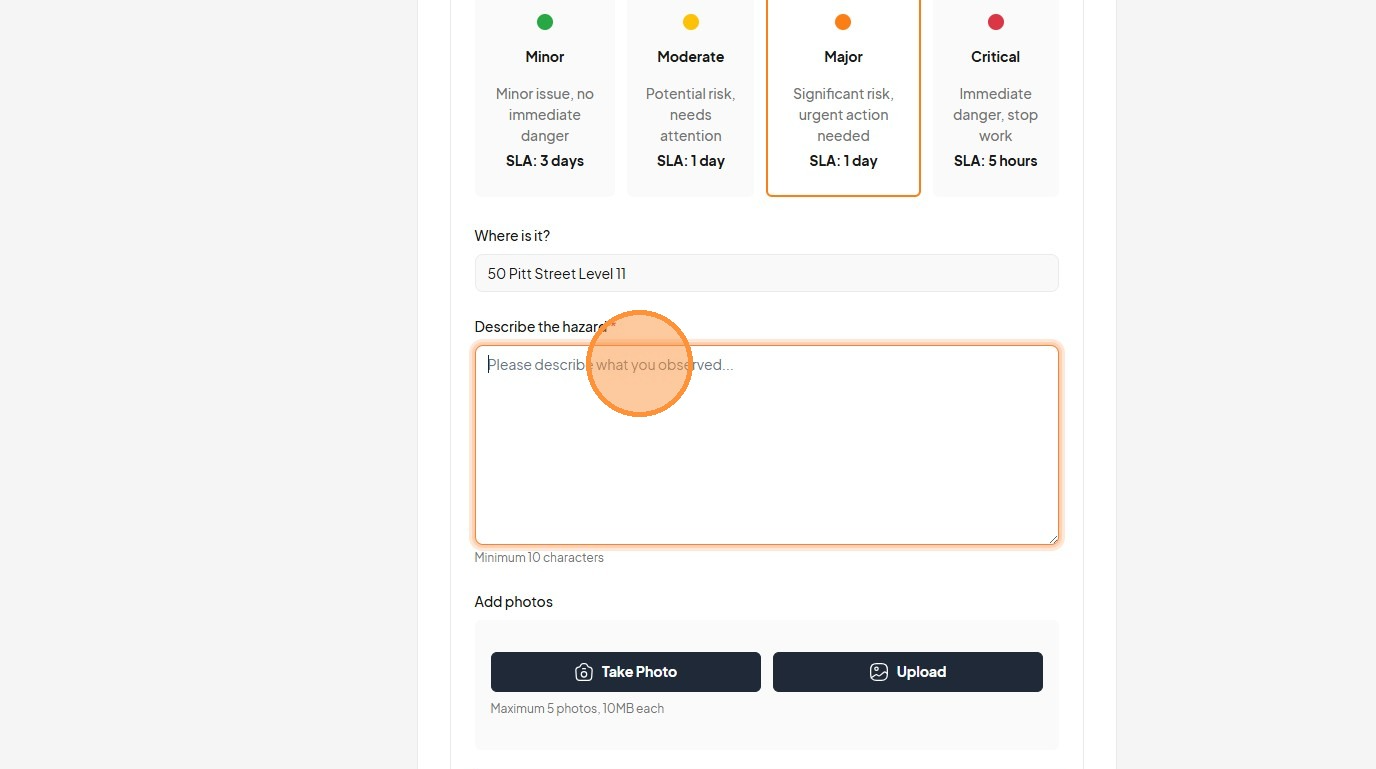
26. Type "Contractor slipped on liquid that was not safetly cleaned. [[esc]]"
27. Click "Take Photo"
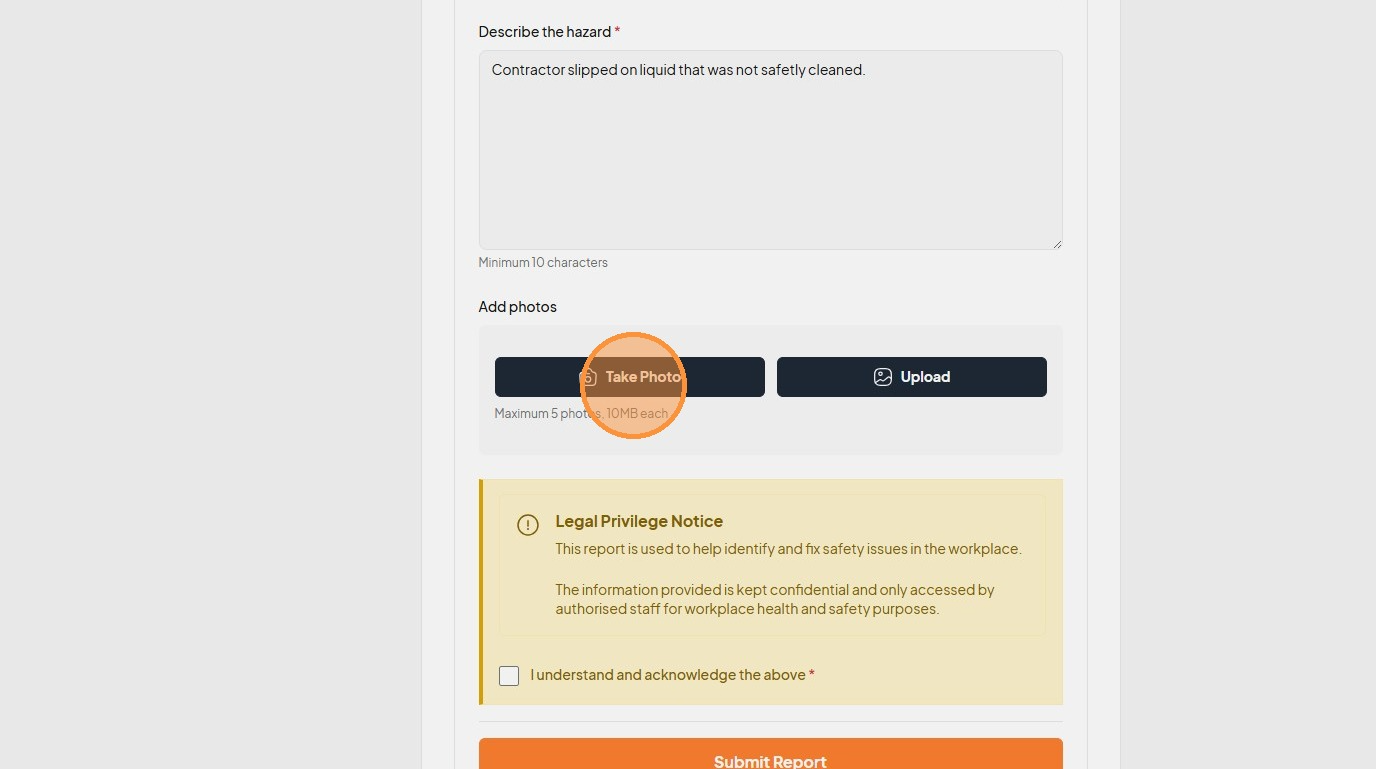
28. Click this icon
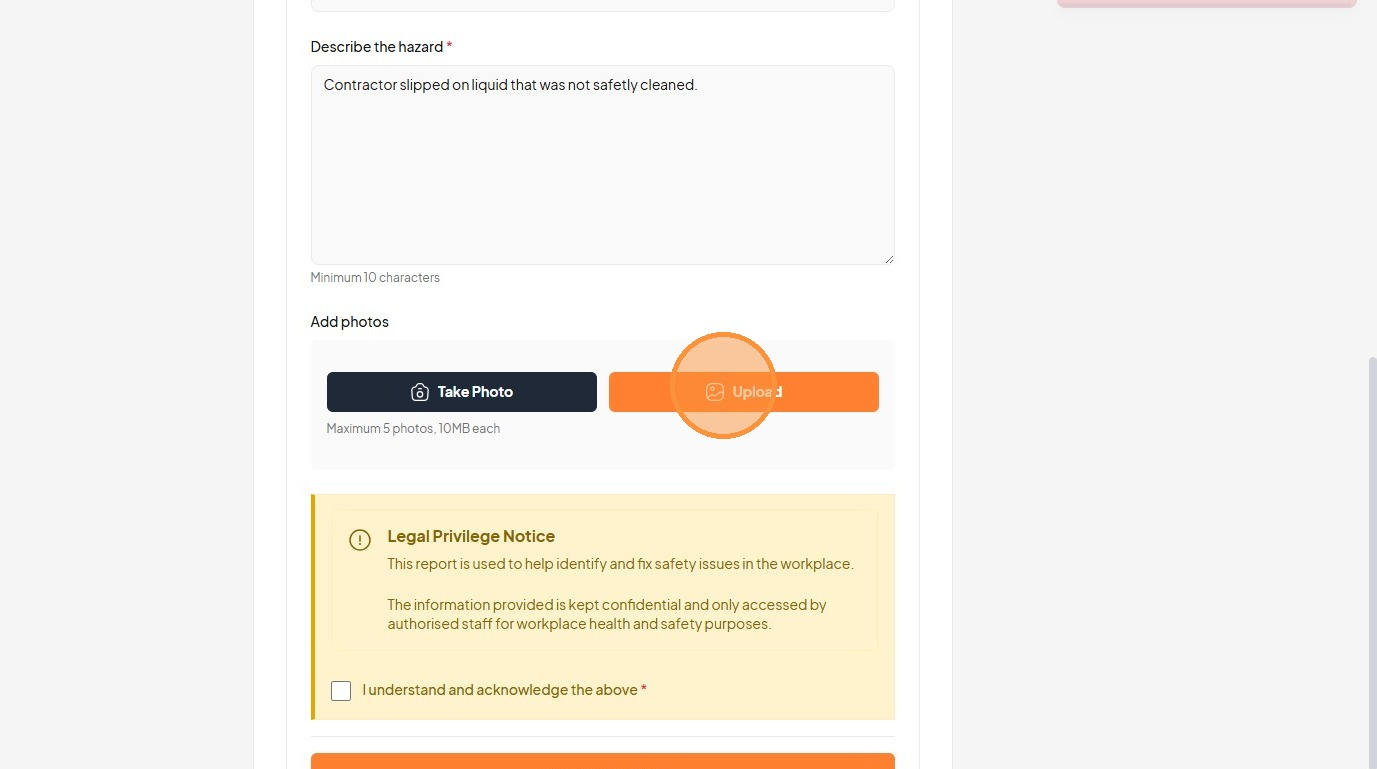
29. Click the "I understand and acknowledge the above *" field
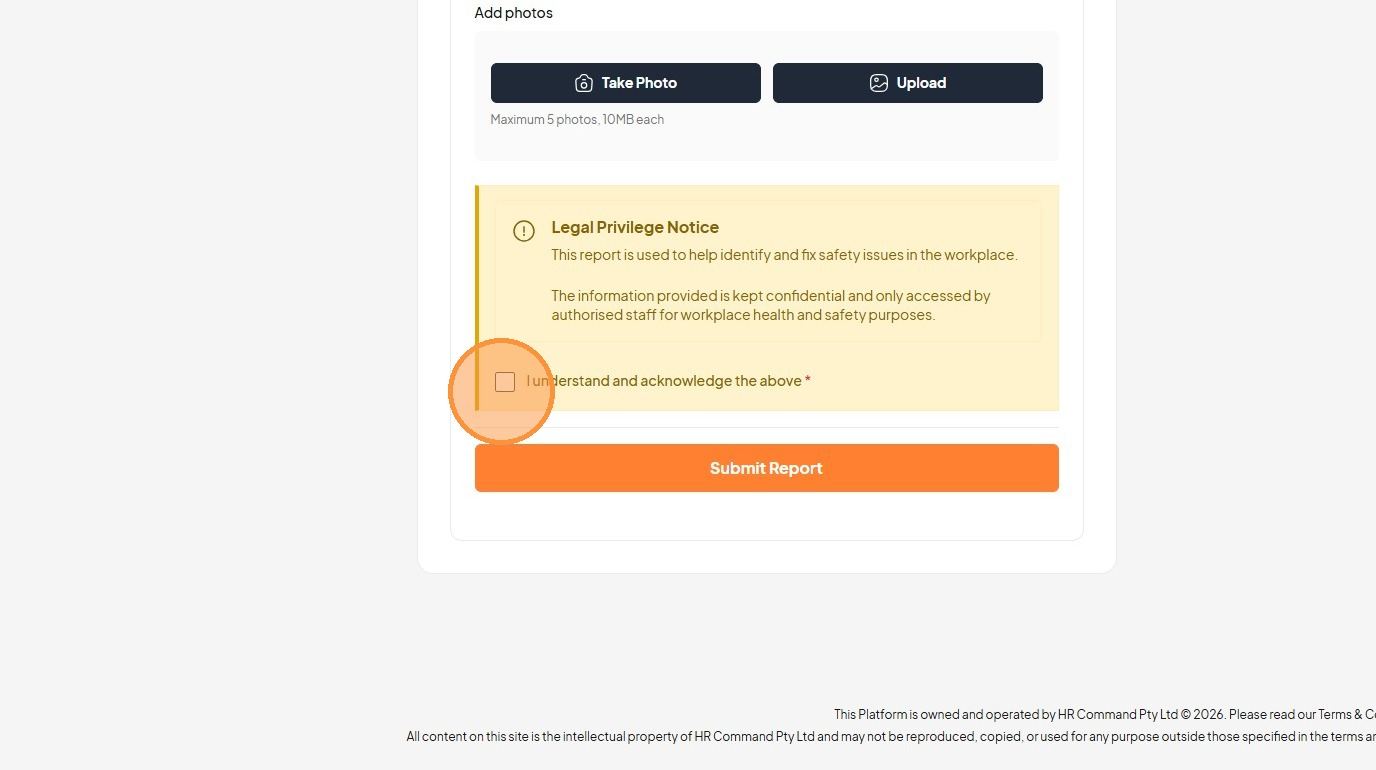
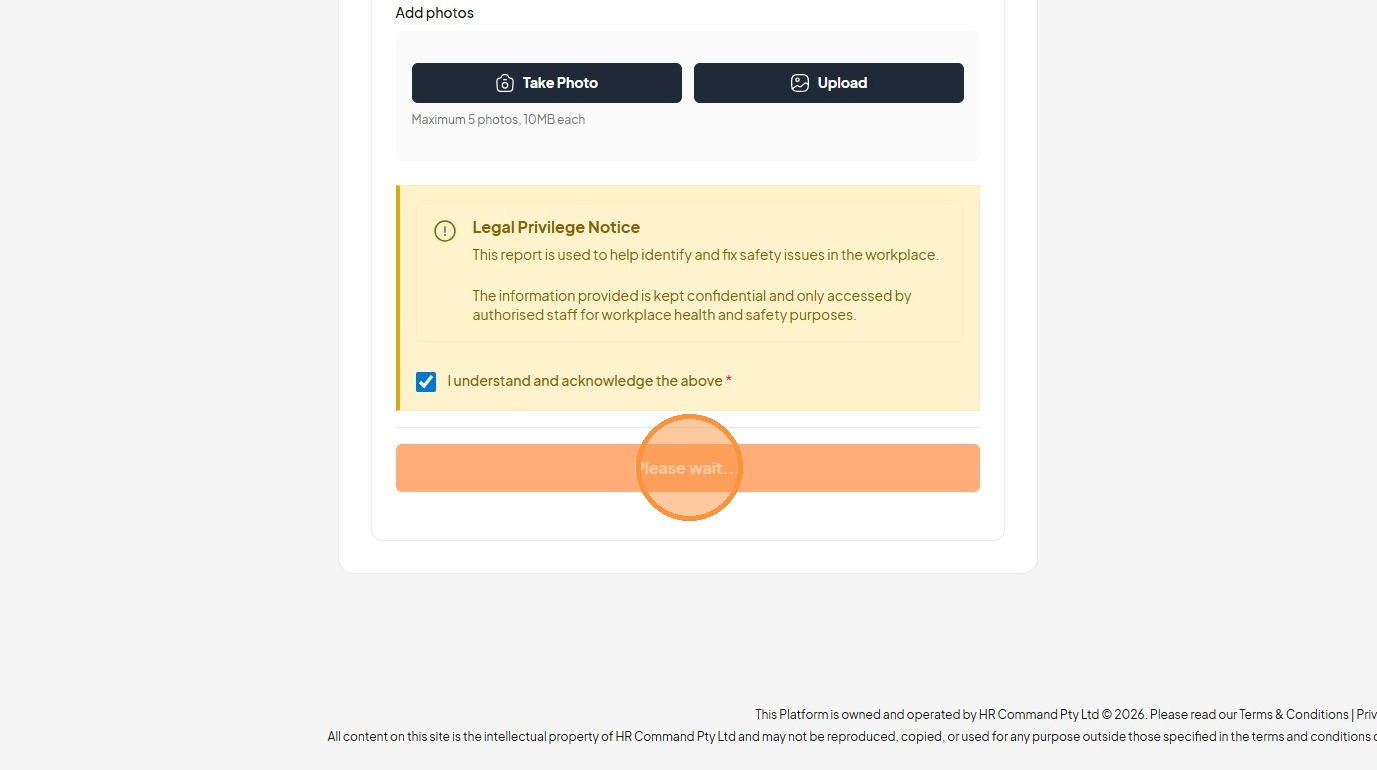
30. Click "Submit Report"
Was this article helpful?
That’s Great!
Thank you for your feedback
Sorry! We couldn't be helpful
Thank you for your feedback
Feedback sent
We appreciate your effort and will try to fix the article