Learn how to configure your account settings, generate an employment contract using document templates, and manage the approval workflow. This guide helps you navigate the entire process from initial setup to releasing a finalised and verified document.
1. Navigate to https://secure.hrcommand.com.au/
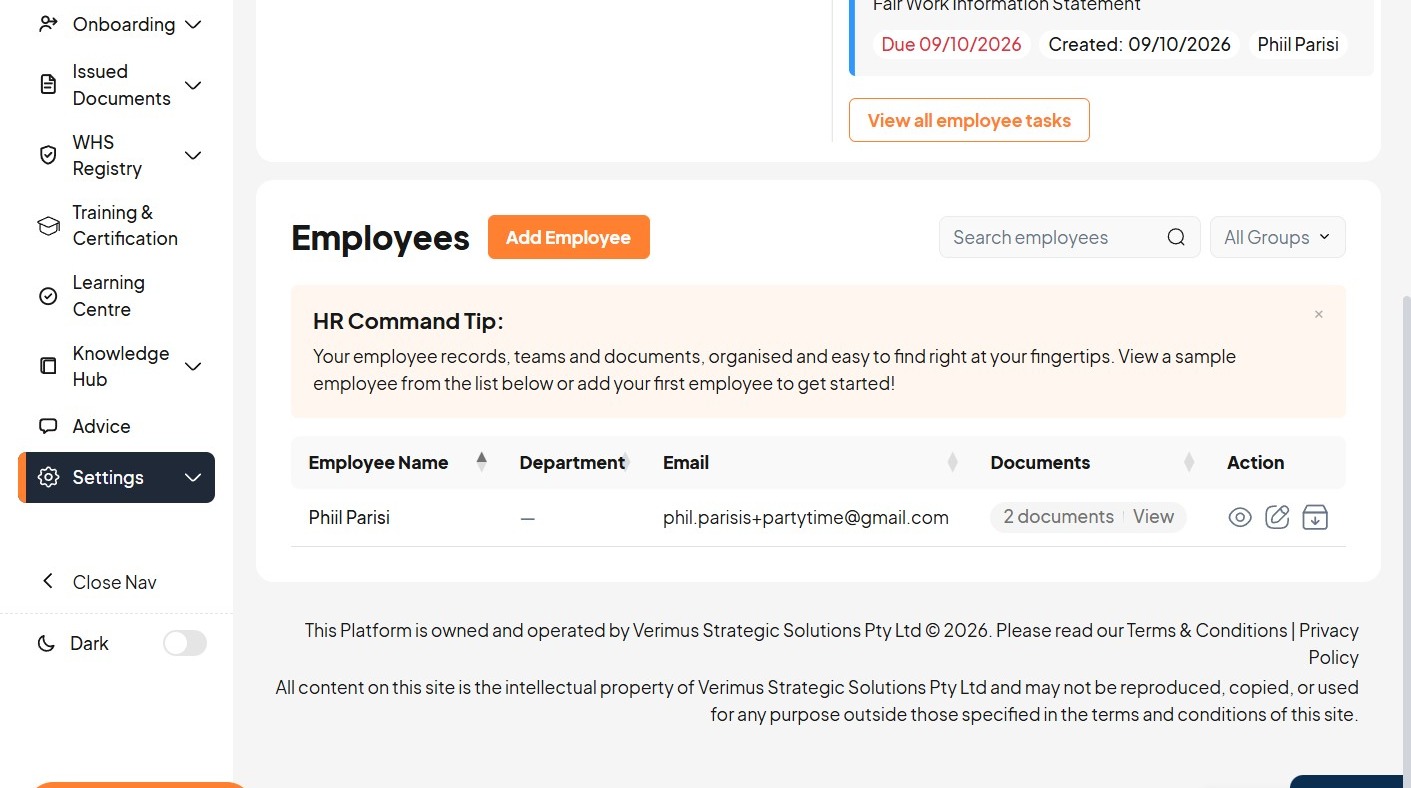
Account Setup
2. Click "Settings"
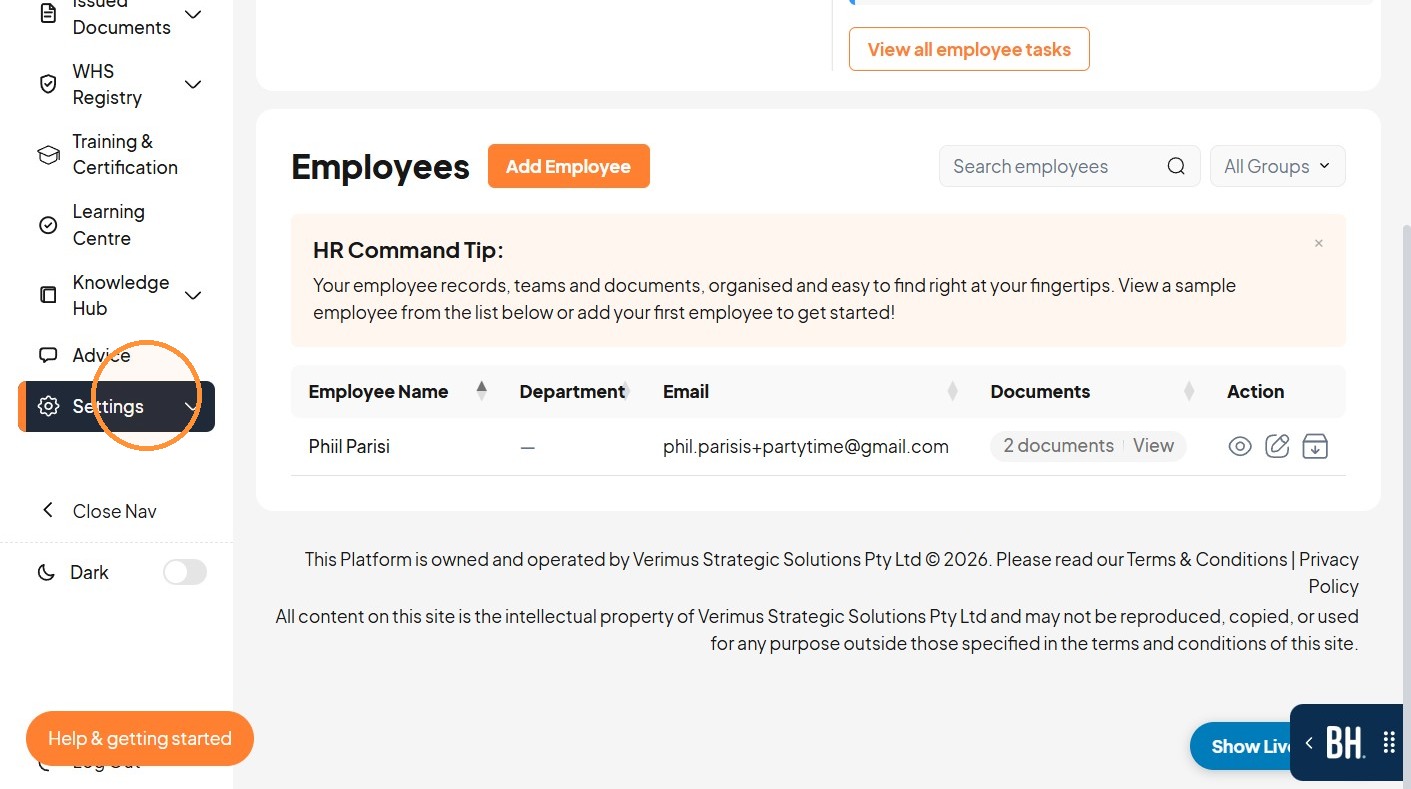
3. Click "Account Settings"
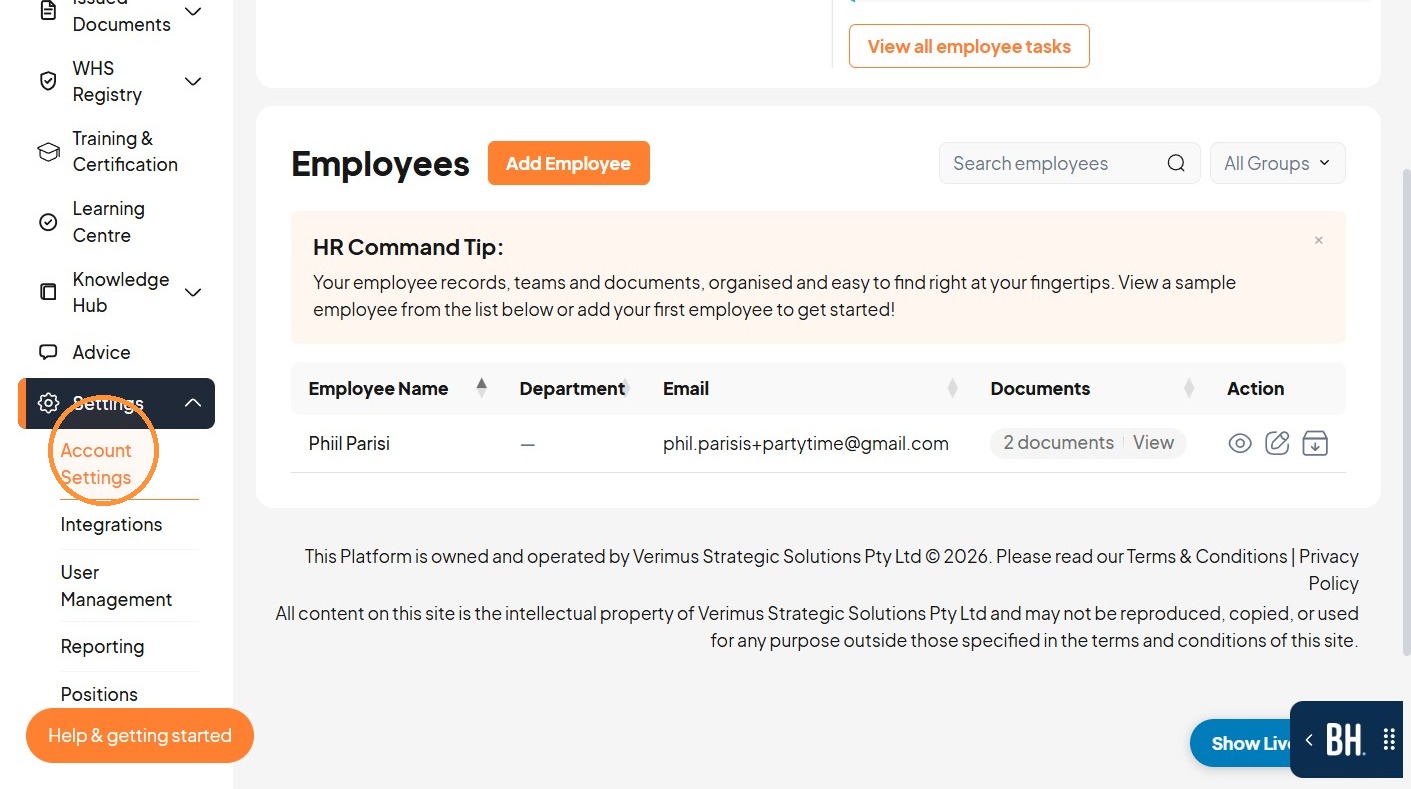
4. During onboarding or super admins only can enter the company representative's name.
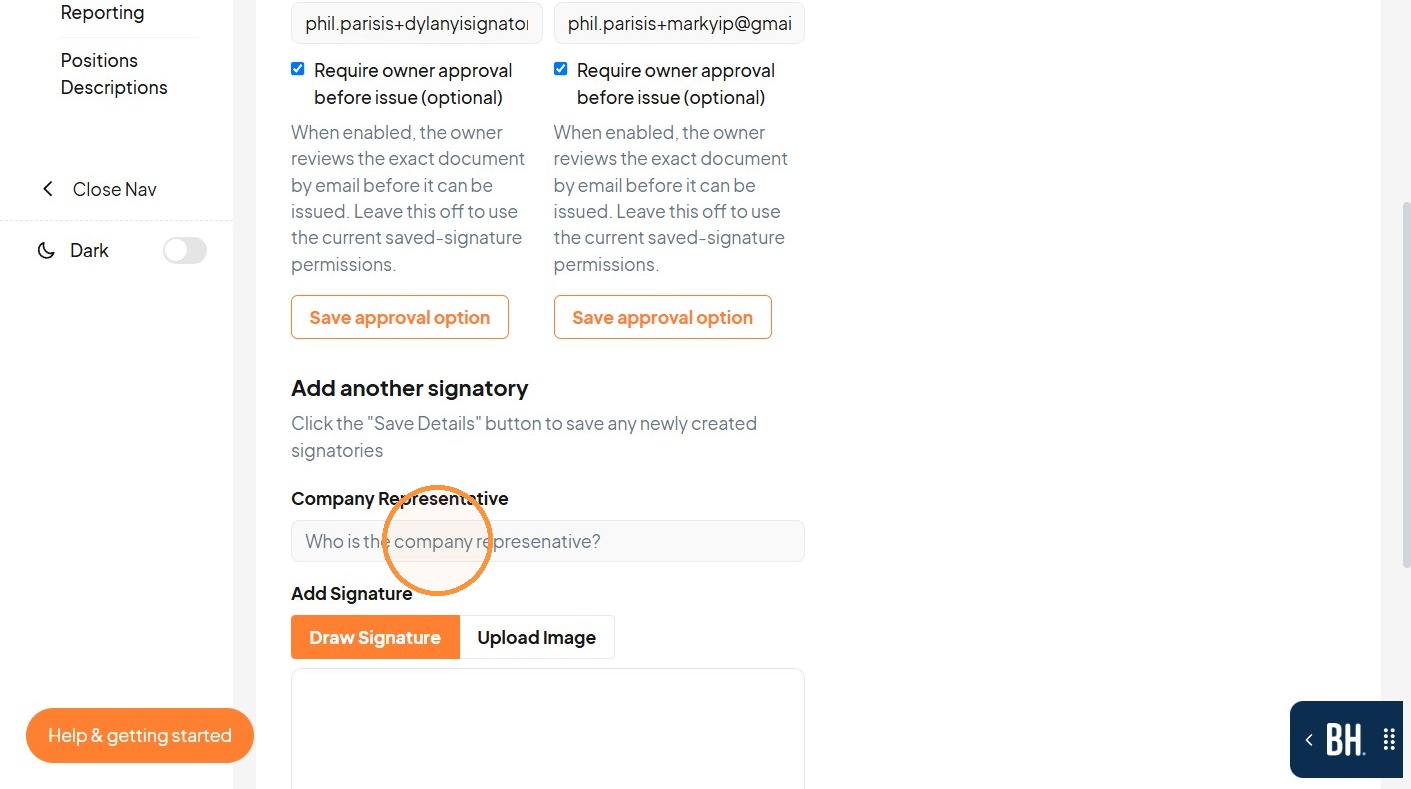
5. Draw the company representative's signature.
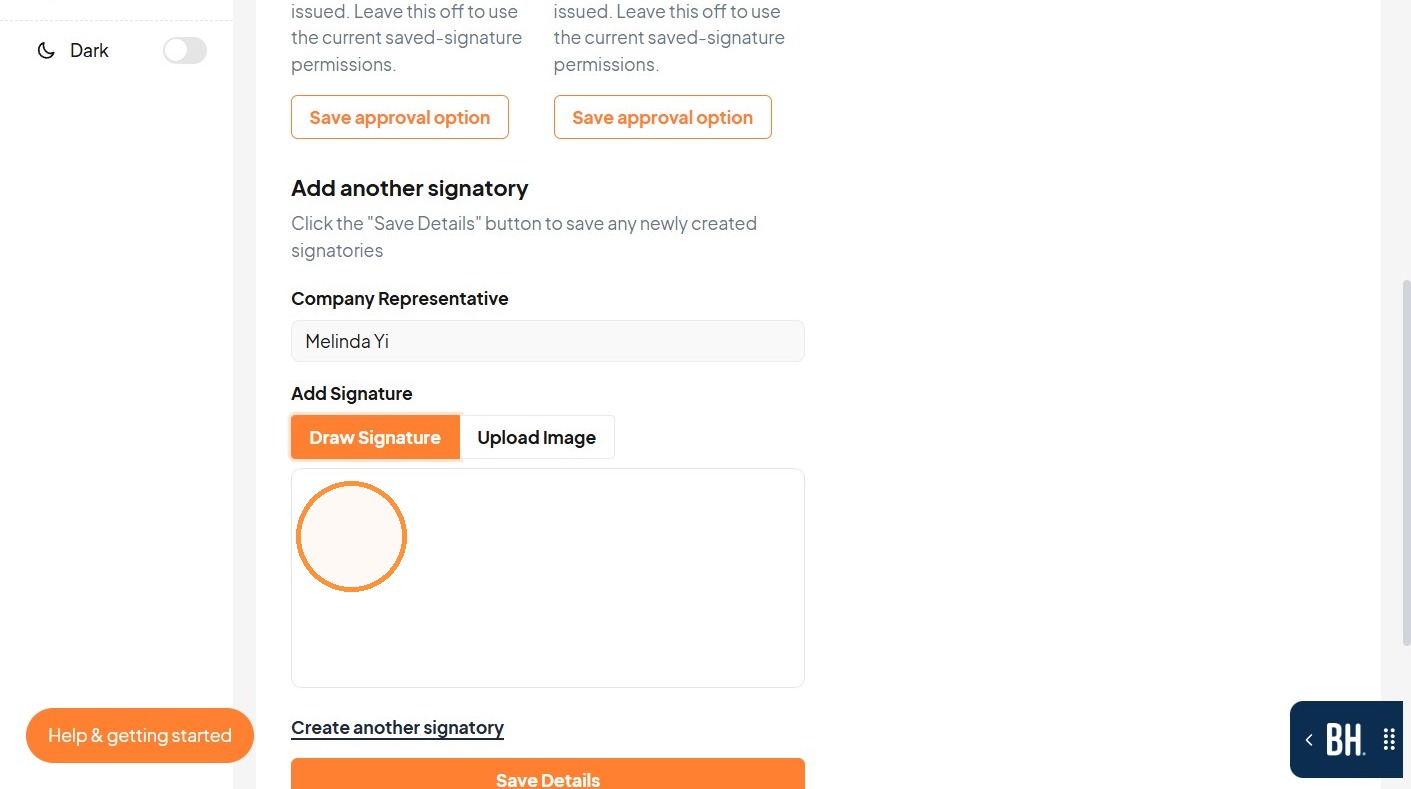
6. Click "Save Details"
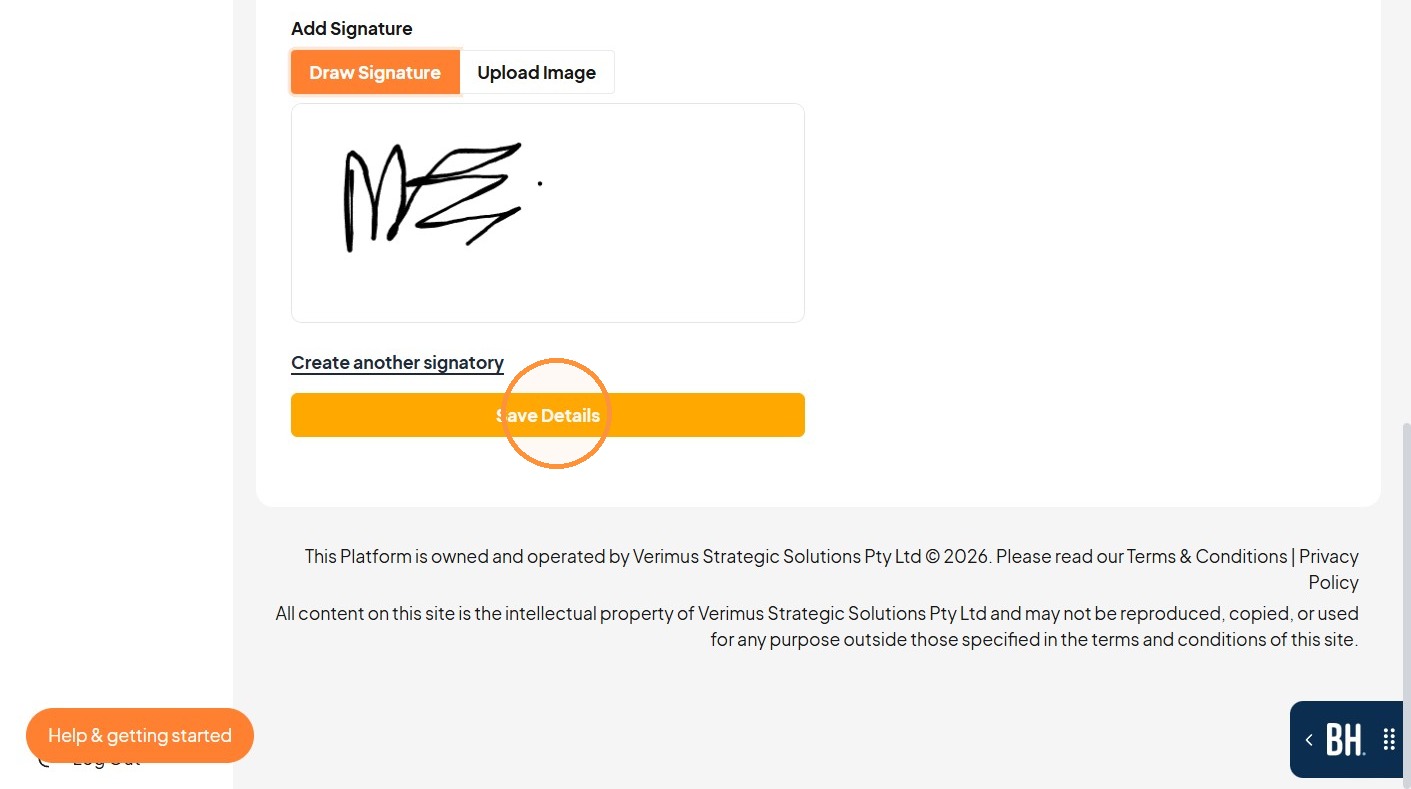
7. Enter the signature owner's email address.
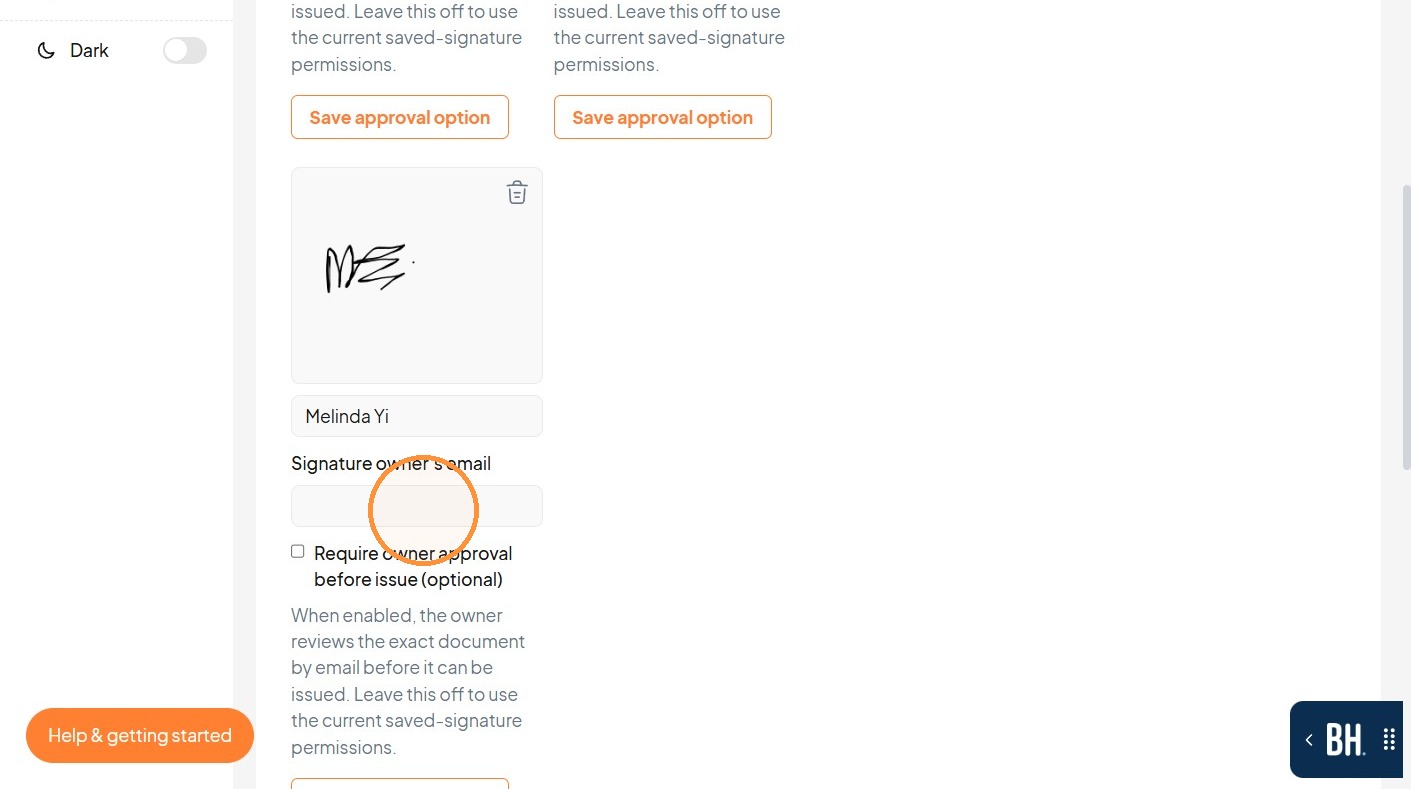
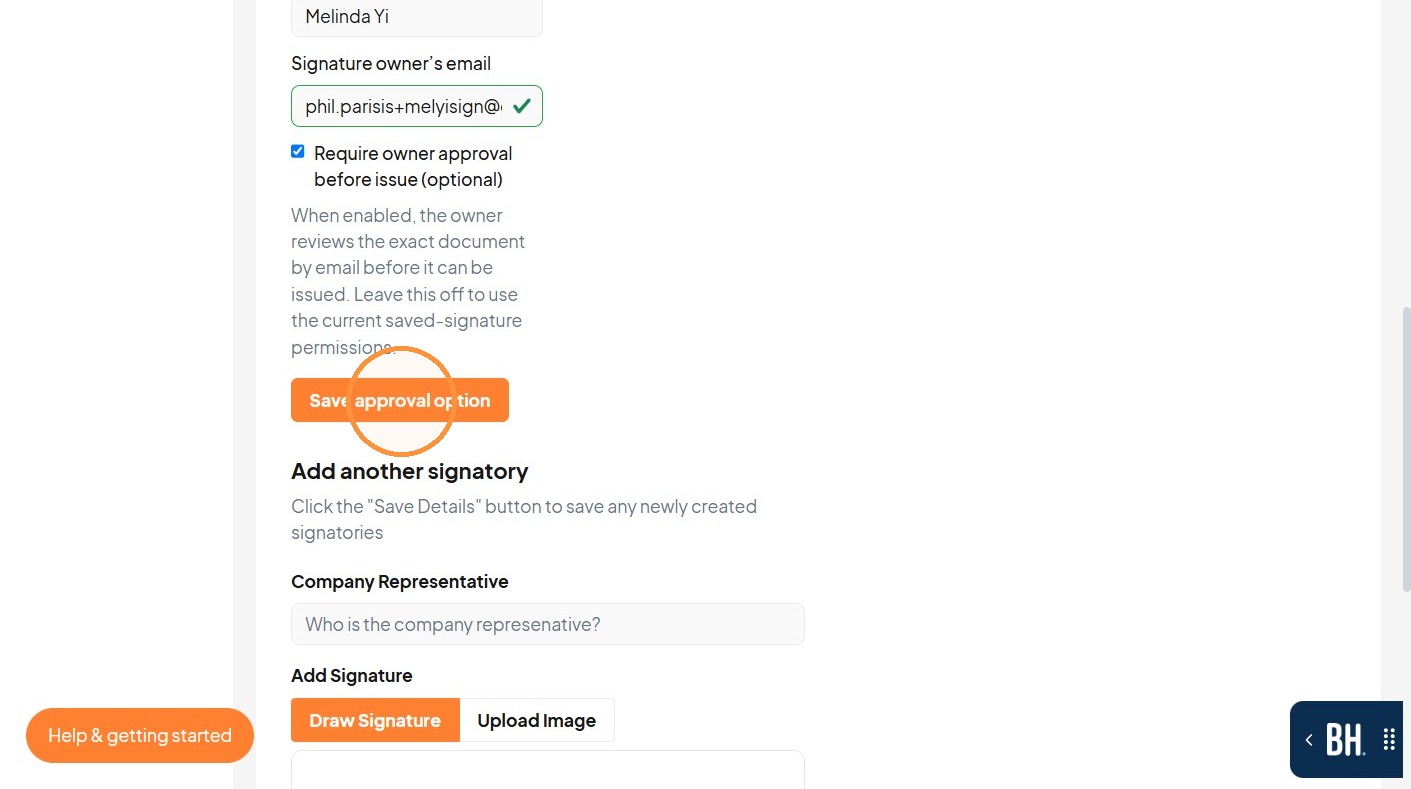
8. Click the "Require owner approval before issue (optional)" field.
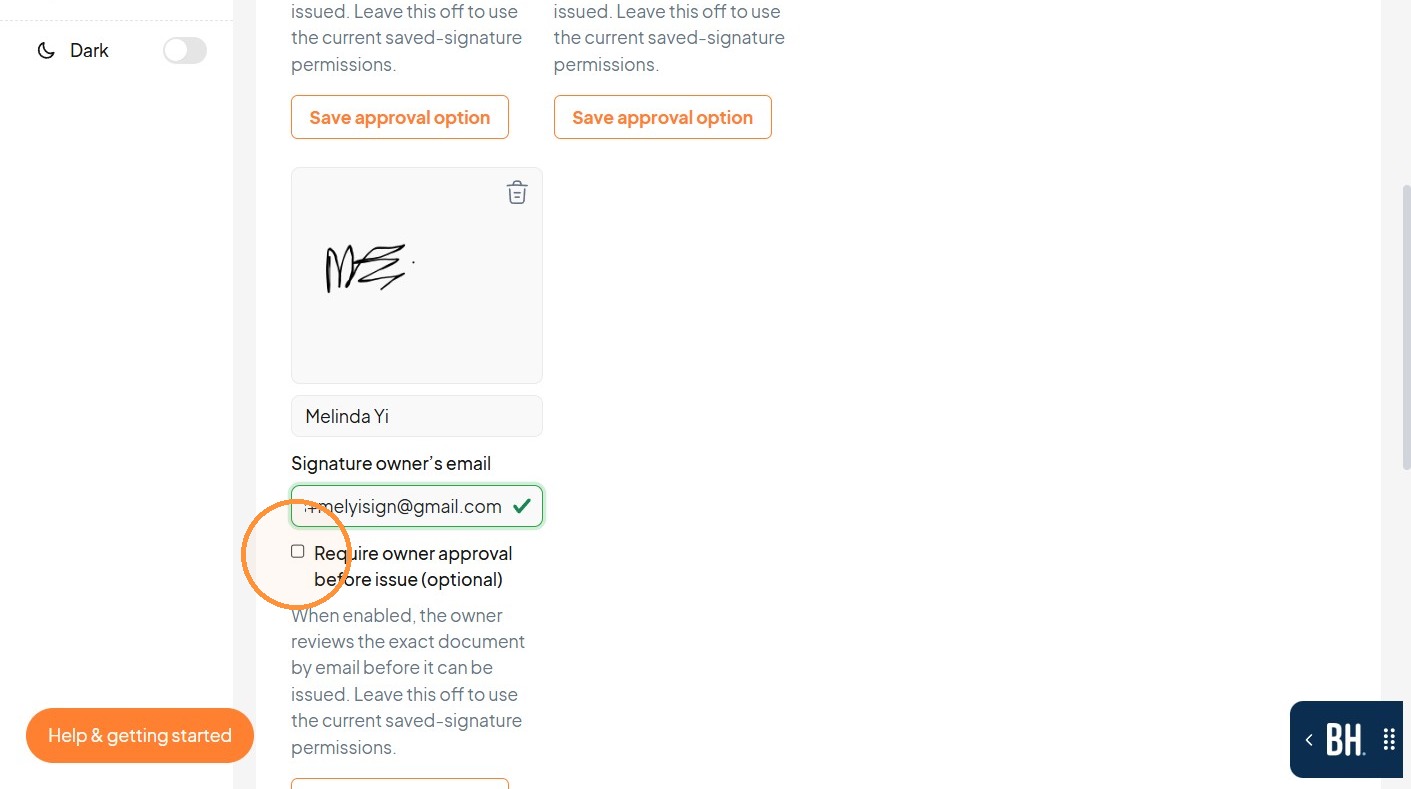
9. Click "Save approval option"
Contract Template
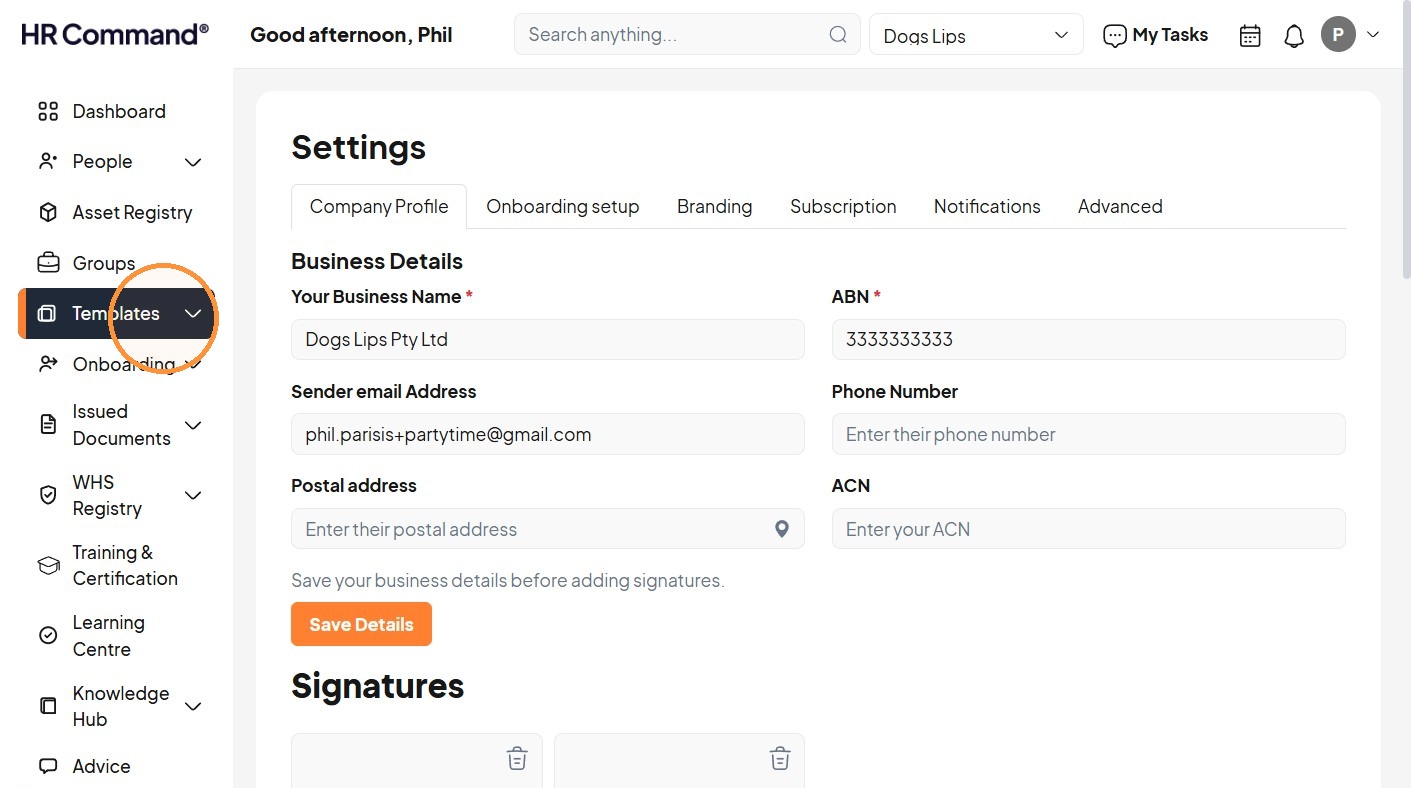
10. Click "Templates"
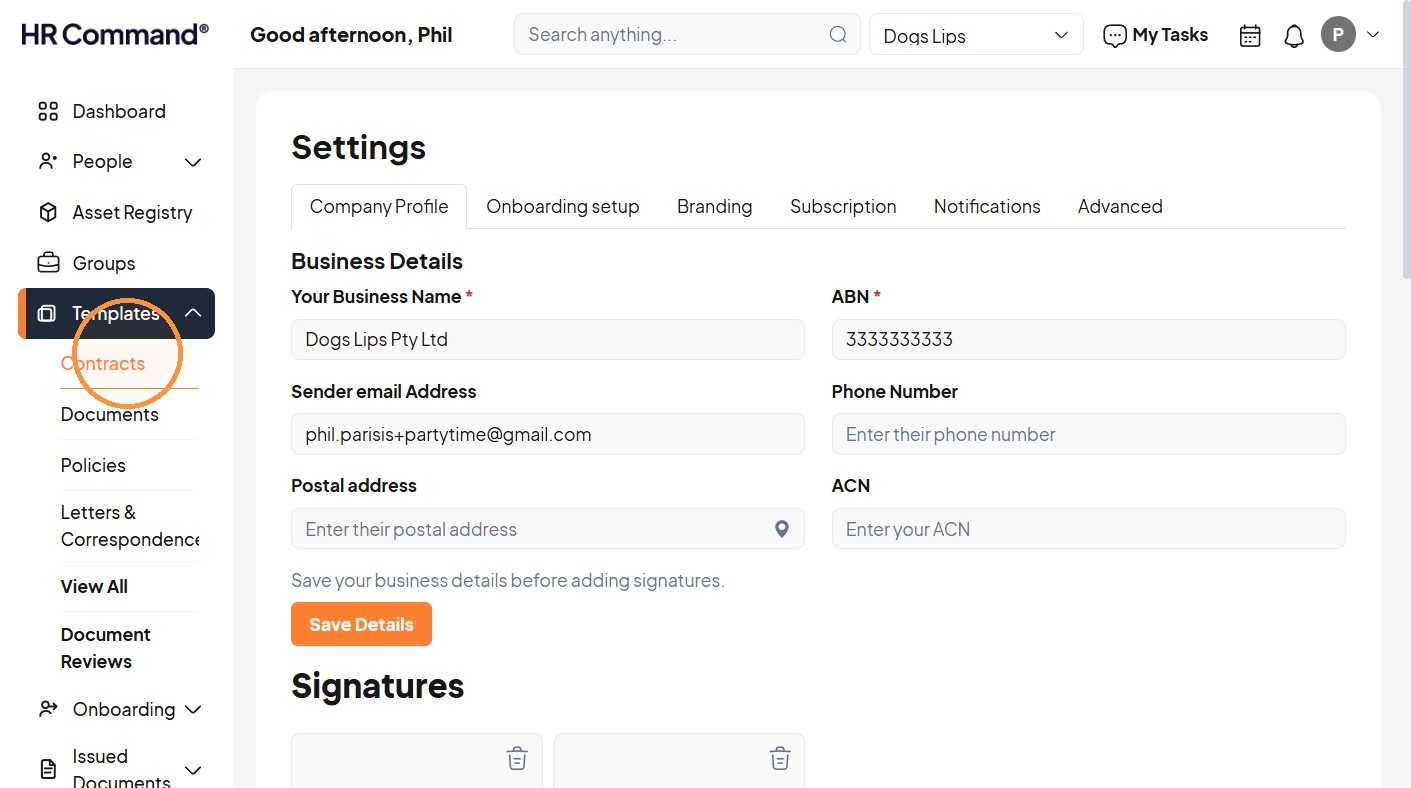
11. Click "Contracts"
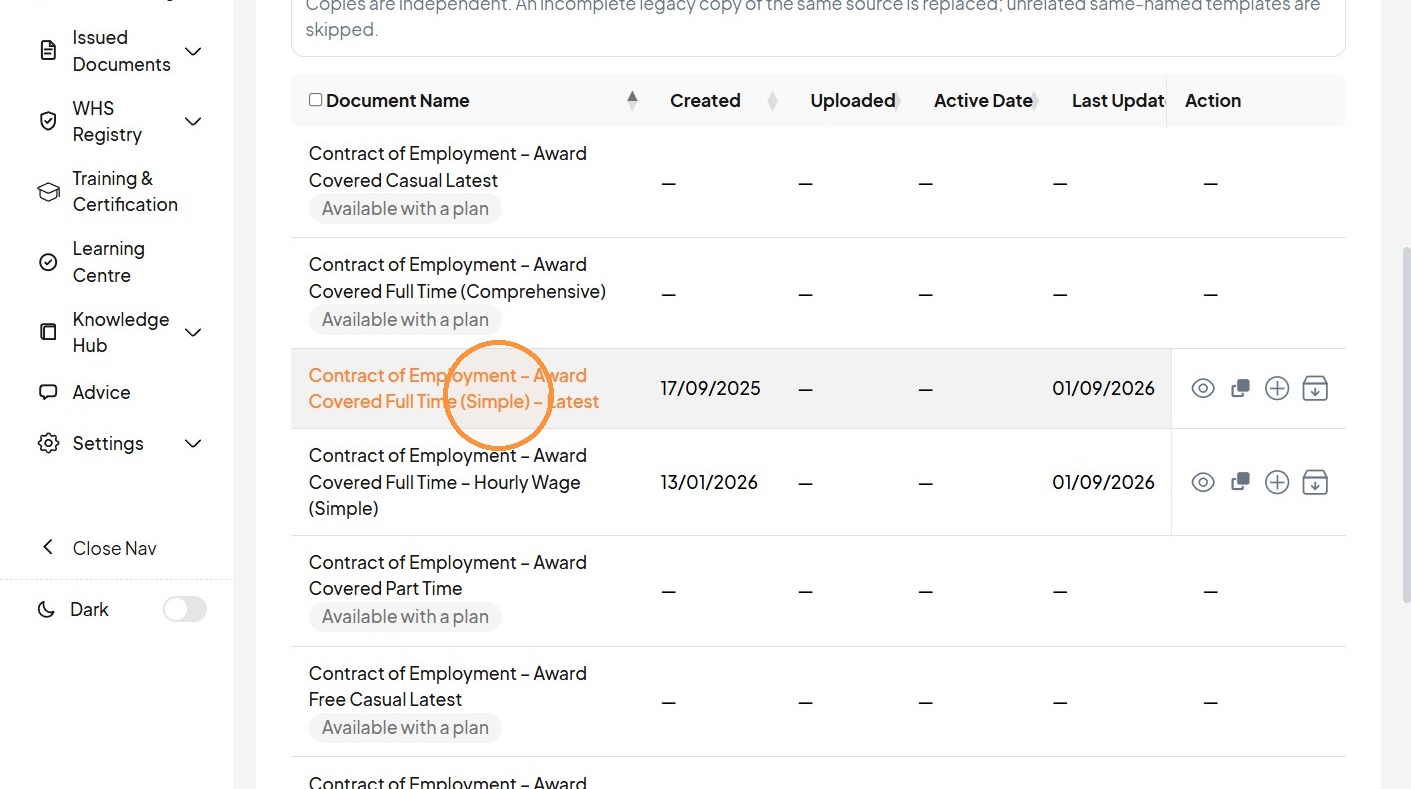
12. Click "Contract of Employment – Award Covered Full Time (Simple) – Latest"
13. Click "Use document template"
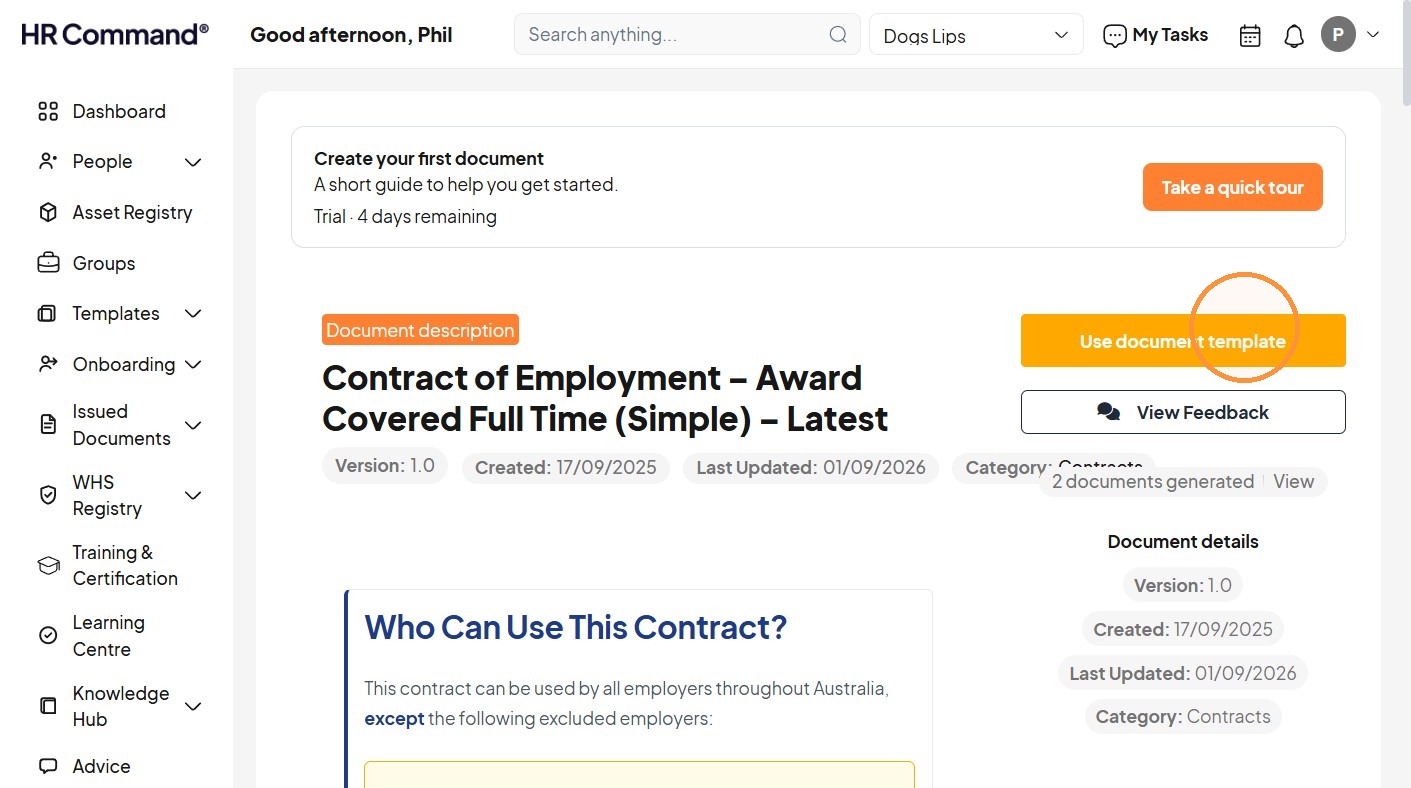
Contract Details
14. Enter the document name.
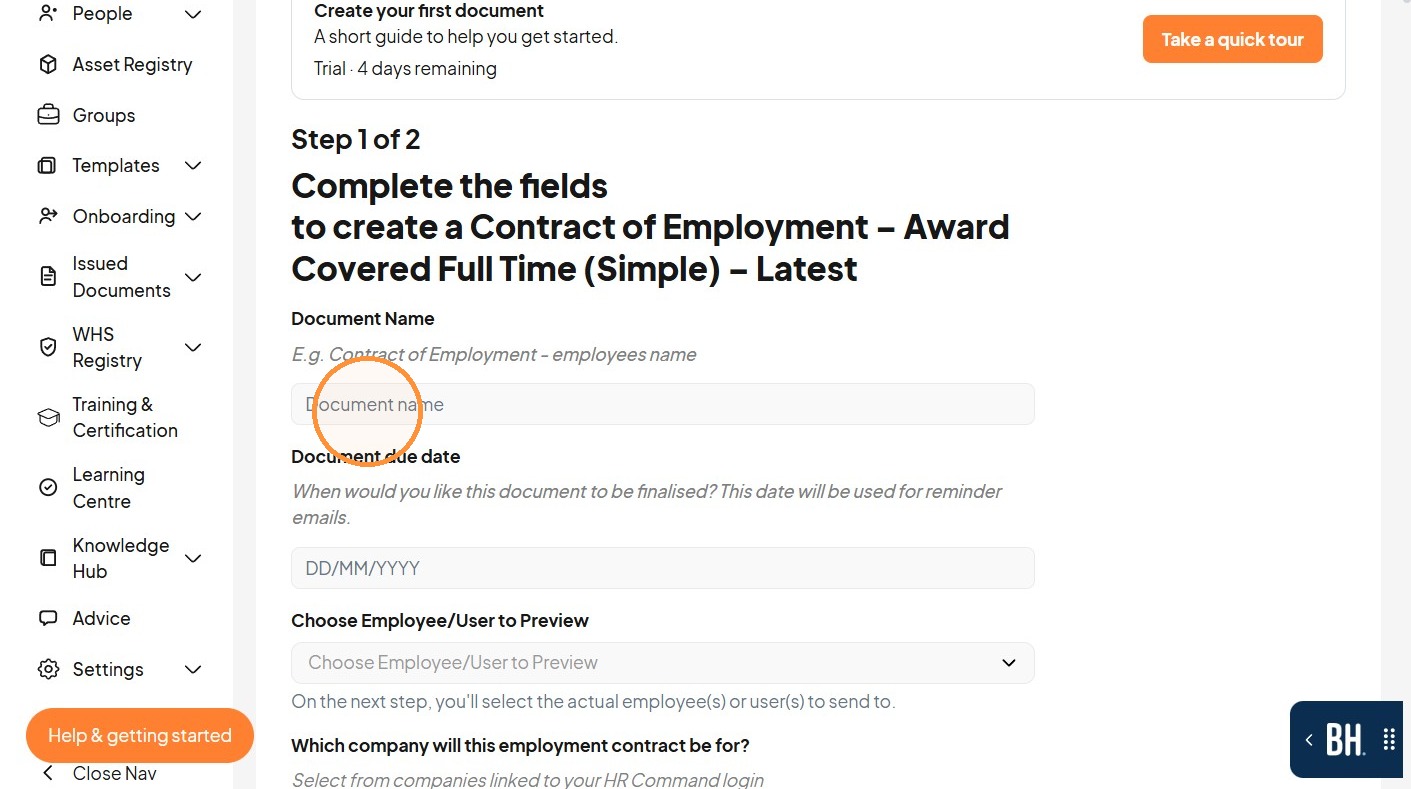
15. Click the "DD/MM/YYYY" field.
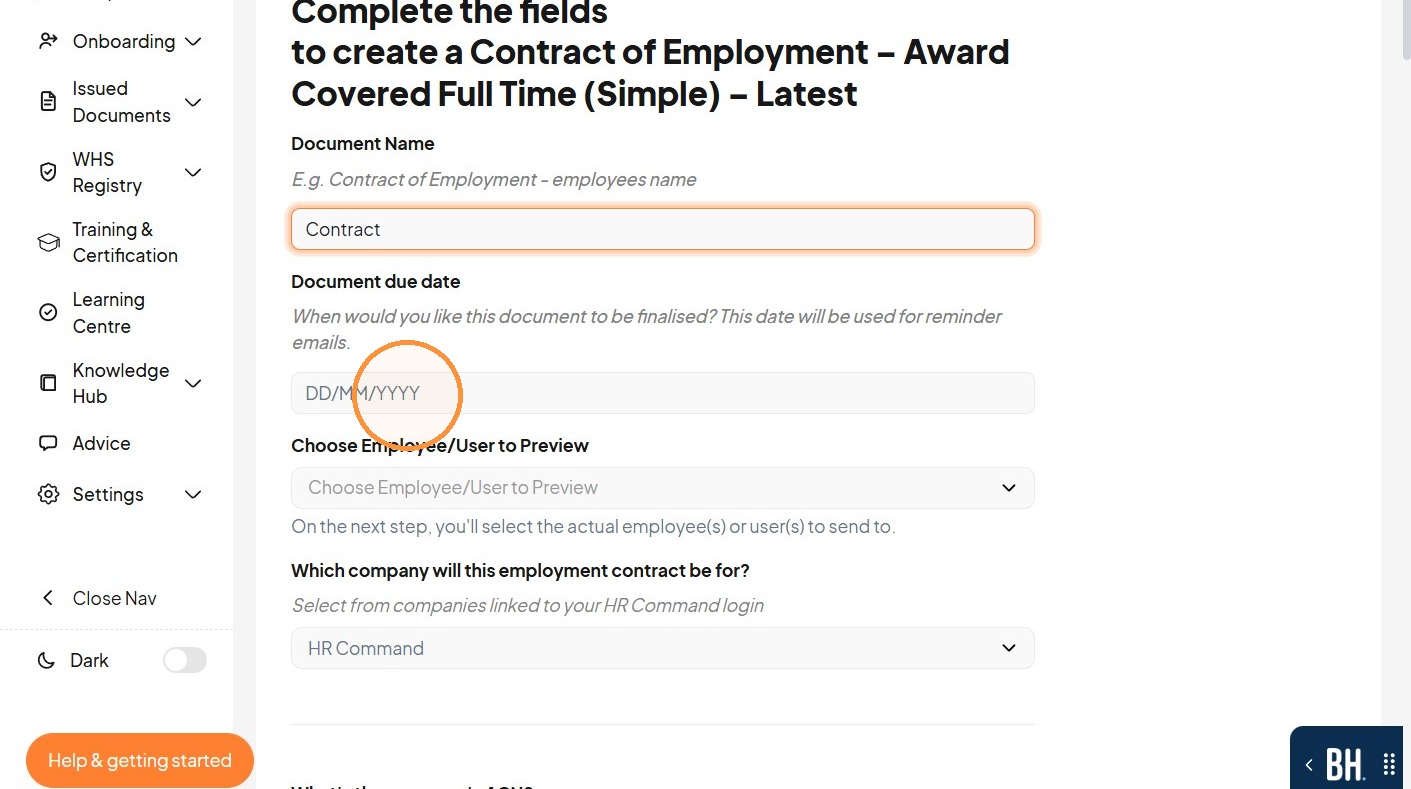
16. Select the due date.
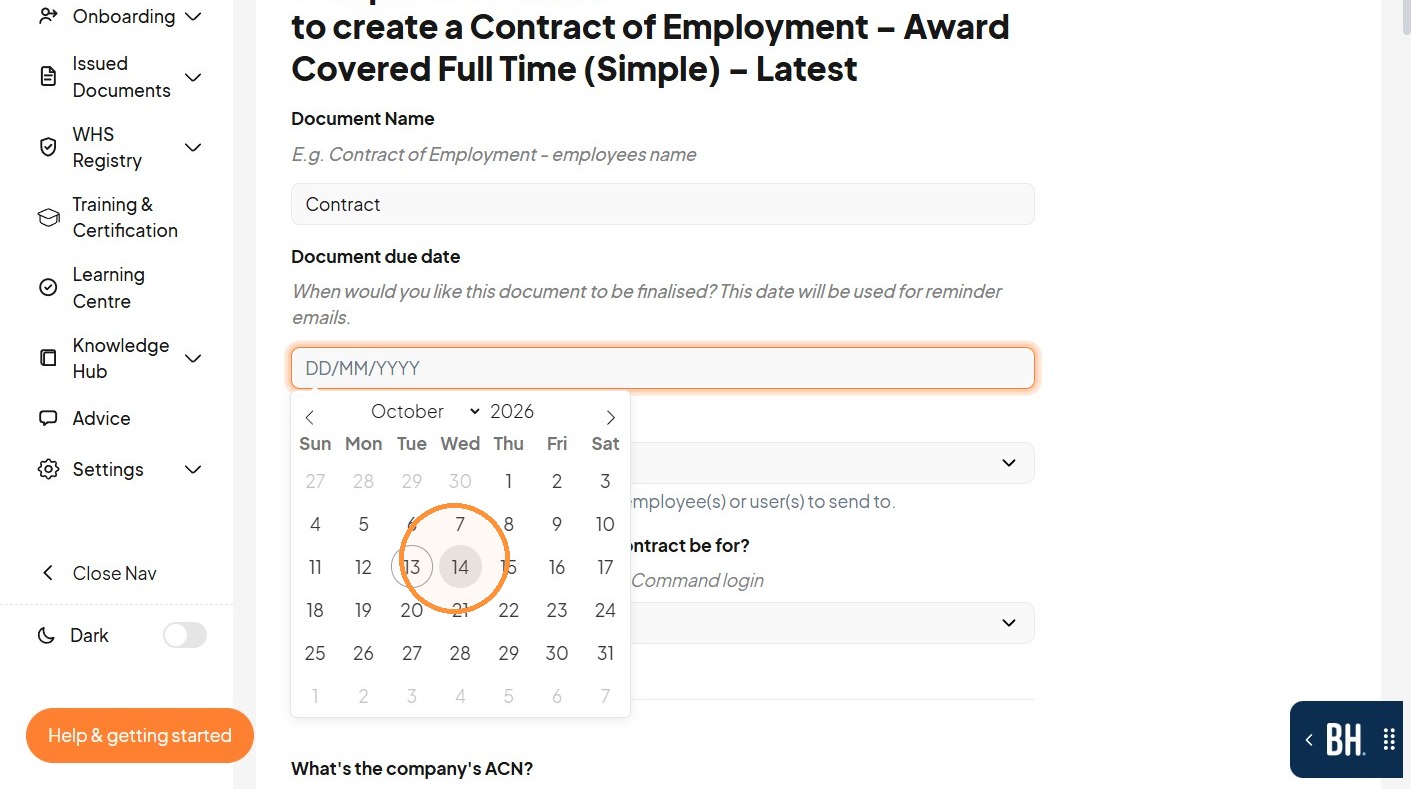
17. Open the employee preview dropdown.
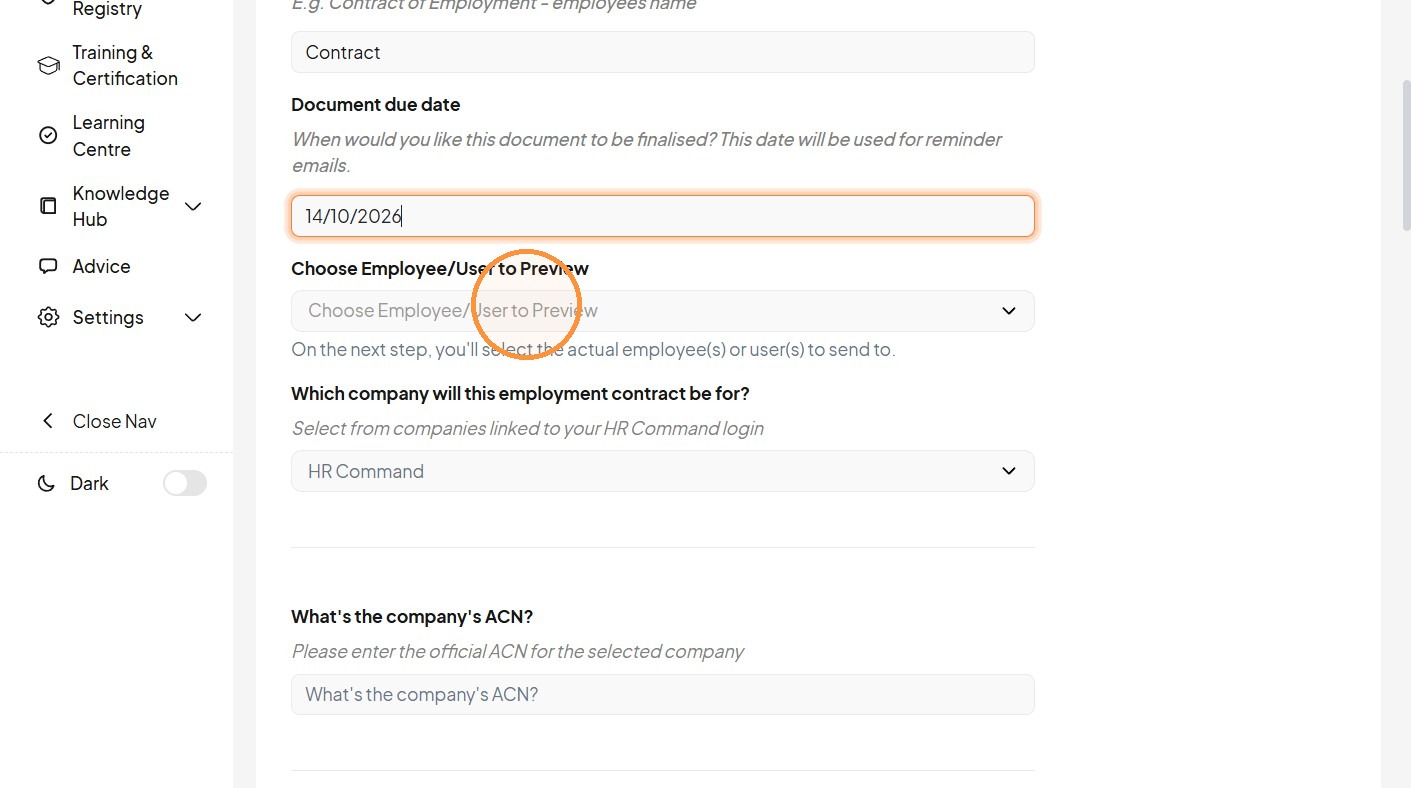
18. Select the employee for preview.
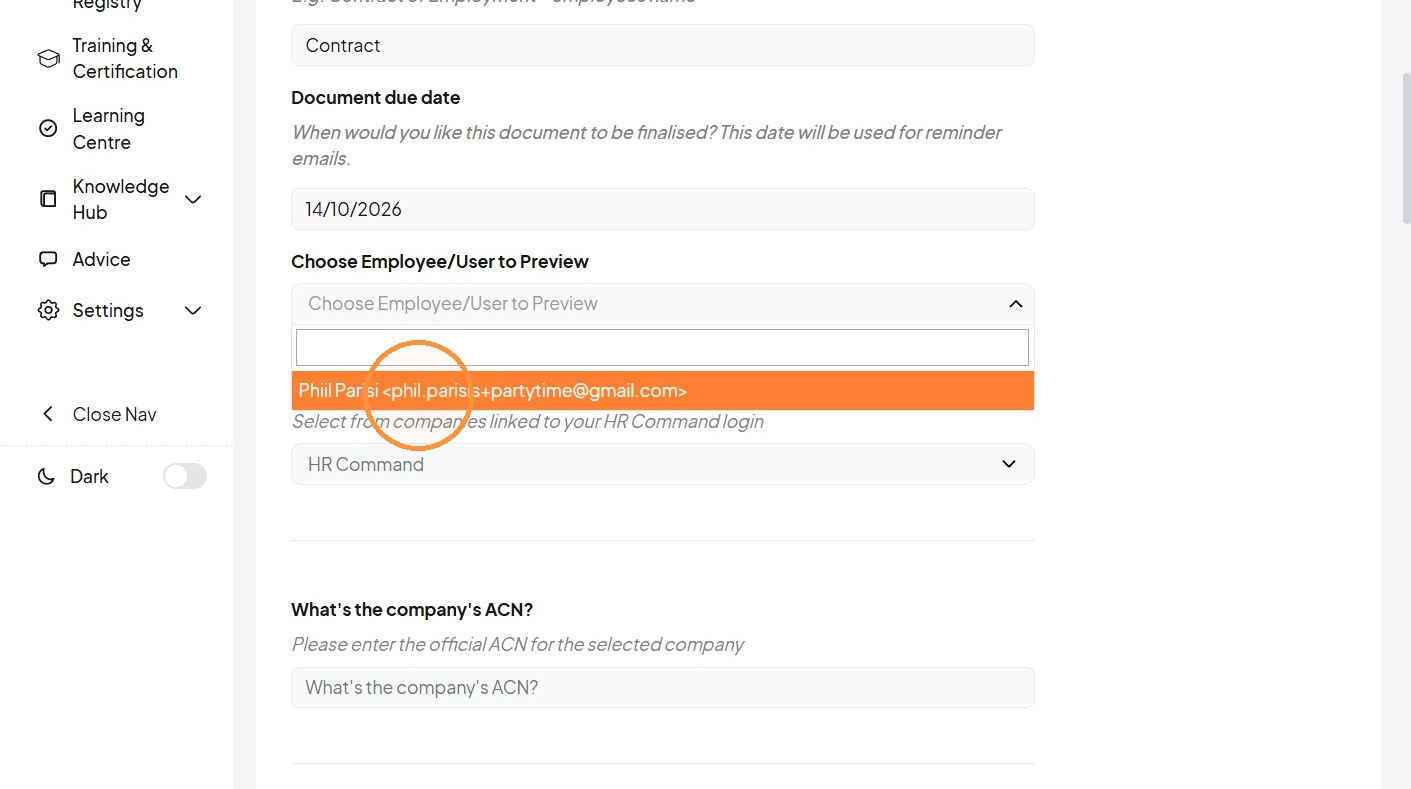
19. Click the "What's the company's ACN?" field and type the ACN number.
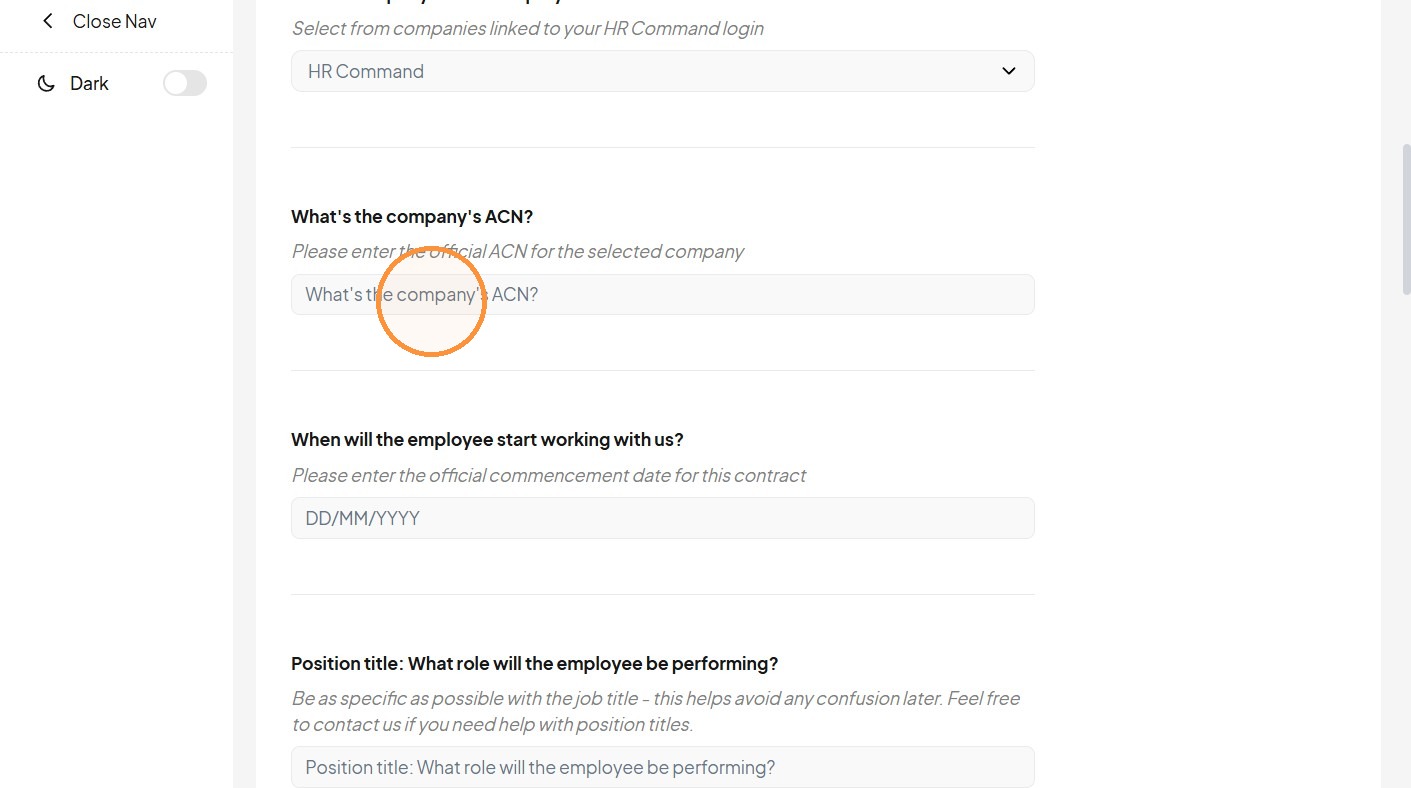
20. Click the "DD/MM/YYYY" field.
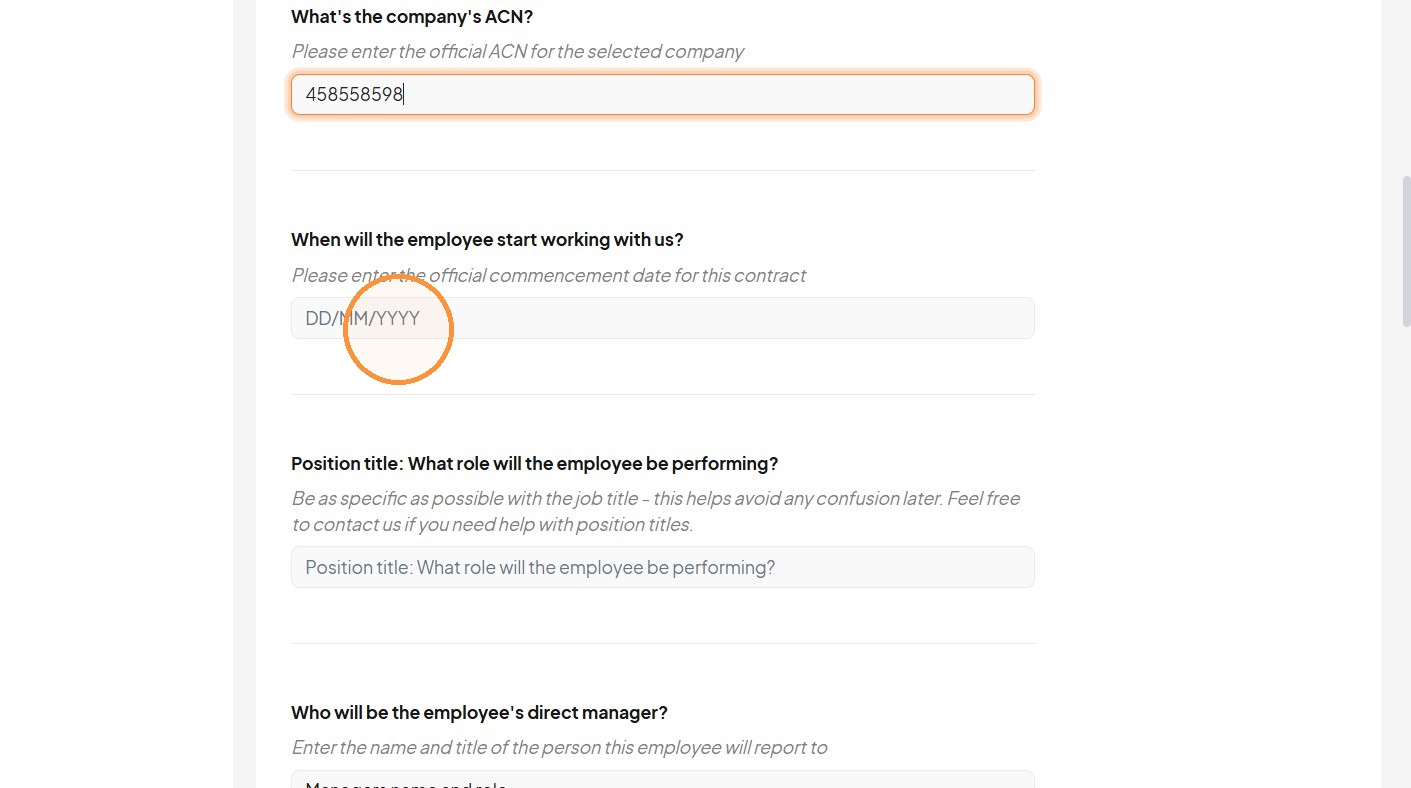
21. Select the employee's commencement date.
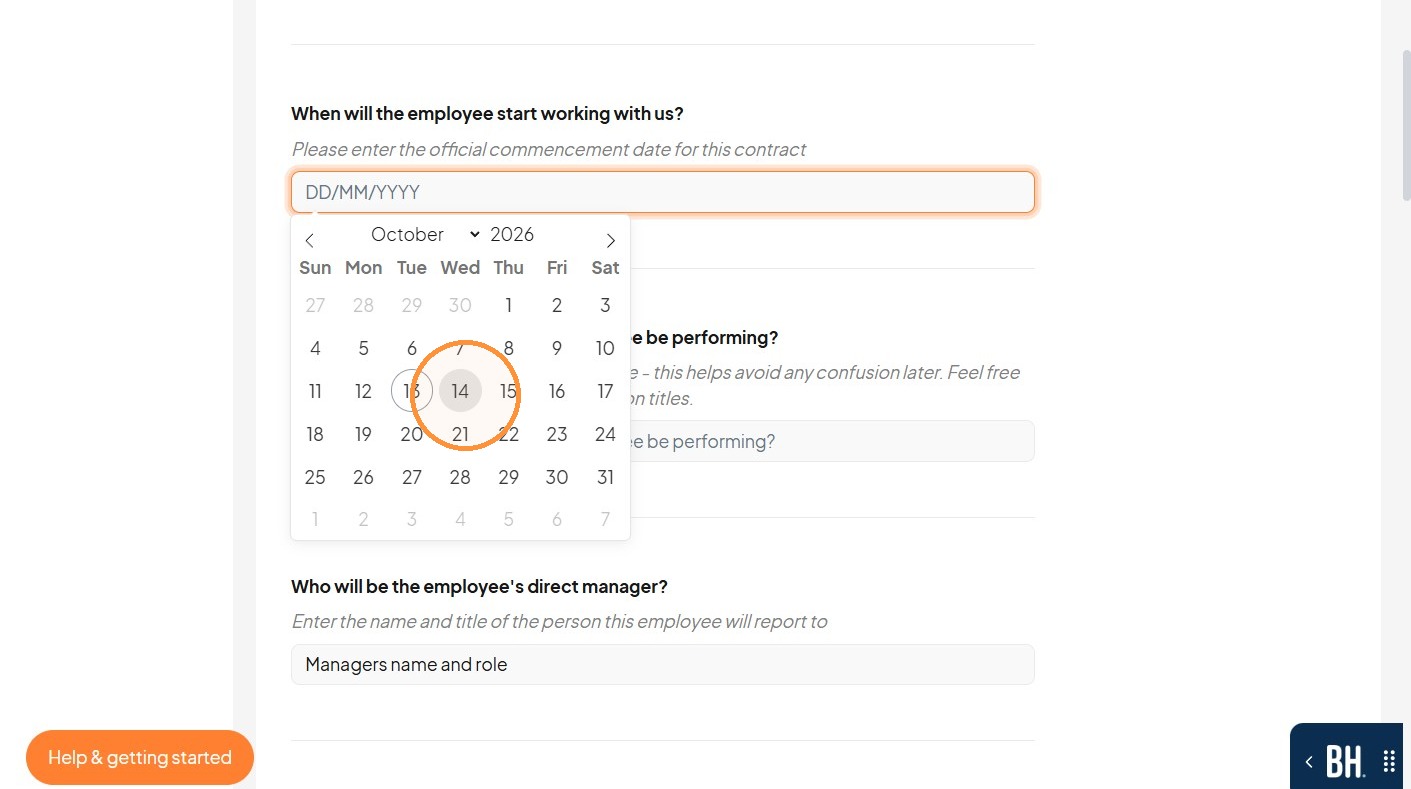
22. Enter the position title, direct manager, working hours, work location, and annual salary.
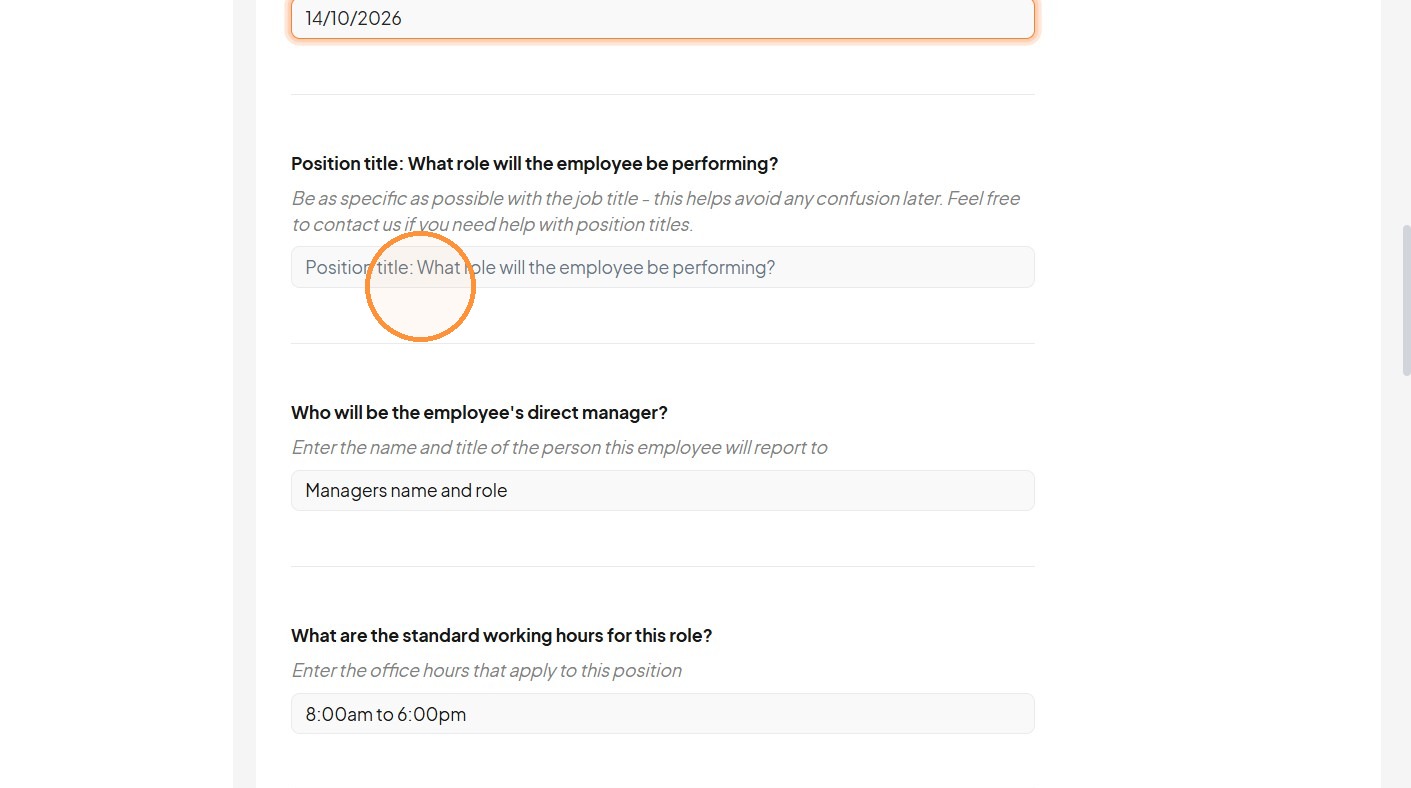
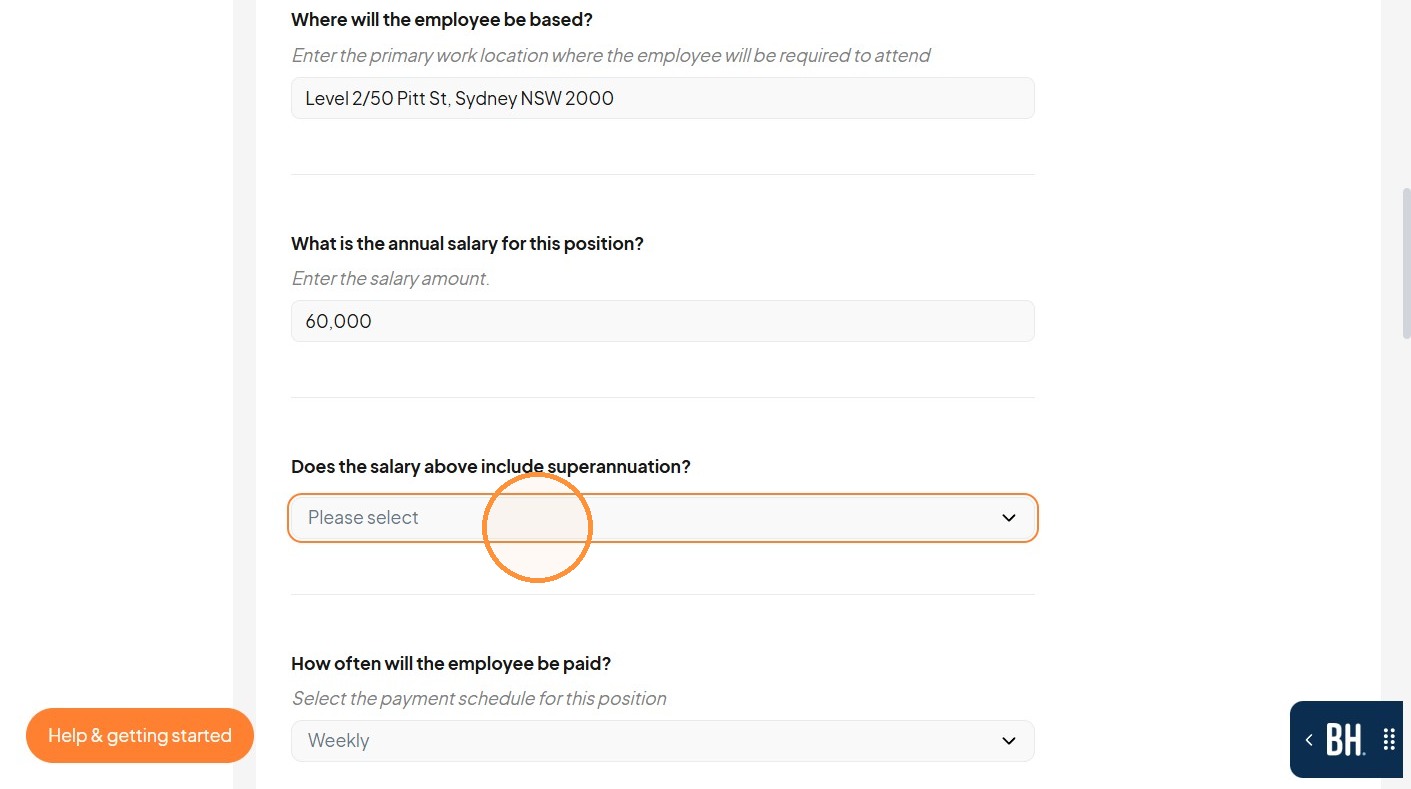
23. Open the superannuation dropdown.
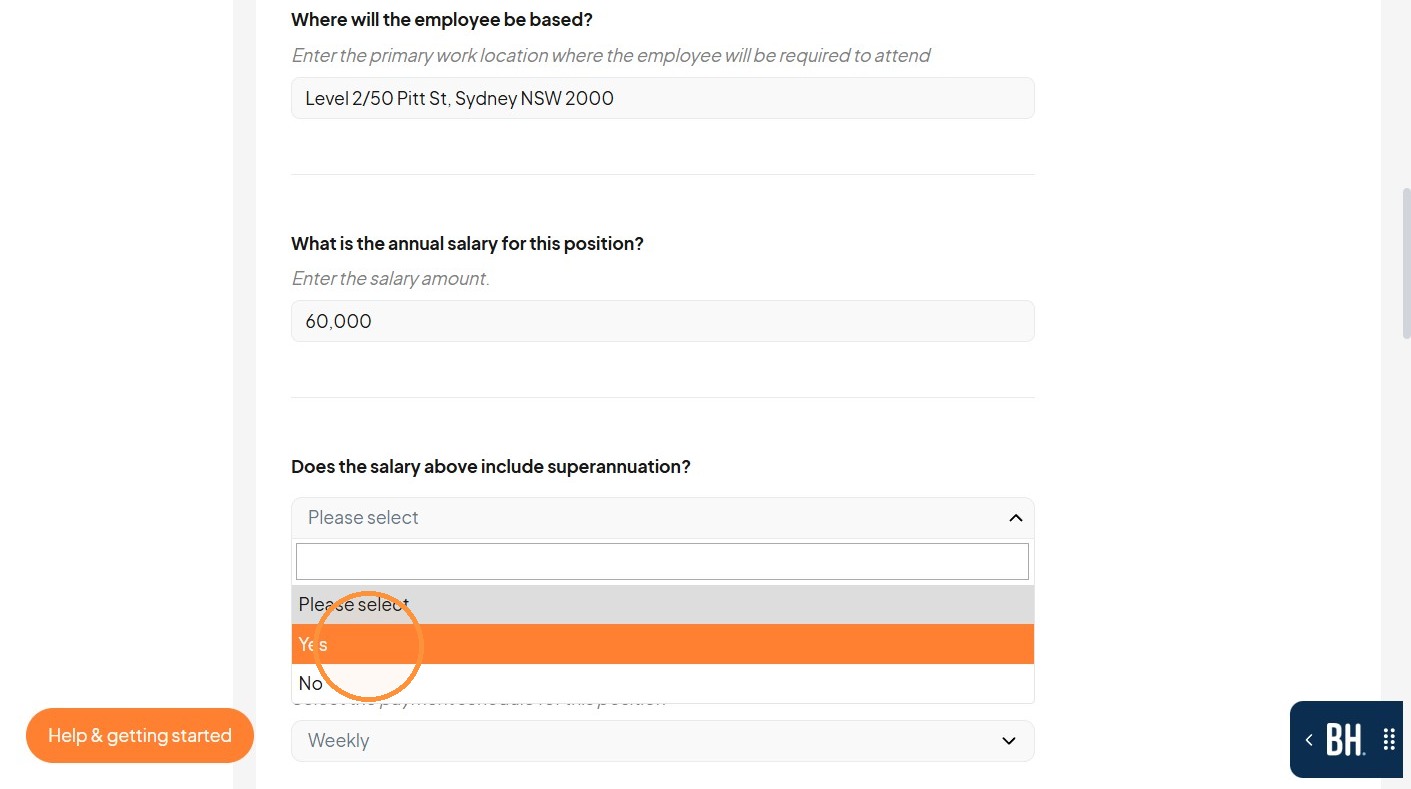
24. Select Yes for salary-inclusive superannuation.
25. Select Fortnightly as the payment frequency.
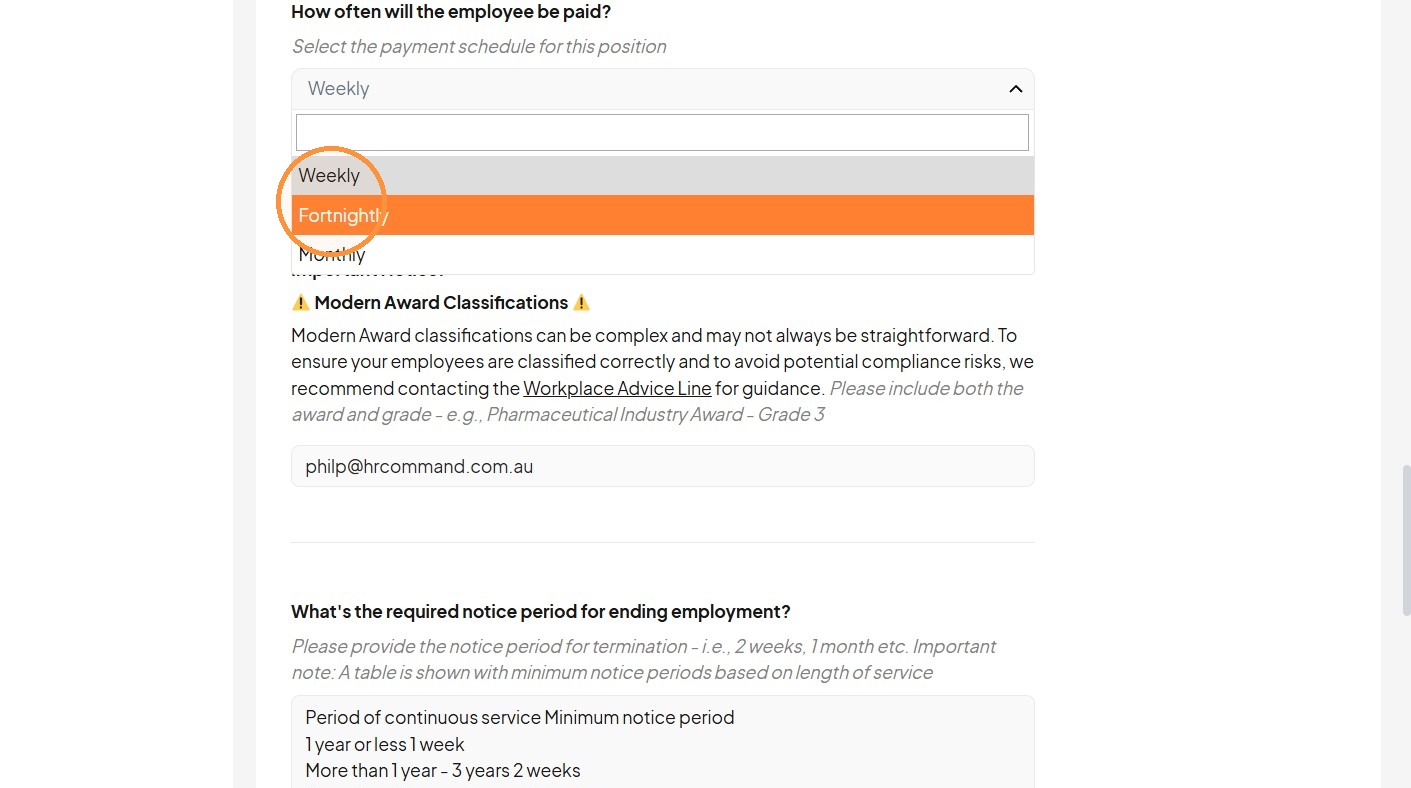
26. Click the "Which Modern Award and grade applies to this role?" field.
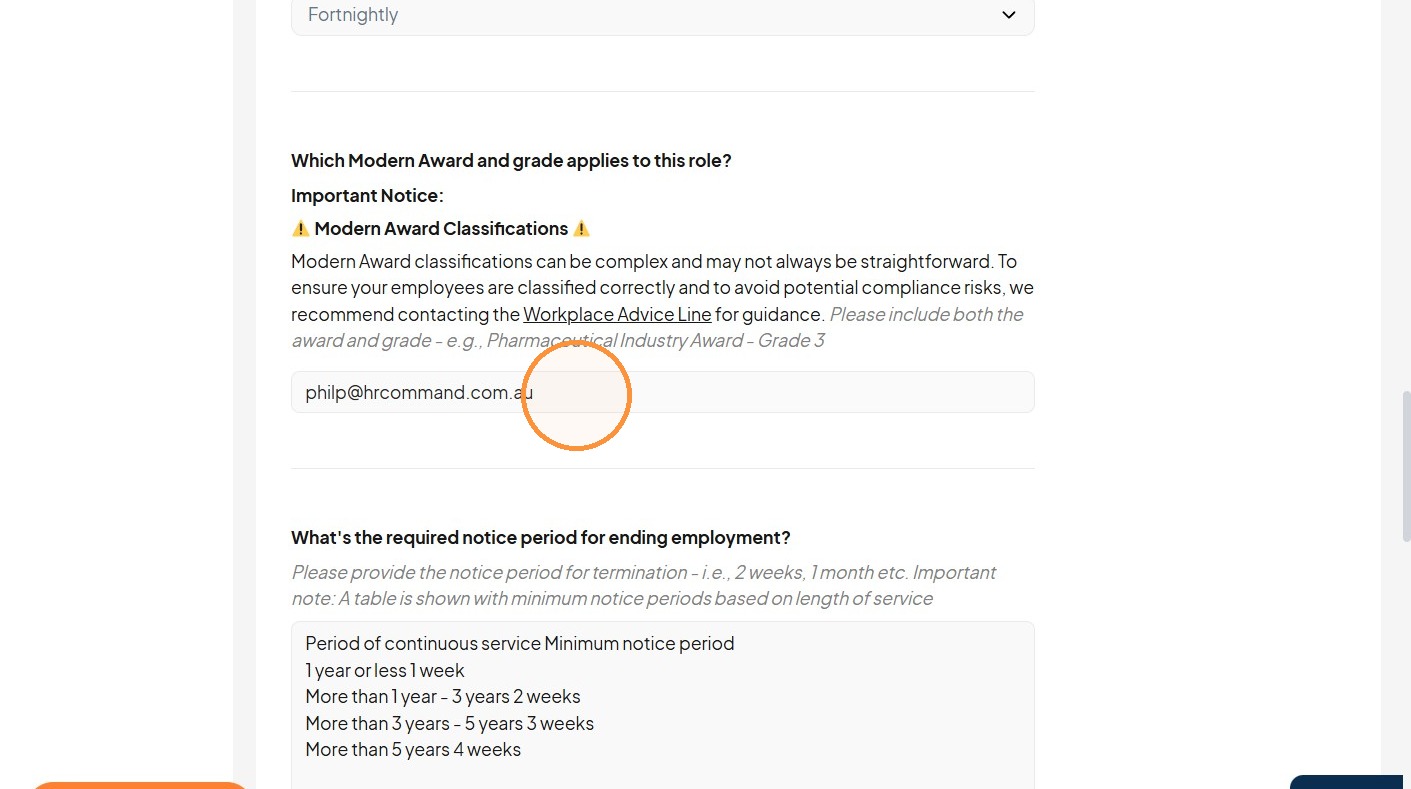
27. Type "Marketing and Print award"
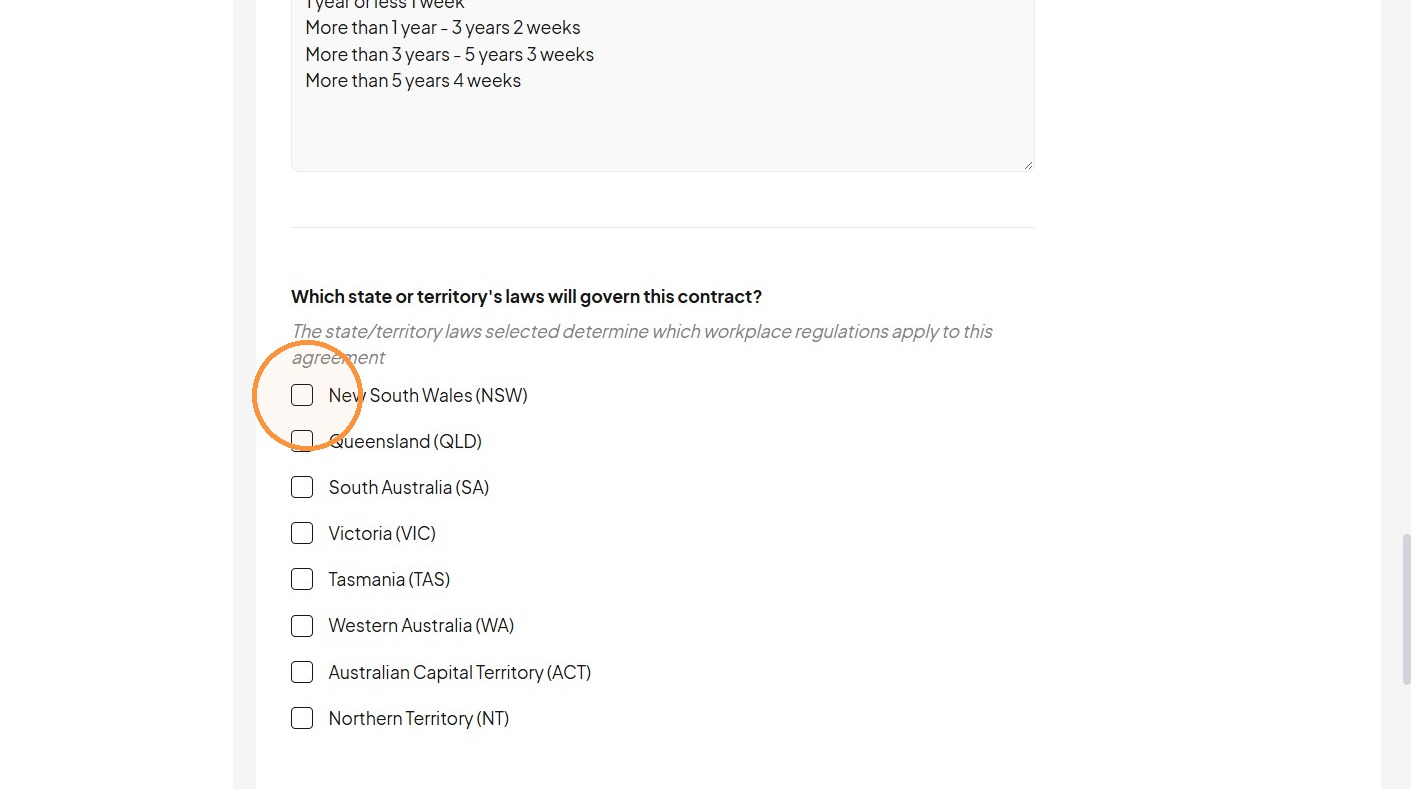
28. Select New South Wales (NSW) as the governing state.
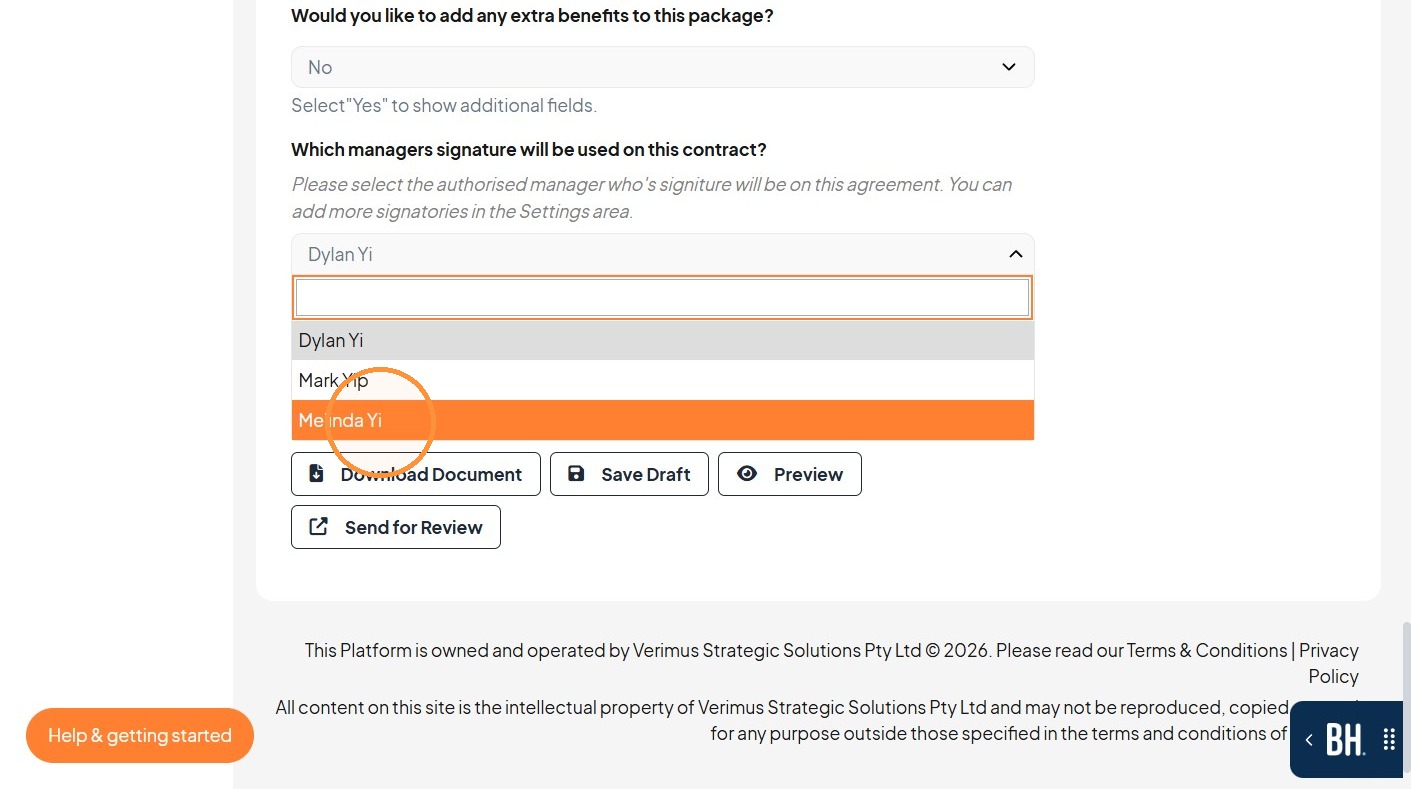
29. Open the manager-signature dropdown.
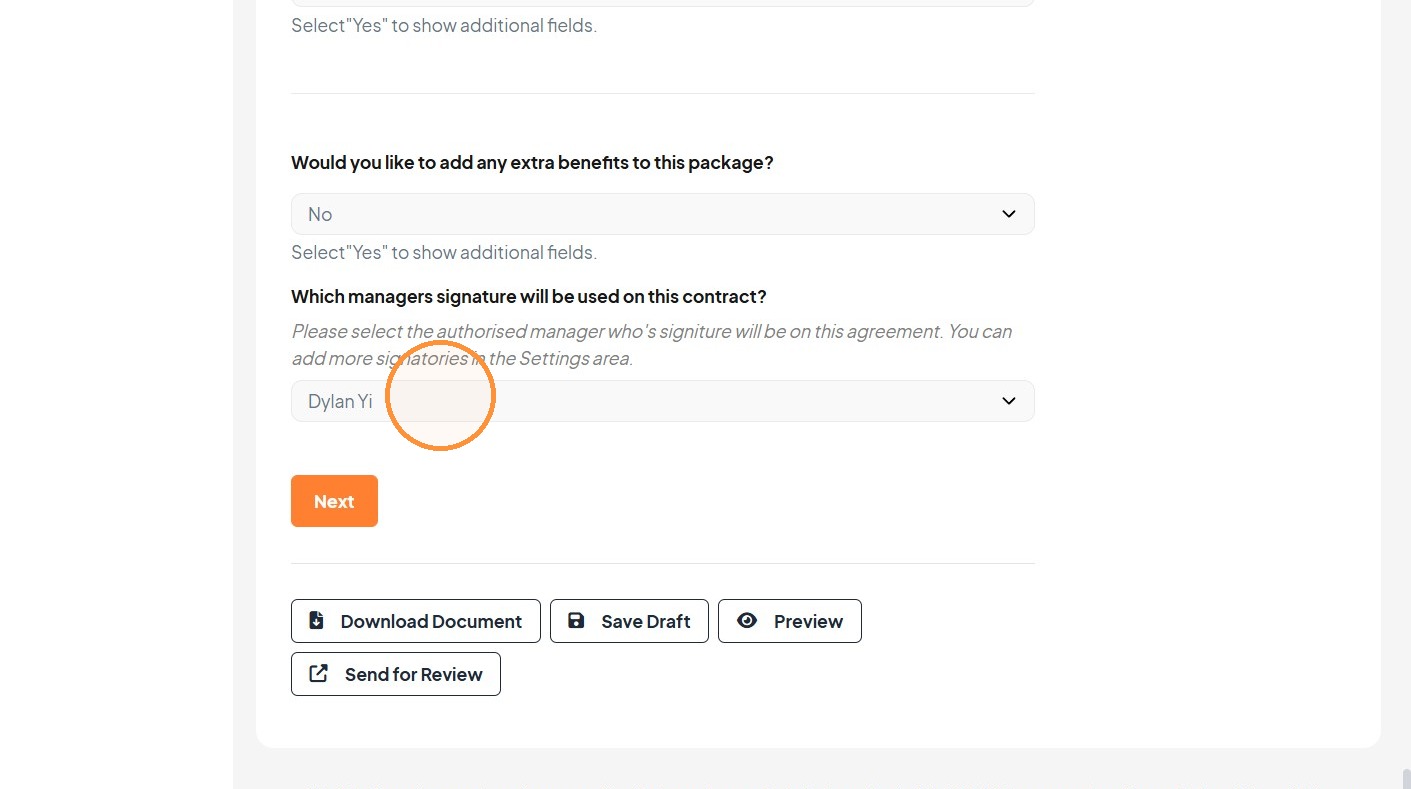
30. Select the authorized manager signature.
Document Approval
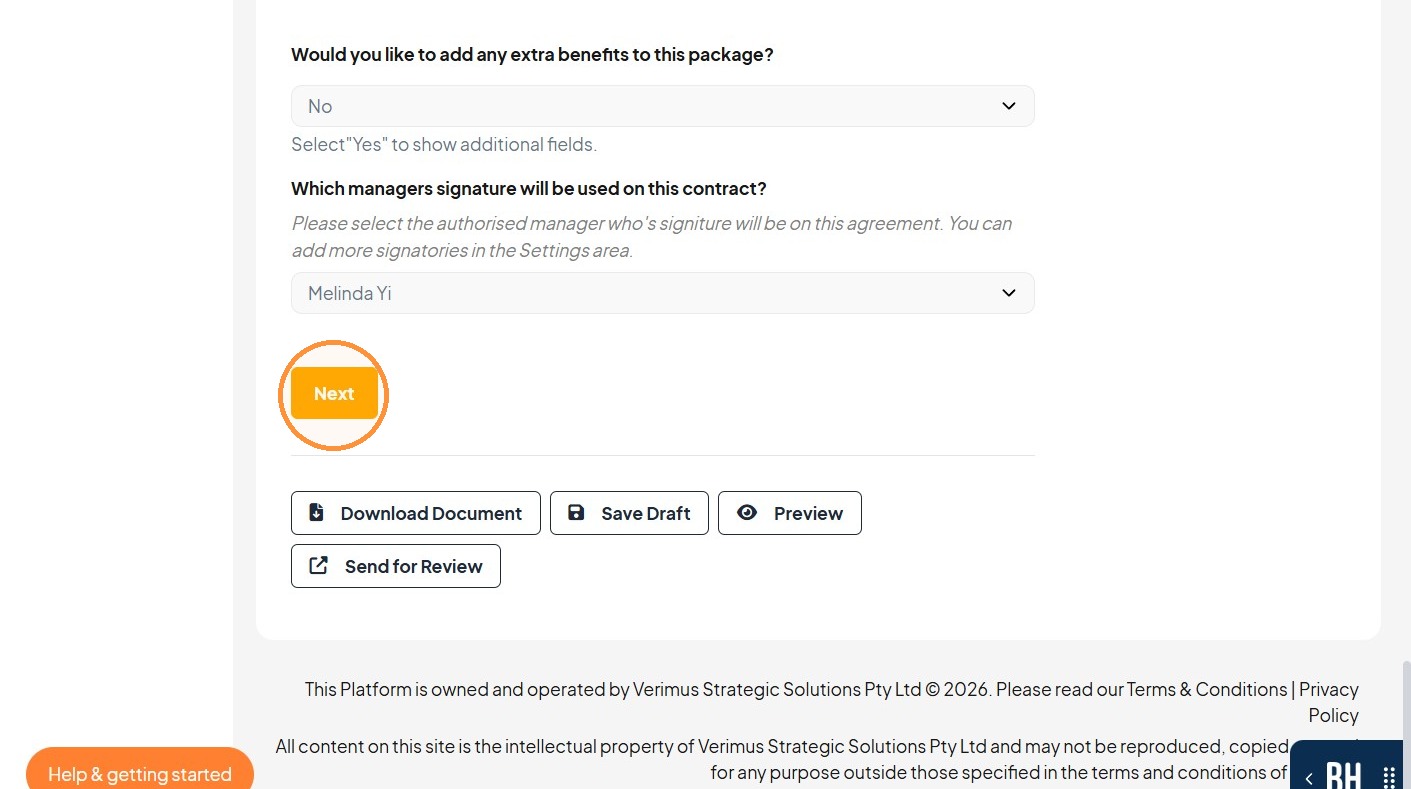
31. Click "Next"
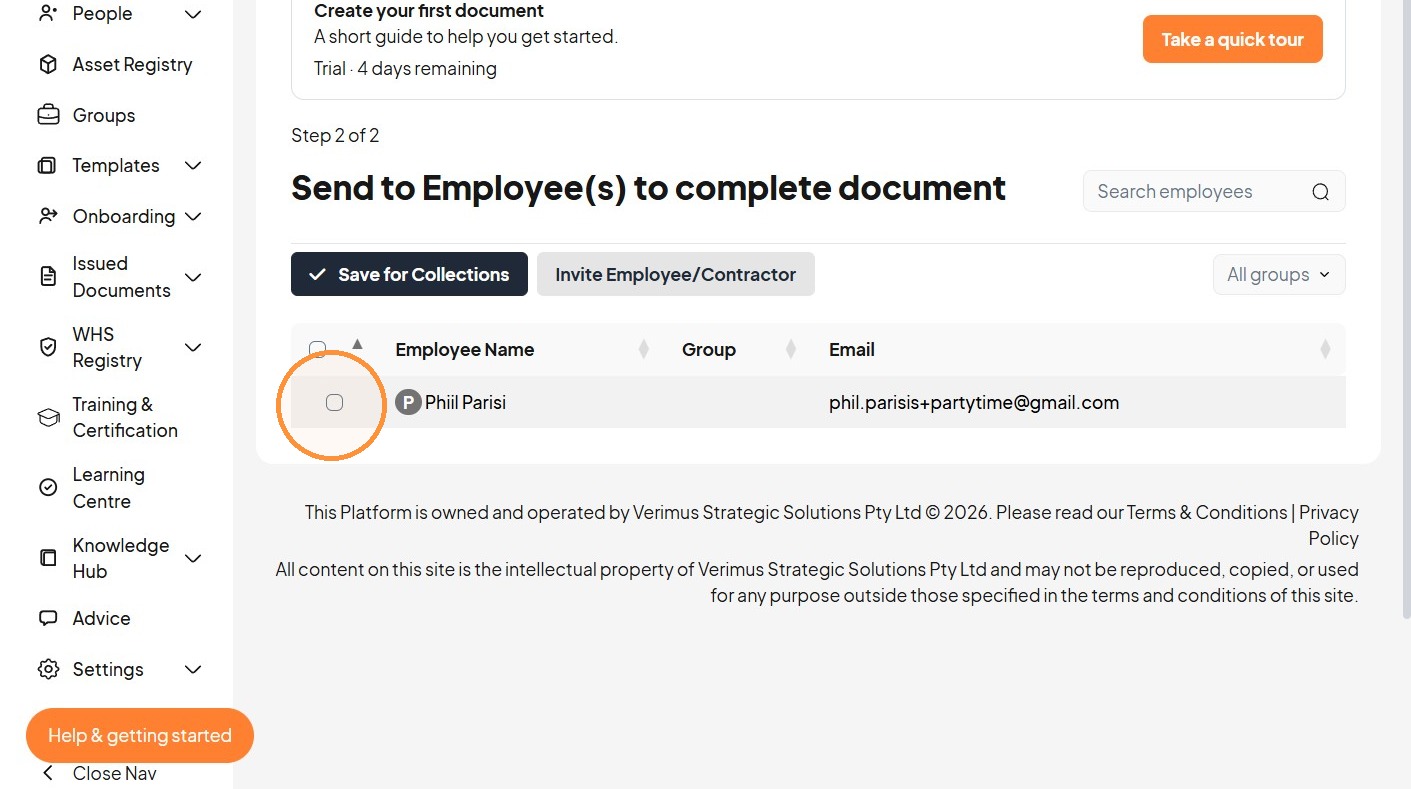
32. Select the employee to receive the document.
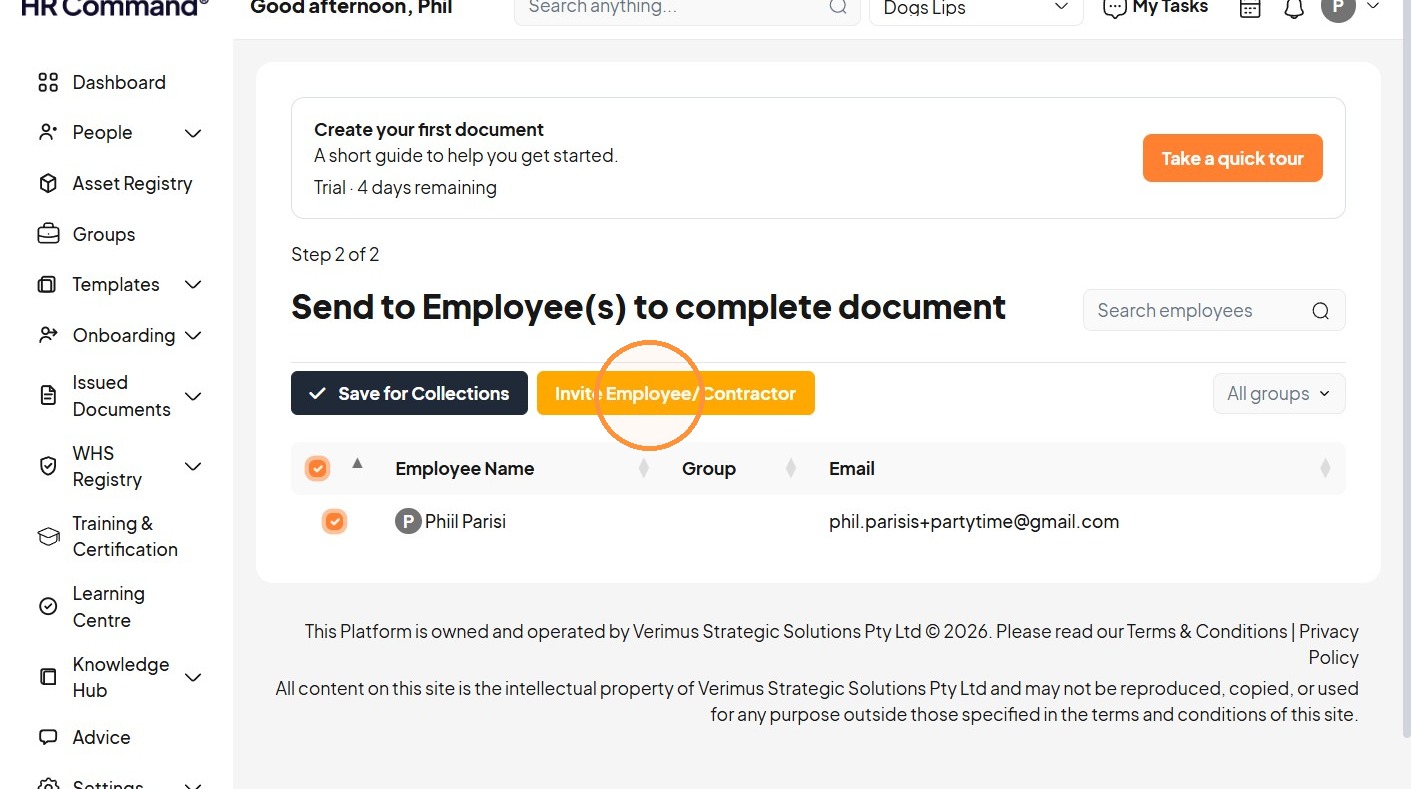
33. Invite the selected employee or contractor.
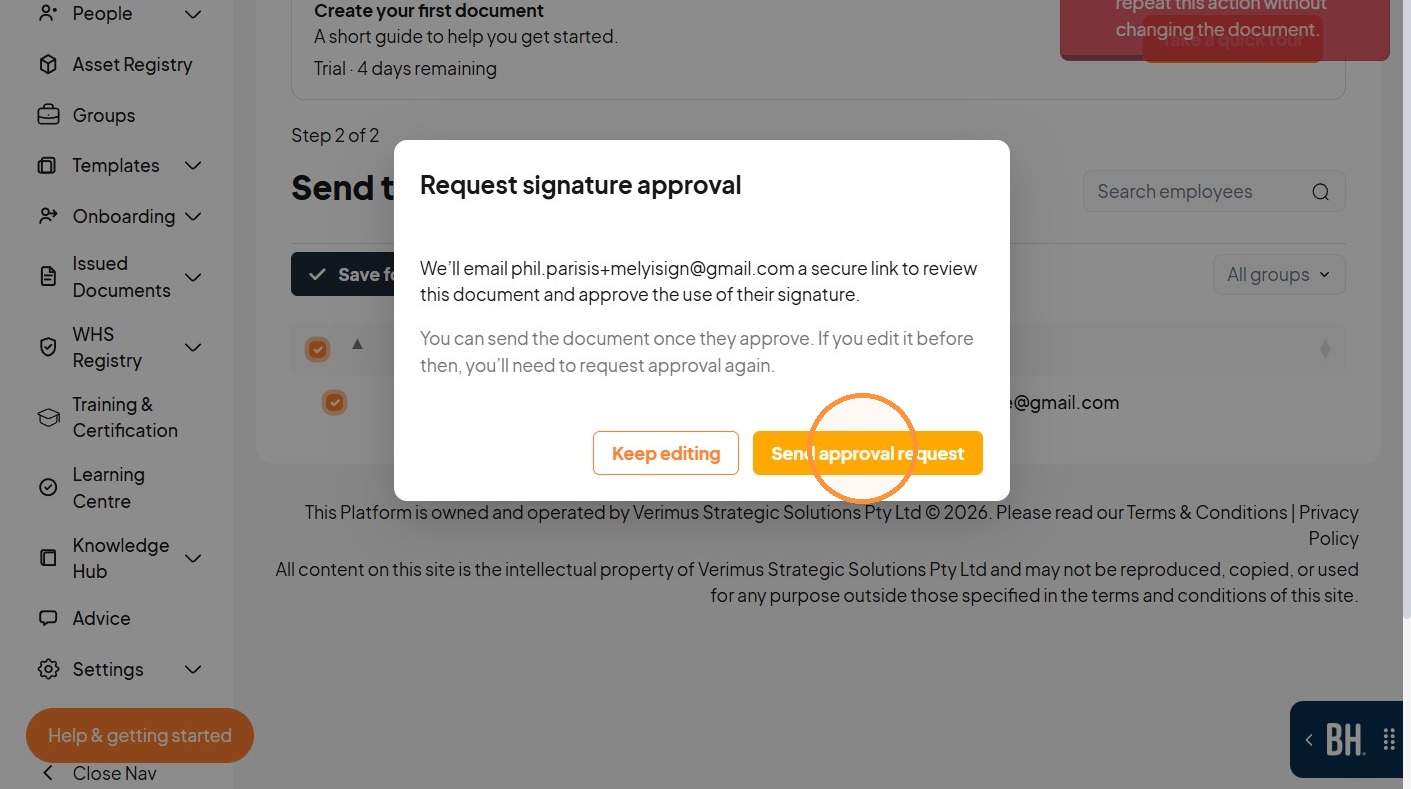
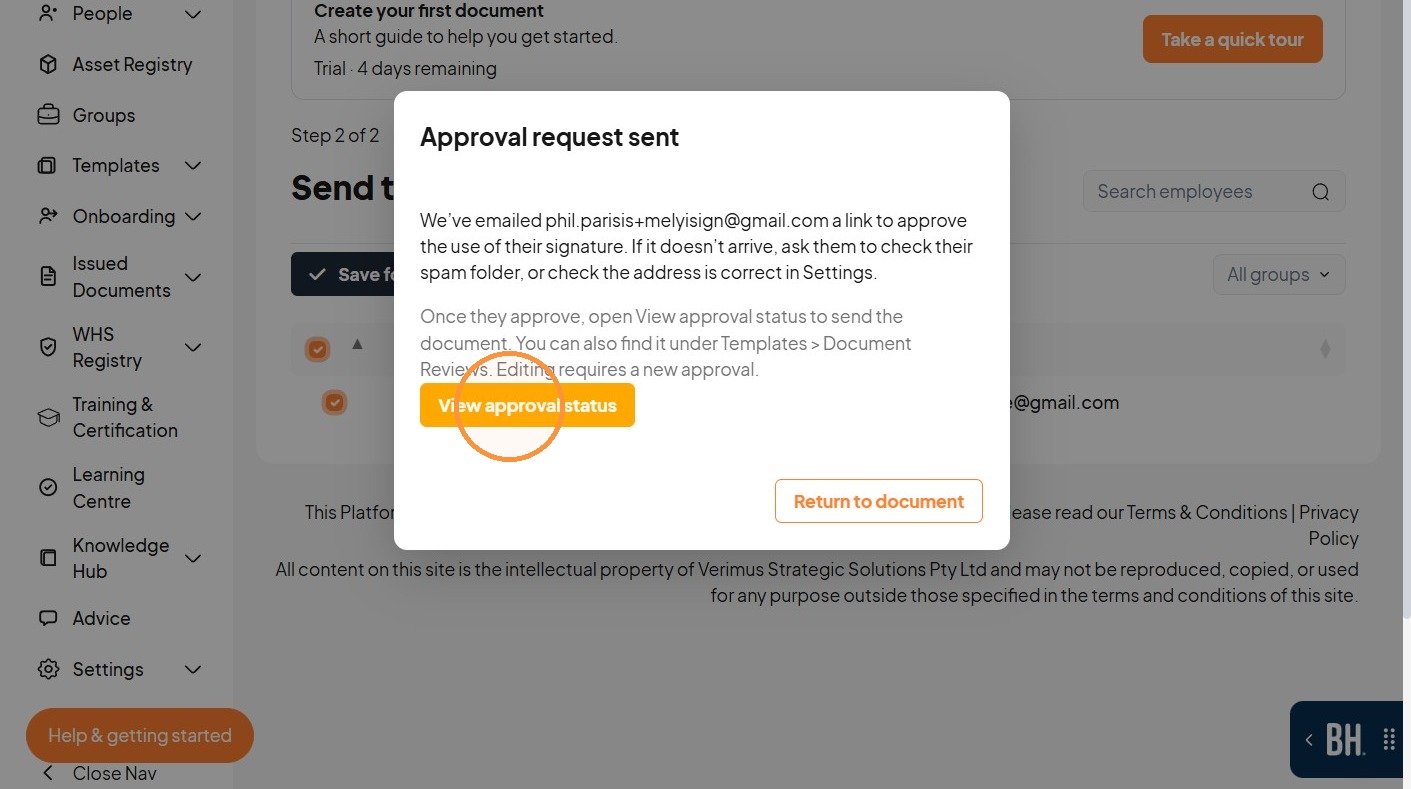
34. Send the signature approval request.
Signature Review
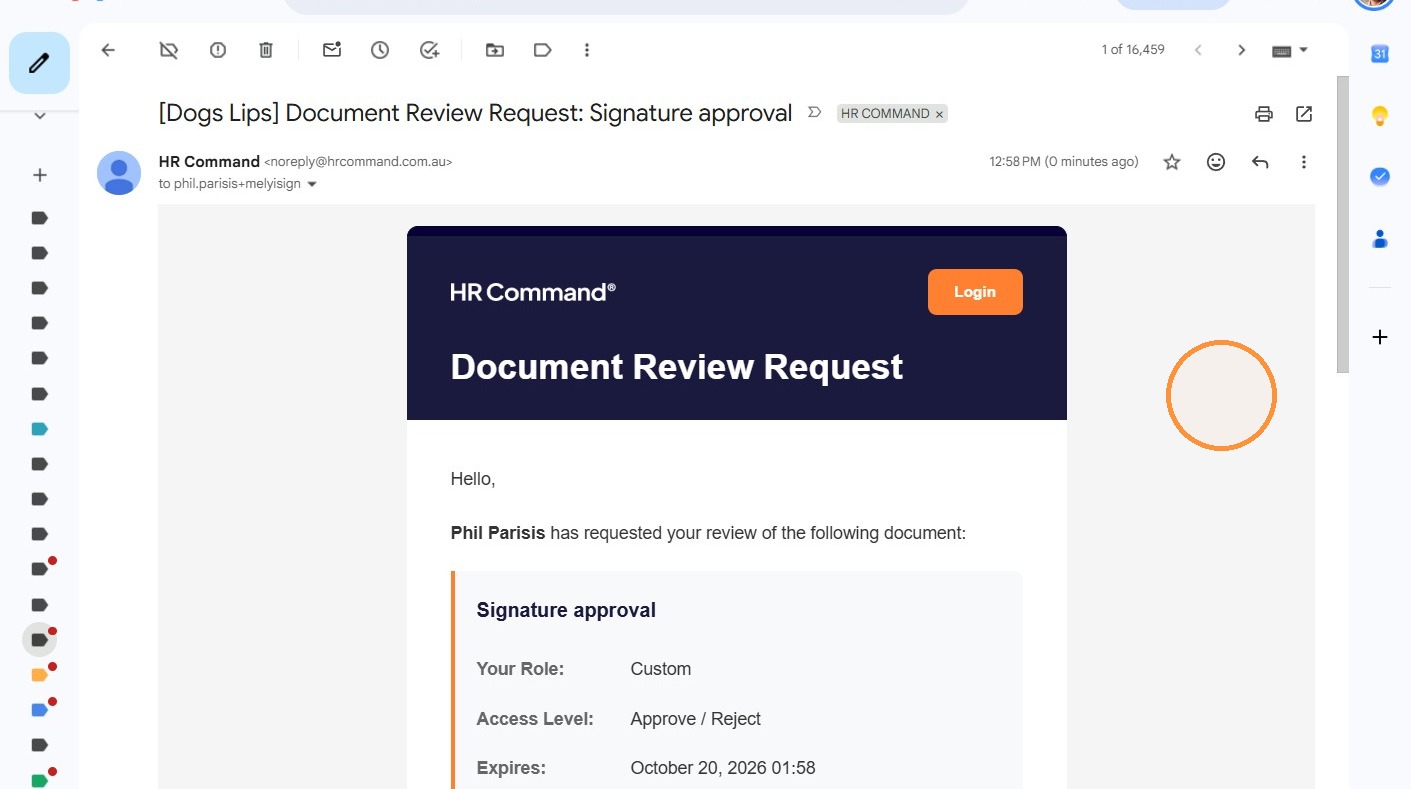
35. Open the document review request email.
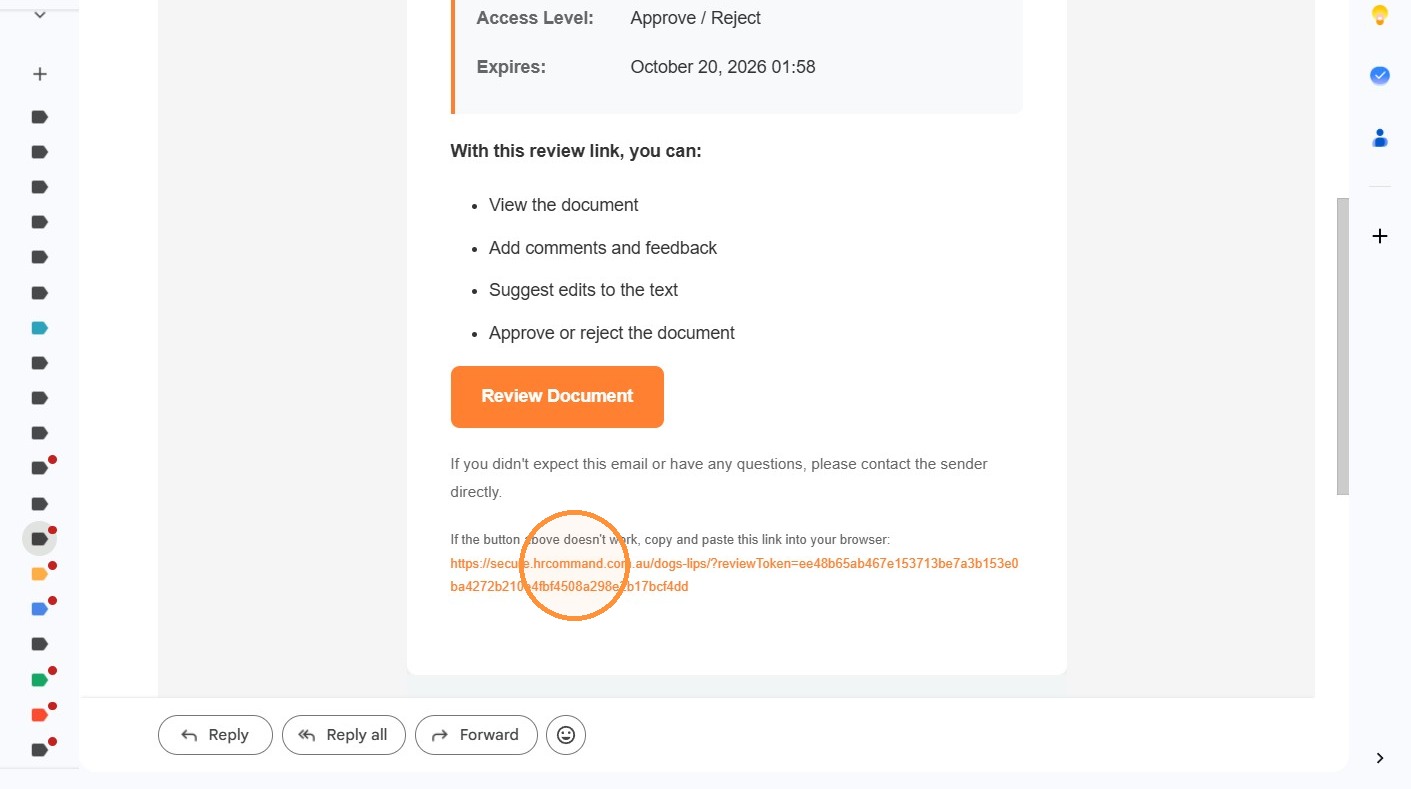
36. Right-click "https://secure.hrcommand.com.au/dogs-lips/?reviewToken=ee48b65ab467e153713be7a3b153e0ba4272b210e4fbf4508a298e2b17bcf4dd"
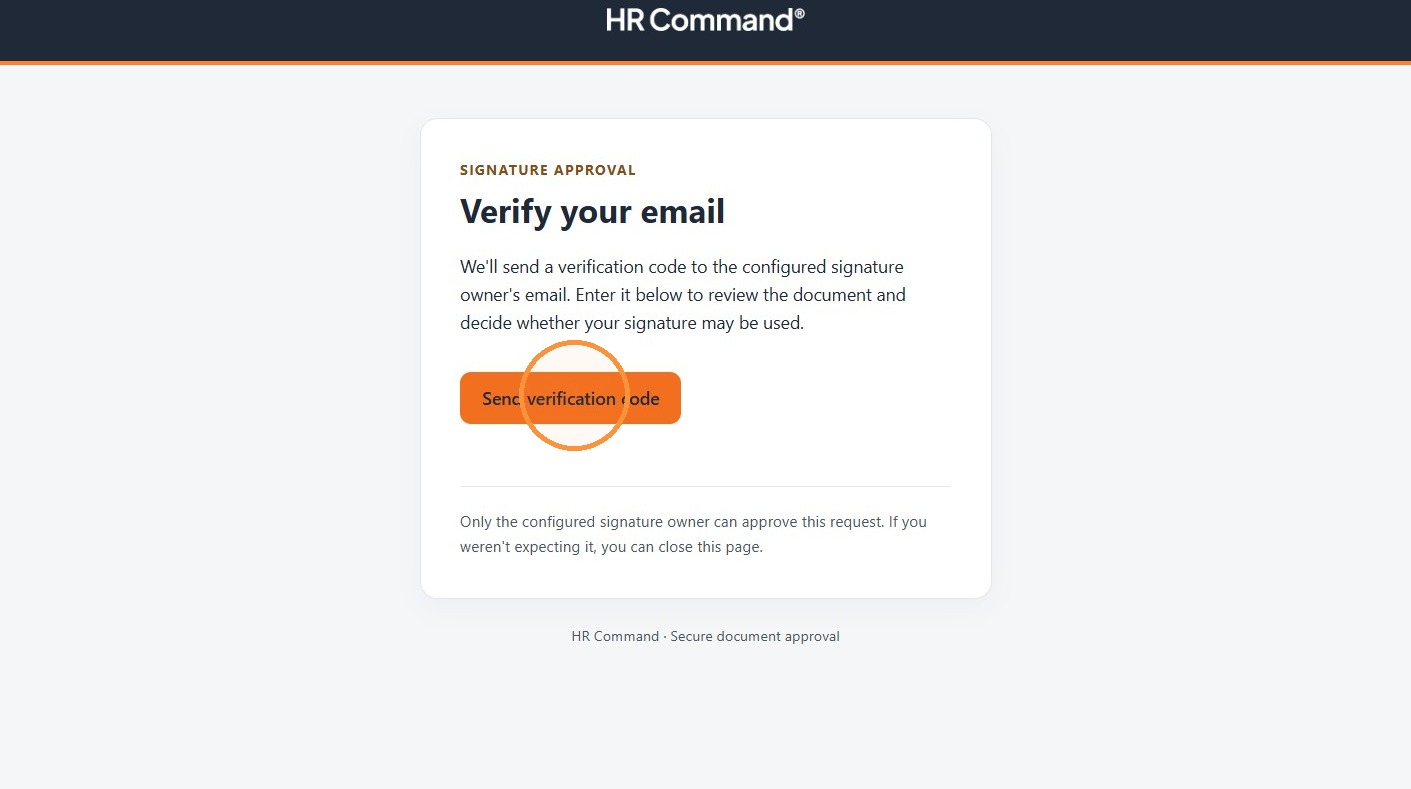
37. Send the verification code.
38. Enter the verification code.
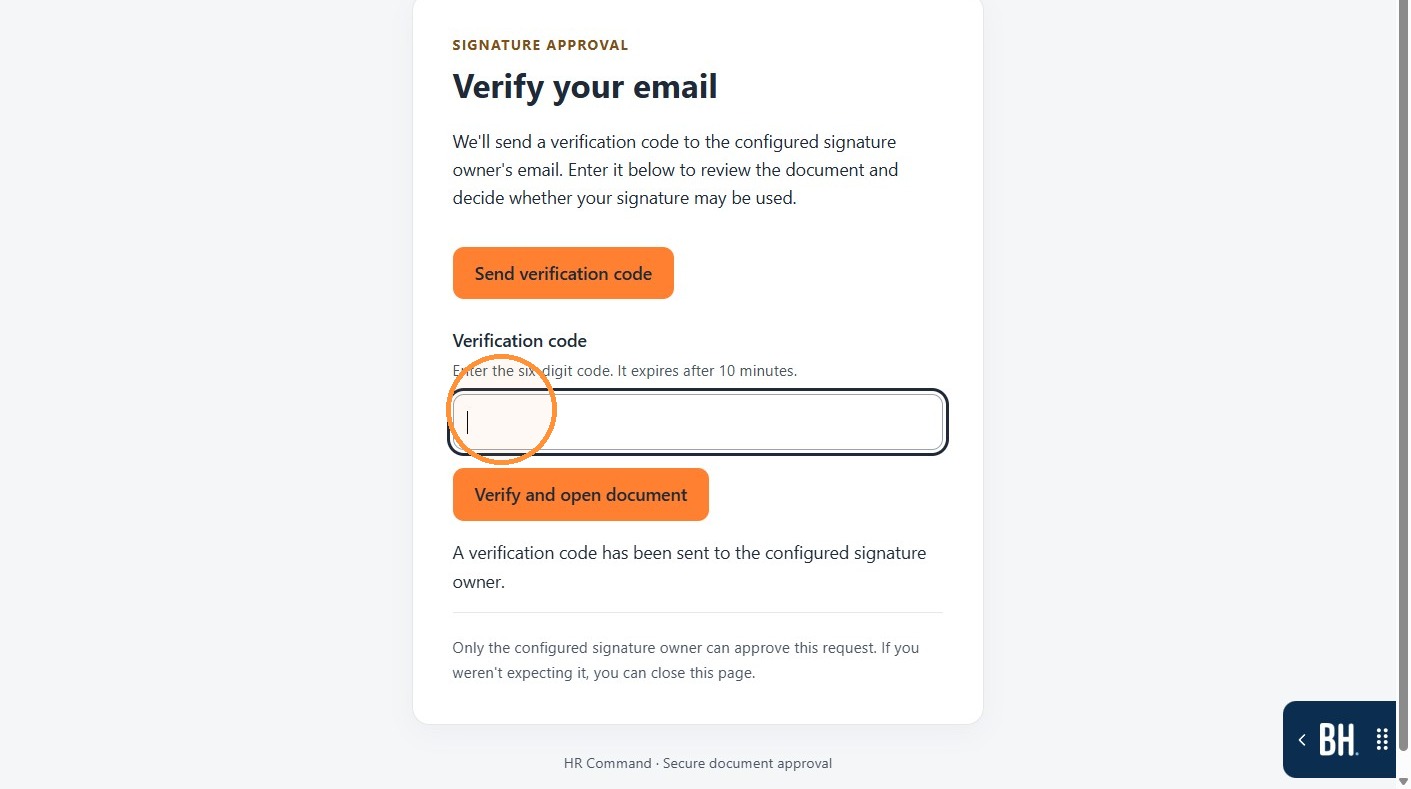
39. Verify the email and open the document.
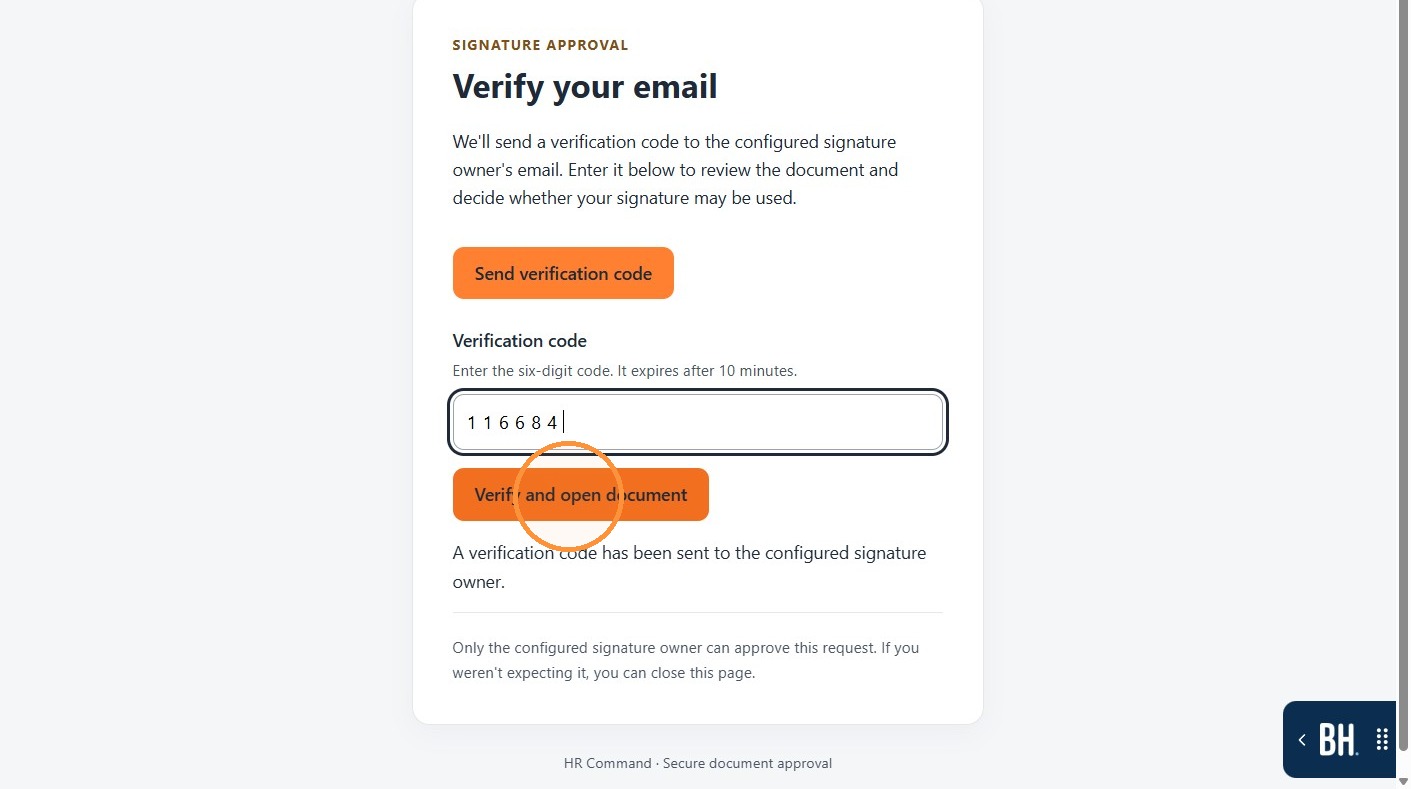
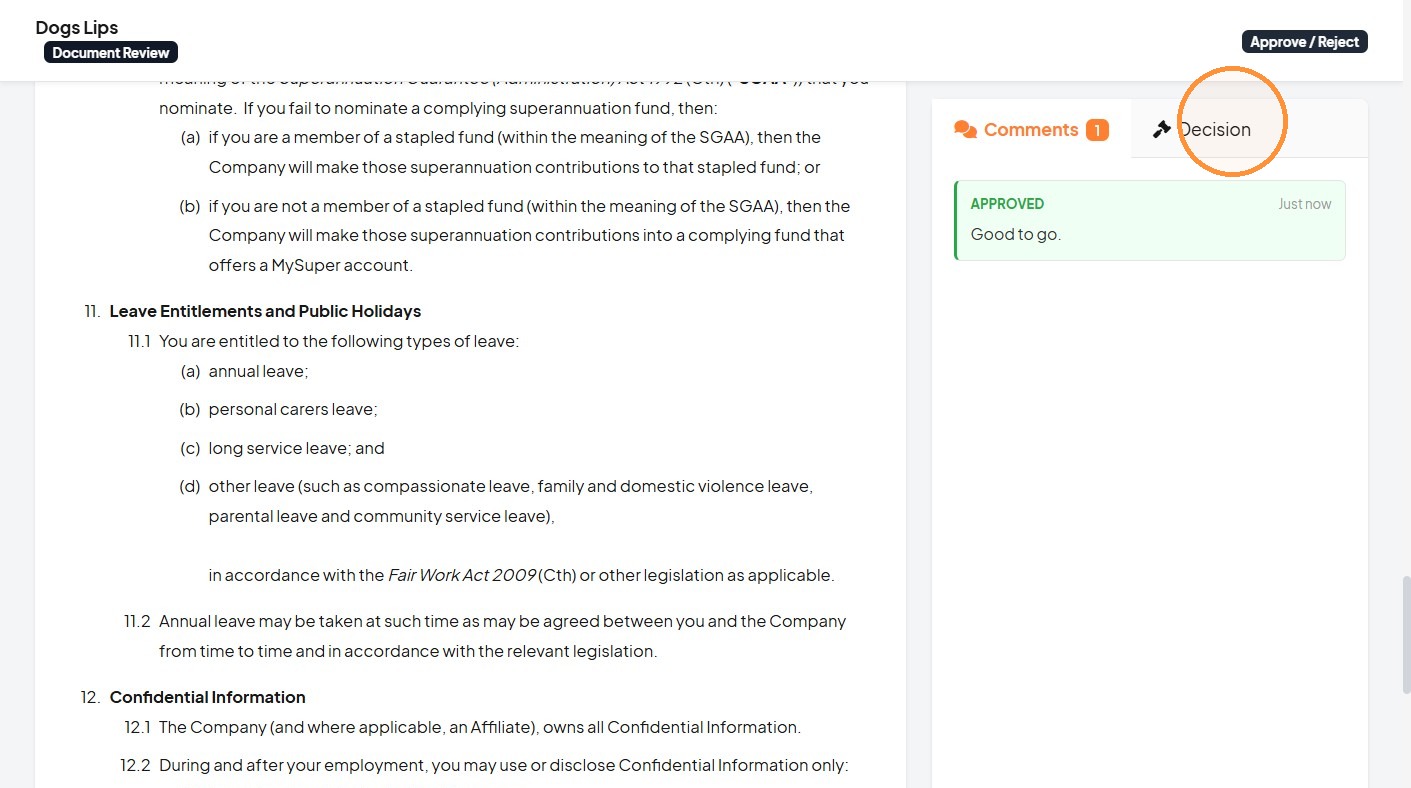
40. Enter an approval comment.
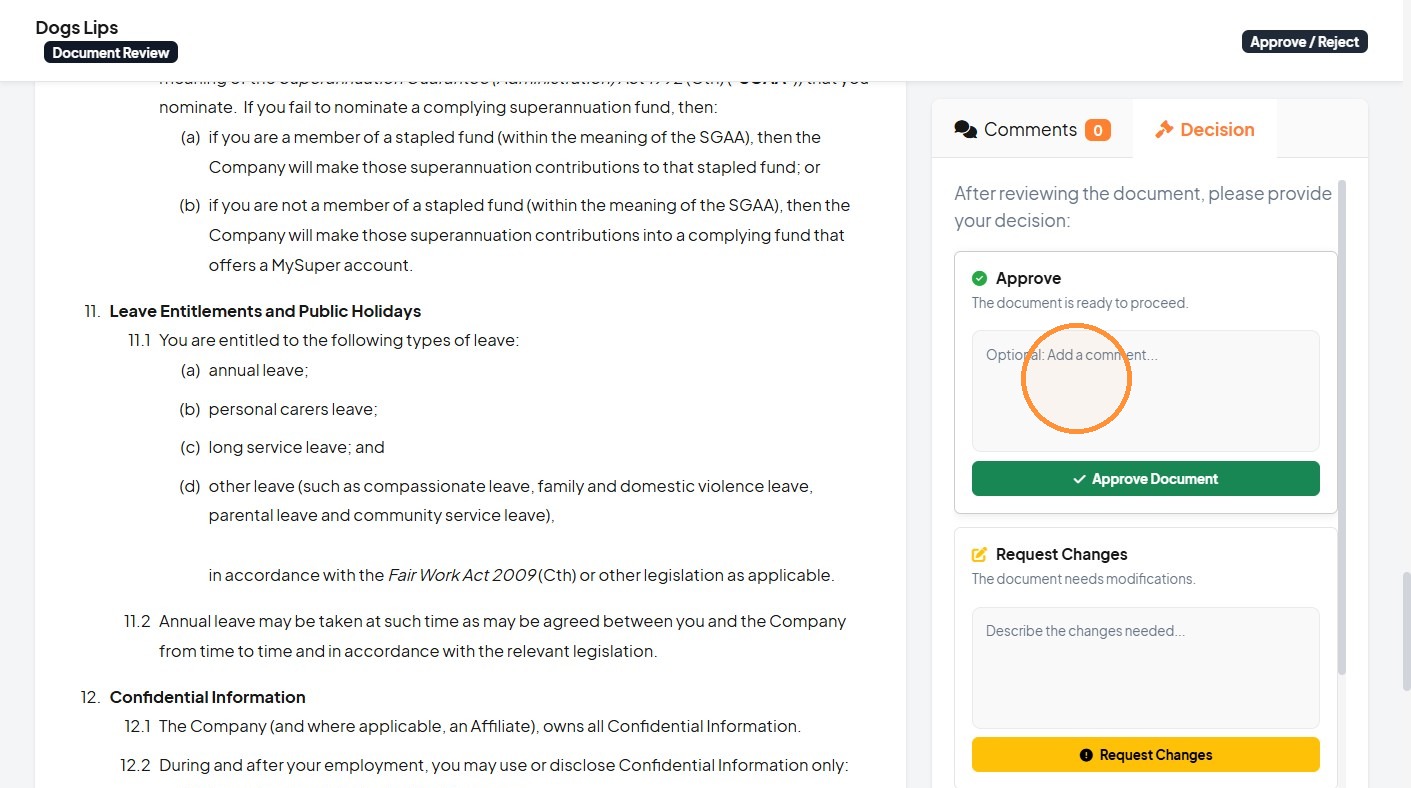
41. Click "Approve document"
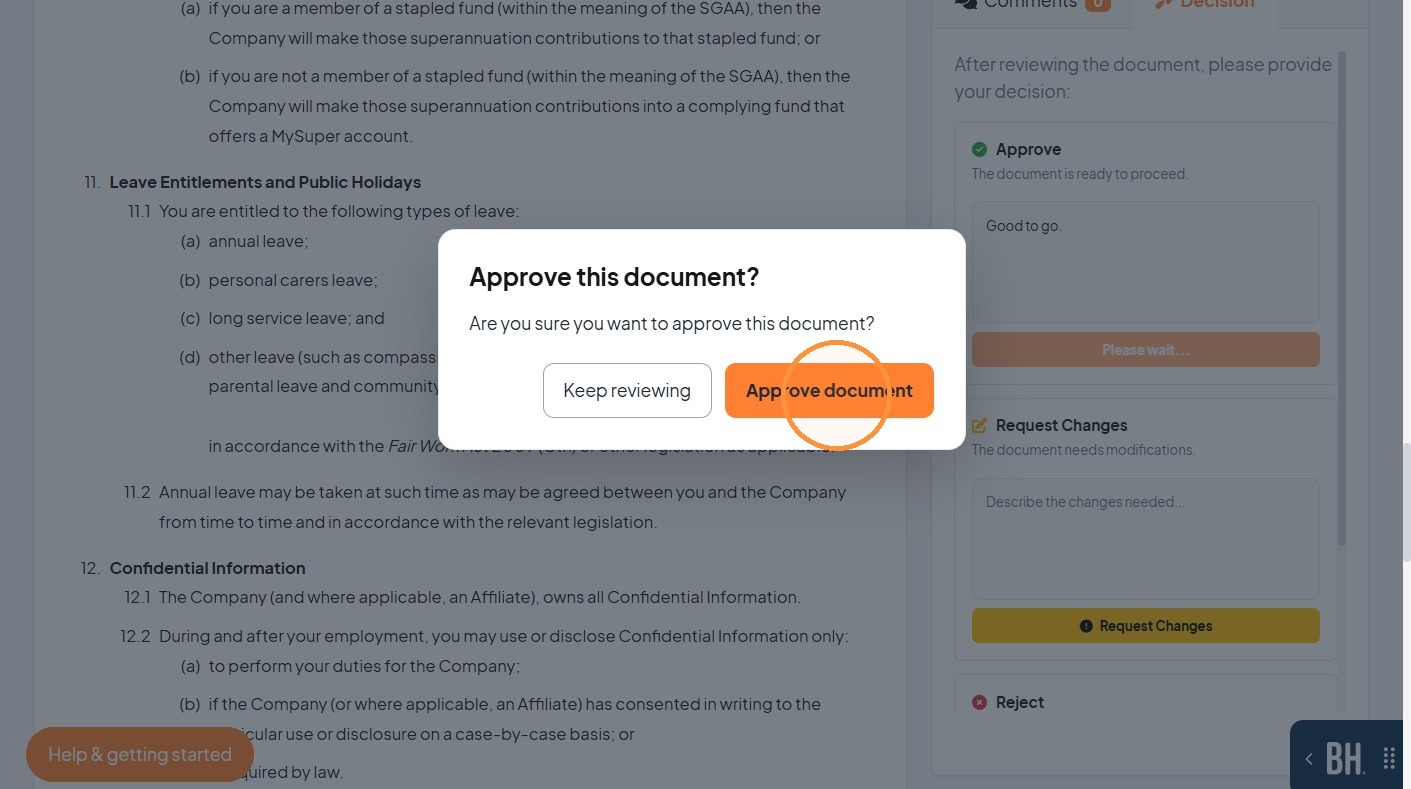
42. Open the Decision tab.
Document Release
43. View the approval status.
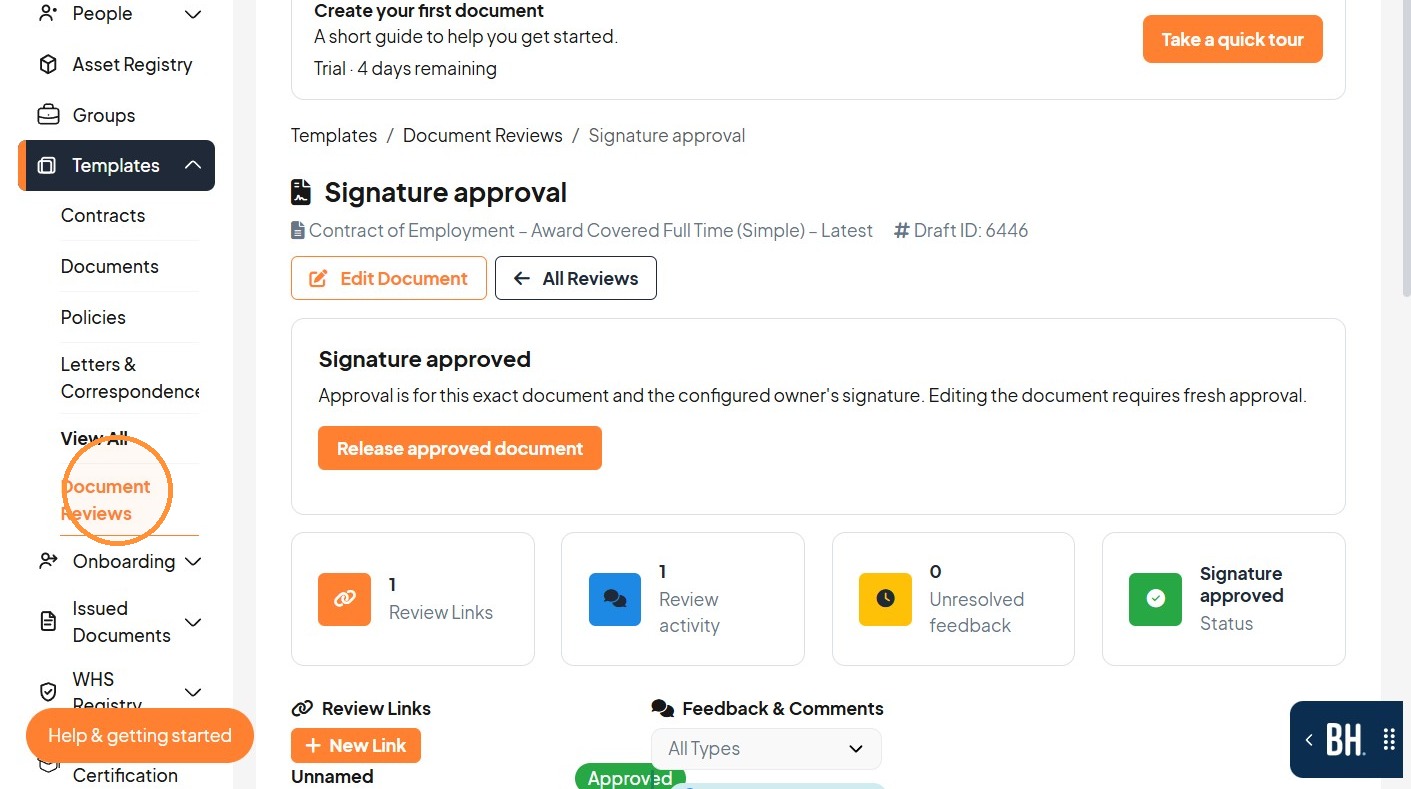
44. Click "Document Reviews"
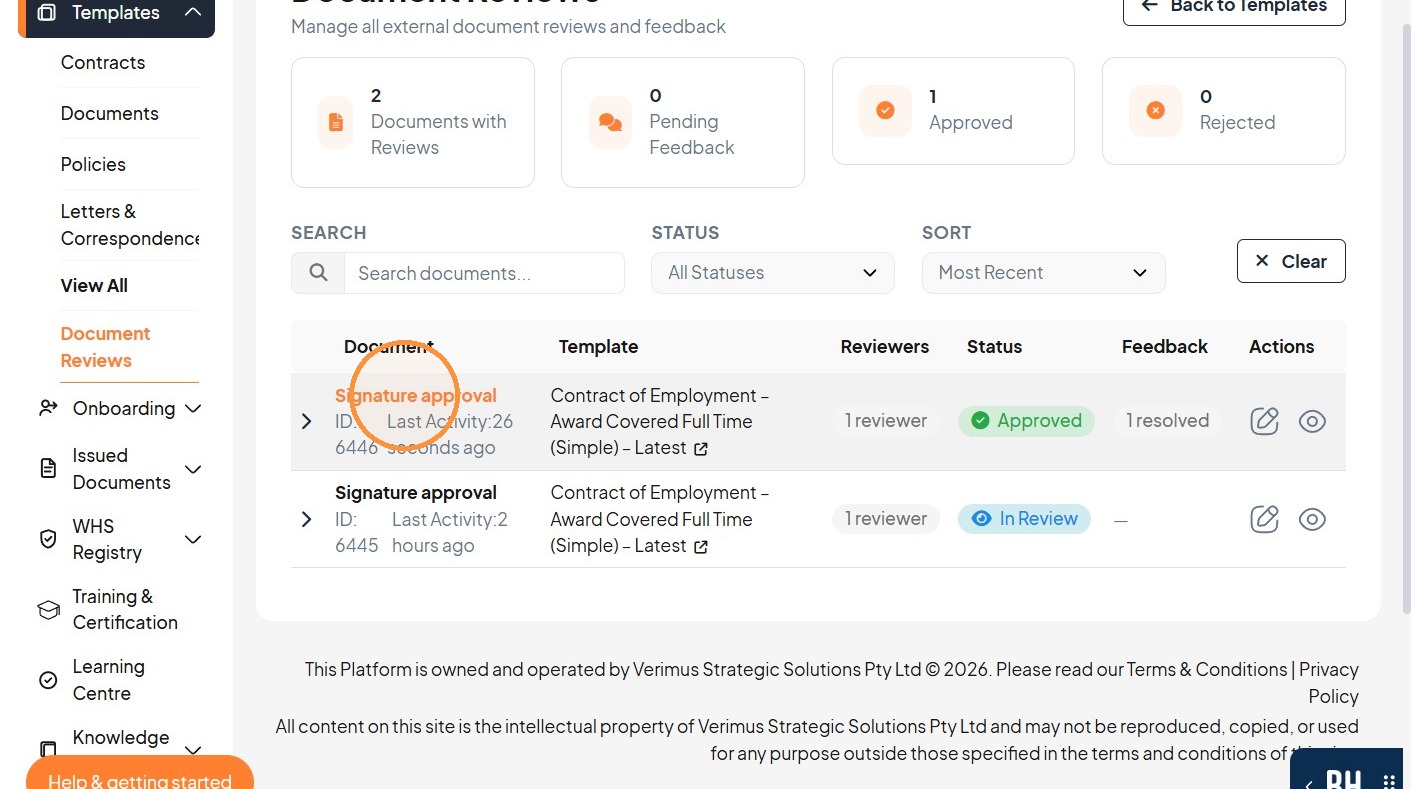
45. Open the approved signature review.
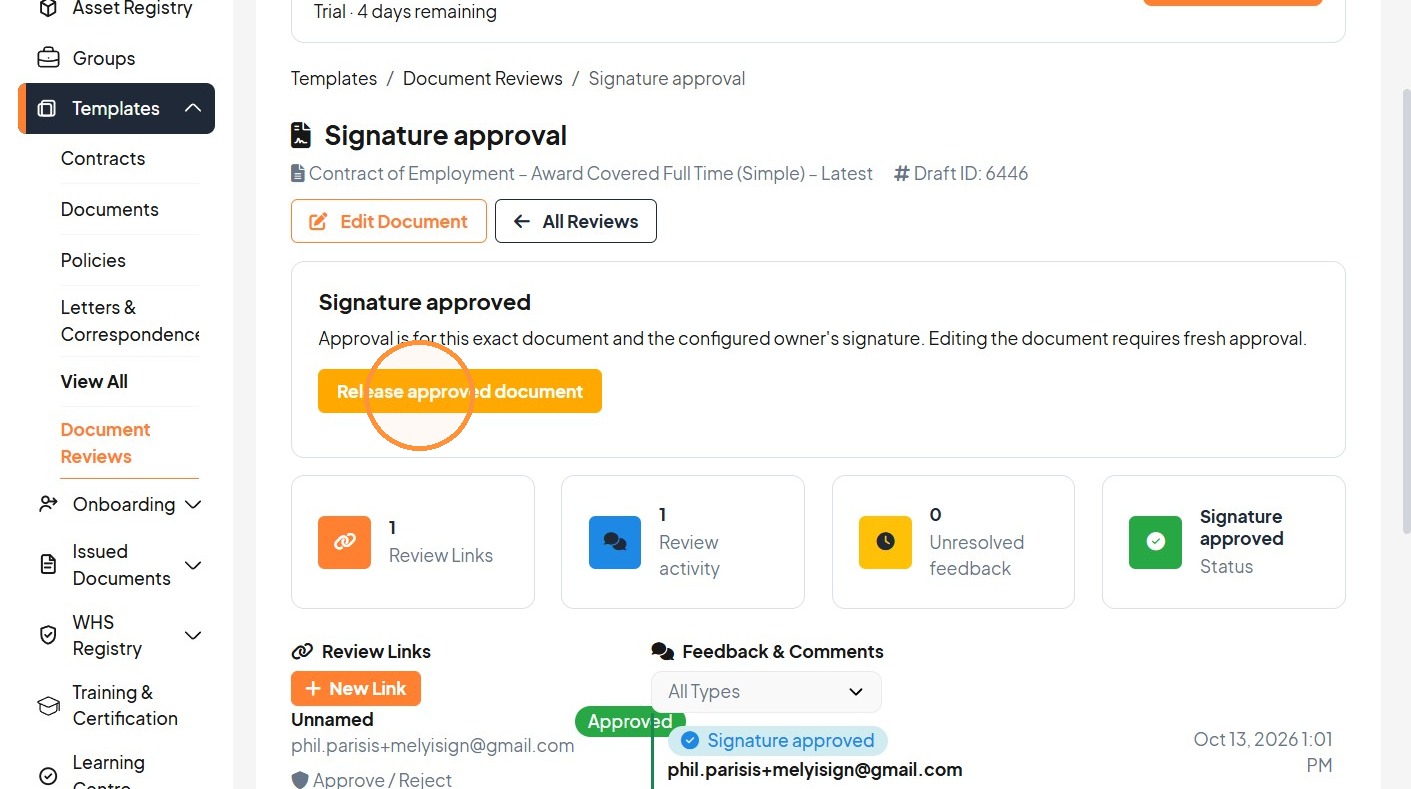
46. Release the approved document.
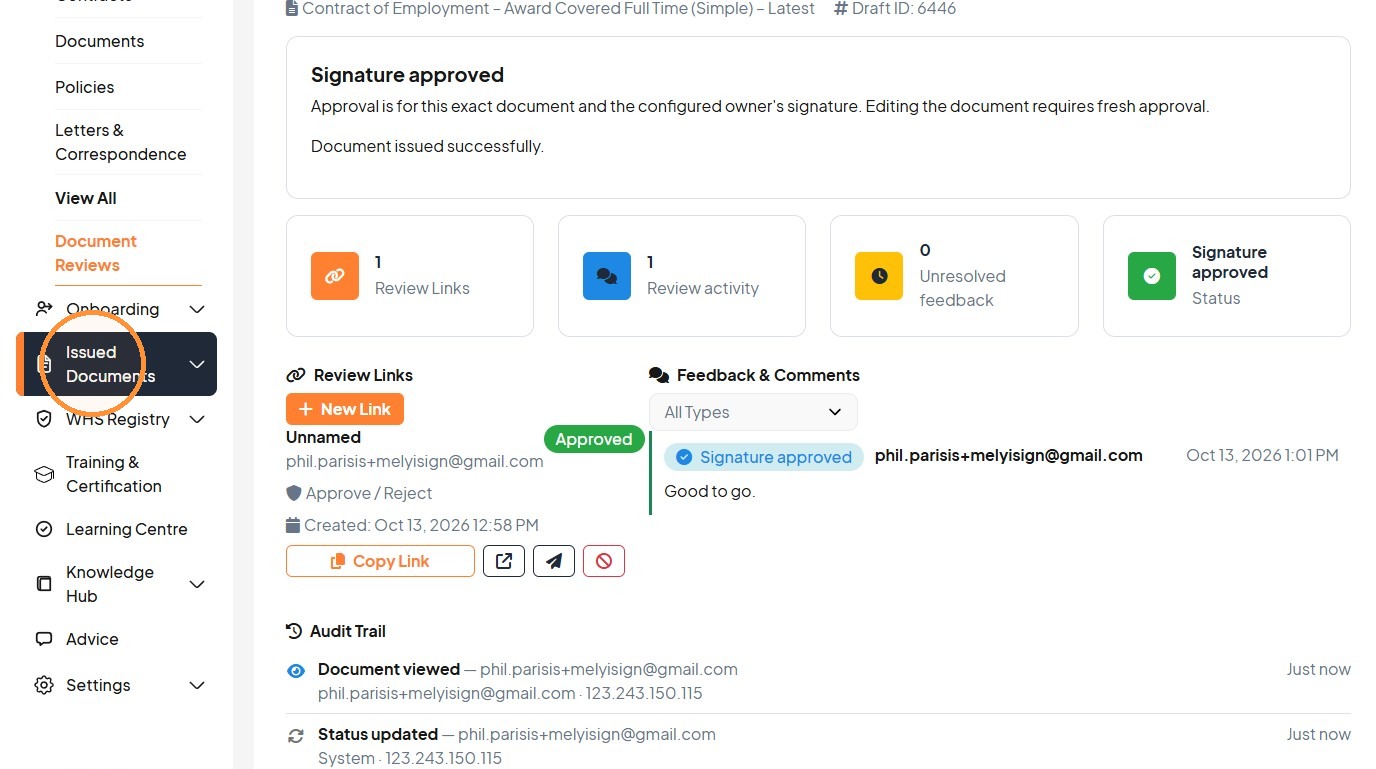
47. Click "Issued Documents"
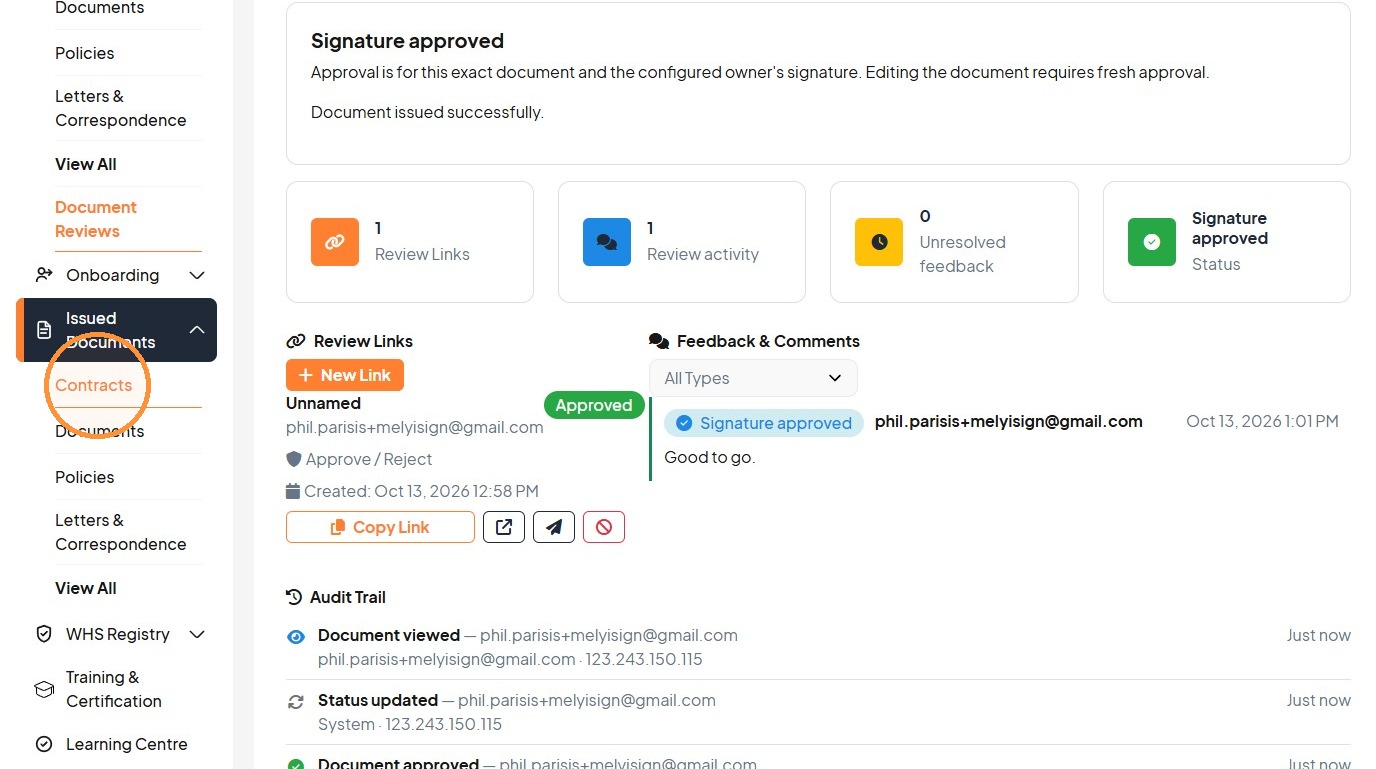
48. Click "Contracts"
Was this article helpful?
That’s Great!
Thank you for your feedback
Sorry! We couldn't be helpful
Thank you for your feedback
Feedback sent
We appreciate your effort and will try to fix the article