Learn how to efficiently upload, name, and categorize important employee correspondence within the HR Command portal. This guide ensures your documents are properly saved and linked to the correct staff member for easy retrieval.
1. Navigate to https://secure.hrcommand.com.au/
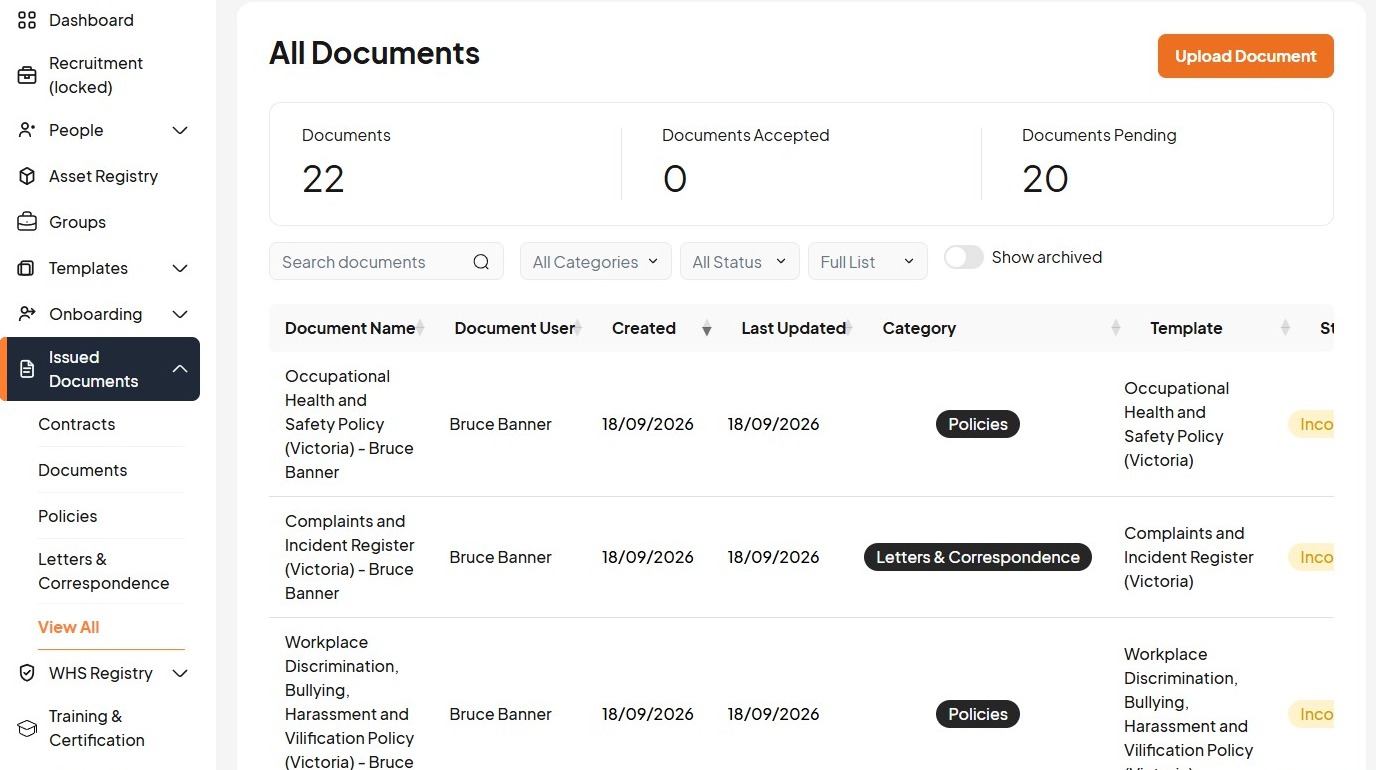
2. Click "Upload Document"
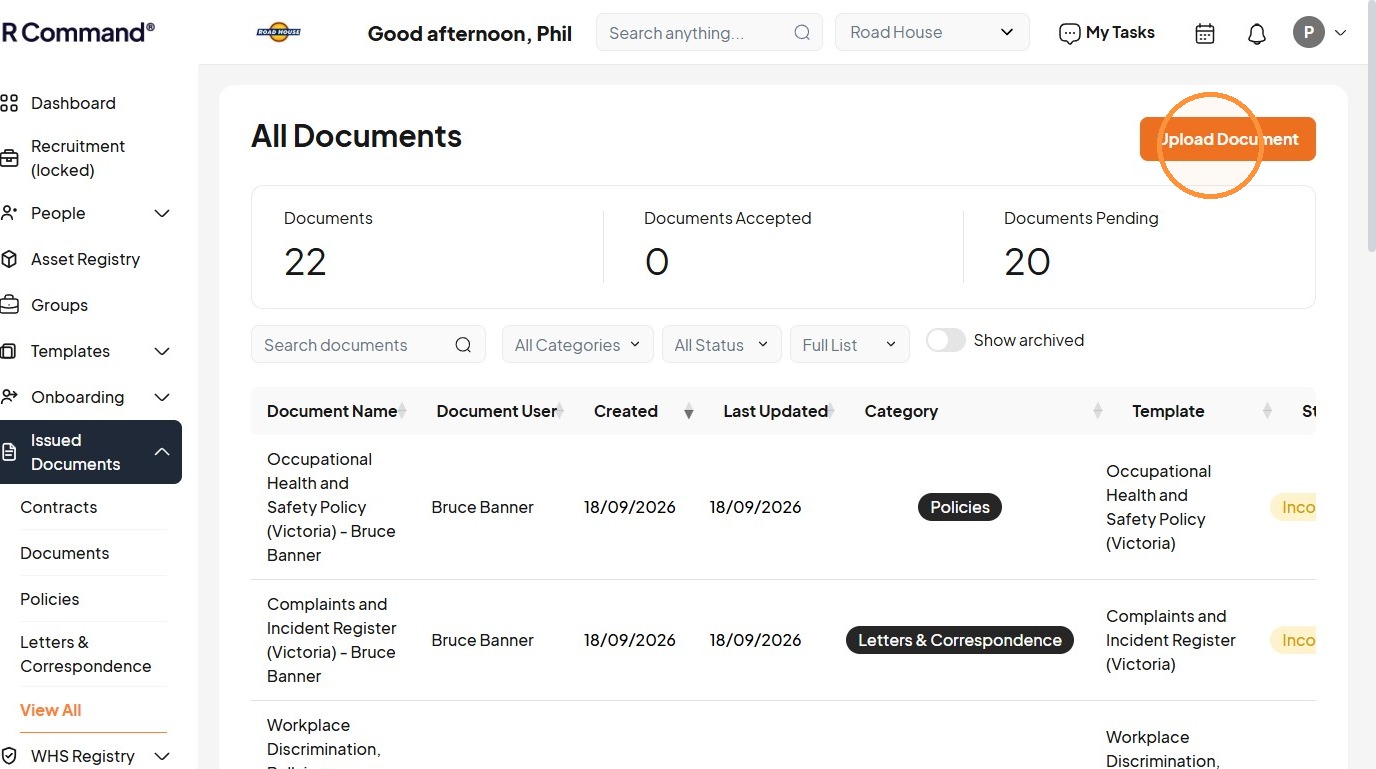
3. Click the "Enter a document name" field.
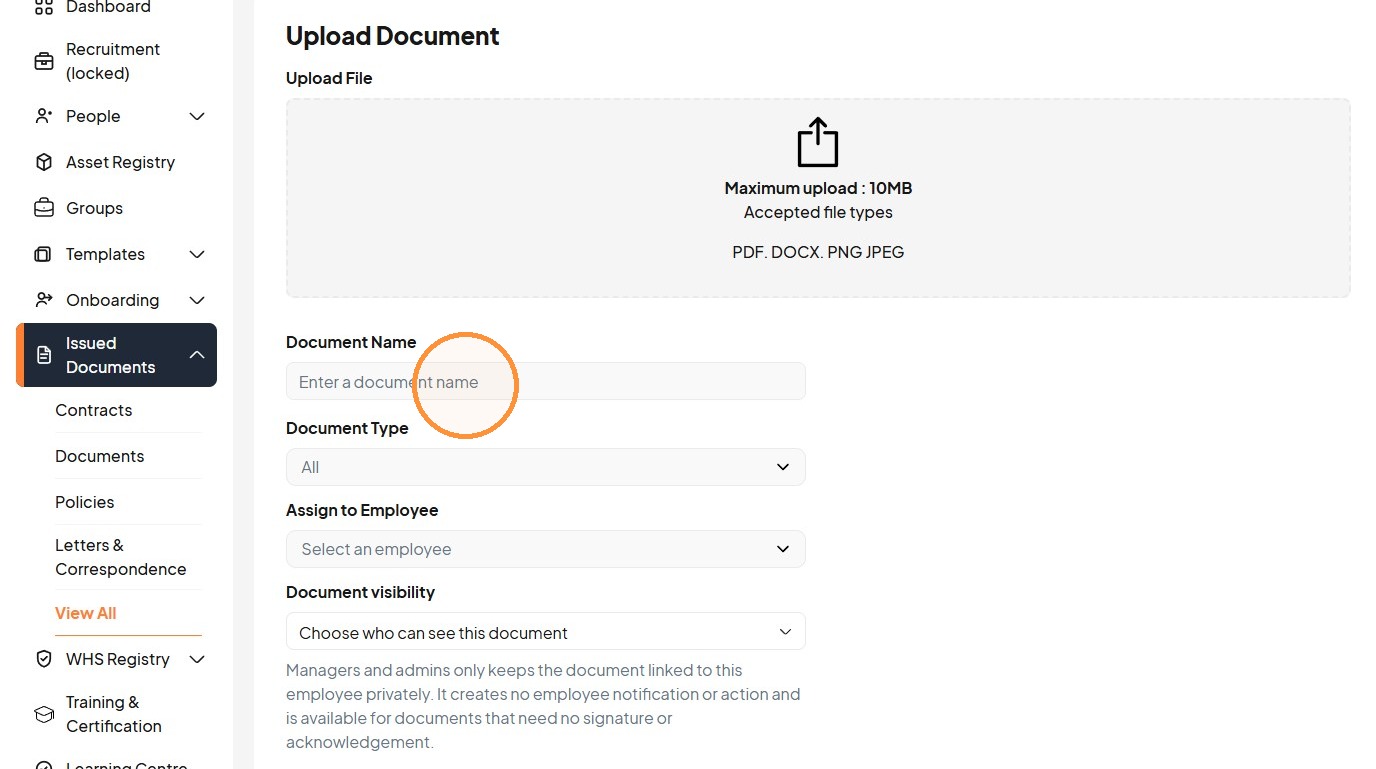
4. Click this icon.
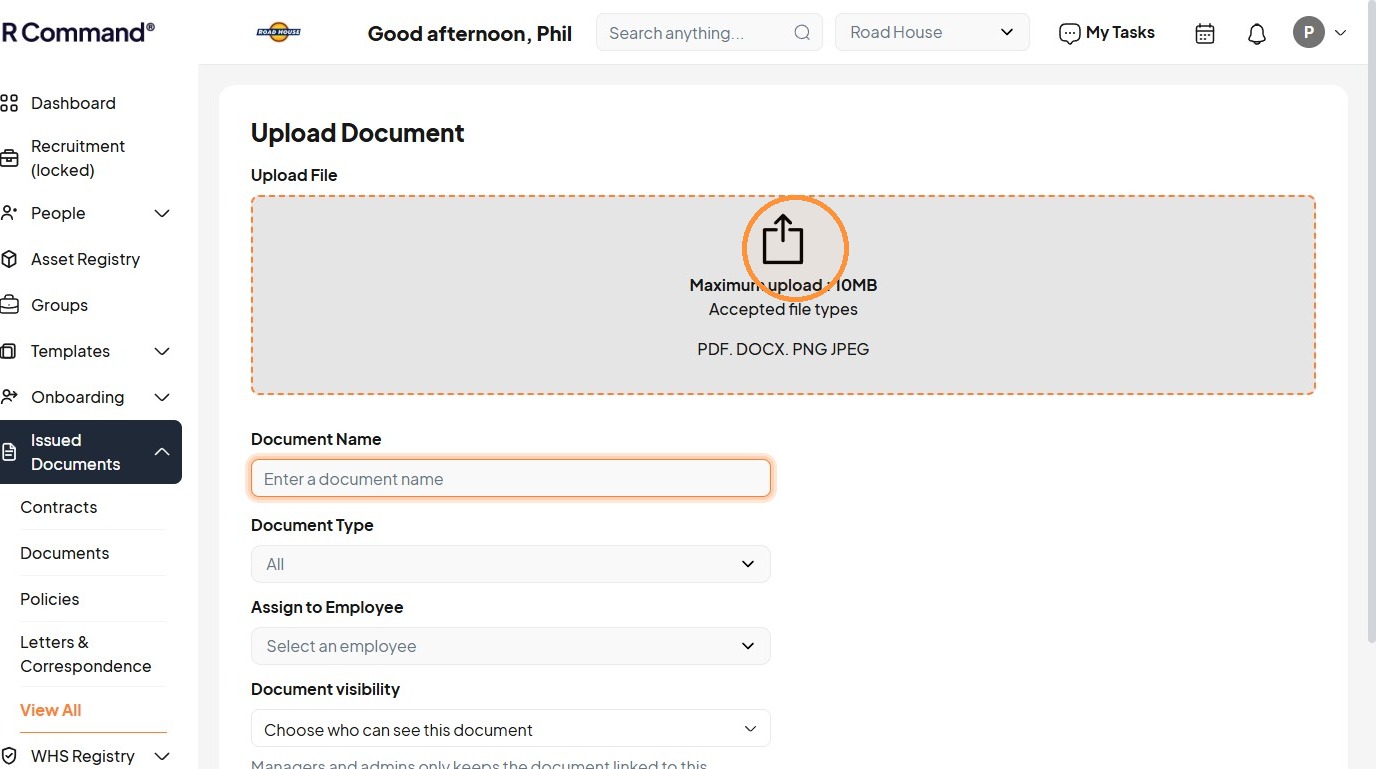
5. Enter the document name.
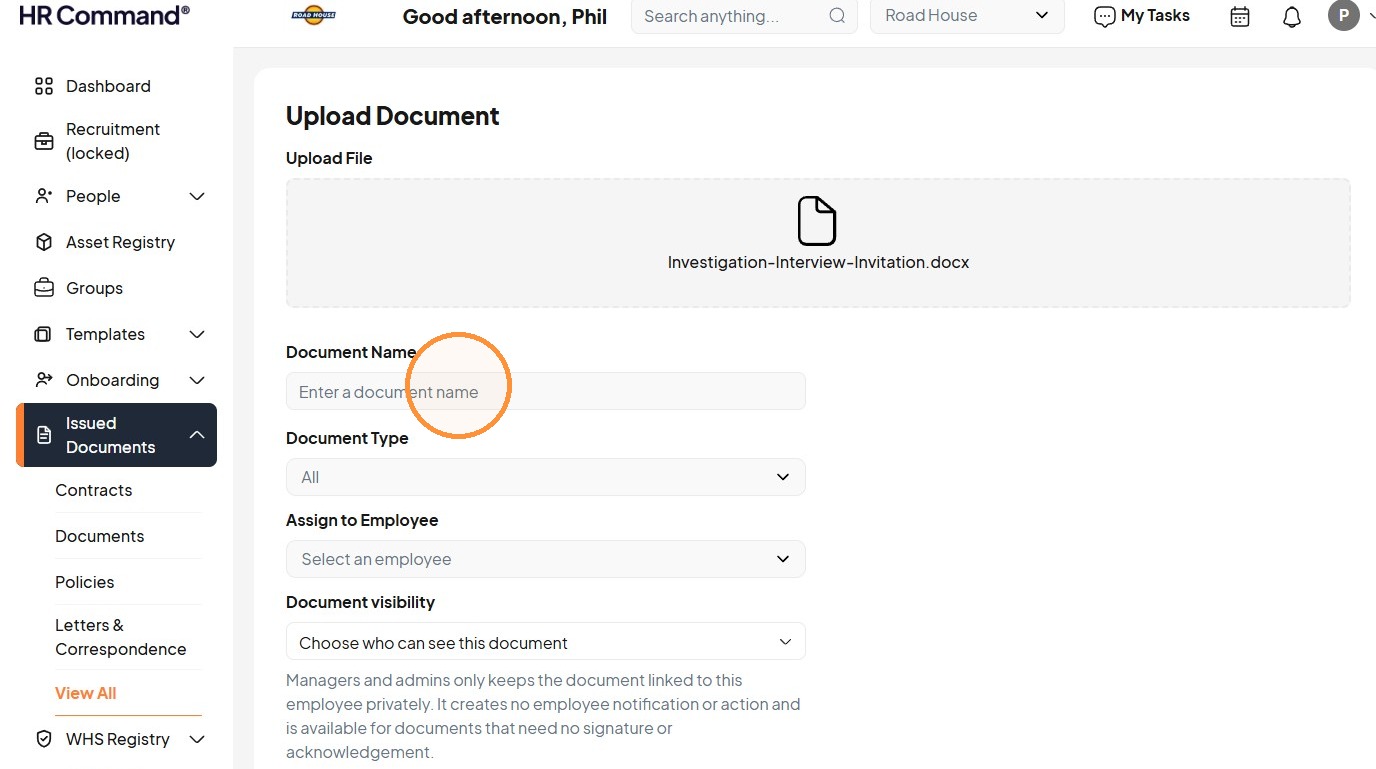
6. Click "Document Type"
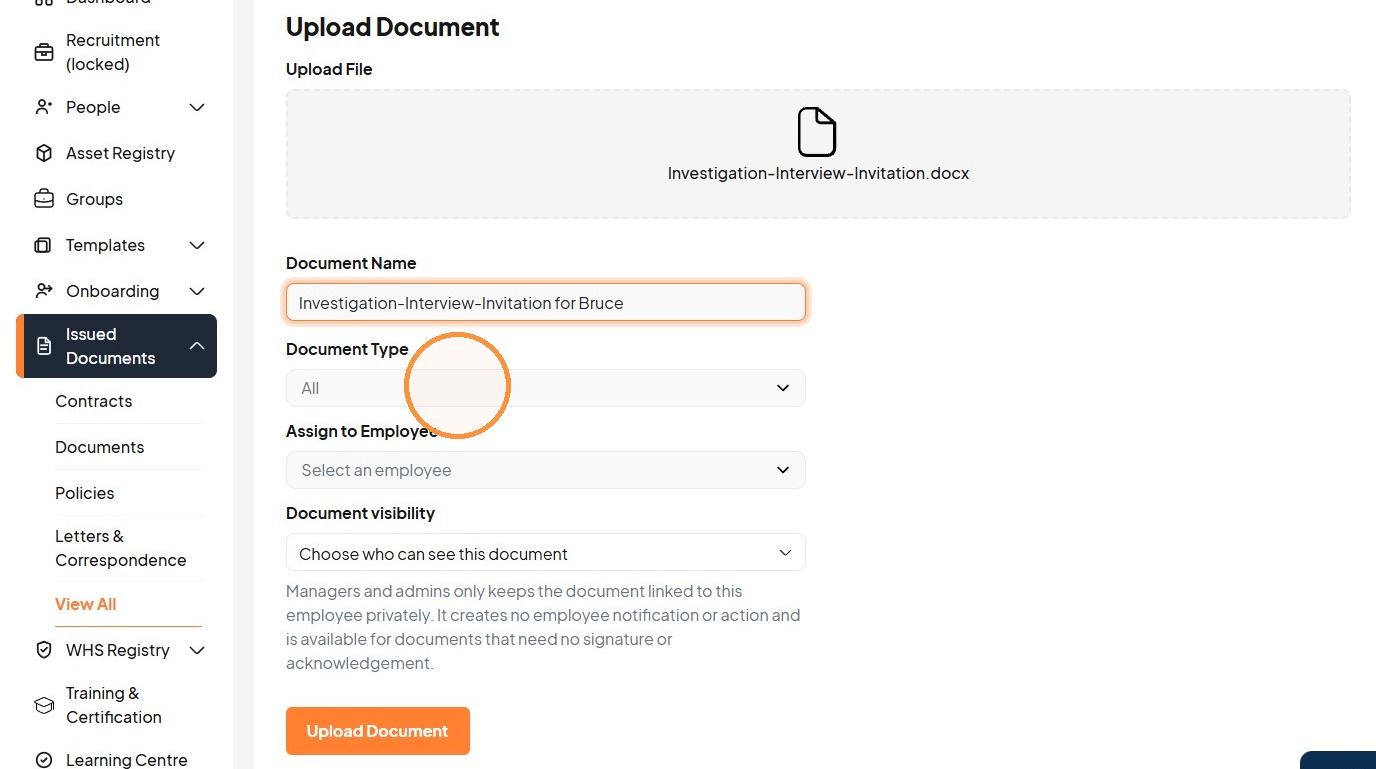
7. Click "Letters & Correspondence"
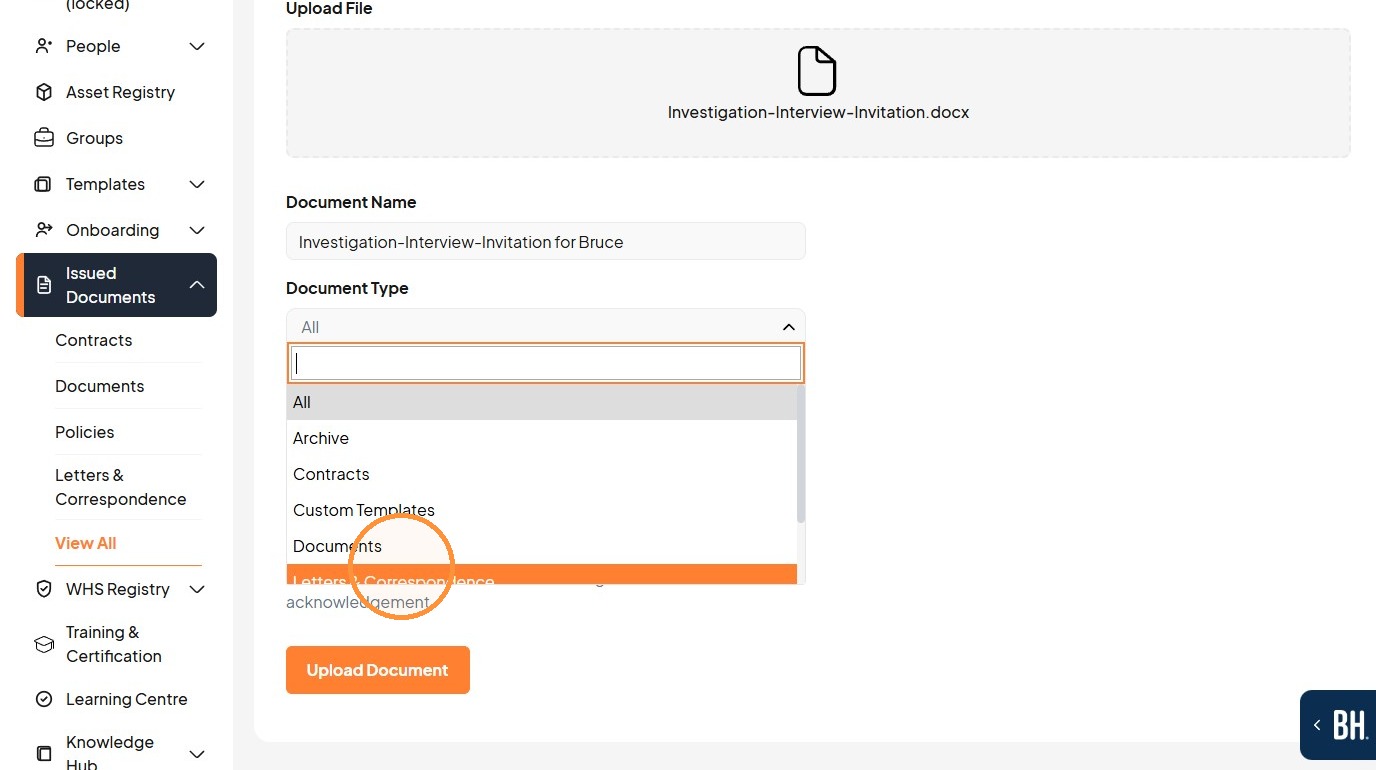
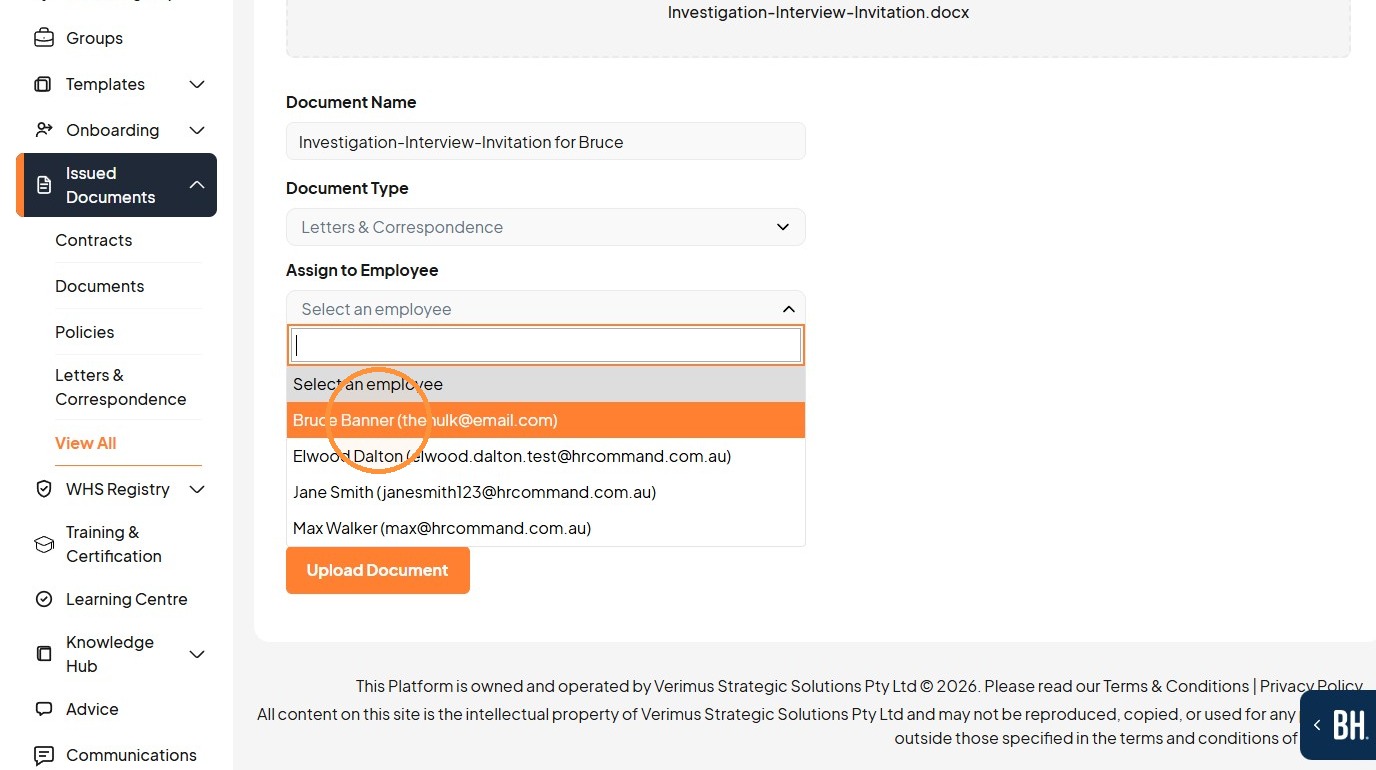
8. Click "Select an employee"
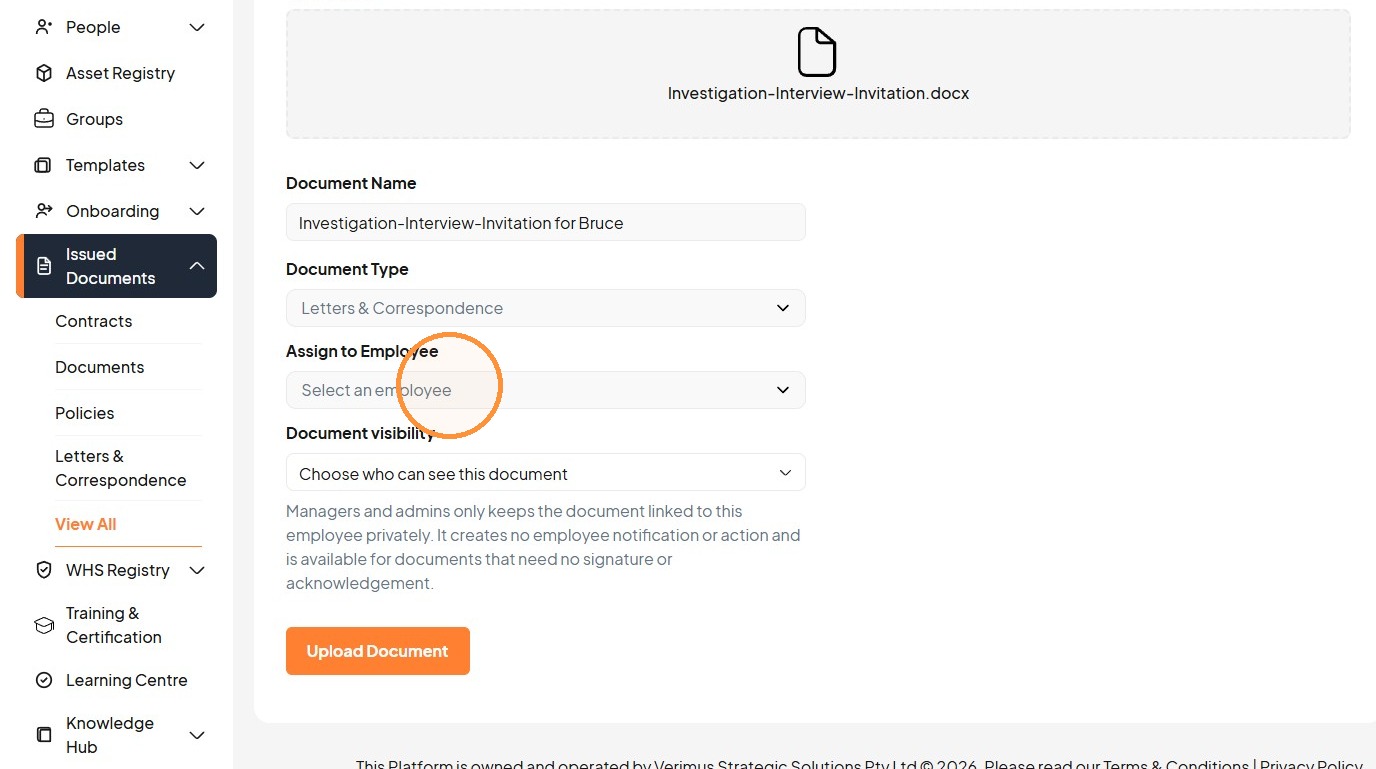
9. Select the employee to assign the document to.
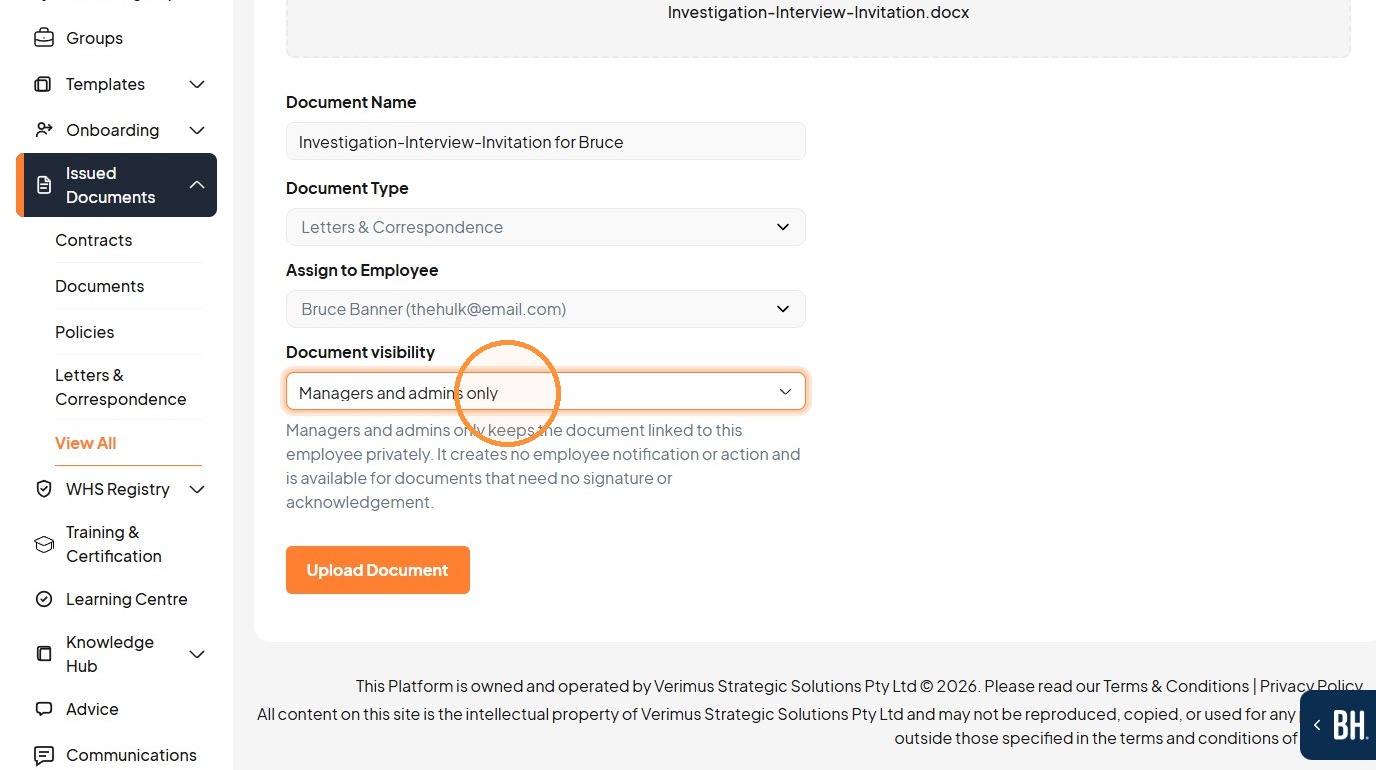
10. Select the "Managers and admins only" option.
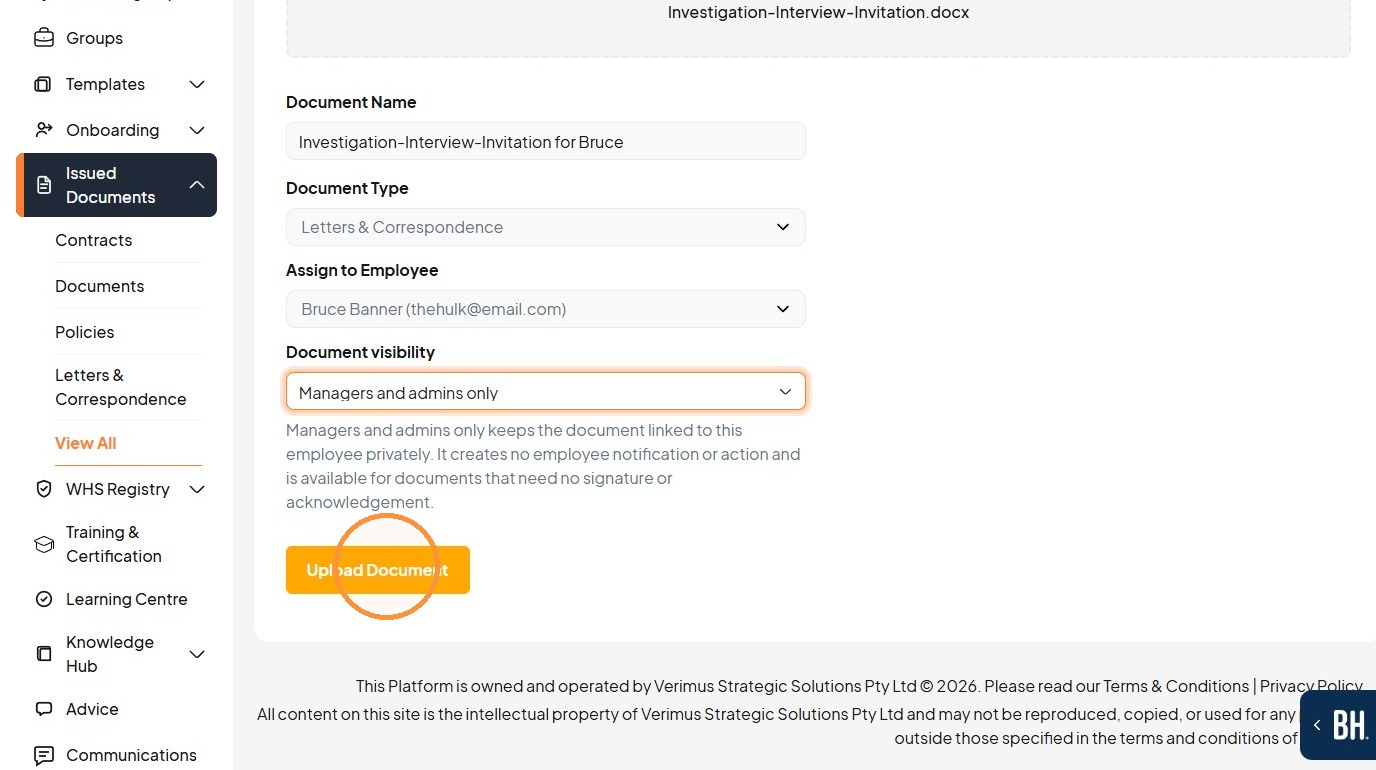
11. Click "Upload Document"
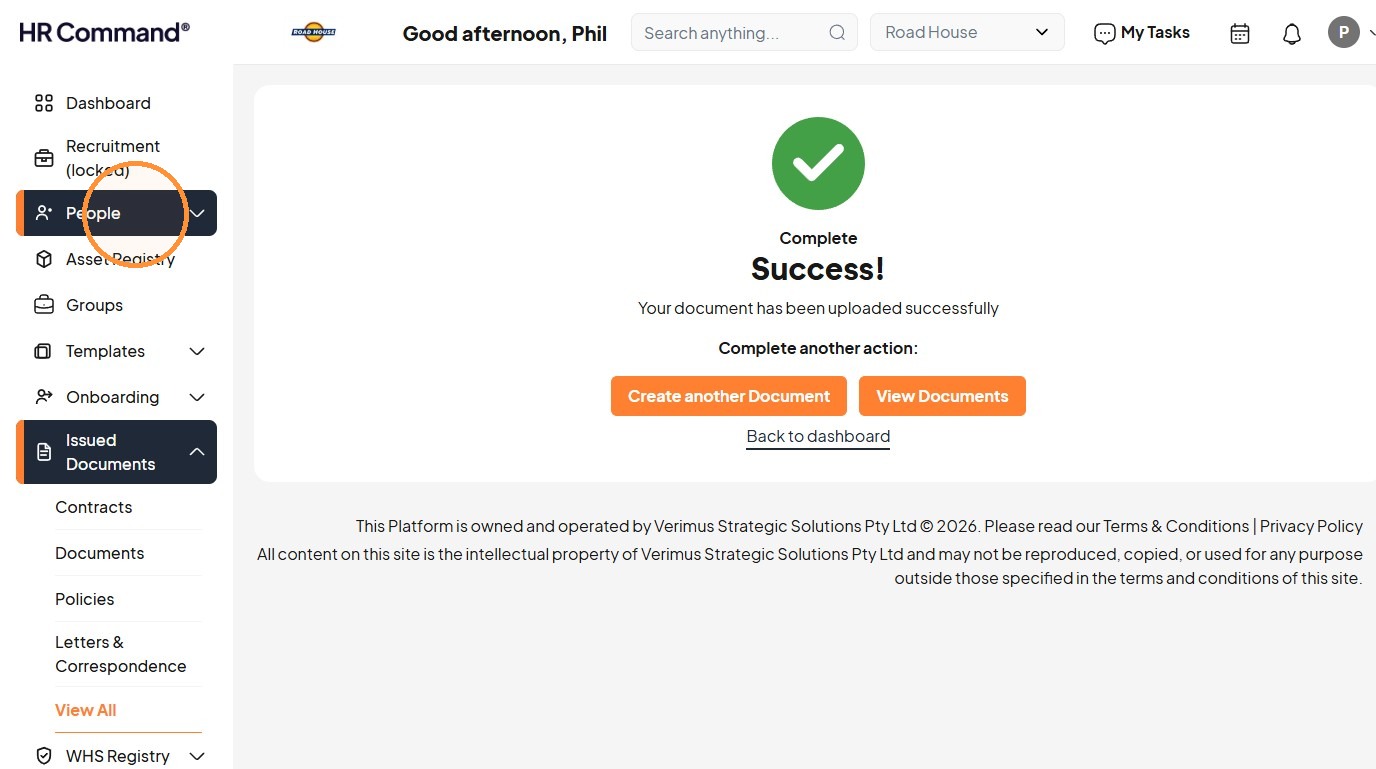
12. Click "People"
13. Click "View People"
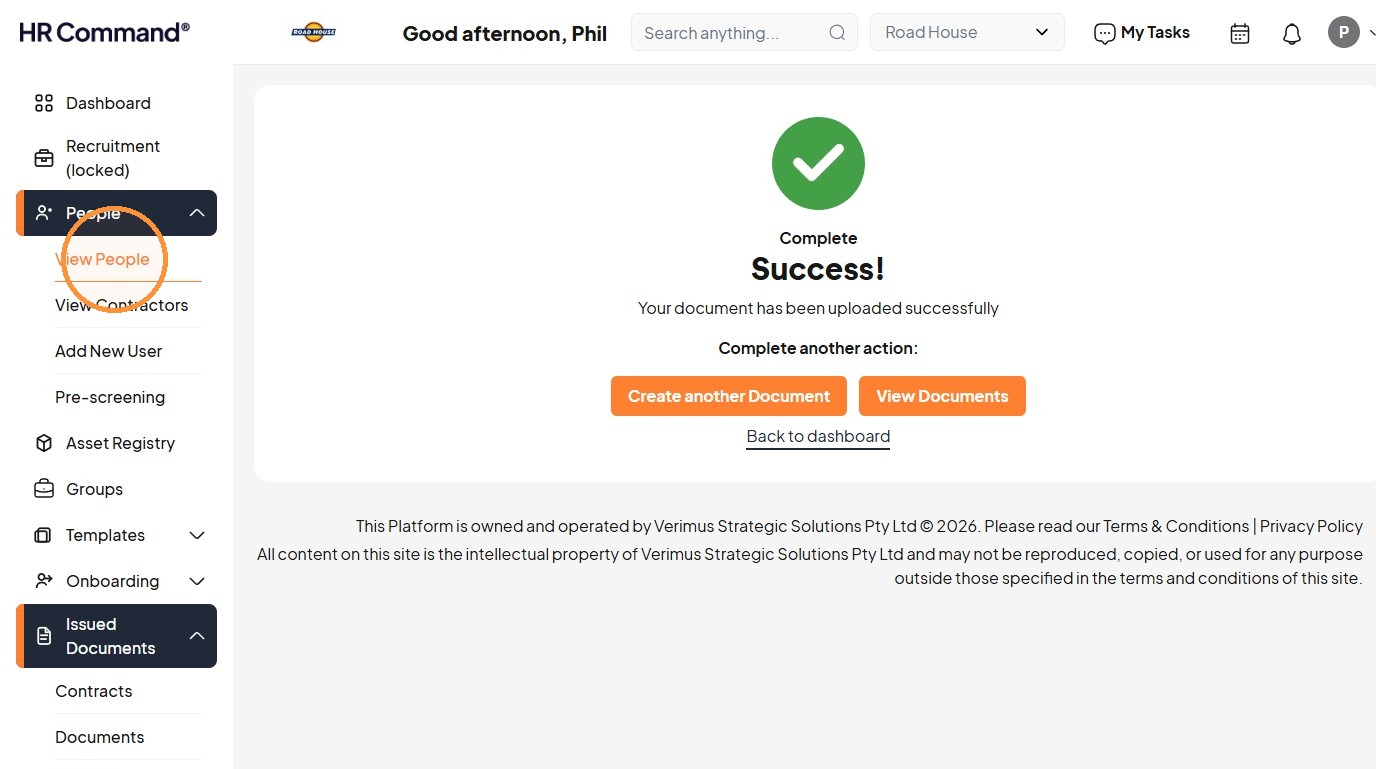
14. Click the employee name the document was assigned to.
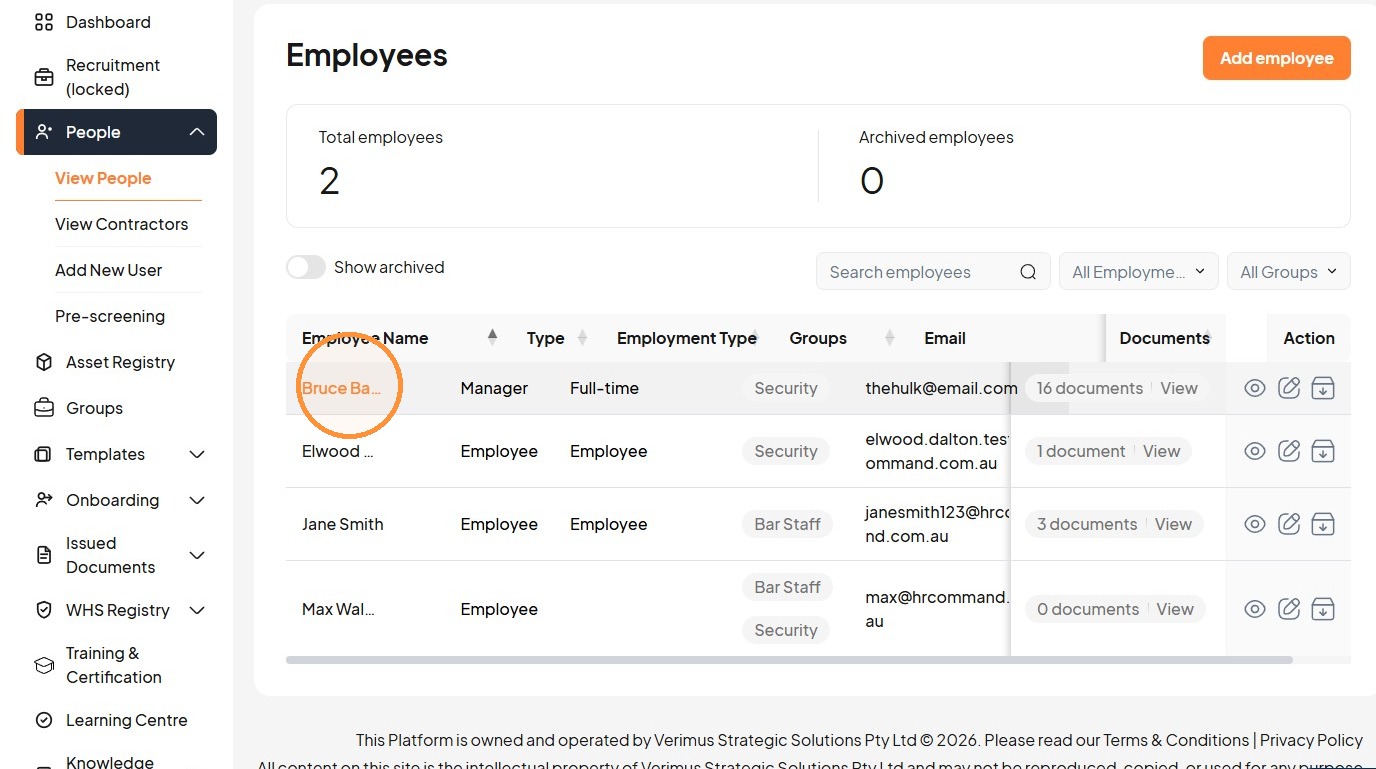
15. Click "Issued Documents"
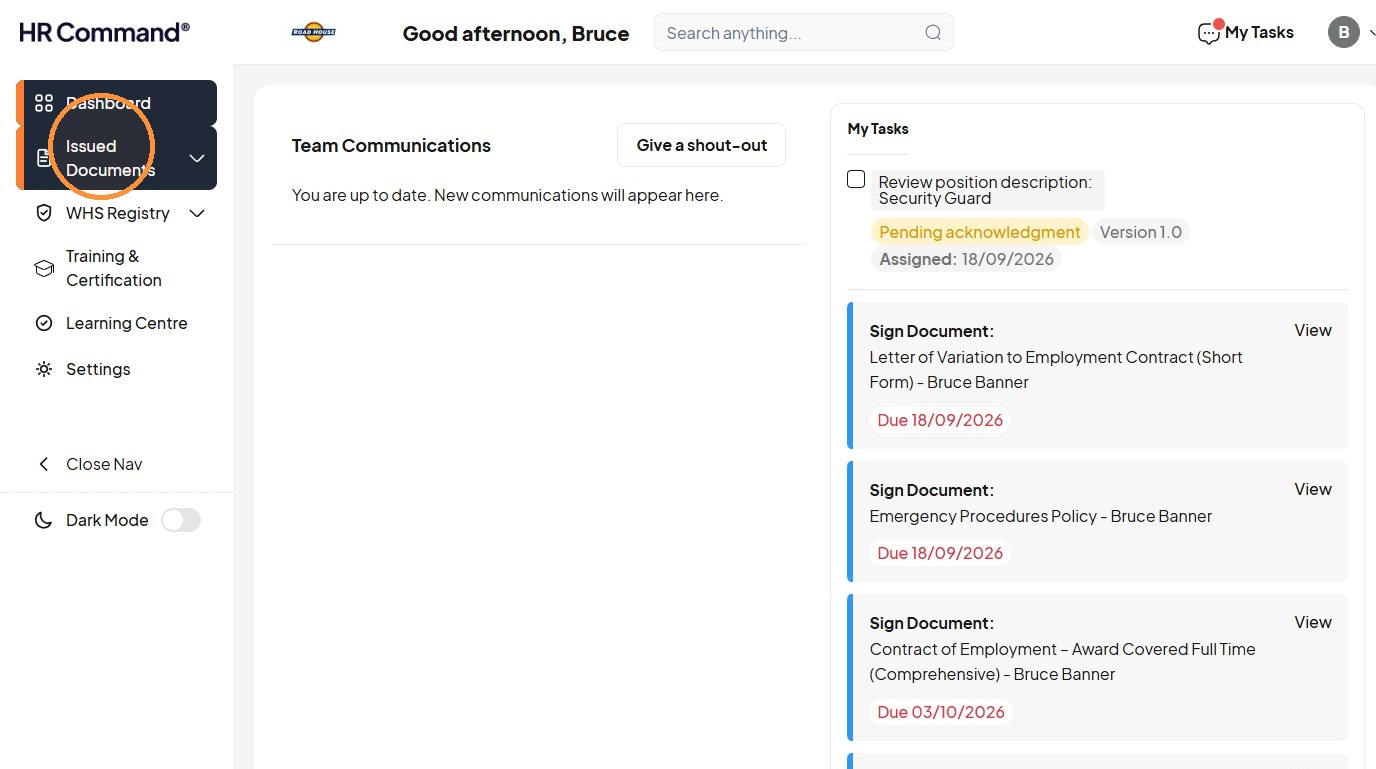
16. Click "View All"
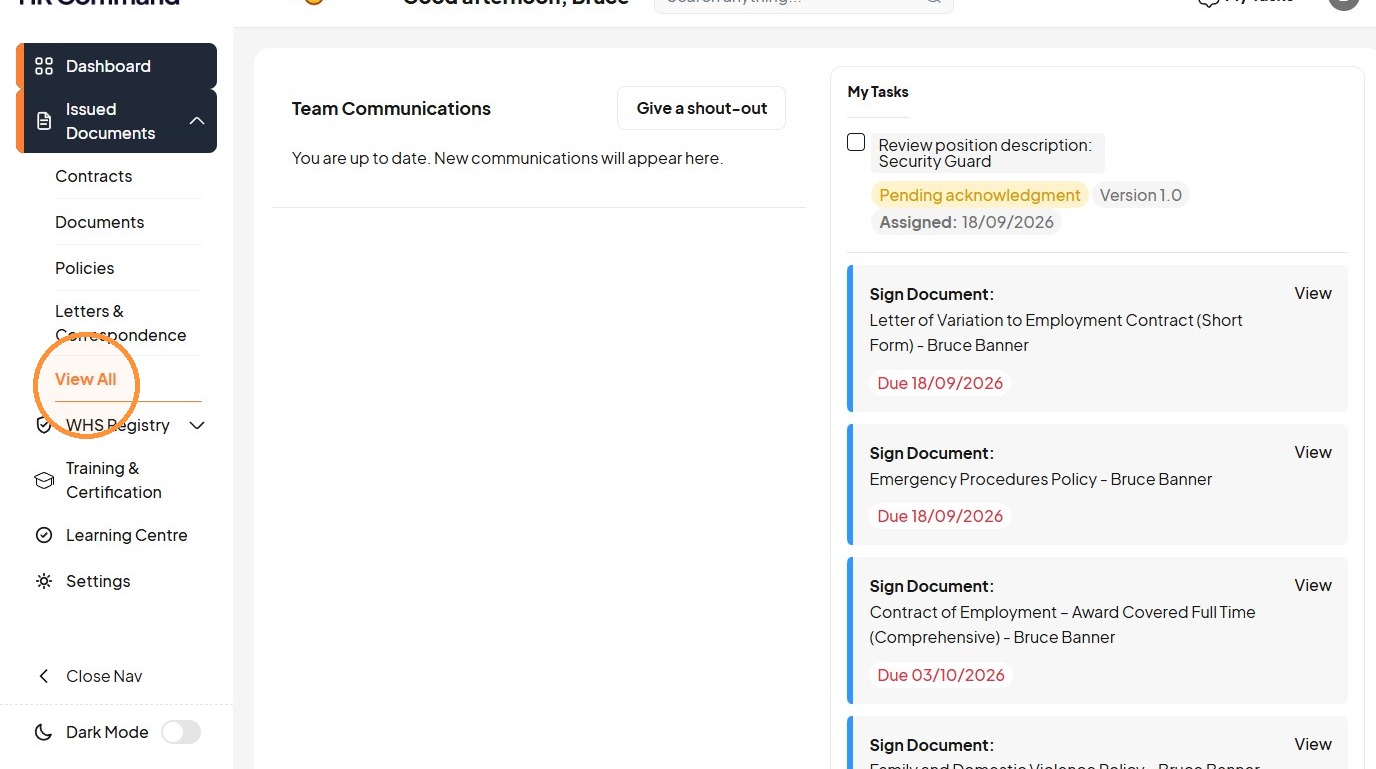
17. Click "Letters & Correspondence"
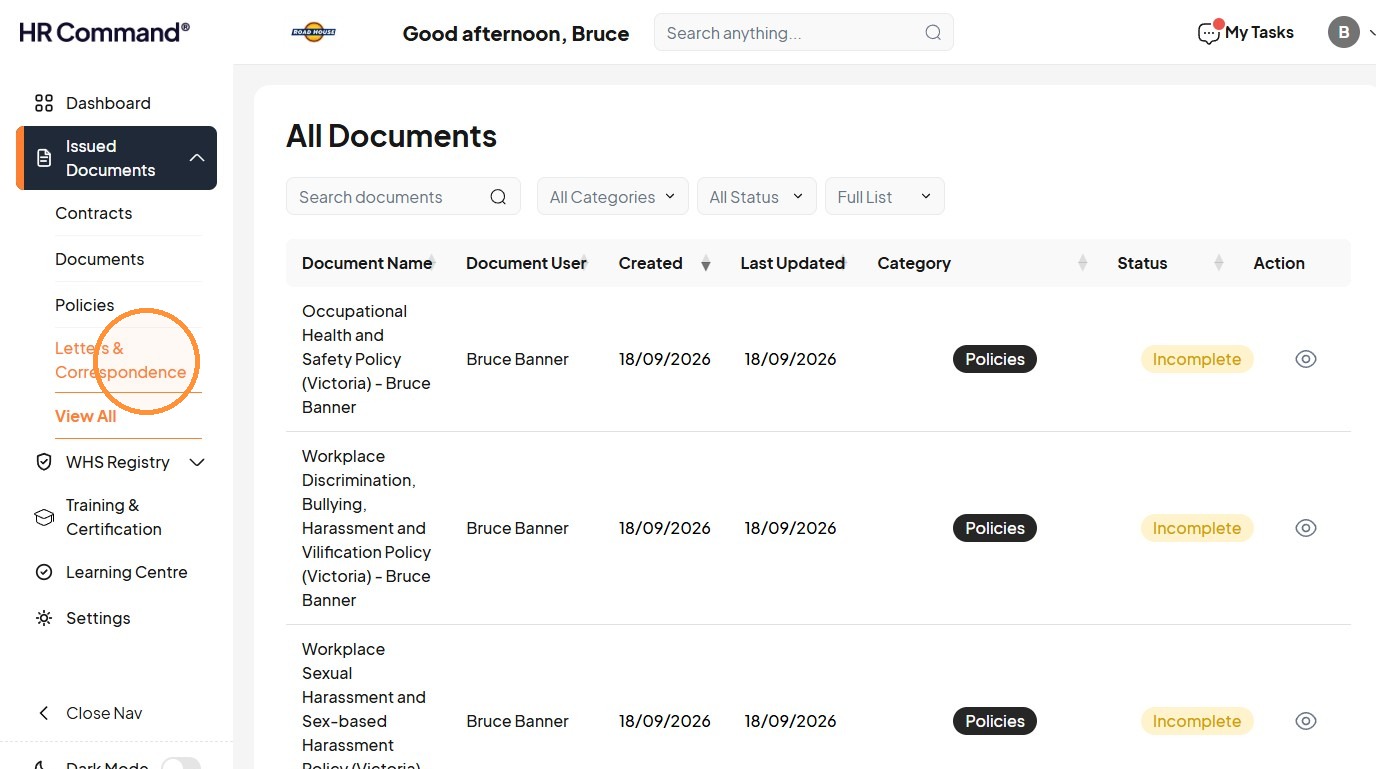
18. Click the "Search anything..." field.
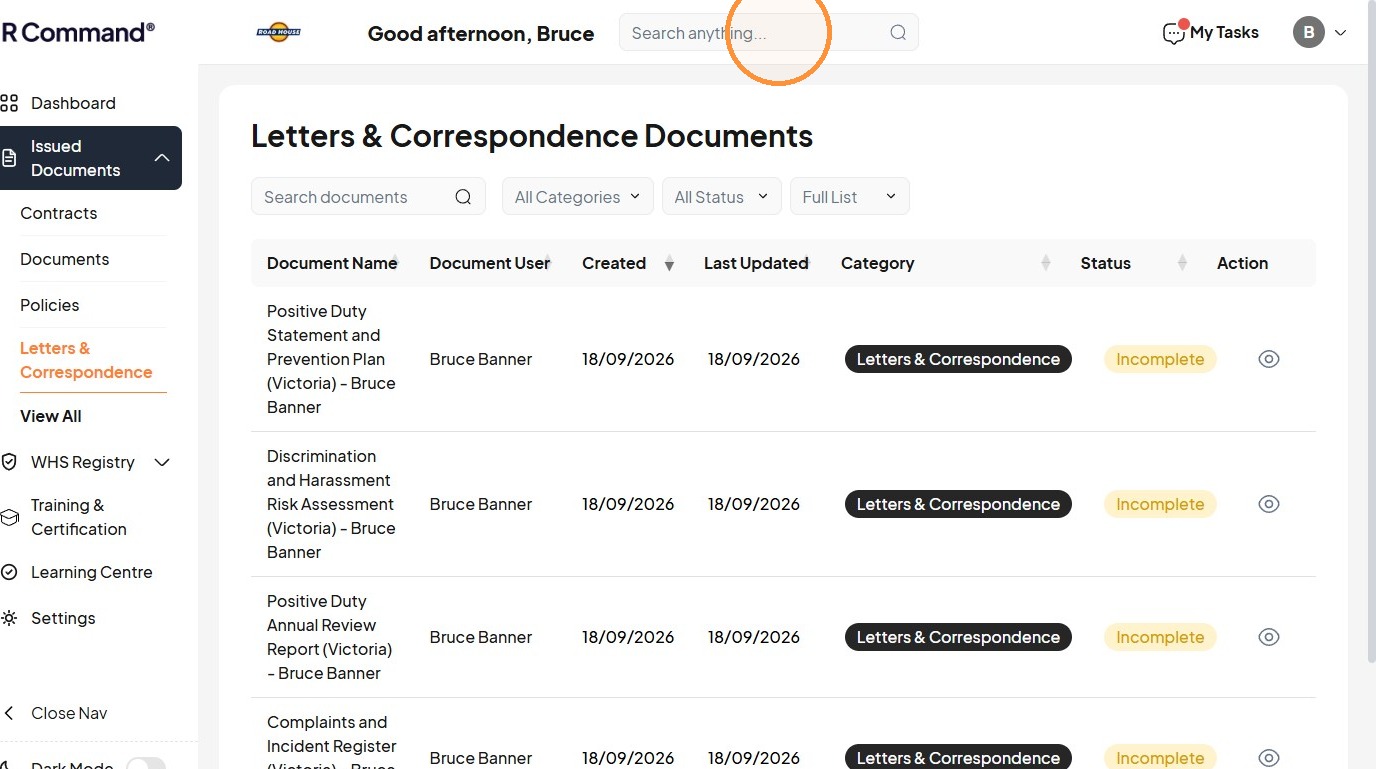
19. Type the document name to view it.
Was this article helpful?
That’s Great!
Thank you for your feedback
Sorry! We couldn't be helpful
Thank you for your feedback
Feedback sent
We appreciate your effort and will try to fix the article