Follow each numbered step. The pink box on each screenshot shows where to click.
Contents
1. Create a review cycle
For: Admin
A cycle is one round of reviews, such as a mid year check-in. Setting it up sends nothing. Invitations only go out when you launch.
Go to Reviews then Cycles and click Create cycle.
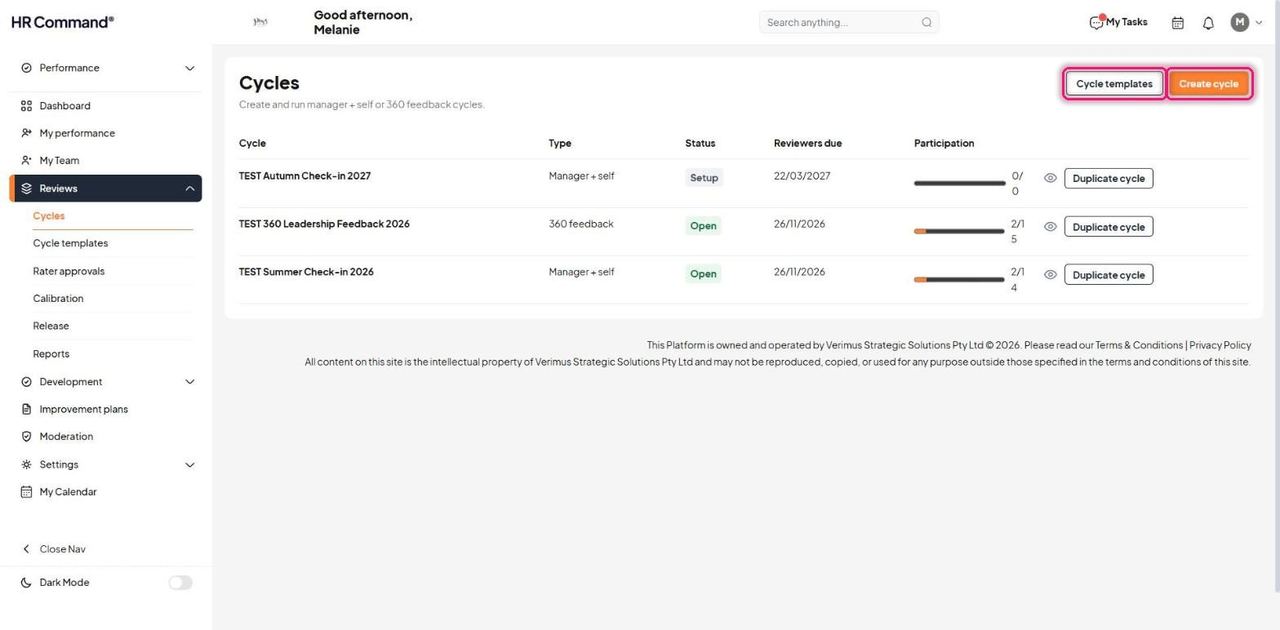
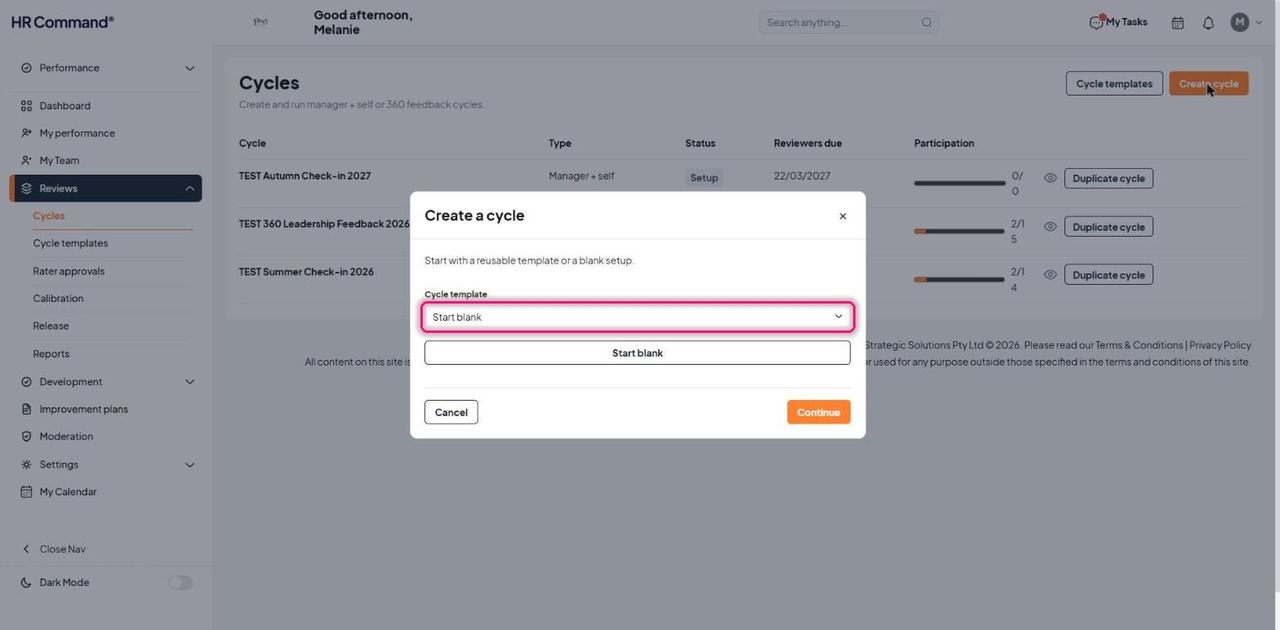
Pick a saved Cycle template and click Continue, or click Start blank.
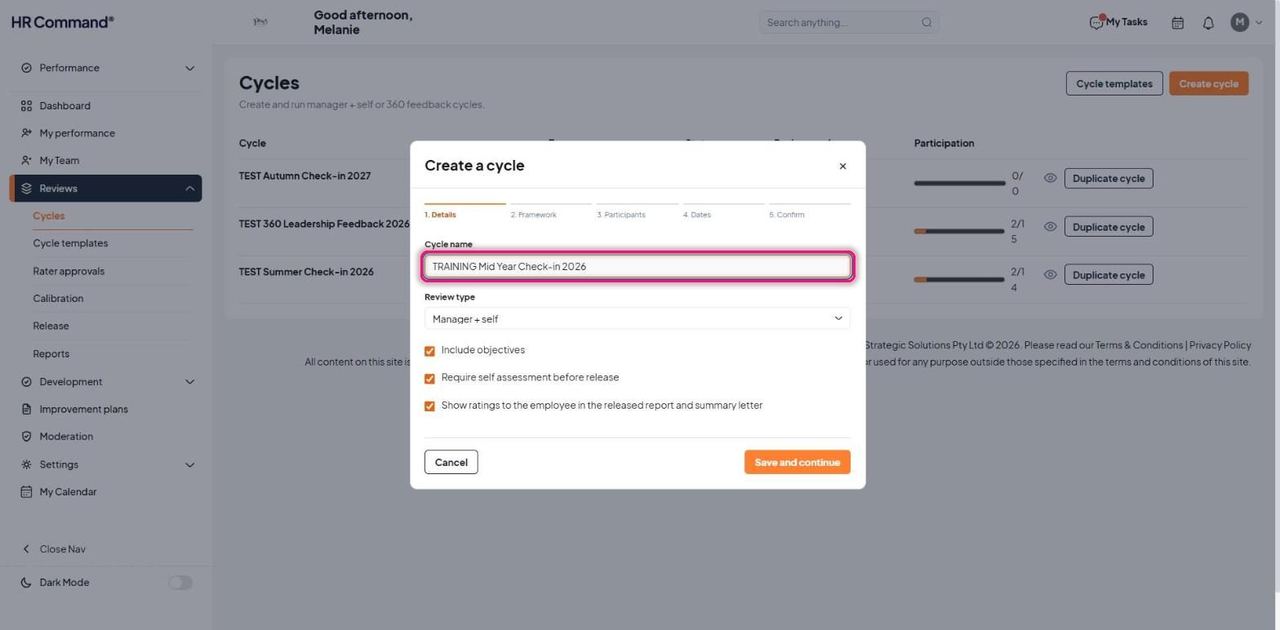
Step 1, Details. Enter the Cycle name. Choose the Review type. Tick or untick Include objectives, Require self assessment before release and Show ratings to the employee in the released report and summary letter. Click Save and continue.
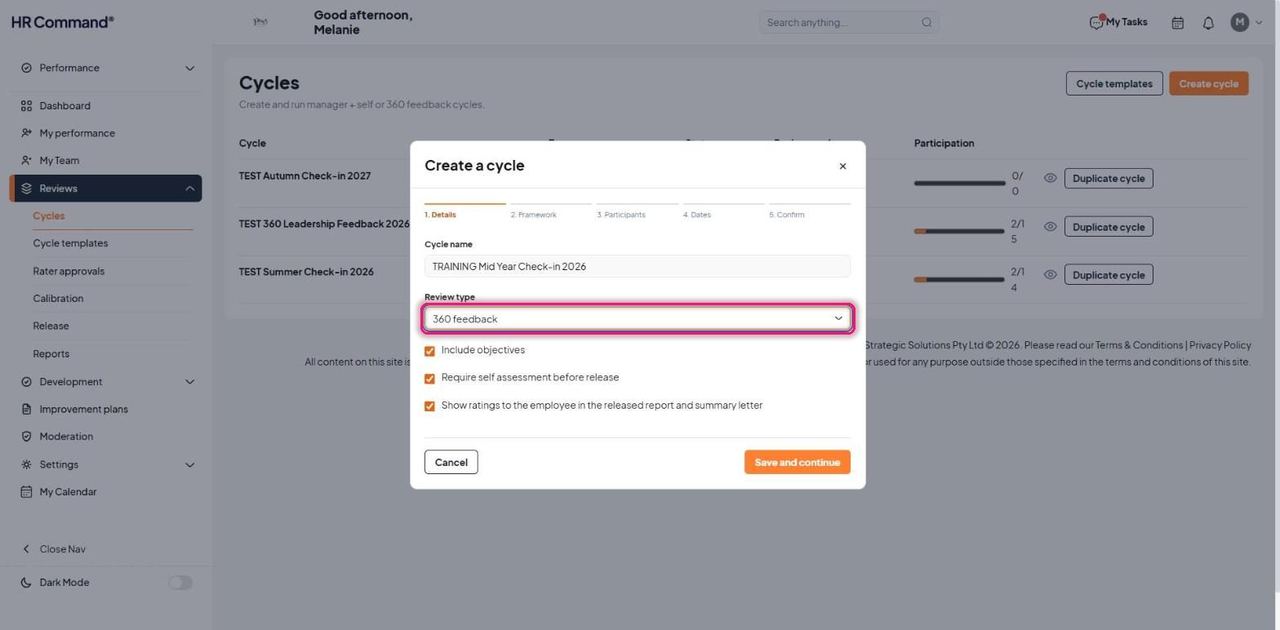
Choose 360 feedback as the review type when peers and direct reports should rate the person as well as the manager.
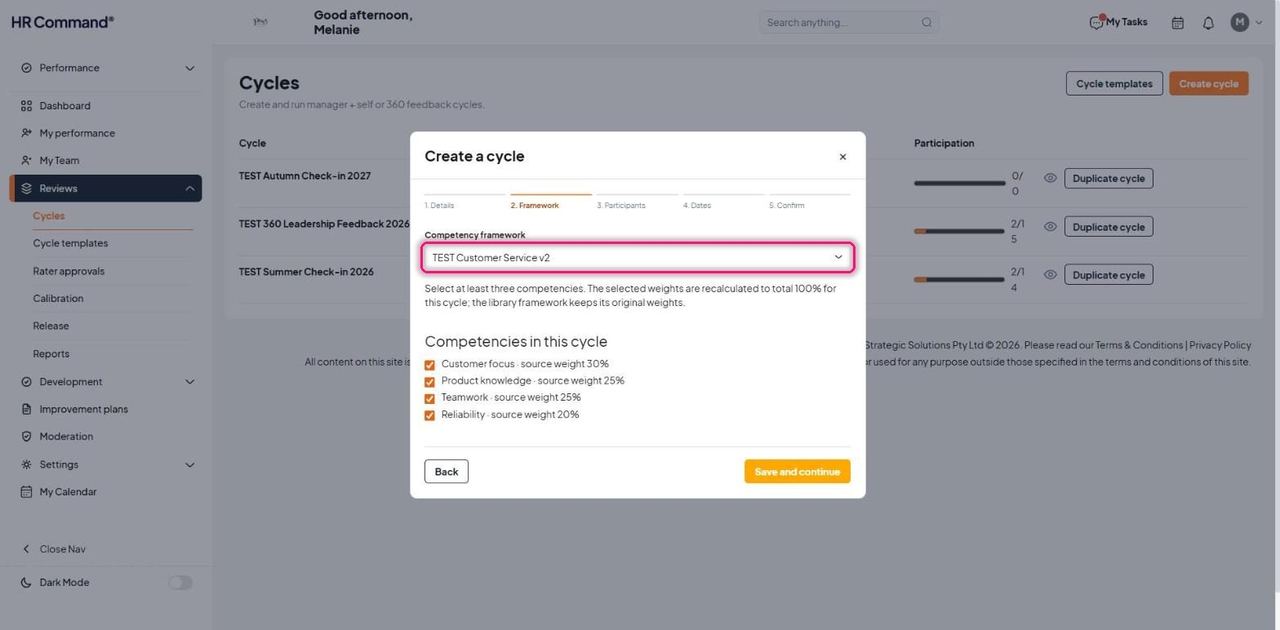
Step 2, Framework. Choose the Competency framework and tick at least three competencies. Click Save and continue.
Good to know: Weights are recalculated to total 100% for this cycle. The framework in the library keeps its original weights.
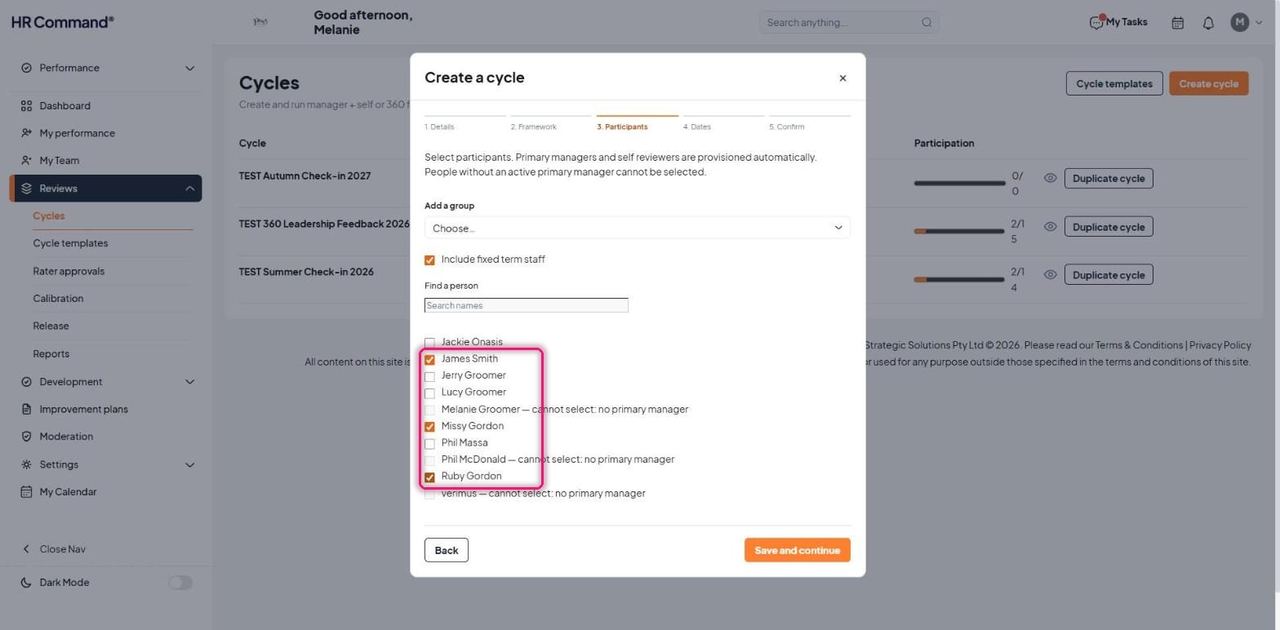
Step 3, Participants. Add a whole group with Add a group, or search and tick people one by one. Click Save and continue.
Good to know: Managers and self reviewers are set up automatically. People without an active primary manager cannot be selected.
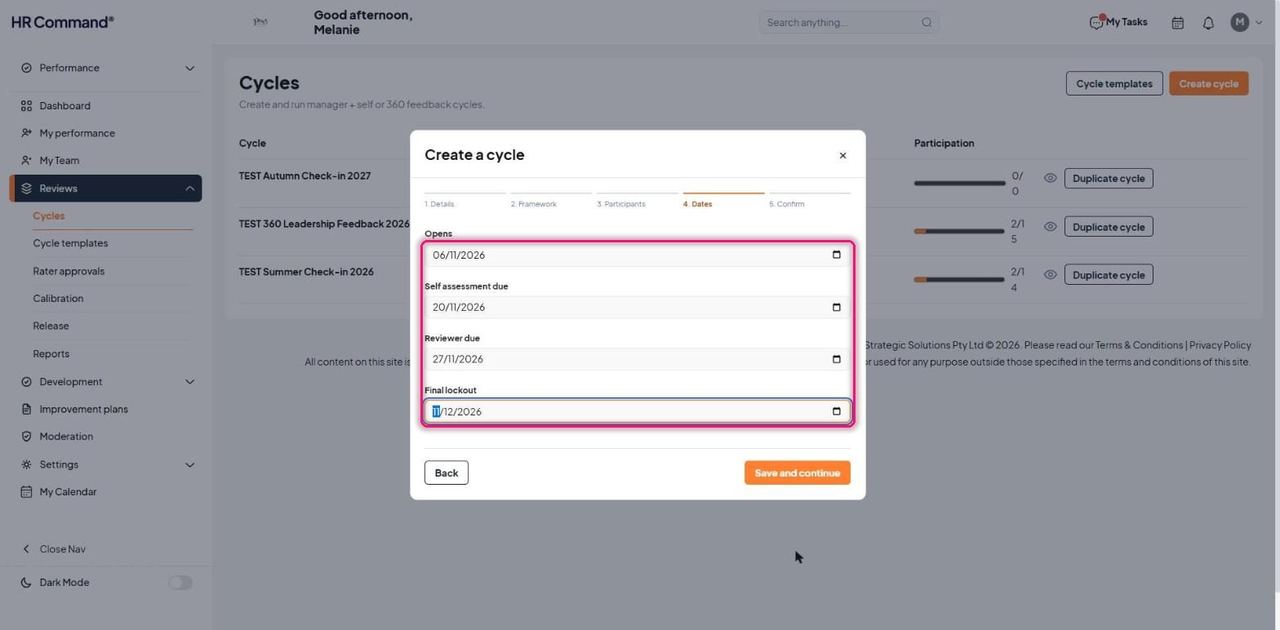
Step 4, Dates. Set Opens, Self assessment due, Reviewer due and Final lockout. Click Save and continue.
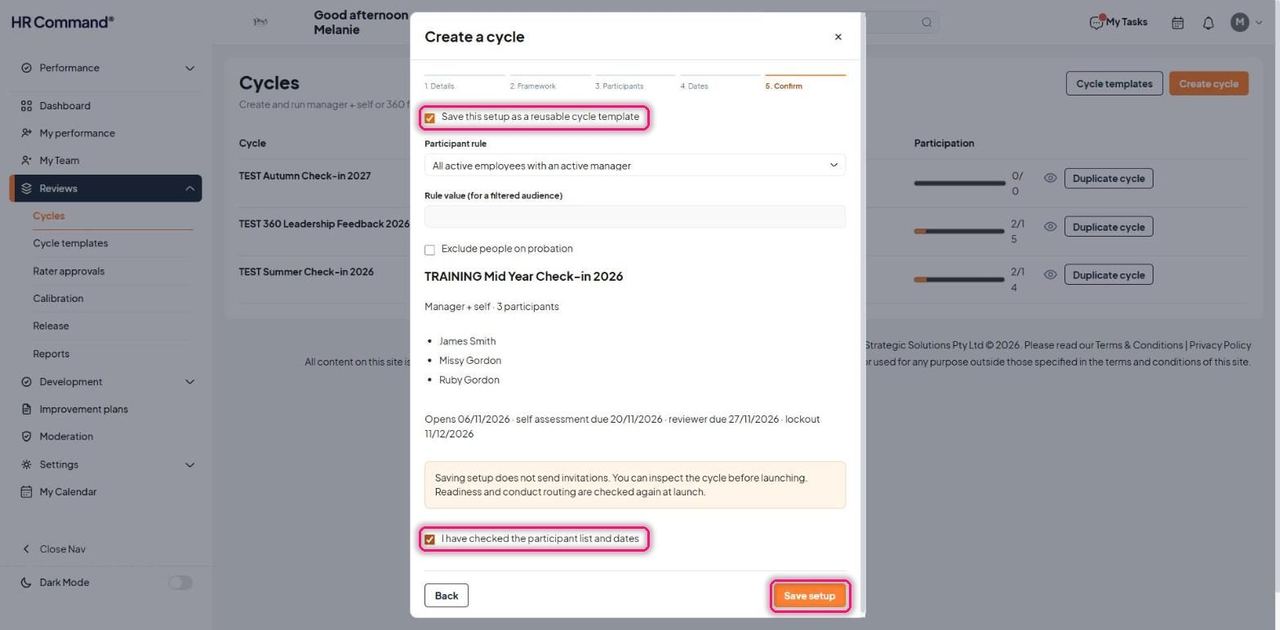
Step 5, Confirm. Tick Save this setup as a reusable cycle template to reuse it later. Check the participant rule, participant list and dates, tick I have checked the participant list and dates, then click Save setup.
Good to know: Saving setup does not send invitations. Readiness and conduct routing are checked again at launch.
2. Set objectives
For: Admin, Manager
Each person's measurable objectives must be confirmed before a cycle can launch. Do it per person or for everyone at once.
After saving setup, the cycle opens with Objectives before launch. Each person shows Needs confirmation. Launch cycle stays faded until every person is confirmed.
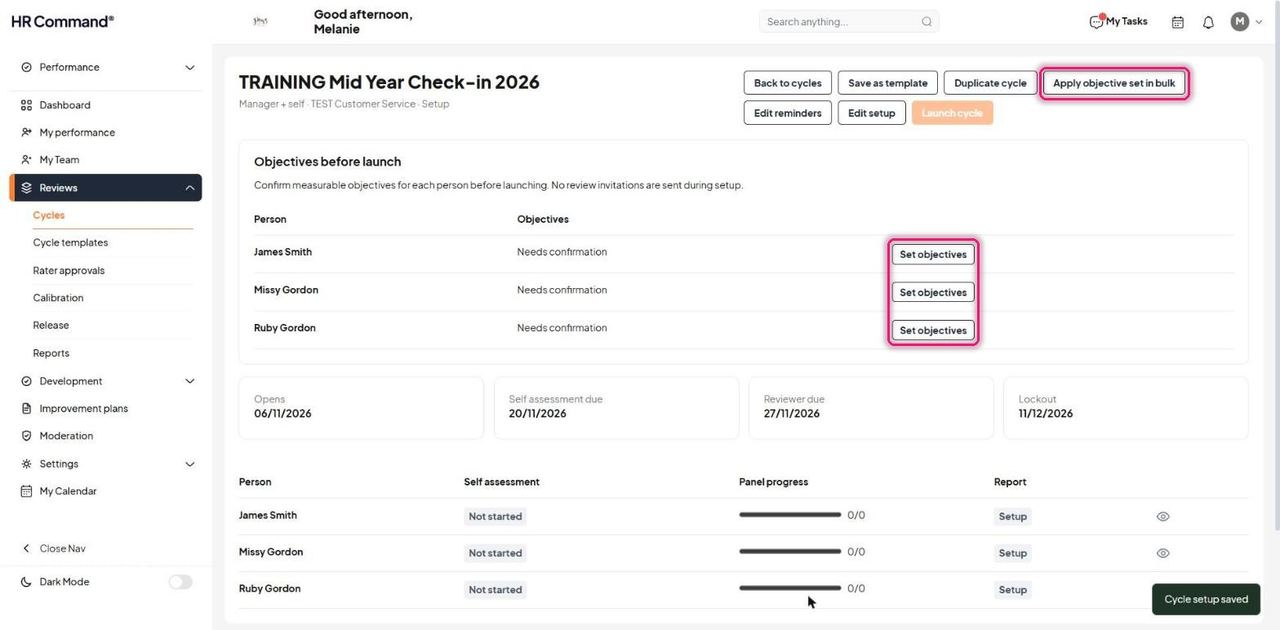
For everyone at once: click Apply objective set in bulk, choose an Objective set and tick the people. Click Apply set.
Good to know: This replaces each selected person's current objectives with their own confirmed copy. Locked reviews are skipped.
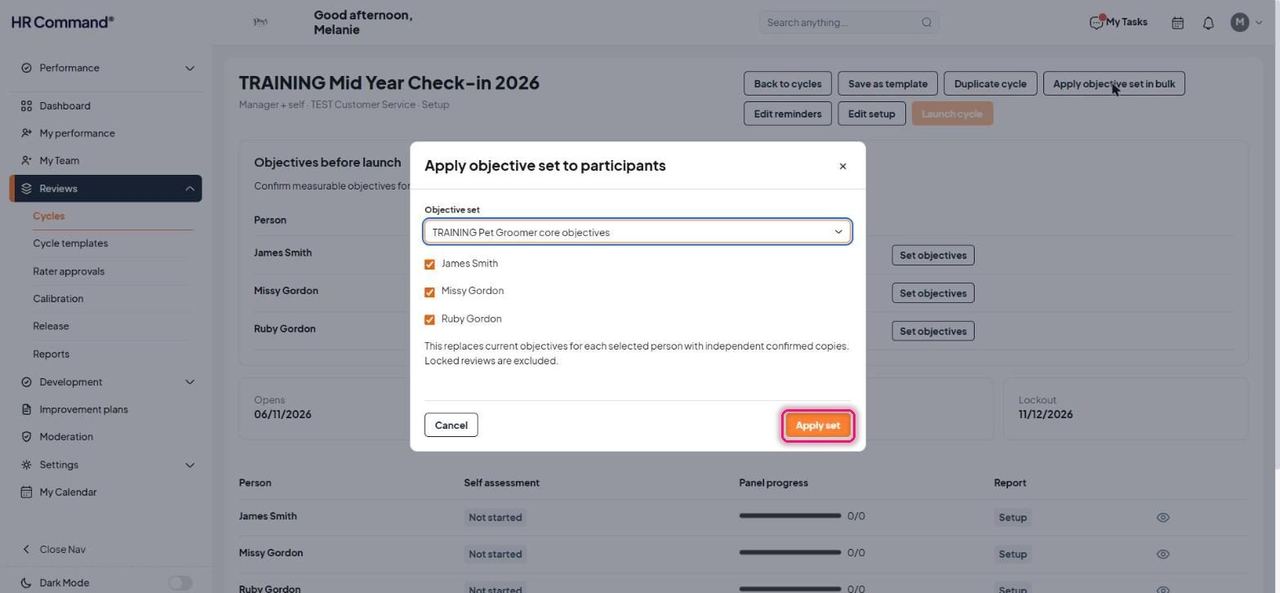
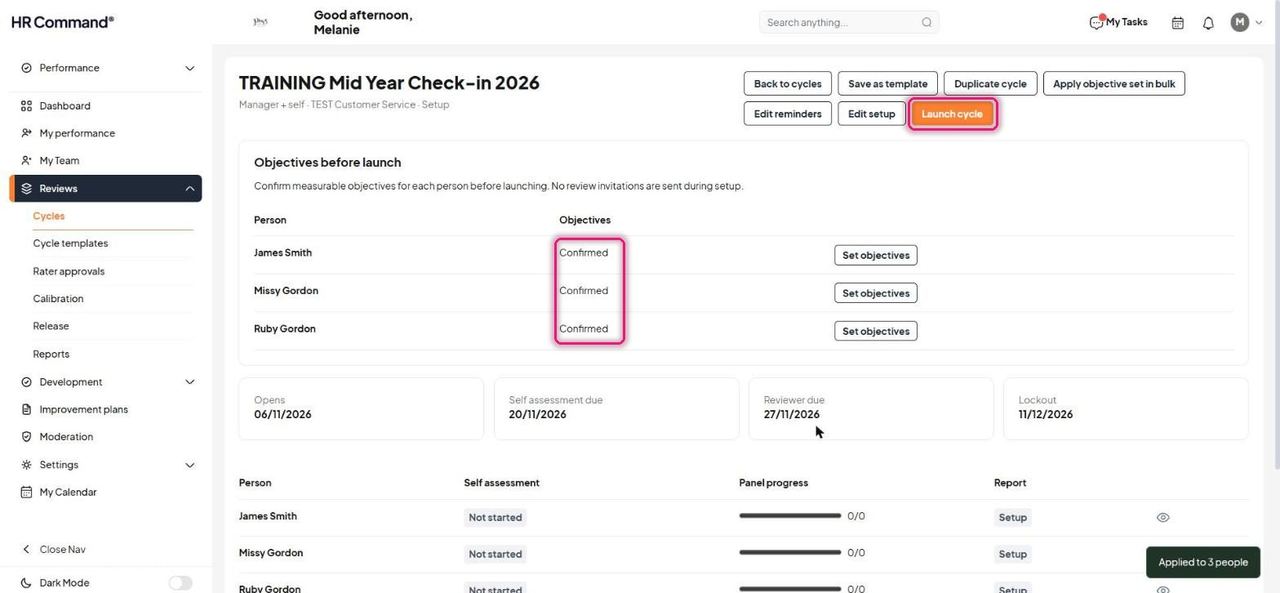
Every person now shows Confirmed and Launch cycle turns orange.
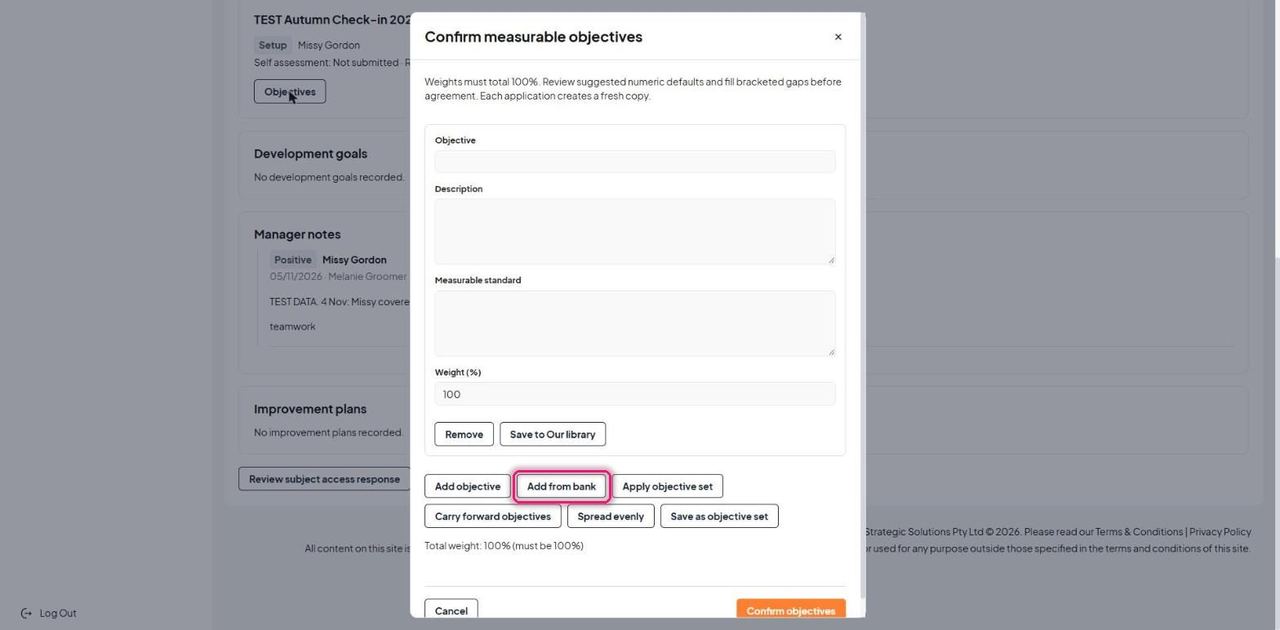
For one person: click Set objectives beside them (or Objectives on their record under My Team). The editor opens with one blank objective. Click Add from bank.
Good to know: Weights must total 100%. Each time you apply something, it creates a fresh copy for this person.
Search by role, alias or keyword, or filter by source, family, level, category or industry. Click View details to see the full wording. Tick the objectives you want.
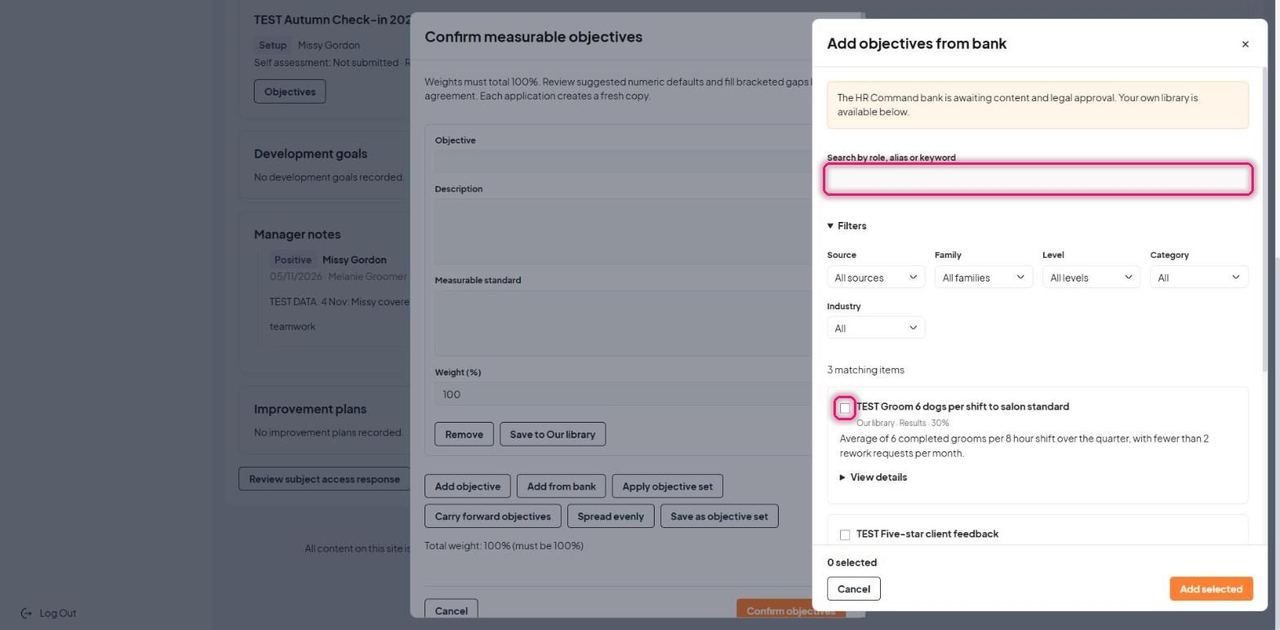
The footer shows how many are selected and their suggested weight. Click Add selected.
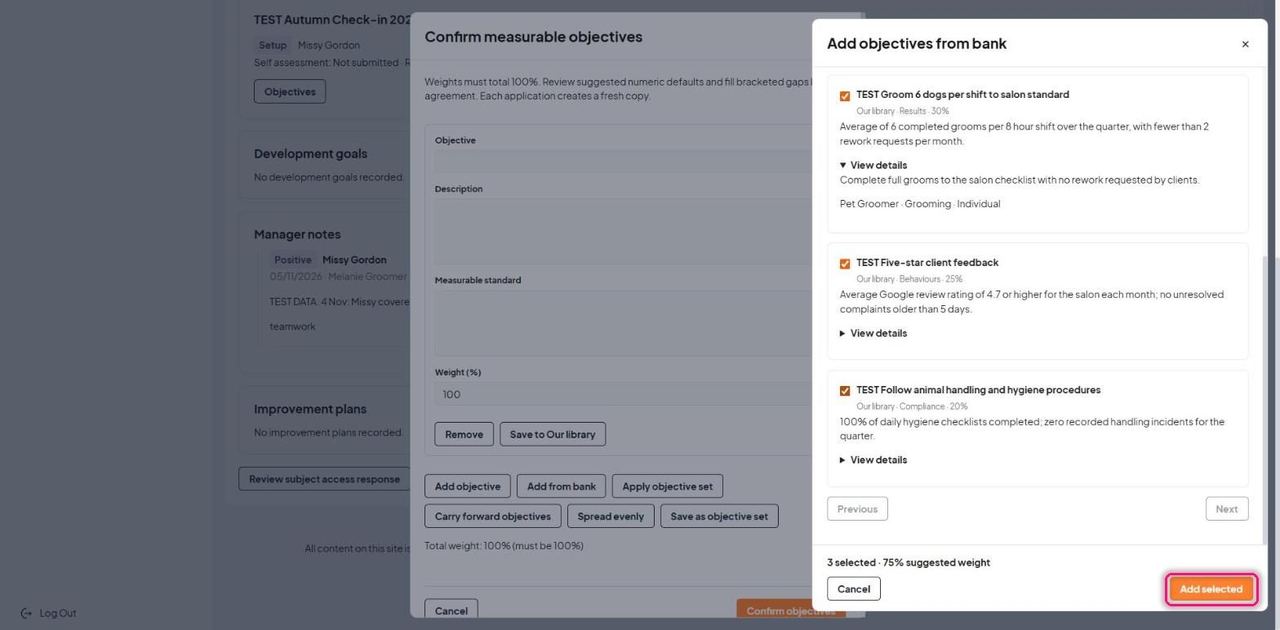
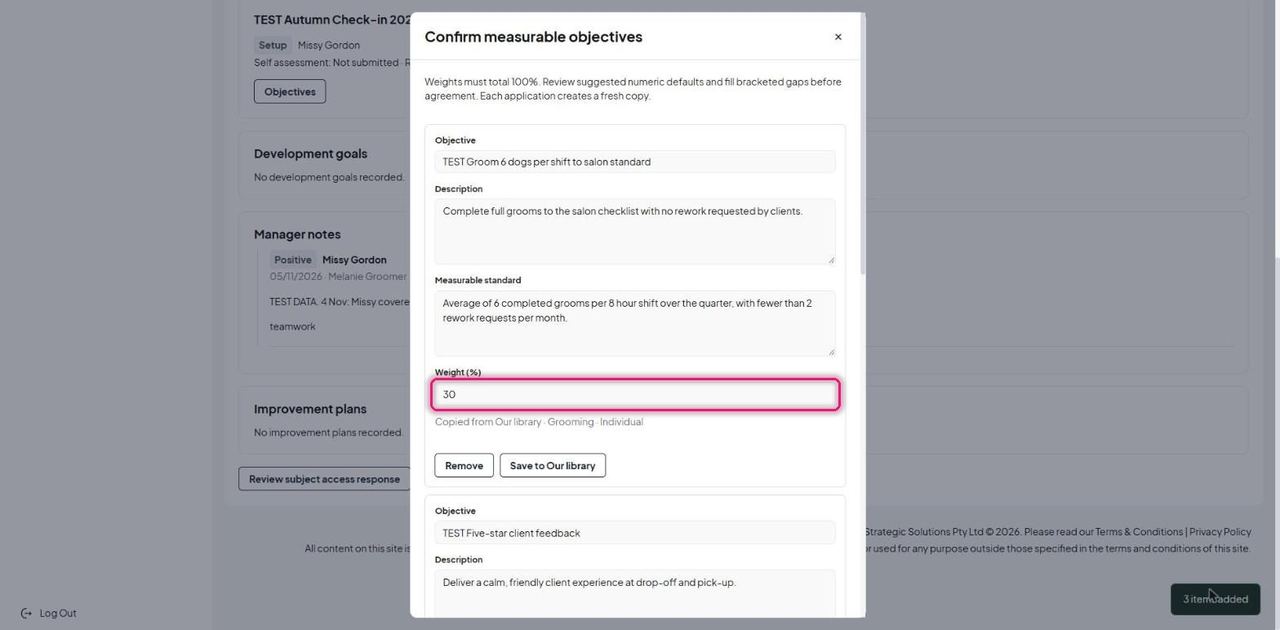
Each objective arrives with its Objective, Description, Measurable standard and suggested Weight (%). Edit any of them for this person. Save to Our library keeps an edited version for reuse.
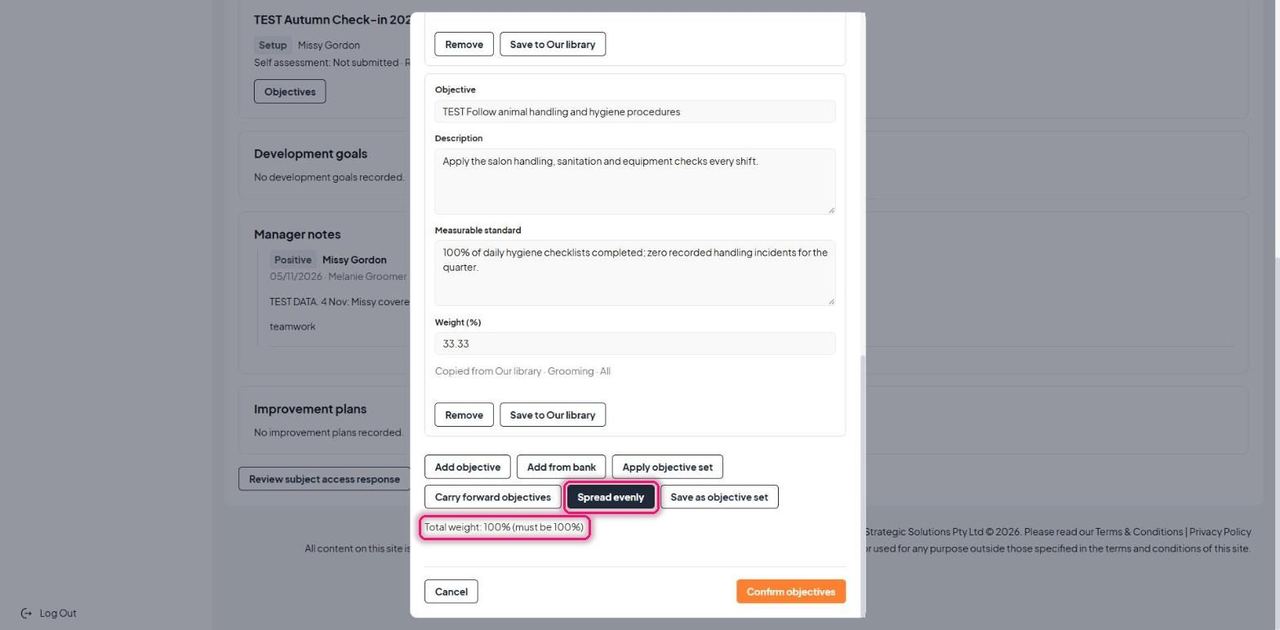
If weights do not add to 100%, click Spread evenly, or type weights yourself. Total weight must read 100%.
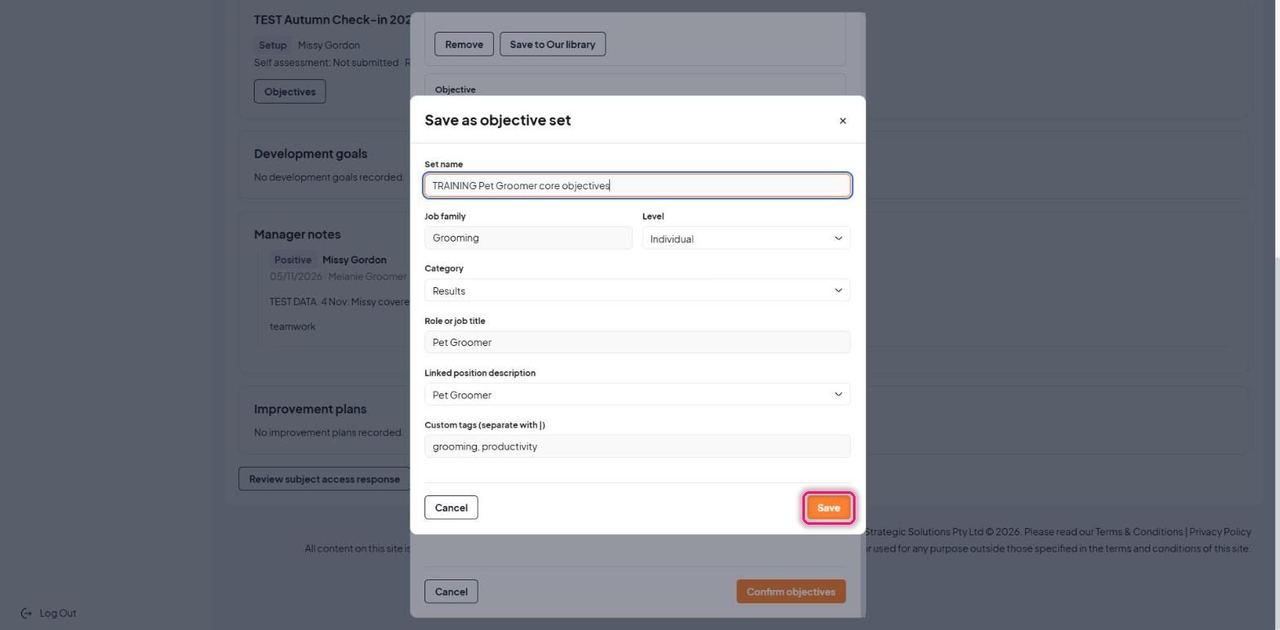
To reuse this combination, click Save as objective set. Name the set, check the job family, level, category, role and linked position description, then click Save.
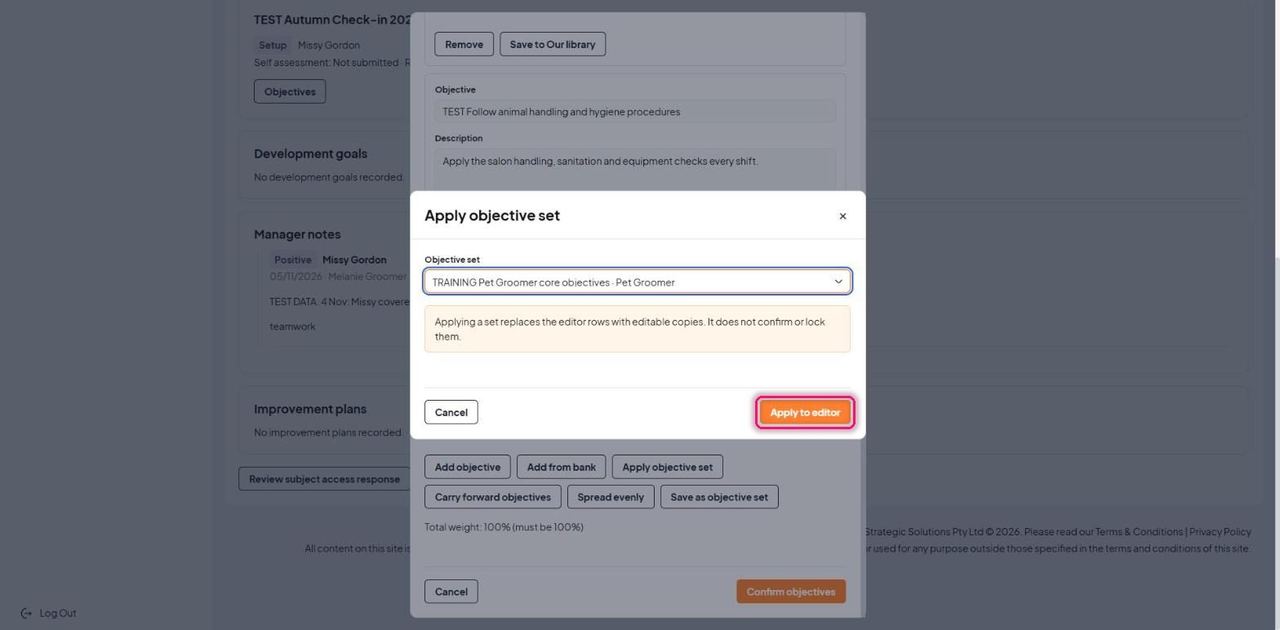
Apply objective set swaps the rows for a saved set. Choose the set and click Apply to editor.
Good to know: Applying a set gives editable copies. It does not confirm or lock them.
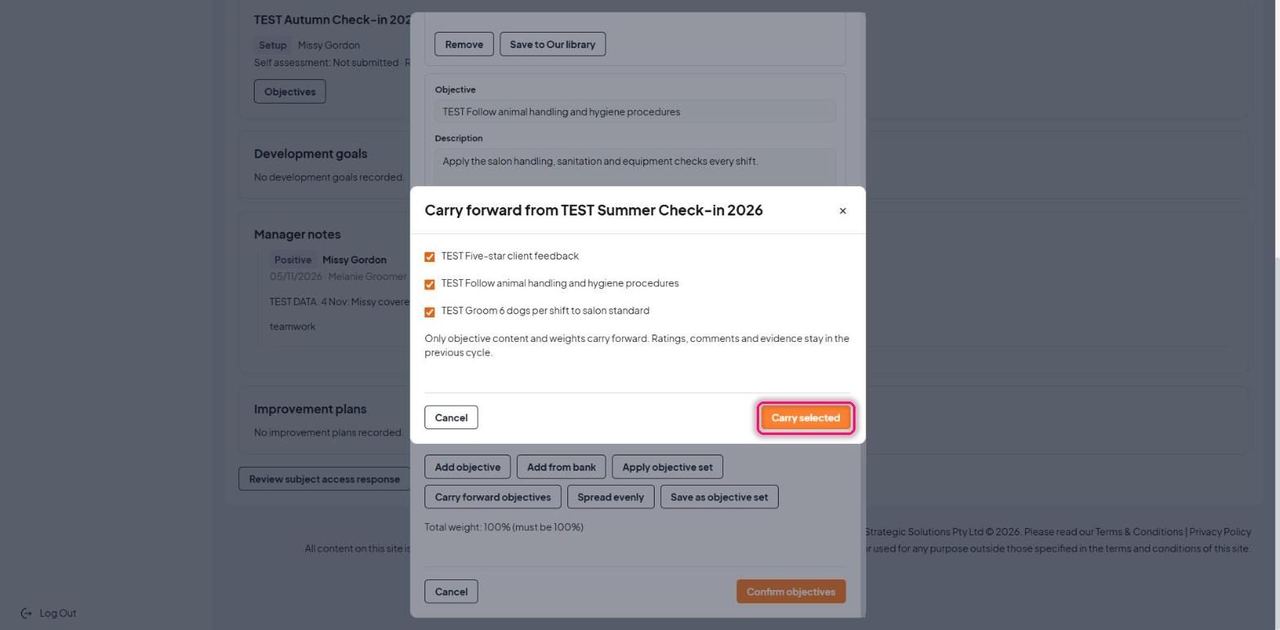
Carry forward objectives brings in objectives from the person's previous cycle. Tick the ones to keep and click Carry selected.
Good to know: Only the wording and weights carry forward. Ratings, comments and evidence stay with the earlier cycle.
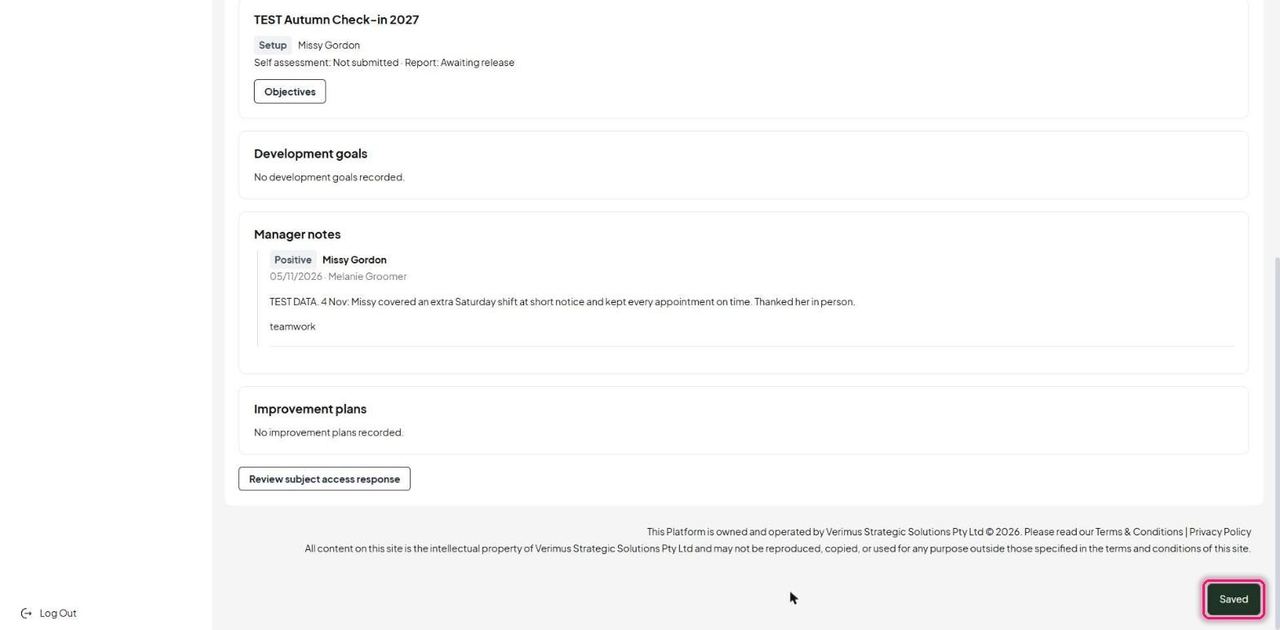
Click Confirm objectives. A Saved message confirms it.
3. Reminders, templates and launch
For: Admin
On the cycle page, Edit reminders sets this cycle's reminders. They start from the account defaults.
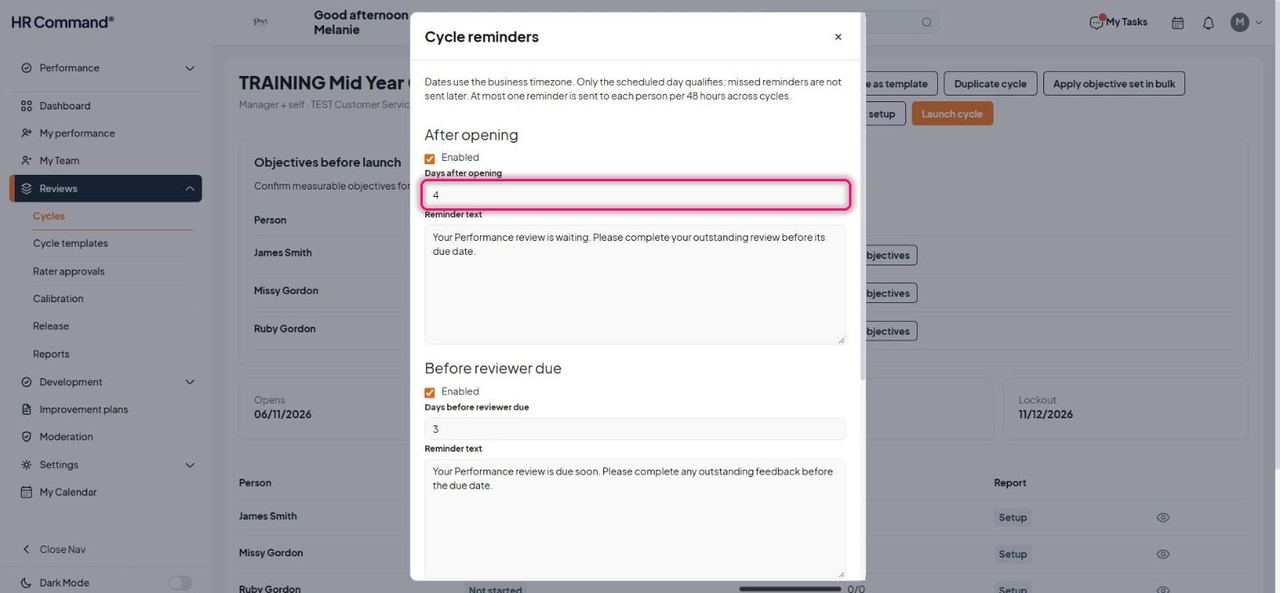
Edit setup reopens the five-step wizard. Save as template and Duplicate cycle reuse the setup.
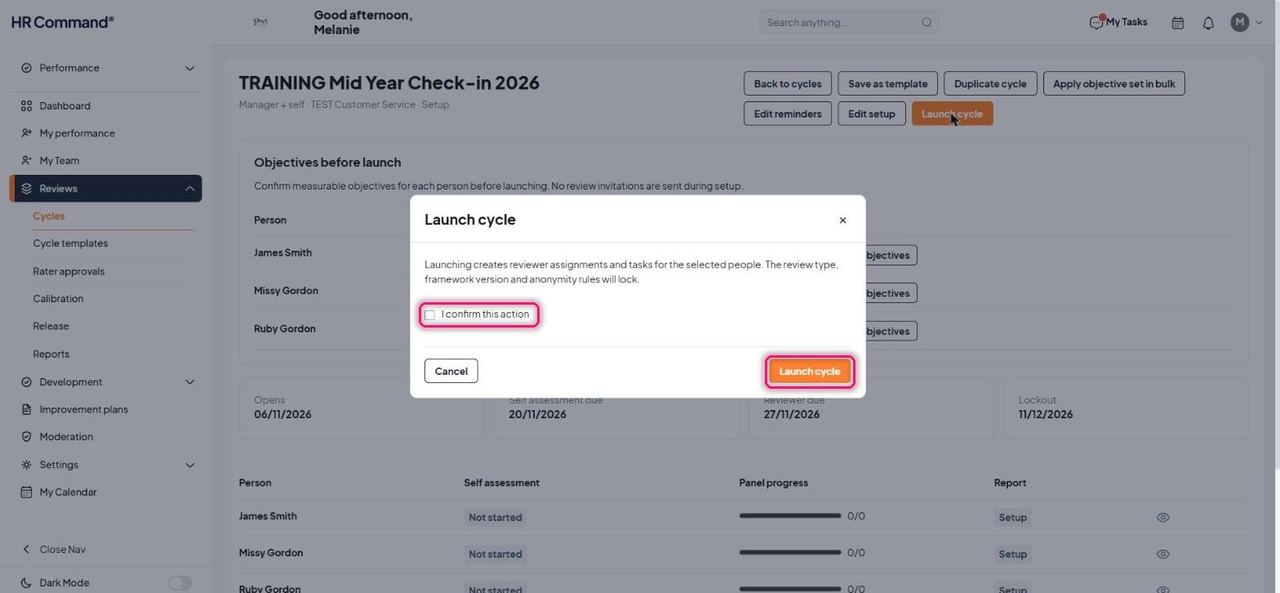
Click Launch cycle. Read the warning, tick I confirm this action, then click Launch cycle.
Good to know: Launching creates reviewer assignments and tasks for everyone in the cycle. The review type, framework version and anonymity rules then lock.
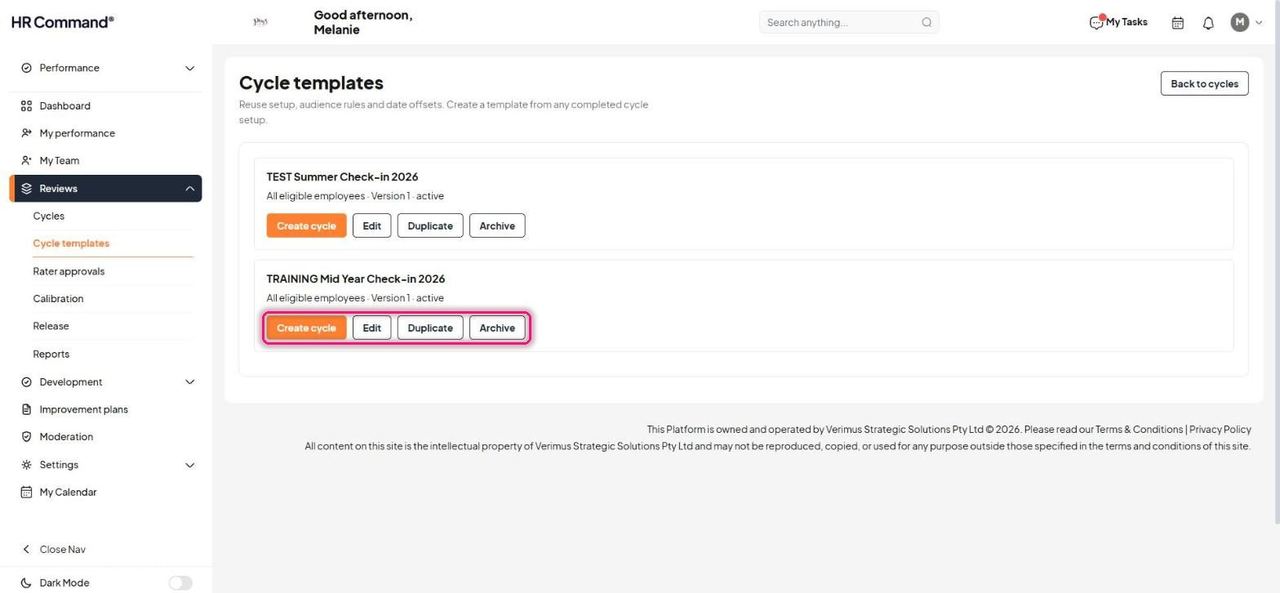
Cycle templates (under Reviews) lists saved setups. Use Create cycle to start a new cycle from one, or Edit, Duplicate and Archive.
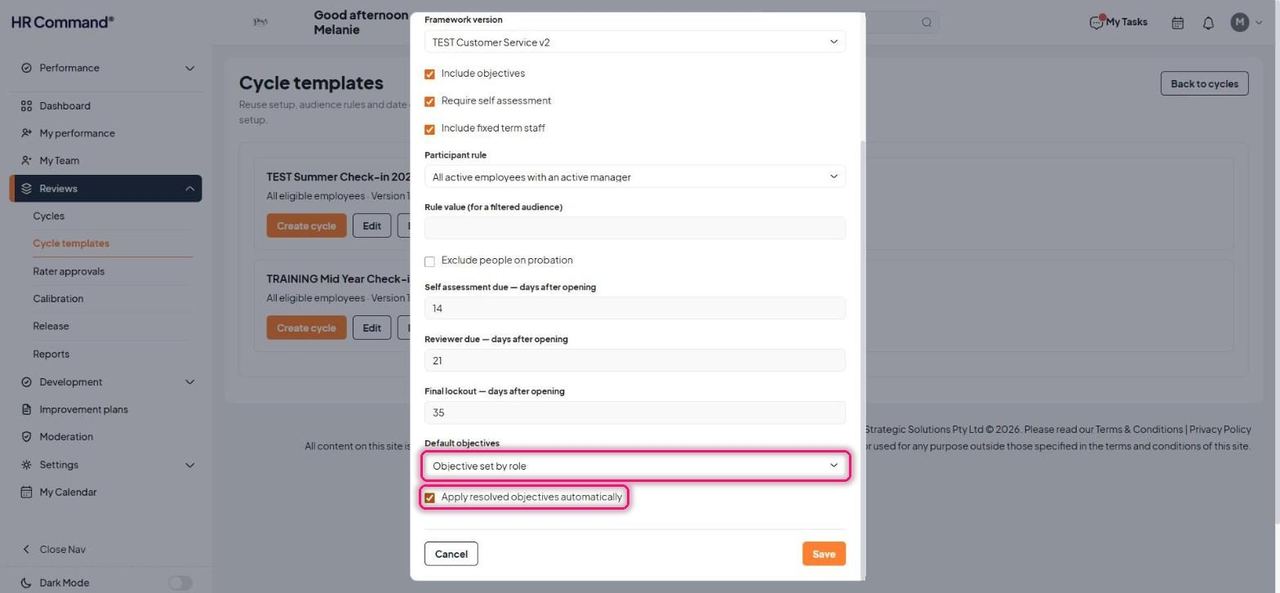
When editing a template, dates are set as days after opening. Choose Default objectives (None, Carry forward or Objective set by role) and tick Apply resolved objectives automatically to fill objectives on every new cycle.
Good to know: Each saved edit bumps the template's version number.
Was this article helpful?
That’s Great!
Thank you for your feedback
Sorry! We couldn't be helpful
Thank you for your feedback
Feedback sent
We appreciate your effort and will try to fix the article