Follow each numbered step. The pink box on each screenshot shows where to click.
Contents
1. Run an open cycle
For: Admin
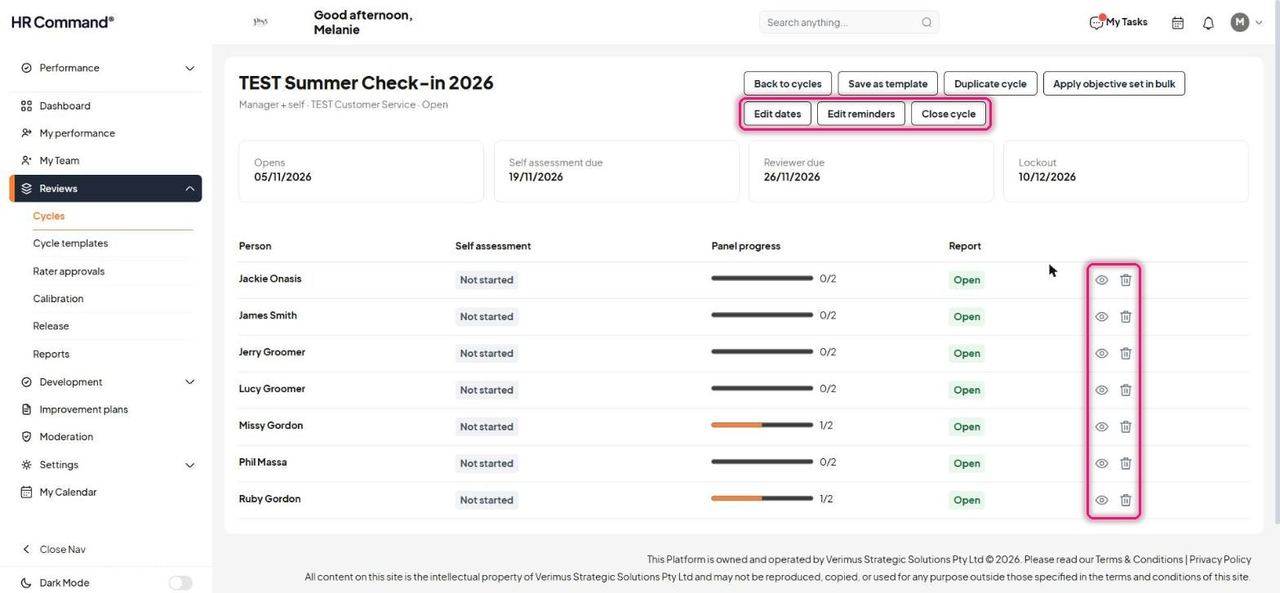
Open a live cycle from Cycles or the Dashboard. The table shows each person's self assessment status, panel progress and report status. Edit dates, Edit reminders and Close cycle sit at the top.
Good to know: The eye icon opens the person's record.
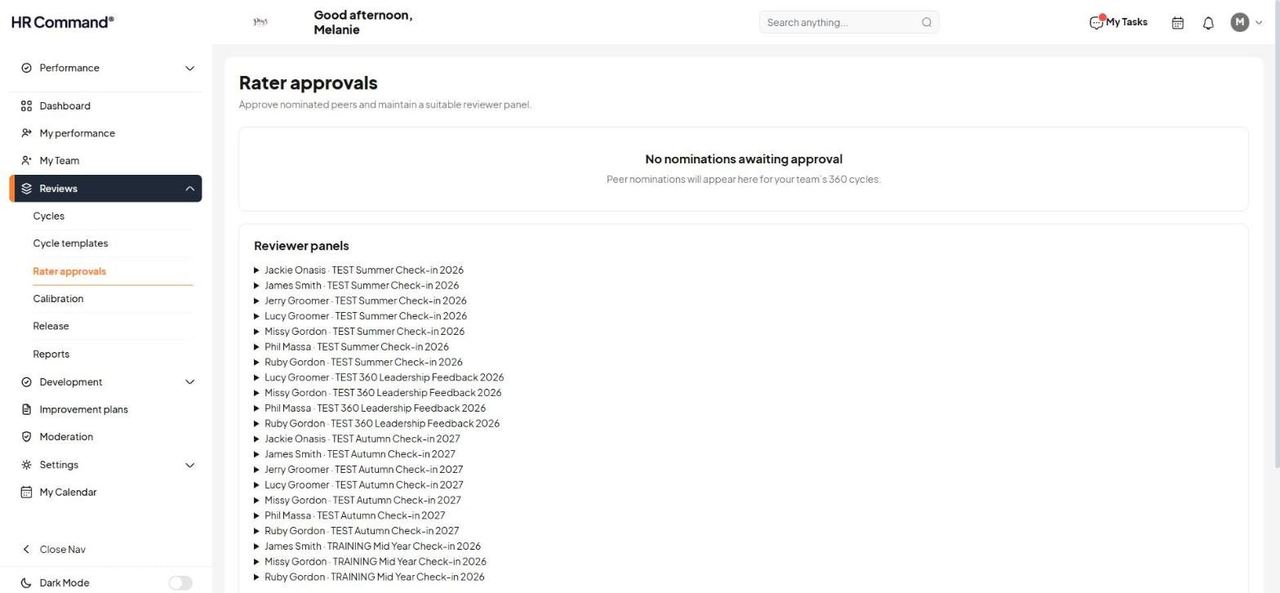
Go to Reviews then Rater approvals. Peer nominations for 360 cycles wait at the top for approval. Below, Reviewer panels lists every person in every cycle.
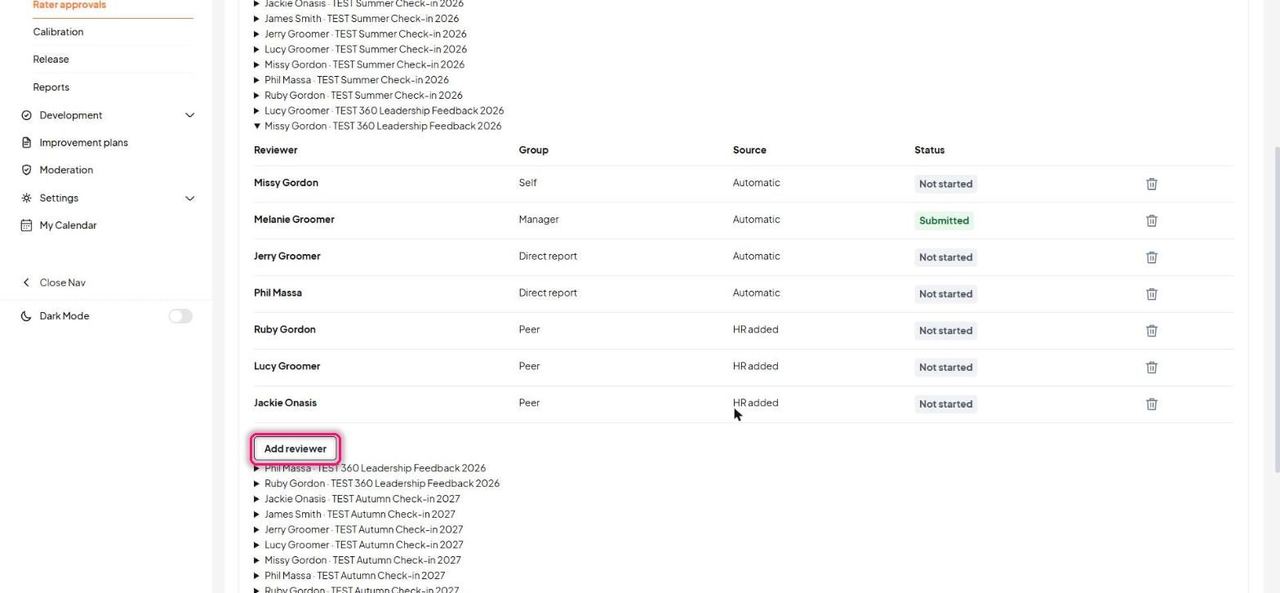
Expand a panel to see each reviewer, their group (Self, Manager, Direct report, Peer), how they were added and their status. Click Add reviewer to add someone.
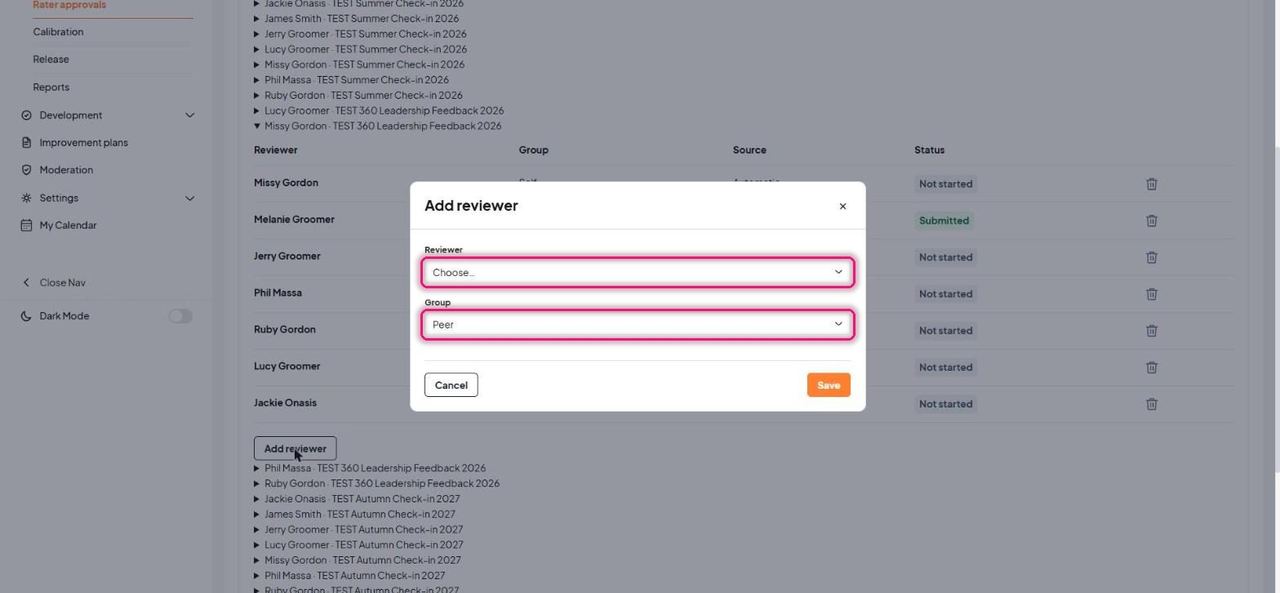
Choose the Reviewer and Group (Peer or Direct report) and click Save.
2. My performance
For: Everyone
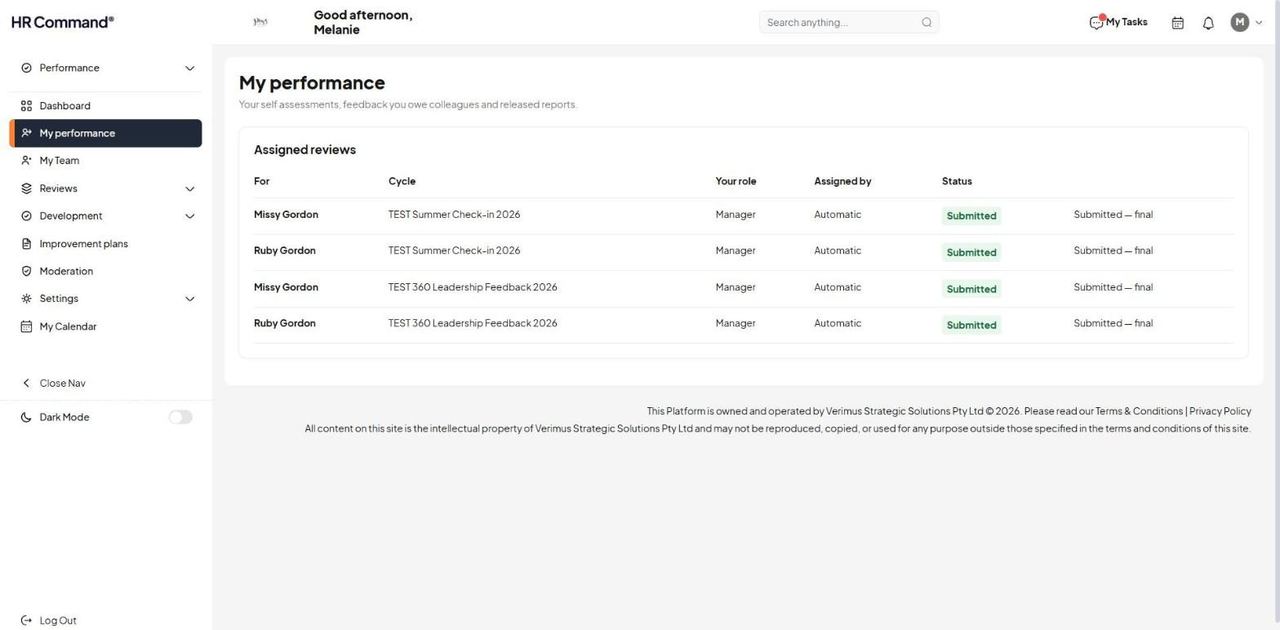
My performance lists your own self assessments, feedback you owe colleagues and your released reports. Each row shows who the review is for, the cycle, your role, who assigned it and its status.
3. Moderate comments
For: Moderator
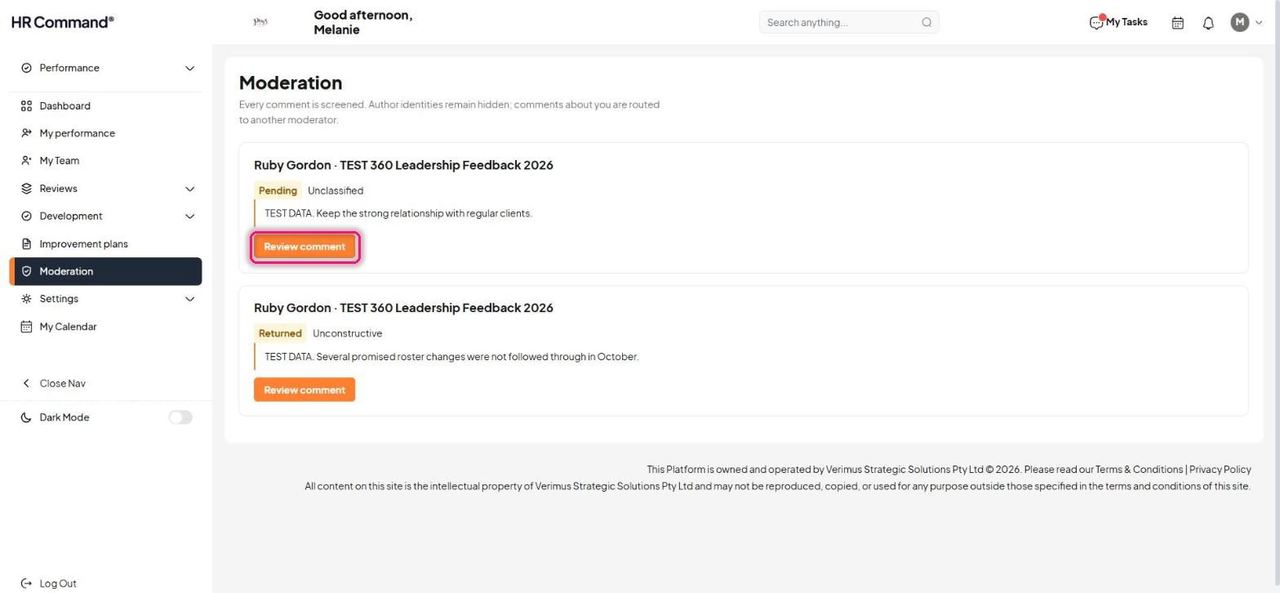
Every written comment is screened before anyone sees it. Author identities stay hidden, and comments about you go to another moderator.
Go to Moderation. Each comment shows the person, the cycle, its status (Pending or Returned) and its flag. Click Review comment.
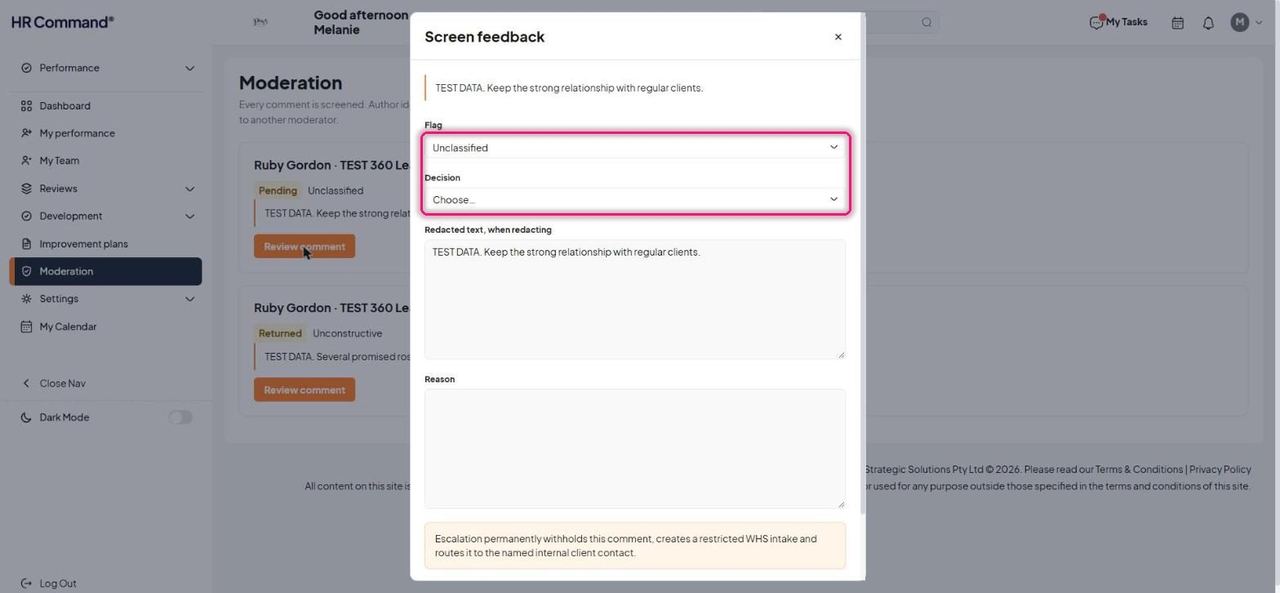
Set the Flag (Unclassified, Identifying, Third party, Unconstructive or Conduct) and the Decision (Released, Redacted, Removed, Returned or Escalated).
Good to know: Escalating permanently withholds the comment, creates a restricted WHS intake and routes it to the named internal client contact.
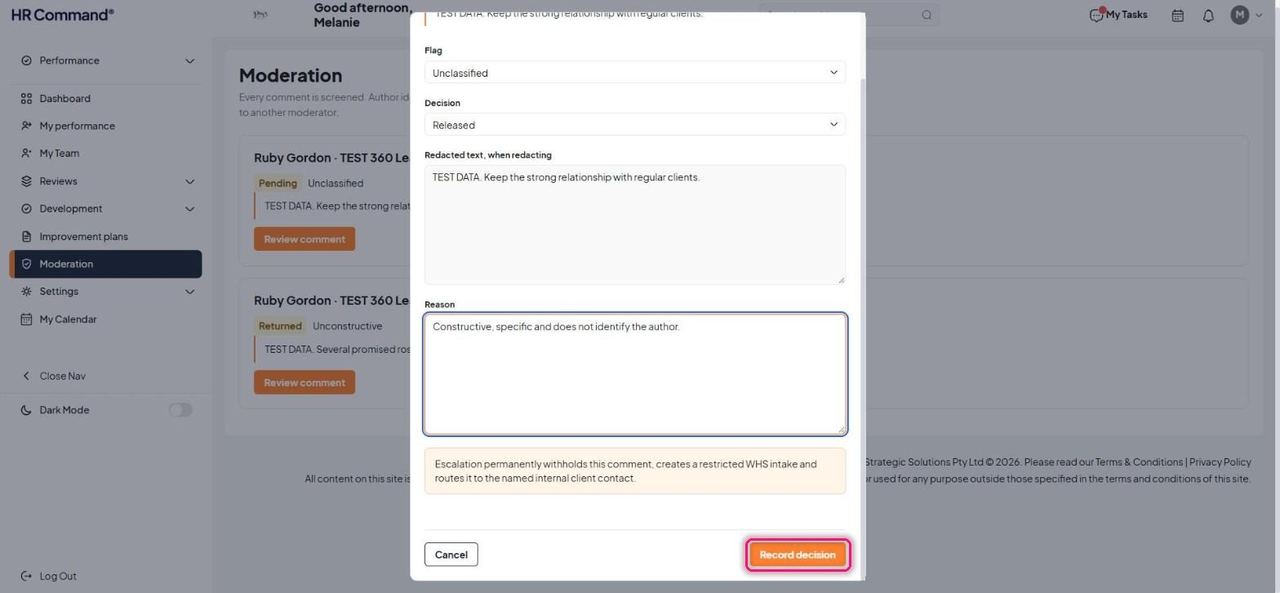
When redacting, edit the Redacted text. Enter a Reason, then click Record decision.
4. Calibration and reports
For: Admin
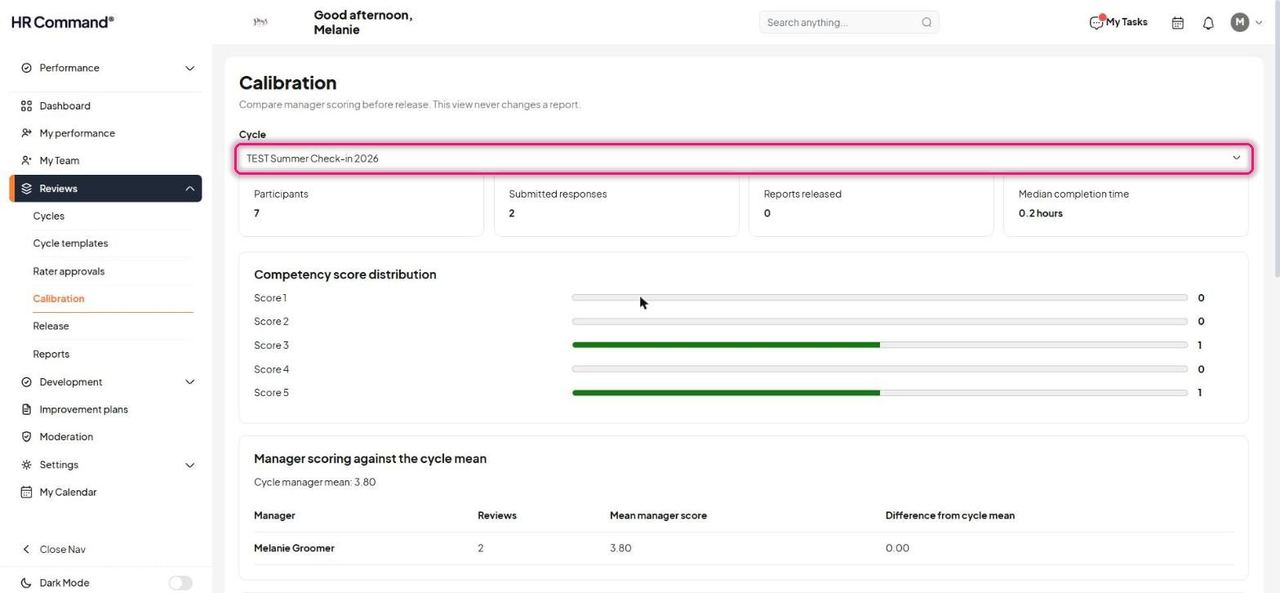
Go to Reviews then Calibration and choose a Cycle. Compare the score distribution and each manager's mean score against the cycle mean before anything is released.
Good to know: Calibration is read only. It never changes a report.
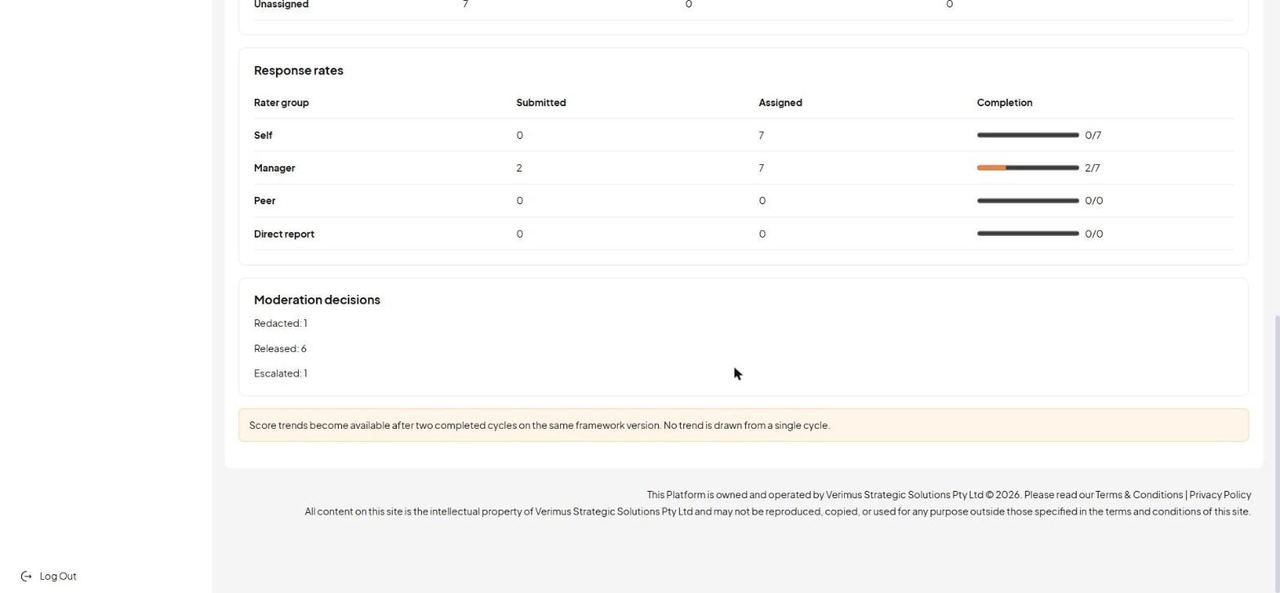
Further down: completion by department, response rates by rater group and a count of moderation decisions.
Good to know: Score trends appear after two completed cycles on the same framework version.
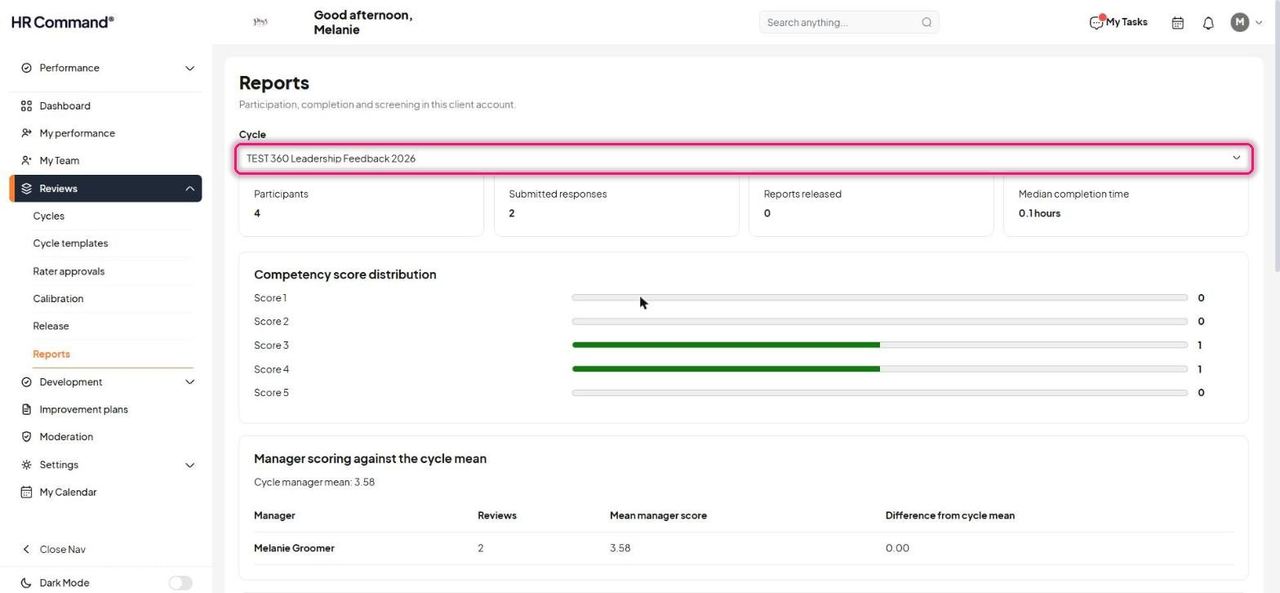
Reports shows participation, completion and screening for any cycle using the same measures.
5. Release reports
For: Admin, Manager
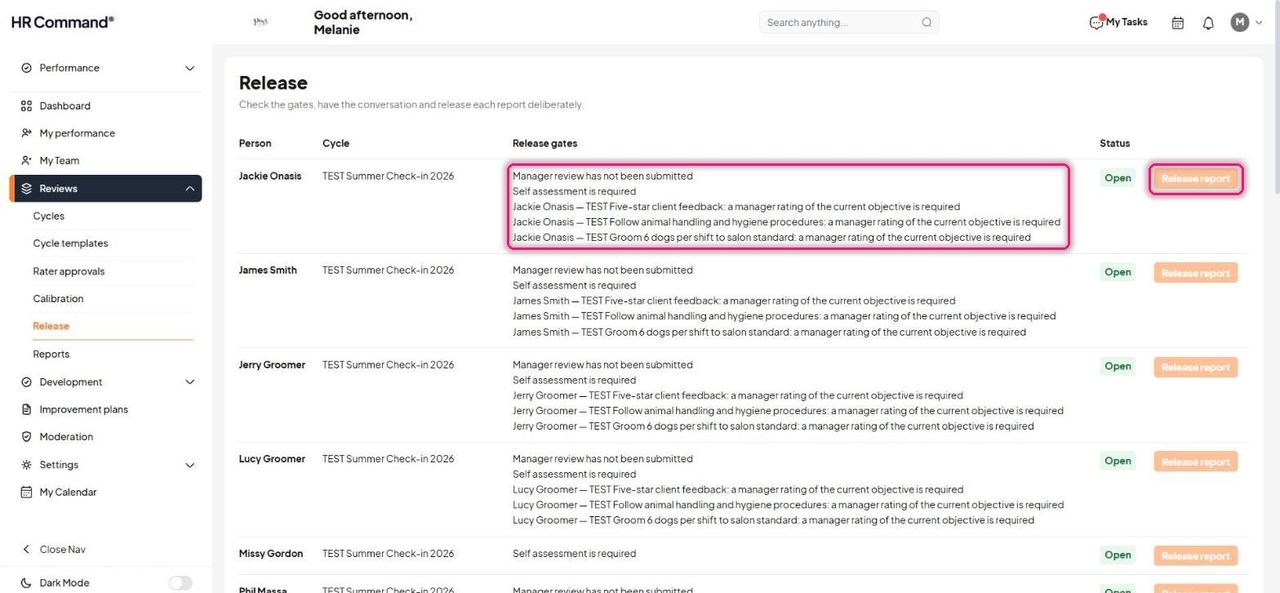
Go to Reviews then Release. Each person lists any Release gates still open, such as a missing manager review, self assessment or objective rating.
Good to know: Release report stays faded until every gate is cleared. Have the feedback conversation, then release each report deliberately.
Was this article helpful?
That’s Great!
Thank you for your feedback
Sorry! We couldn't be helpful
Thank you for your feedback
Feedback sent
We appreciate your effort and will try to fix the article