Learn how to build and distribute custom employee surveys through HR Command. This guide covers everything from adding specific questions to setting publishing schedules for your team communications.
1. Navigate to https://secure.hrcommand.com.au/
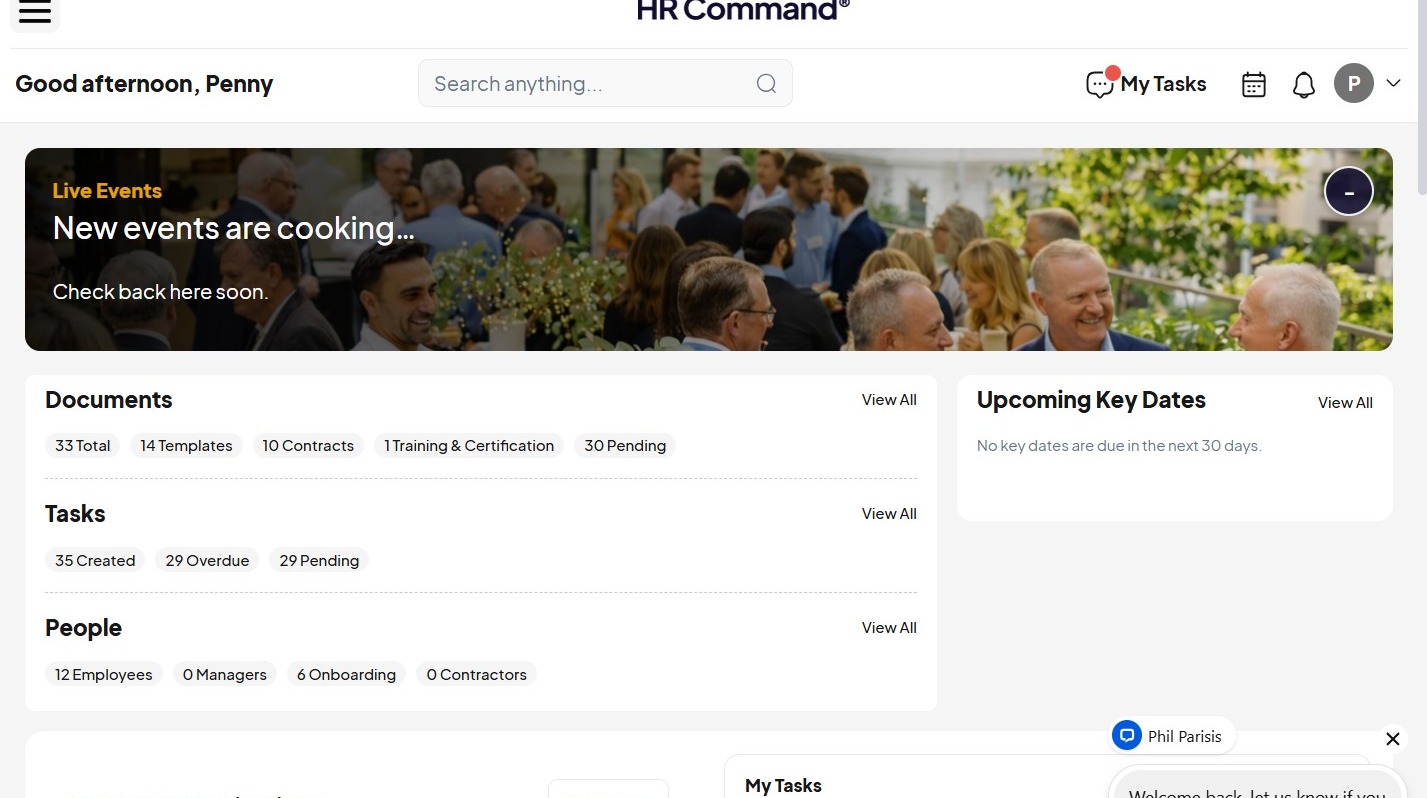
2. Click this icon.
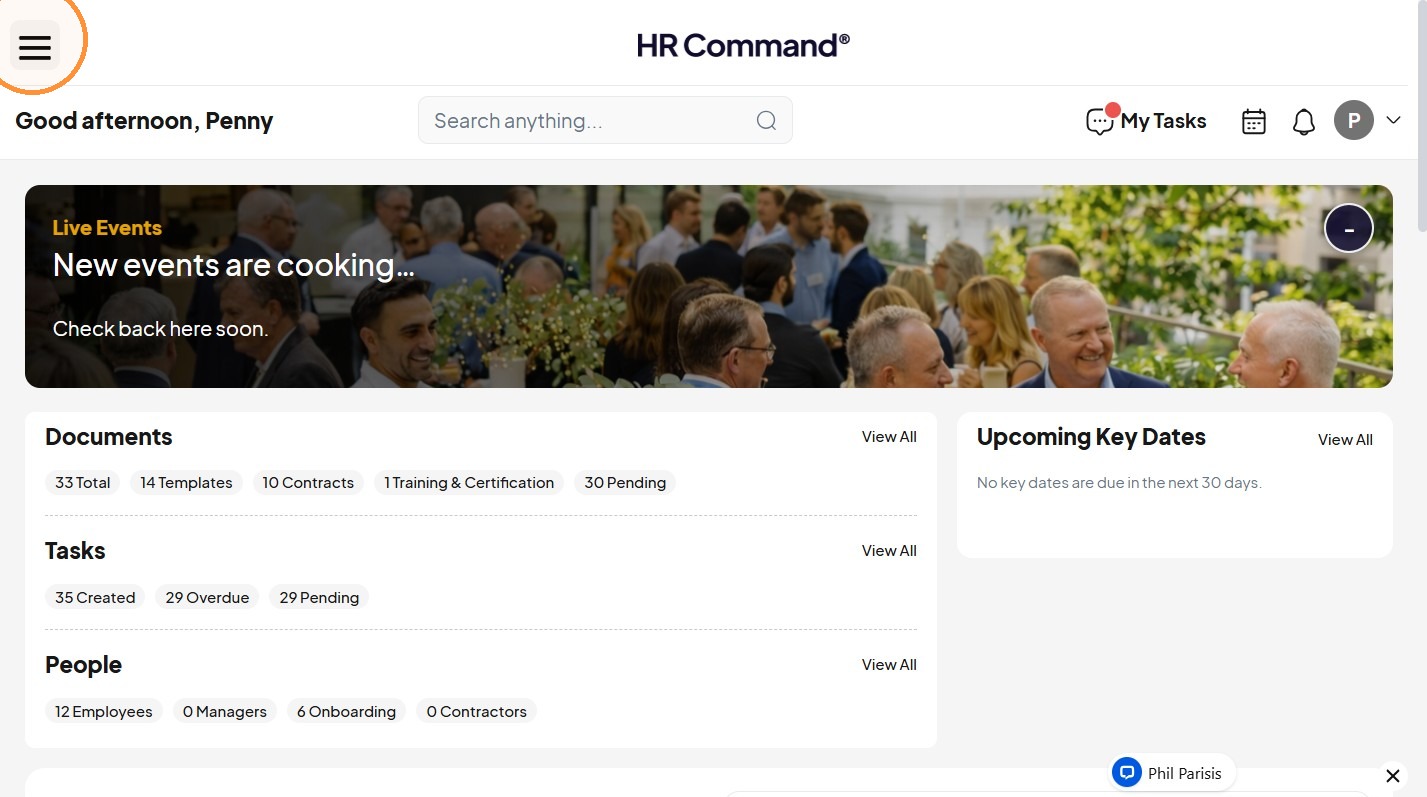
Open Communications
3. Click "Communications"
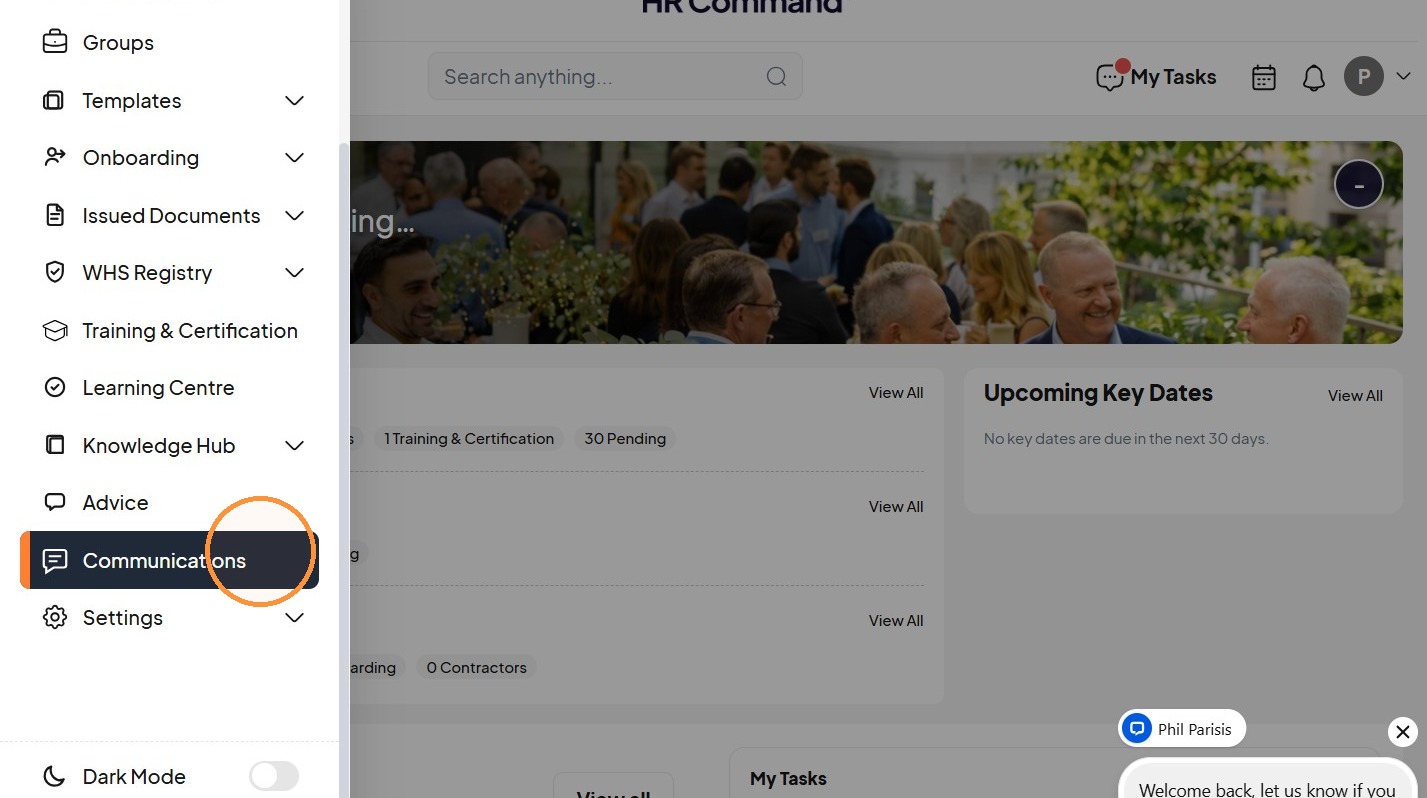
4. Click "Surveys"
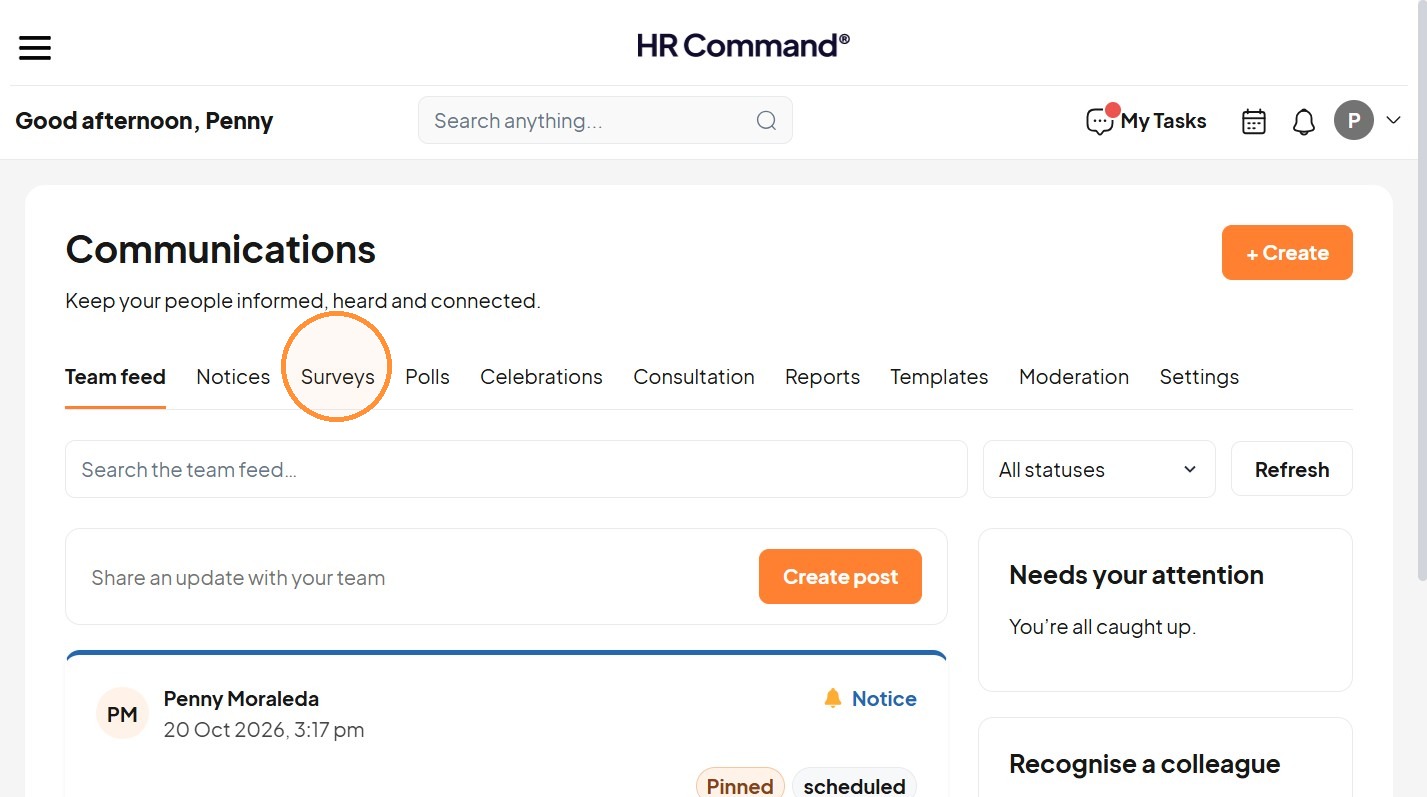
5. Click "+ Create"
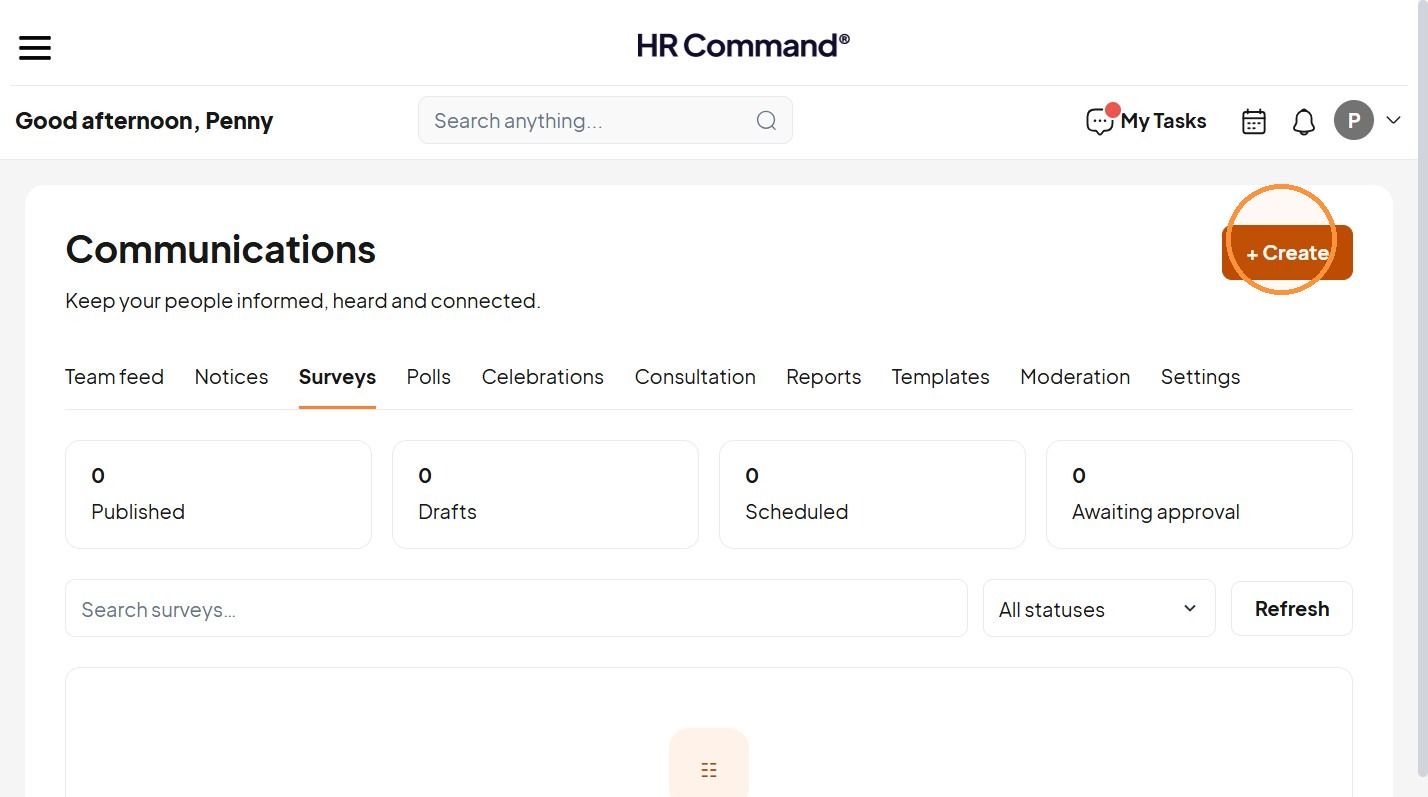
Survey Details
6. Choose “Survey”
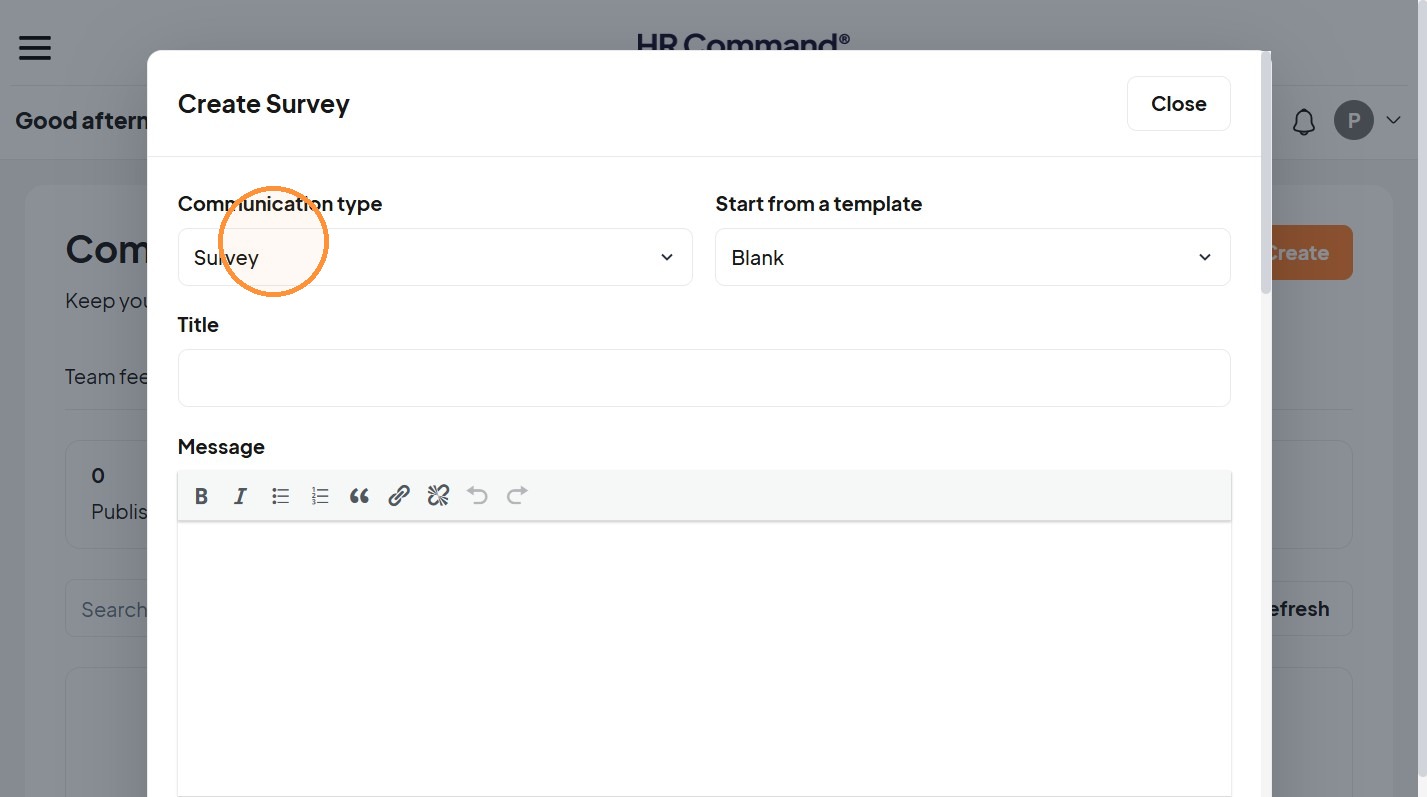
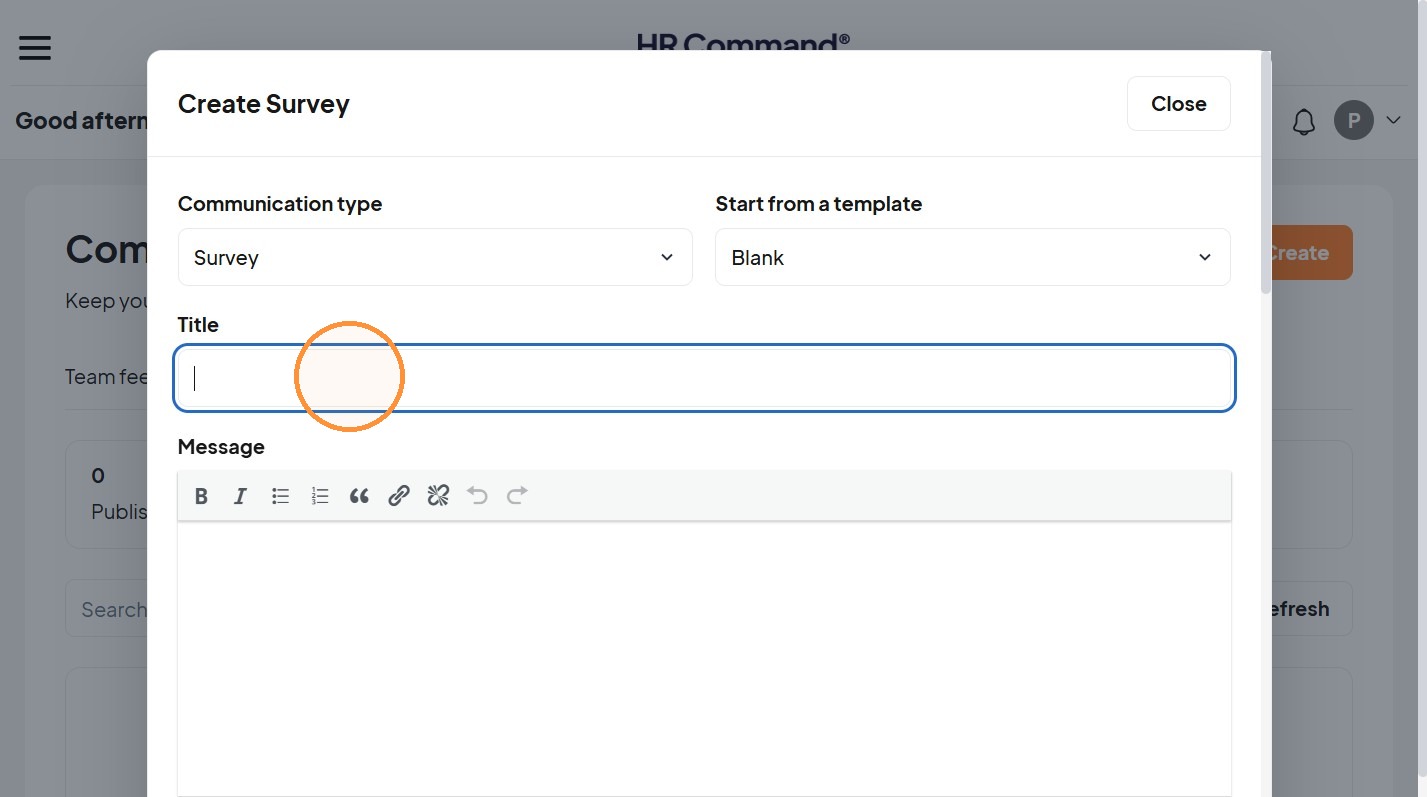
7. Add the title.
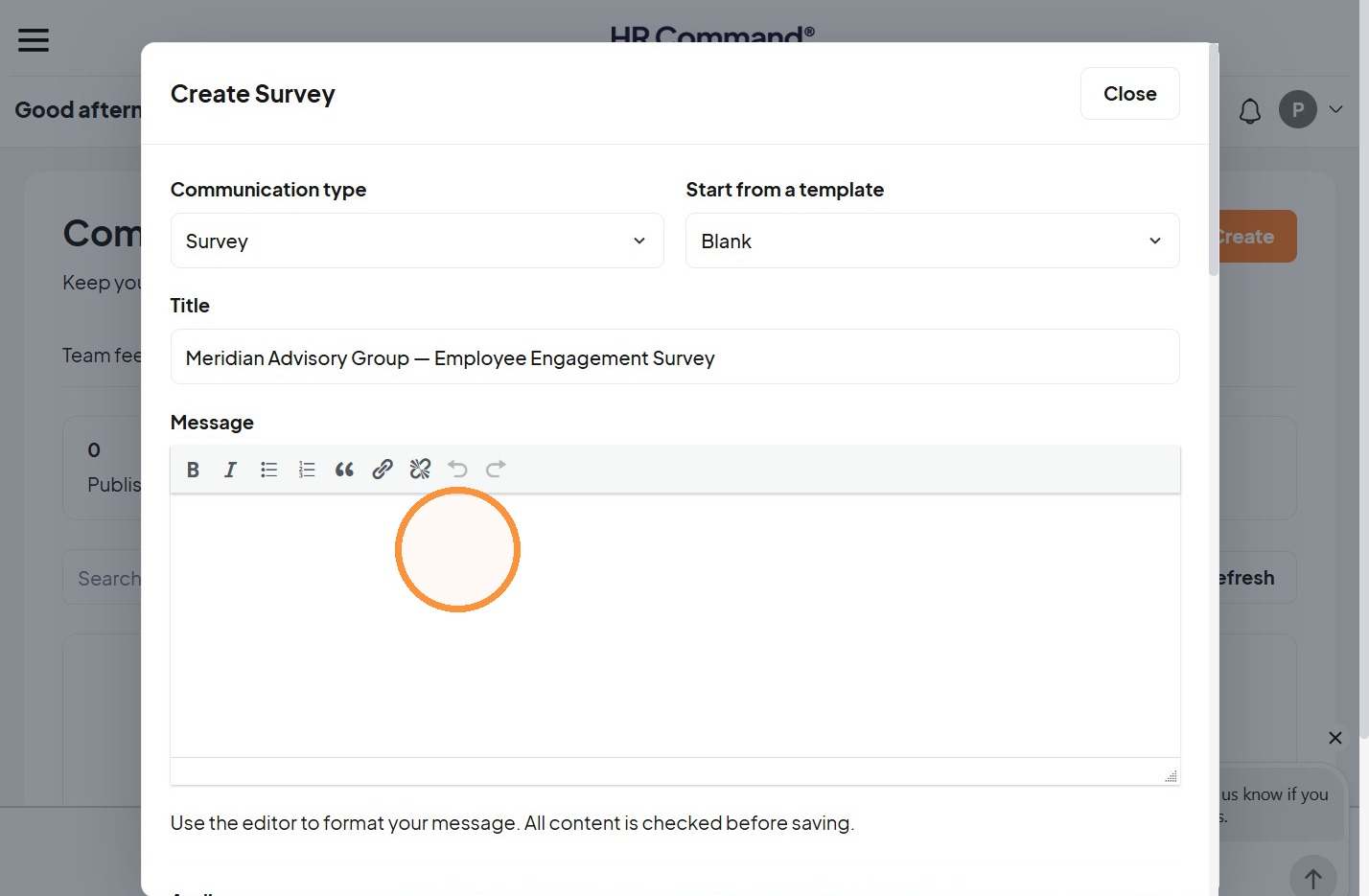
8. Add the introductory message.
9. Choose the audience.
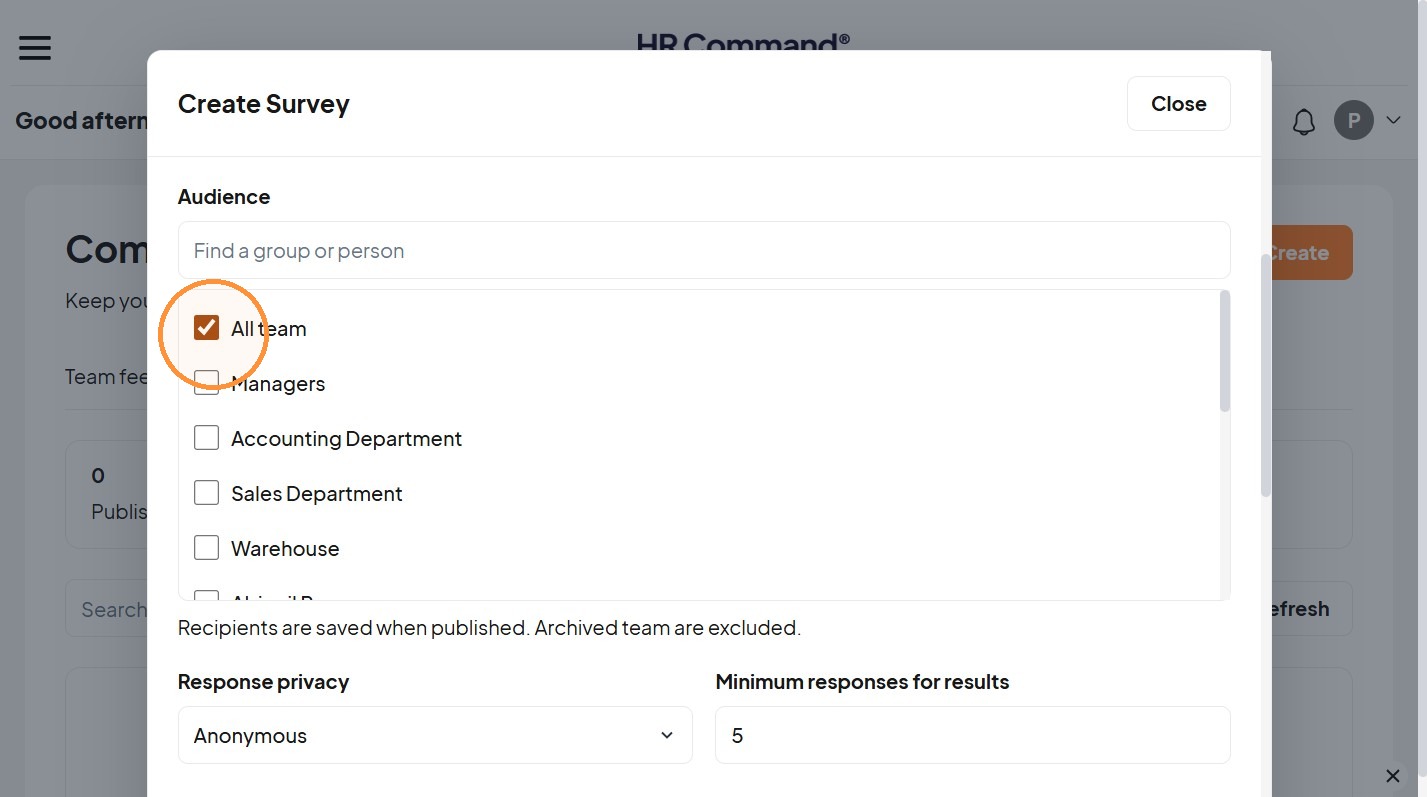
10. Set privacy. Choose “Anonymous”, “Confidential” or “Named”
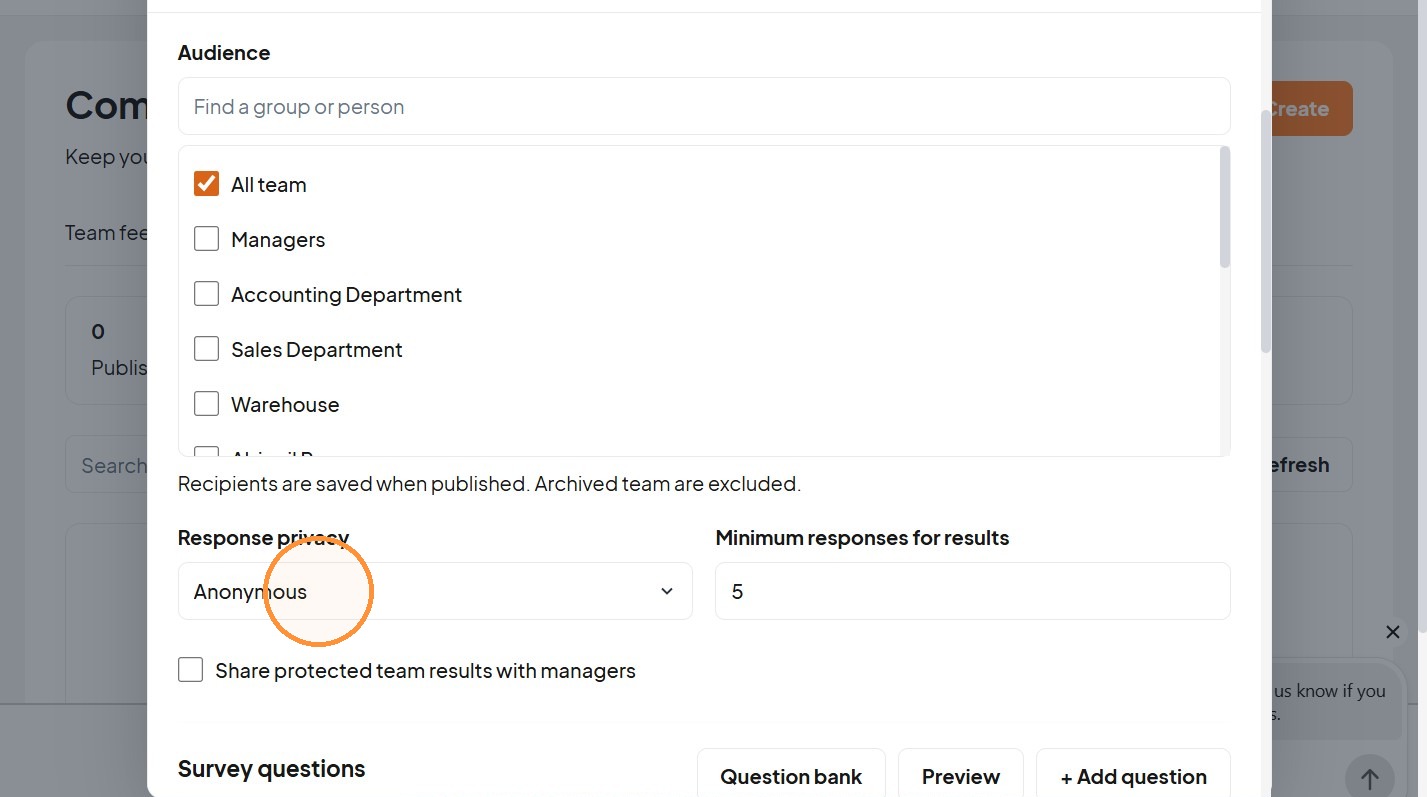
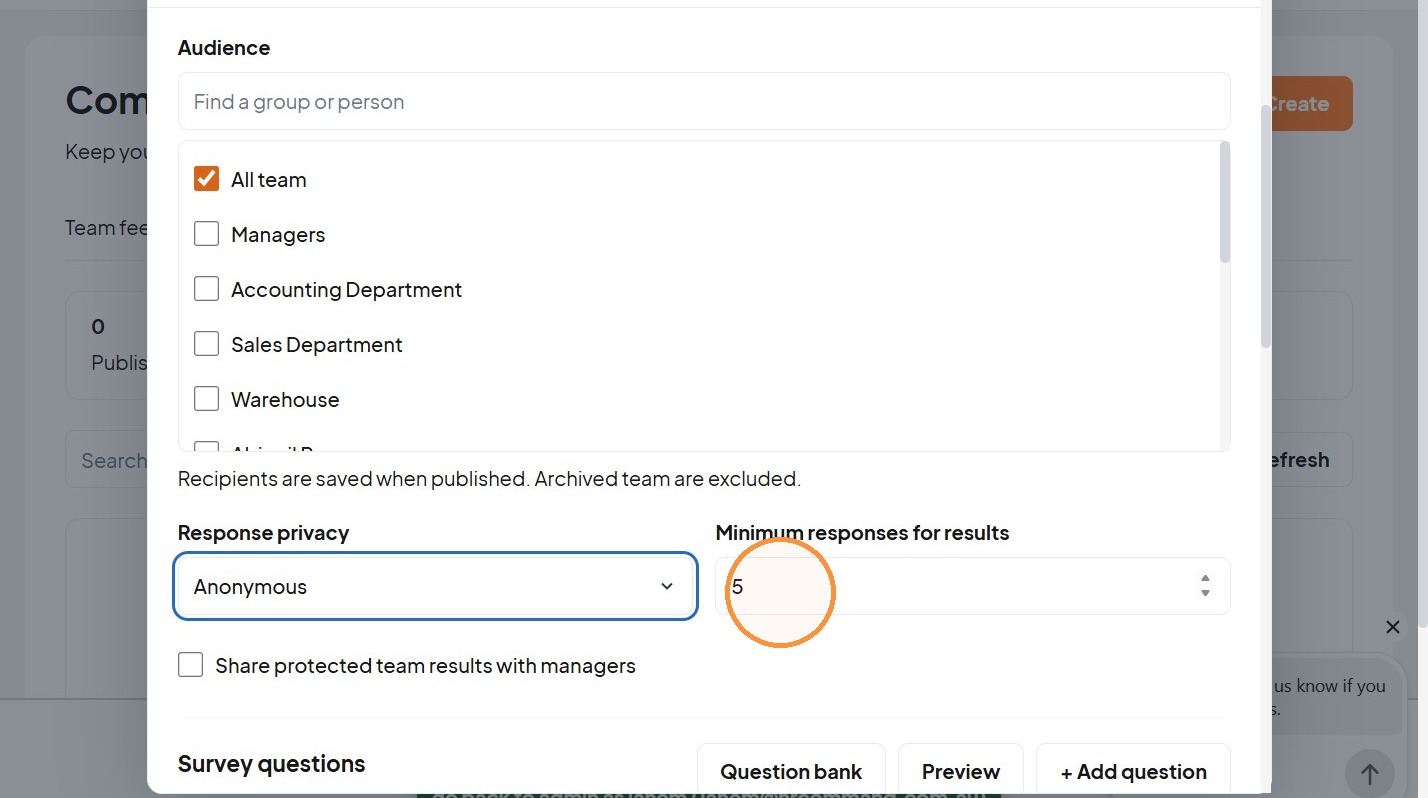
11. Set “Minimum responses for results” between 5 and 50.
Survey Questions
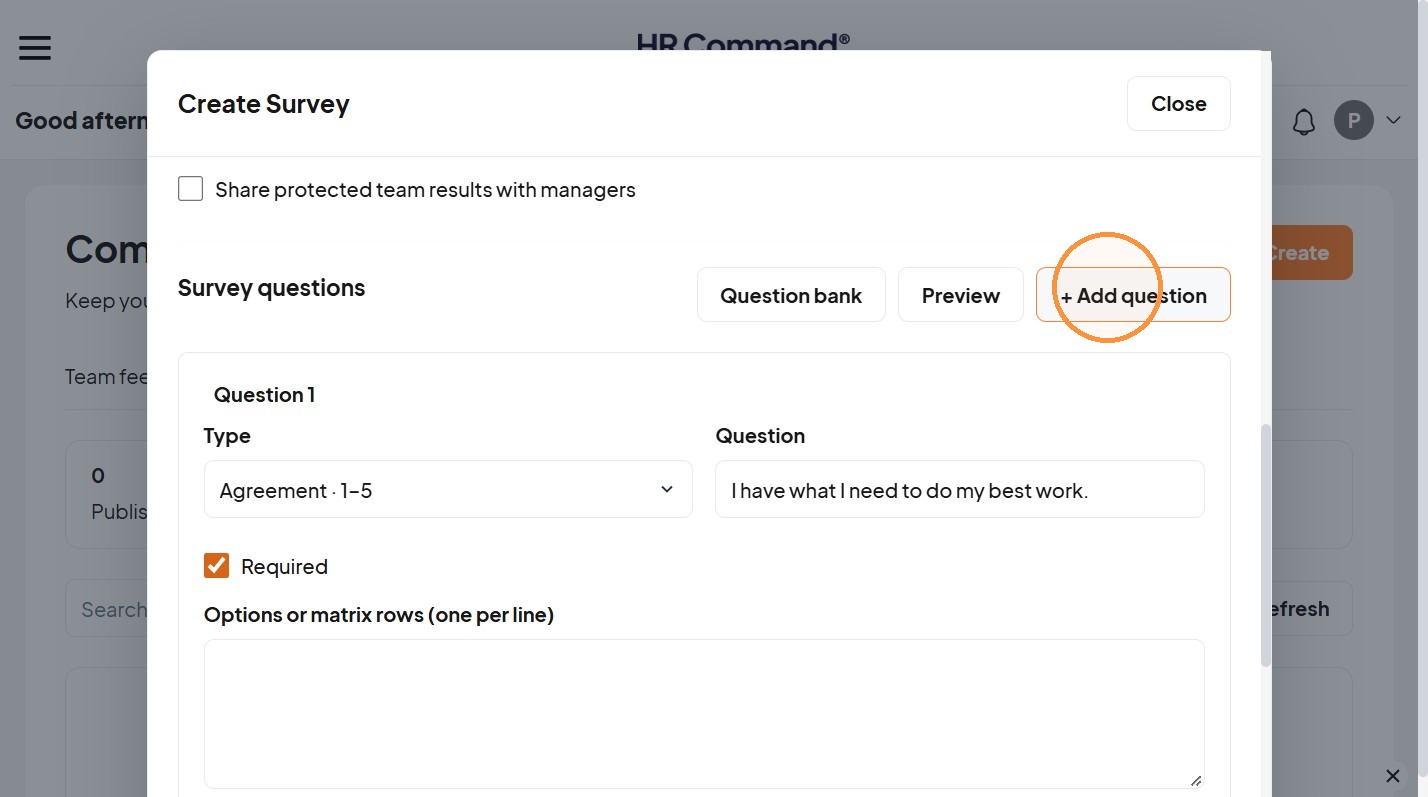
12. Select “+ Add question”
13. Or use the “Question bank”
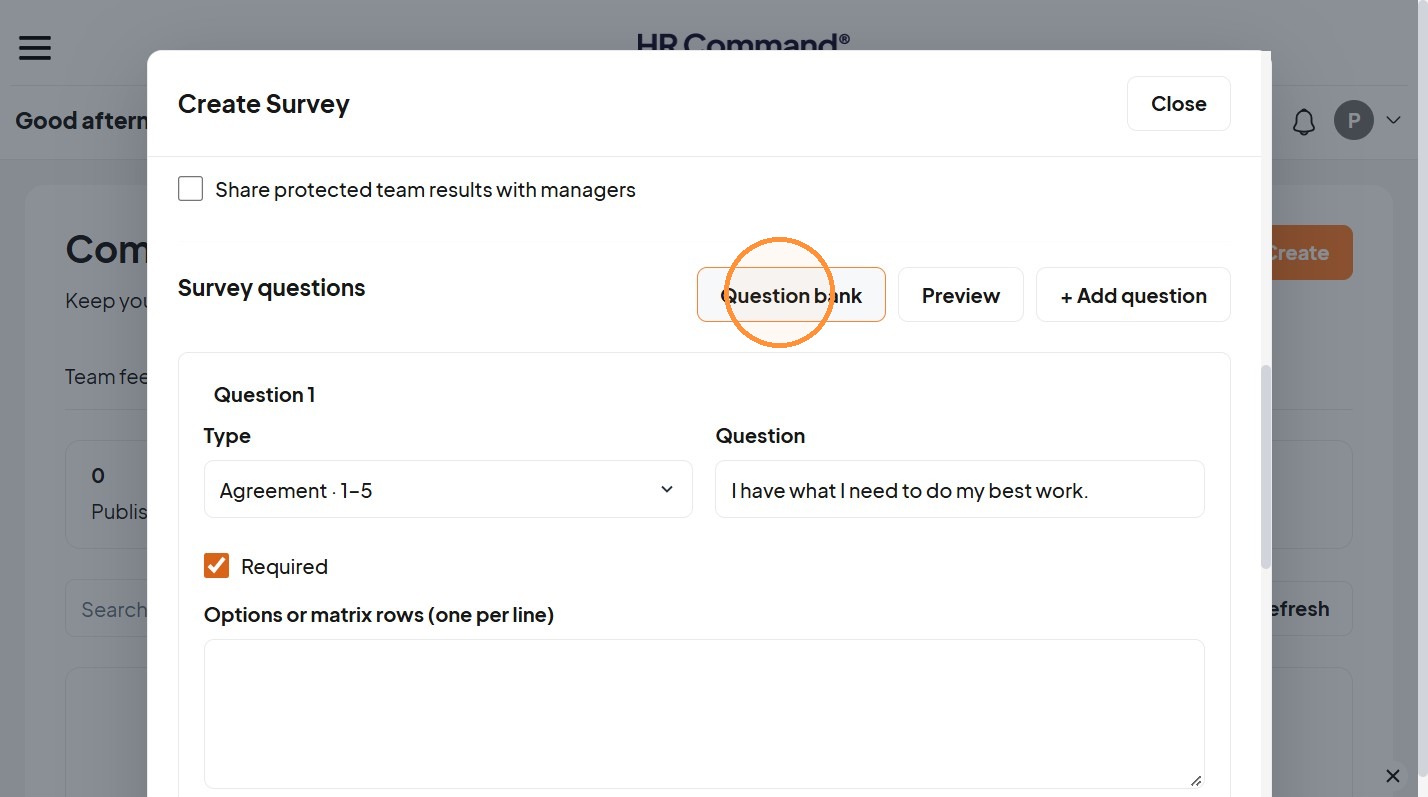
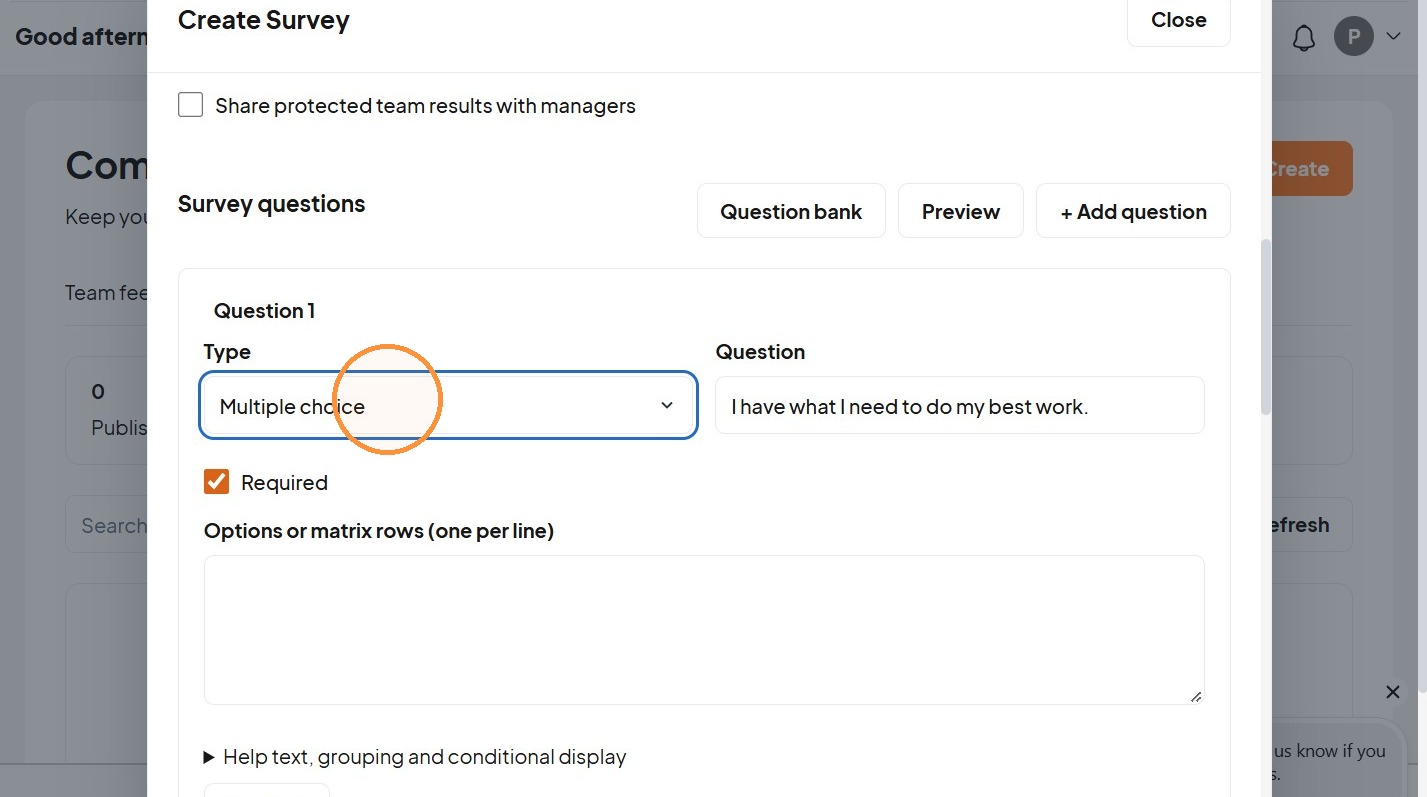
14. Choose the type: Five-point agreement scale, rating out of ten, eNPS, emoji scale, Yes/No, multiple choice, free text, ranking, matrix and date.
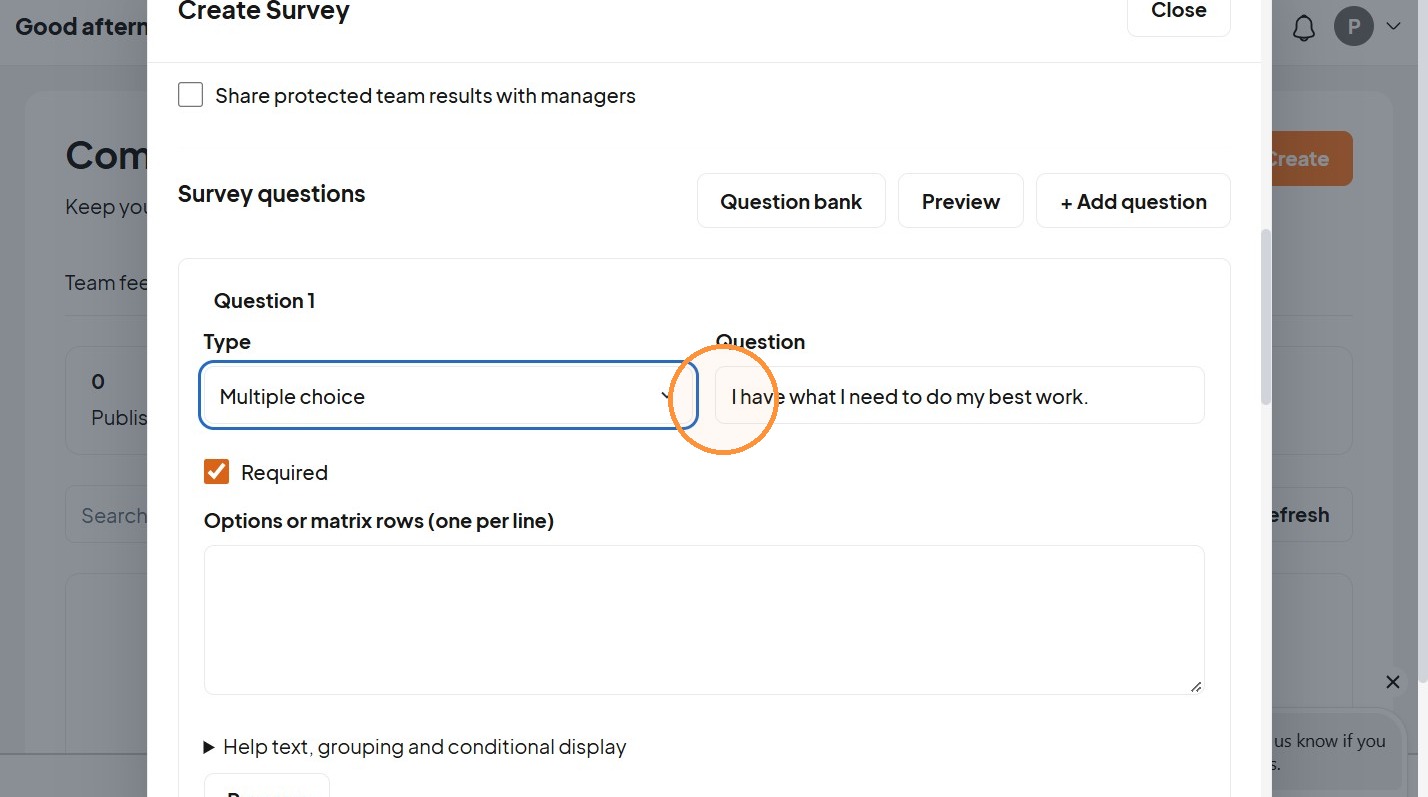
15. Write the question.
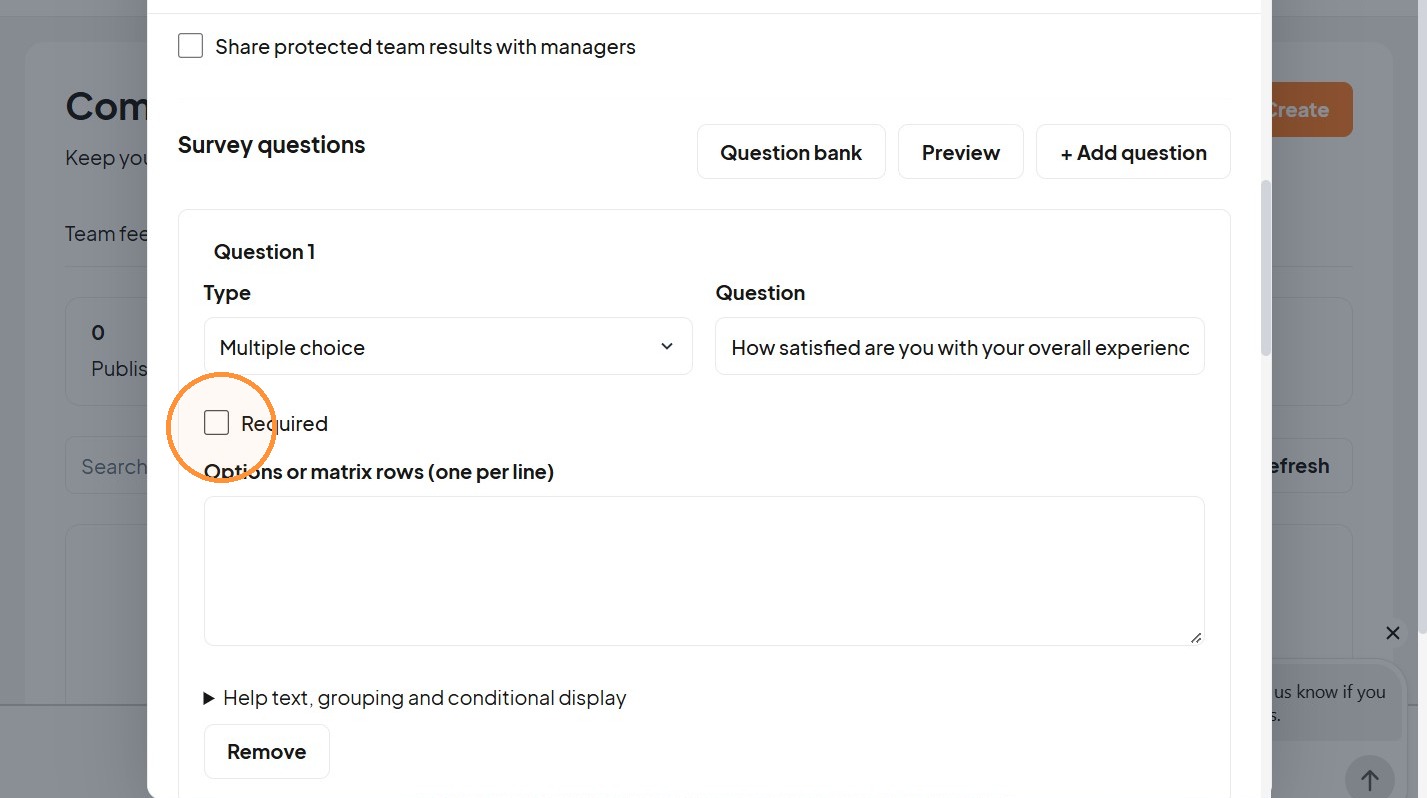
16. Mark it “Required” when appropriate.
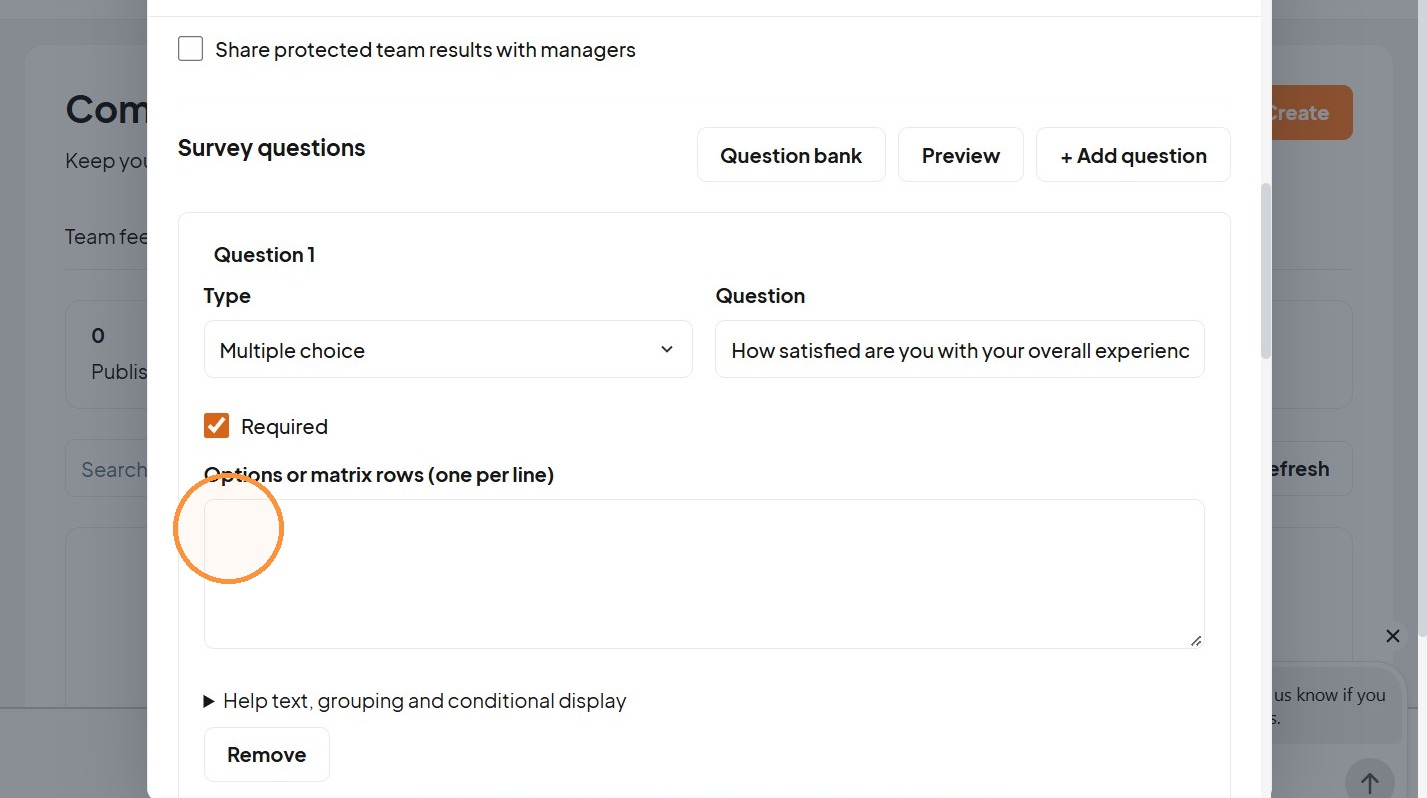
17. Add choice options or matrix rows one per line.
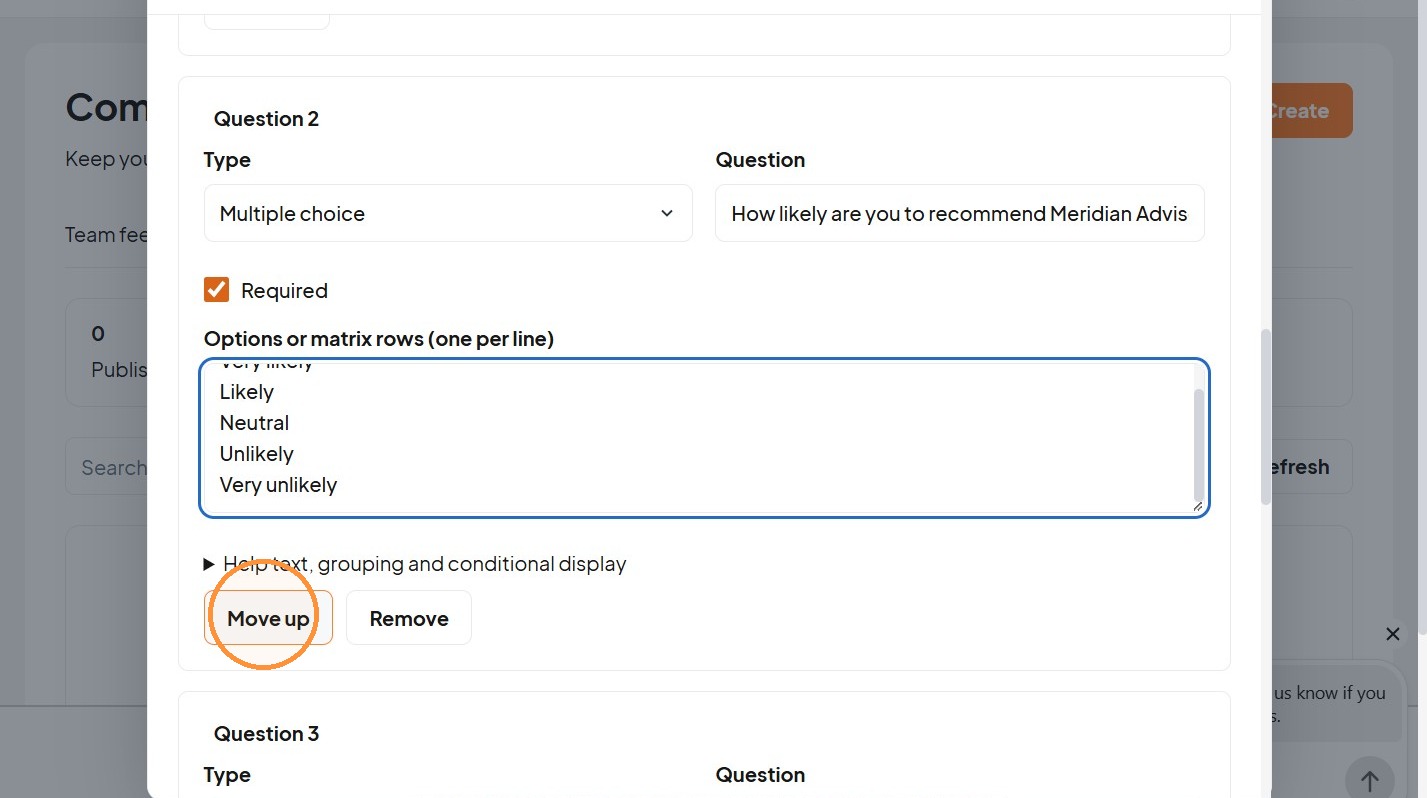
18. Use “Move up” when appropriate.
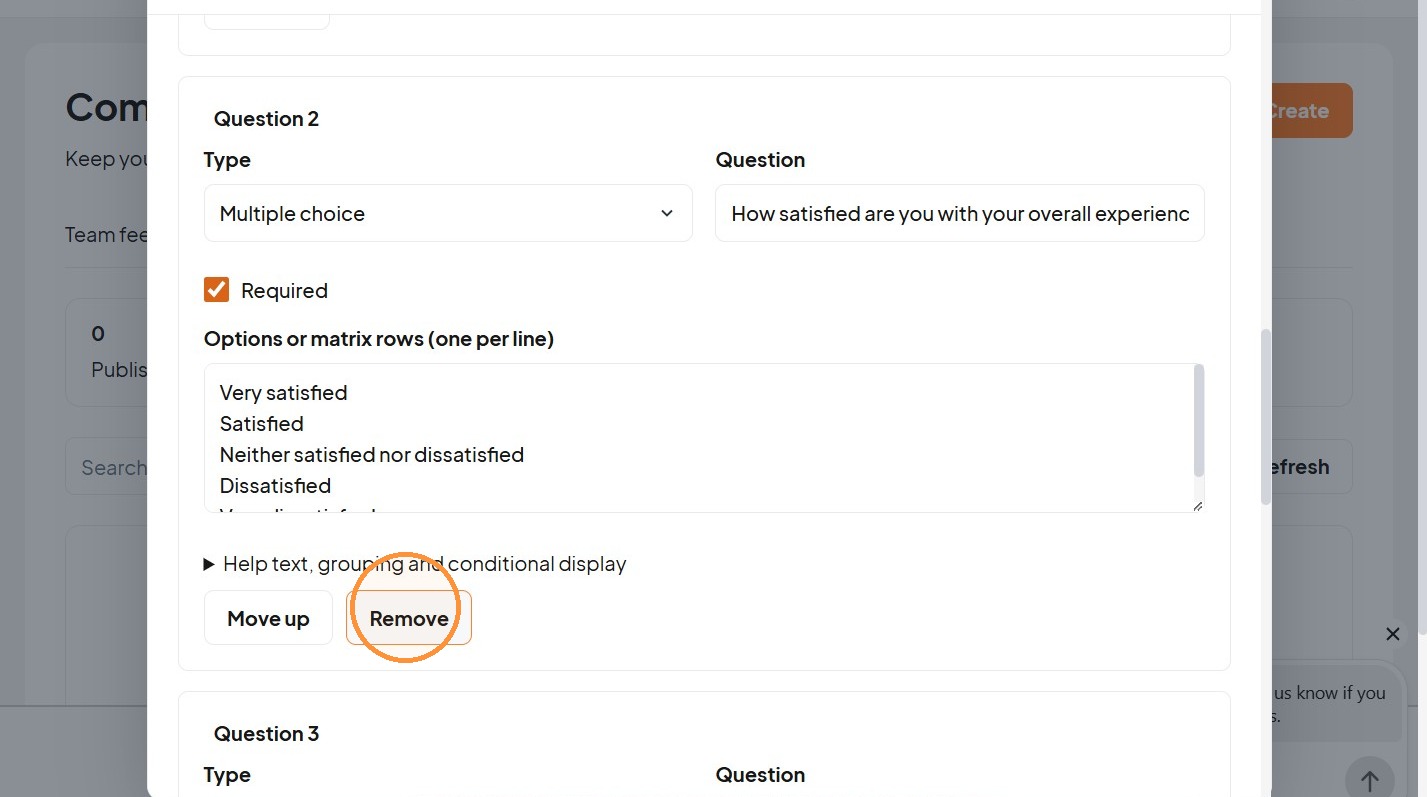
19. Use “Remove” when appropriate.
Publishing Settings
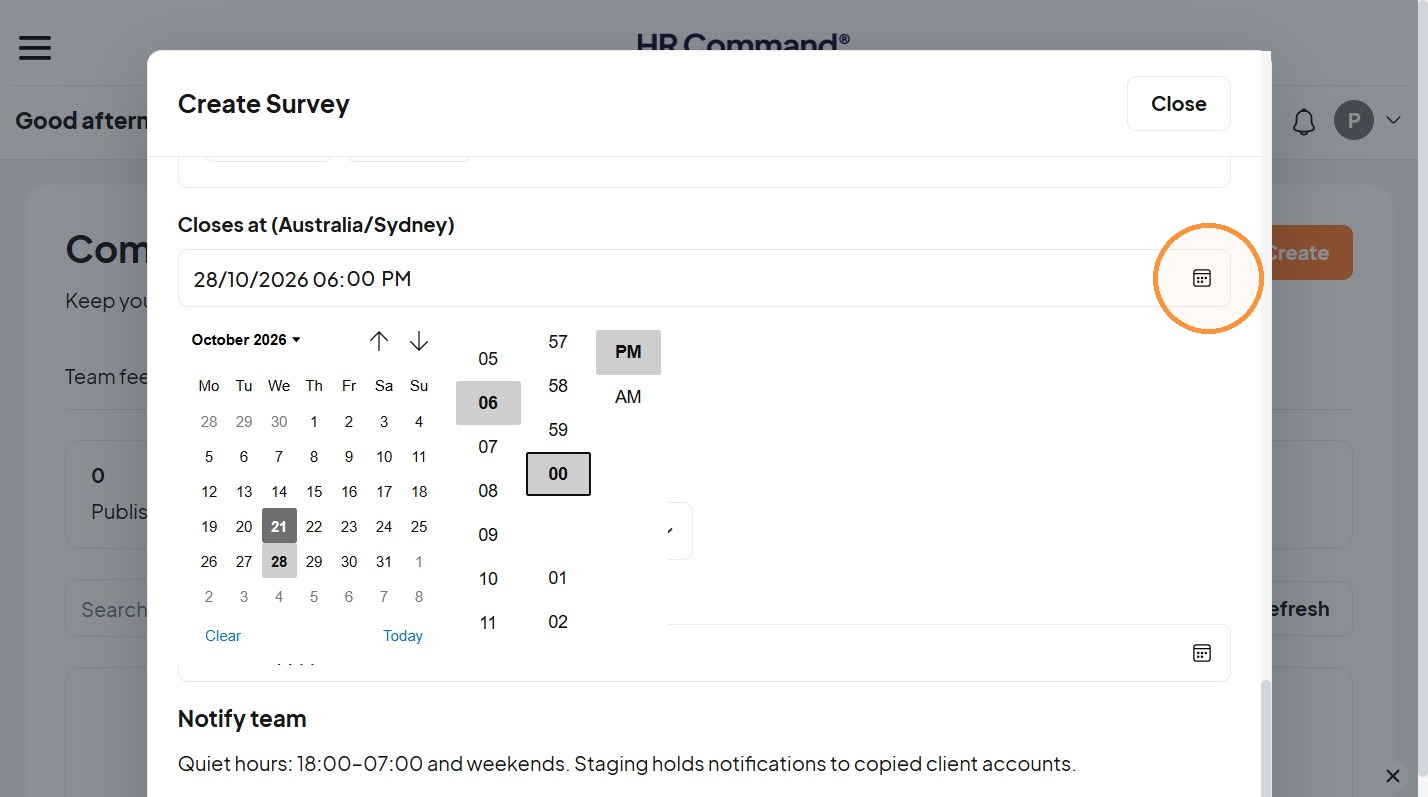
20. Enter “Closes at” in the displayed business timezone to set the closing time.
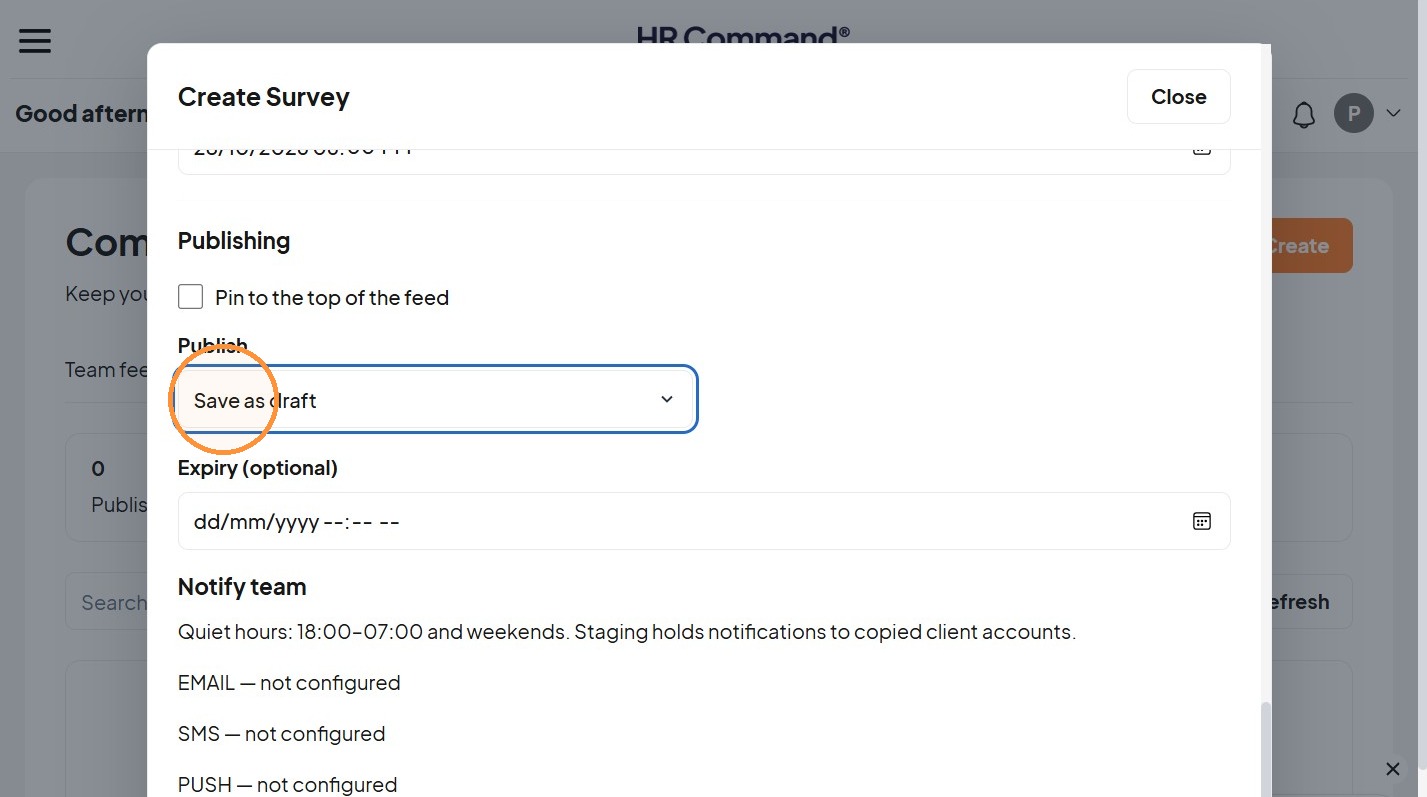
21. Choose “Save as draft”, “Publish now” or “Schedule”.
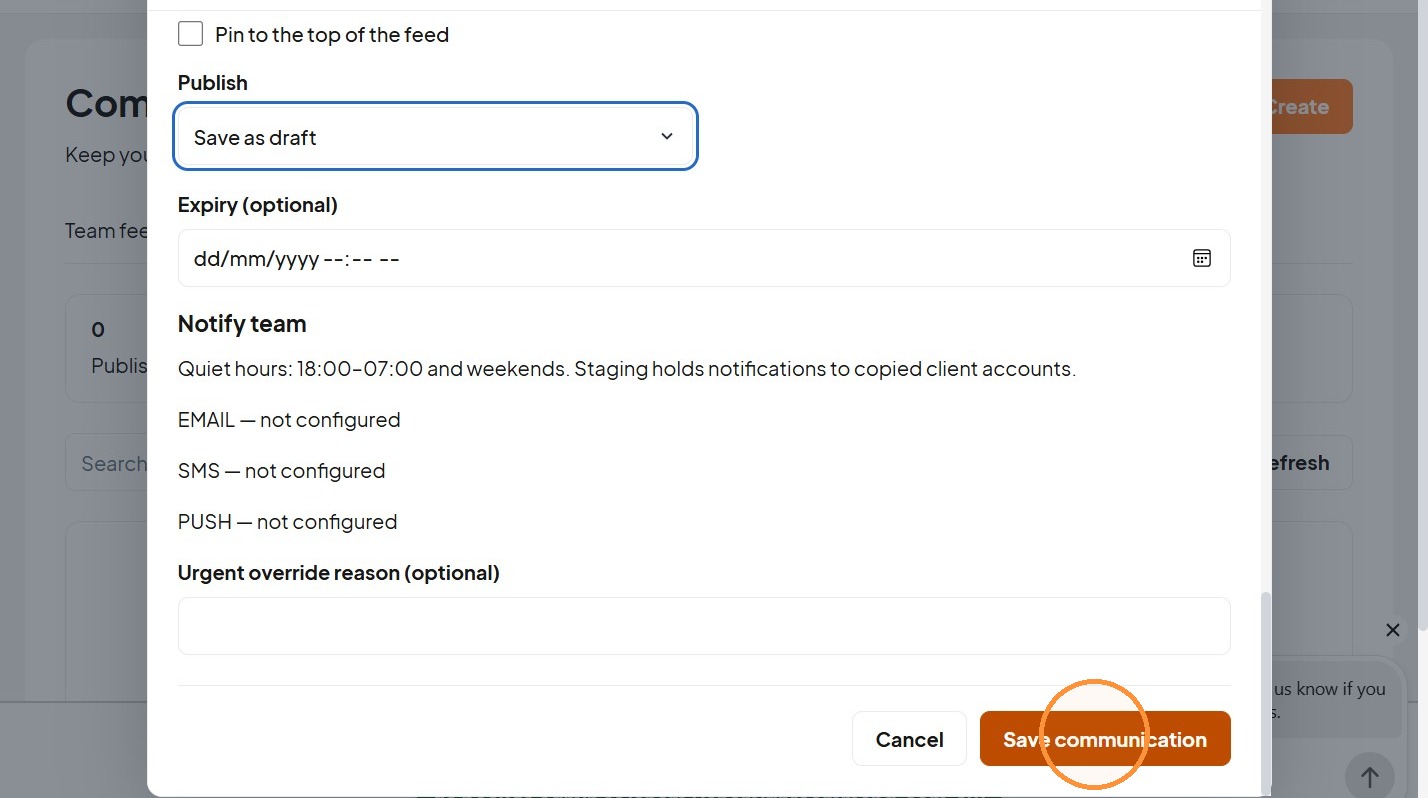
22. Click "Save communication"
Was this article helpful?
That’s Great!
Thank you for your feedback
Sorry! We couldn't be helpful
Thank you for your feedback
Feedback sent
We appreciate your effort and will try to fix the article